> ## Documentation Index
> Fetch the complete documentation index at: https://docs.base44.com/llms.txt
> Use this file to discover all available pages before exploring further.
# Setting up SSO for Okta
> Let your team sign in to your Base44 enterprise workspace with their Okta credentials.
Okta lets your team sign in to your Base44 enterprise workspace with their existing Okta credentials. You create an OpenID Connect (OIDC) application in Okta, allow Base44 to use it, then add its details to your workspace.
**Important:**
* Workspace single sign-on is available on enterprise workspaces only. If you do not see this option, contact your Base44 account team.
* To add and update members automatically, use [SCIM provisioning for Okta](/Enterprise/Okta-SCIM).
***
## How it works
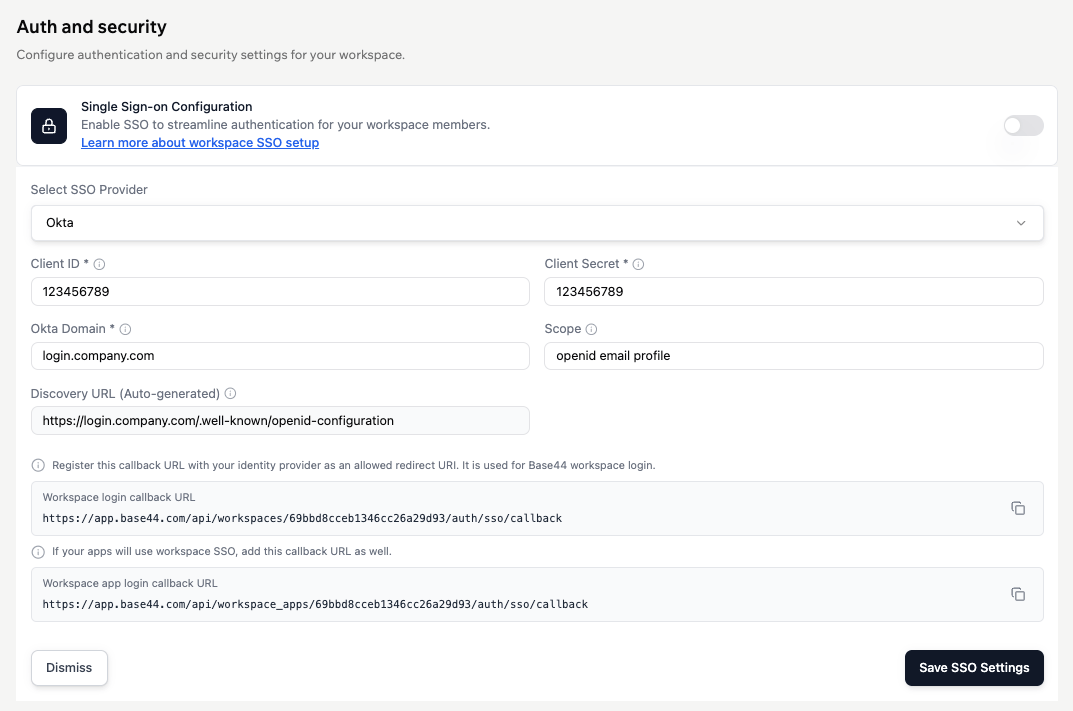
Base44 signs your team in through Okta using OIDC. To do this, you need to create an OIDC app in Okta, then enter 3 values into your Base44 workspace under **Settings** > **Auth and security**:
* **Client ID:** From your Okta app.
* **Client Secret:** From your Okta app.
* **Okta domain:** Your Okta subdomain (for example, `your-company`), or your full custom Okta URL domain if you have one (for example, `login.your-company.com`).
The steps below walk you through creating the app in Okta and finding each value. Base44 fills in the **Scope** and, in most cases, the **Discovery URL** for you.
 ***
## Setting up single sign-on
Follow these steps to create the Okta app, allow Base44 to use it, and connect it to your Base44 workspace.
**Before you begin,** make sure you have:
* Owner or admin access to your Base44 enterprise workspace.
* Admin access to your Okta organization.
* Your **workspace ID**, the string of characters after `/workspace/` in your enterprise workspace URL.
* Your **Okta domain**. Use your subdomain (for example, `your-company`), or your full custom Okta URL domain if your team signs in through one (for example, `login.your-company.com`).
### Step 1: Create an OIDC app
Create the OIDC application that represents Base44 sign-in.
**To create the app:**
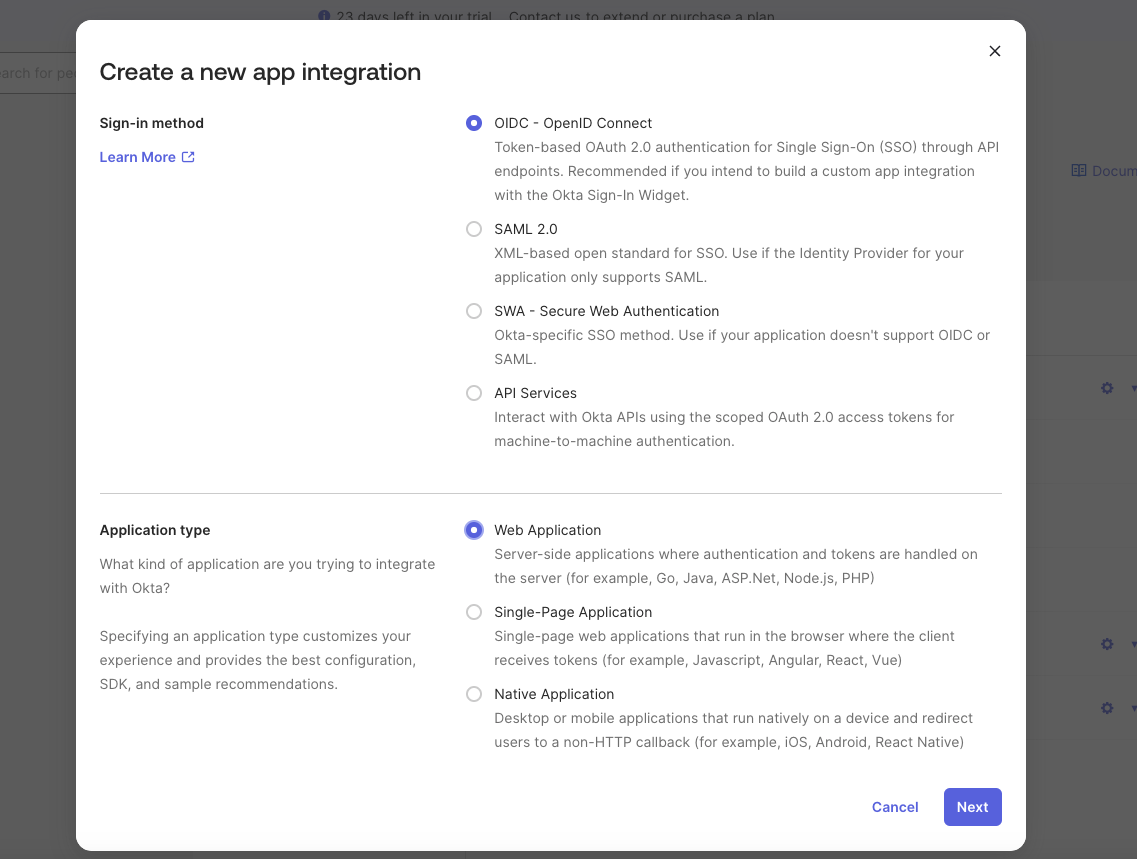
1. In the Okta Admin Console, go to **Applications** > **Applications**, then click **Create App Integration**.
2. Set **Sign-in method** to **OIDC - OpenID Connect**.
3. Set **Application type** to **Web Application**.
4. Click **Next**.
***
## Setting up single sign-on
Follow these steps to create the Okta app, allow Base44 to use it, and connect it to your Base44 workspace.
**Before you begin,** make sure you have:
* Owner or admin access to your Base44 enterprise workspace.
* Admin access to your Okta organization.
* Your **workspace ID**, the string of characters after `/workspace/` in your enterprise workspace URL.
* Your **Okta domain**. Use your subdomain (for example, `your-company`), or your full custom Okta URL domain if your team signs in through one (for example, `login.your-company.com`).
### Step 1: Create an OIDC app
Create the OIDC application that represents Base44 sign-in.
**To create the app:**
1. In the Okta Admin Console, go to **Applications** > **Applications**, then click **Create App Integration**.
2. Set **Sign-in method** to **OIDC - OpenID Connect**.
3. Set **Application type** to **Web Application**.
4. Click **Next**.
 ### Step 2: Configure the app
Set the app name, redirect URIs, and who can use it.
**To configure the app:**
1. Enter an **App name**, for example `Base44 - your workspace name`.
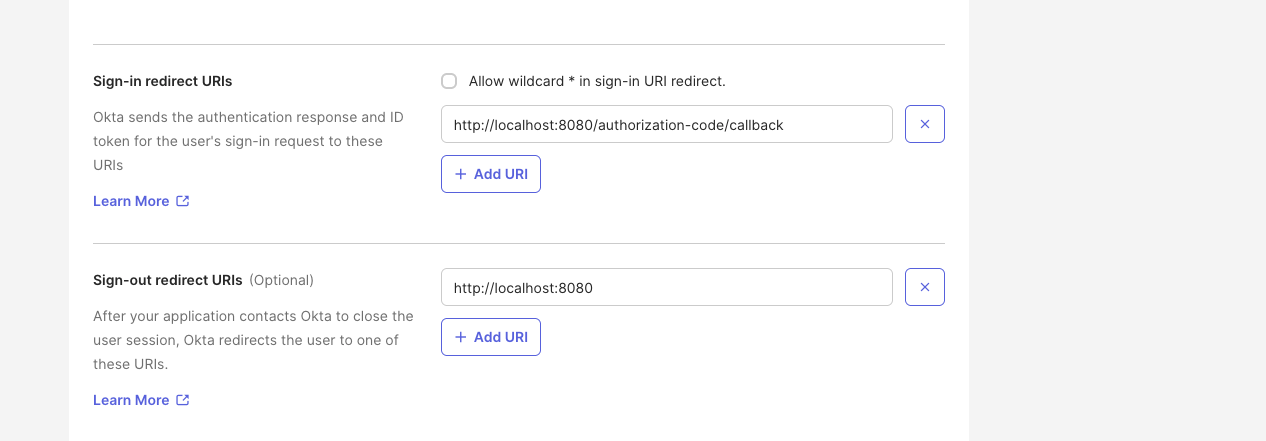
2. Under **Sign-in redirect URIs**, add your workspace login callback URL, replacing `{{WORKSPACE_ID}}` with your workspace ID: `https://app.base44.com/api/workspaces/{{WORKSPACE_ID}}/auth/sso/callback`. If your apps will also use workspace SSO, add the workspace app login callback URL too: `https://app.base44.com/api/workspace_apps/{{WORKSPACE_ID}}/auth/sso/callback`. Base44 shows both URLs in the SSO configuration panel so you can copy them.
3. Under **Sign-out redirect URIs**, add `https://app.base44.com`.
4. Under **Controlled access**, choose who can use the app, for example **Allow everyone in your organization to access**.
5. Click **Save**.
### Step 2: Configure the app
Set the app name, redirect URIs, and who can use it.
**To configure the app:**
1. Enter an **App name**, for example `Base44 - your workspace name`.
2. Under **Sign-in redirect URIs**, add your workspace login callback URL, replacing `{{WORKSPACE_ID}}` with your workspace ID: `https://app.base44.com/api/workspaces/{{WORKSPACE_ID}}/auth/sso/callback`. If your apps will also use workspace SSO, add the workspace app login callback URL too: `https://app.base44.com/api/workspace_apps/{{WORKSPACE_ID}}/auth/sso/callback`. Base44 shows both URLs in the SSO configuration panel so you can copy them.
3. Under **Sign-out redirect URIs**, add `https://app.base44.com`.
4. Under **Controlled access**, choose who can use the app, for example **Allow everyone in your organization to access**.
5. Click **Save**.
 ### Step 3: Get your credentials
Base44 needs 3 values to connect to your Okta app.
* **Client ID:** On the app's **General** tab.
* **Client Secret:** On the app's **General** tab.
* **Okta domain:** Your Okta subdomain (for example, `your-company`). If your team signs in through a custom Okta URL domain, enter that full domain instead (for example, `login.your-company.com`).
### Step 4: Allow Base44 in your authorization server
Okta only issues tokens to apps that an authorization server policy allows.
**To add an access policy rule:**
1. Go to **Security** > **API** > **Authorization Servers**, then open the **default** server.
2. On the **Access Policies** tab, click **Add Rule**, or edit an existing rule.
3. Name the rule (for example, `Allow Base44`), set the grant type to **Authorization Code**, and apply it to your Base44 app (or all clients), all users, and any scopes.
4. Click **Create Rule**.
In your Base44 app's **General** tab in Okta, turn **Federation Broker Mode** off. With it on, sign-in can fail with "You are not allowed to access this app."
### Step 5: Add your details in Base44
Add the OIDC app credentials to your workspace.
**To configure SSO in Base44:**
1. Click your workspace name at the top left of your account.
2. Click **Settings**.
3. Click **Auth and security**.
4. Enable the toggle next to **Single Sign-On Configuration**.
5. In **Select SSO Provider**, choose **Okta**.
6. Enter your **Client ID**, **Client Secret**, and **Okta Domain**. Use your subdomain (for example, `your-company`), or your full custom Okta URL domain if you have one (for example, `login.your-company.com`).
7. Keep **Scope** as `openid email profile`.
8. The **Discovery URL** fills in automatically from the Okta Domain you entered, including a custom Okta URL domain, and cannot be edited here.
9. Click **Enable SSO**.
Some Okta orgs do not return the `email` claim on the default authorization server, so sign-in fails with `Email not returned by OAuth provider`. Because the built-in **Discovery URL** is read-only, set Okta up through **Advanced / Manual configuration** instead and enter the Discovery URL by hand: point Base44 at your Okta authorization server with `https://your-domain.okta.com/oauth2/default/.well-known/openid-configuration`. If your org does not have a custom authorization server, that address returns a 404, so use `https://your-domain.okta.com/.well-known/openid-configuration` and map the `email` claim in your Okta app profile.
### Step 6: Assign users
Your team can sign in once you assign them to your Okta app.
**To assign users:**
1. In your Okta app, go to the **Assignments** tab.
2. Click **Assign**, then **Assign to People** or **Assign to Groups**.
3. Select the users or groups that should be able to sign in, then click **Assign** and **Save and Go Back**.
To add and update members automatically instead of assigning them by hand, set up [SCIM provisioning for Okta](/Enterprise/Okta-SCIM).
***
## FAQs
Select a question below to learn more about Okta SSO.
Add an access policy rule on the default authorization server (Step 4), turn off **Federation Broker Mode** in the app's **General** tab, and confirm the user is assigned to the app.
Okta's default authorization server does not always return the `email` claim. Set Okta up through **Advanced / Manual configuration** and use the `/oauth2/default` Discovery URL so the email is returned. See the warning in Step 5.
Yes. If your team signs in through a custom Okta URL domain (for example, `login.your-company.com`), enter that full domain in the **Okta Domain** field instead of your `.okta.com` subdomain. Base44 builds the Discovery URL from it automatically.
Yes. Okta OIDC apps do not support SCIM, so SSO uses an OIDC app and SCIM uses a separate SCIM 2.0 app. See [SCIM provisioning for Okta](/Enterprise/Okta-SCIM).
### Step 3: Get your credentials
Base44 needs 3 values to connect to your Okta app.
* **Client ID:** On the app's **General** tab.
* **Client Secret:** On the app's **General** tab.
* **Okta domain:** Your Okta subdomain (for example, `your-company`). If your team signs in through a custom Okta URL domain, enter that full domain instead (for example, `login.your-company.com`).
### Step 4: Allow Base44 in your authorization server
Okta only issues tokens to apps that an authorization server policy allows.
**To add an access policy rule:**
1. Go to **Security** > **API** > **Authorization Servers**, then open the **default** server.
2. On the **Access Policies** tab, click **Add Rule**, or edit an existing rule.
3. Name the rule (for example, `Allow Base44`), set the grant type to **Authorization Code**, and apply it to your Base44 app (or all clients), all users, and any scopes.
4. Click **Create Rule**.
In your Base44 app's **General** tab in Okta, turn **Federation Broker Mode** off. With it on, sign-in can fail with "You are not allowed to access this app."
### Step 5: Add your details in Base44
Add the OIDC app credentials to your workspace.
**To configure SSO in Base44:**
1. Click your workspace name at the top left of your account.
2. Click **Settings**.
3. Click **Auth and security**.
4. Enable the toggle next to **Single Sign-On Configuration**.
5. In **Select SSO Provider**, choose **Okta**.
6. Enter your **Client ID**, **Client Secret**, and **Okta Domain**. Use your subdomain (for example, `your-company`), or your full custom Okta URL domain if you have one (for example, `login.your-company.com`).
7. Keep **Scope** as `openid email profile`.
8. The **Discovery URL** fills in automatically from the Okta Domain you entered, including a custom Okta URL domain, and cannot be edited here.
9. Click **Enable SSO**.
Some Okta orgs do not return the `email` claim on the default authorization server, so sign-in fails with `Email not returned by OAuth provider`. Because the built-in **Discovery URL** is read-only, set Okta up through **Advanced / Manual configuration** instead and enter the Discovery URL by hand: point Base44 at your Okta authorization server with `https://your-domain.okta.com/oauth2/default/.well-known/openid-configuration`. If your org does not have a custom authorization server, that address returns a 404, so use `https://your-domain.okta.com/.well-known/openid-configuration` and map the `email` claim in your Okta app profile.
### Step 6: Assign users
Your team can sign in once you assign them to your Okta app.
**To assign users:**
1. In your Okta app, go to the **Assignments** tab.
2. Click **Assign**, then **Assign to People** or **Assign to Groups**.
3. Select the users or groups that should be able to sign in, then click **Assign** and **Save and Go Back**.
To add and update members automatically instead of assigning them by hand, set up [SCIM provisioning for Okta](/Enterprise/Okta-SCIM).
***
## FAQs
Select a question below to learn more about Okta SSO.
Add an access policy rule on the default authorization server (Step 4), turn off **Federation Broker Mode** in the app's **General** tab, and confirm the user is assigned to the app.
Okta's default authorization server does not always return the `email` claim. Set Okta up through **Advanced / Manual configuration** and use the `/oauth2/default` Discovery URL so the email is returned. See the warning in Step 5.
Yes. If your team signs in through a custom Okta URL domain (for example, `login.your-company.com`), enter that full domain in the **Okta Domain** field instead of your `.okta.com` subdomain. Base44 builds the Discovery URL from it automatically.
Yes. Okta OIDC apps do not support SCIM, so SSO uses an OIDC app and SCIM uses a separate SCIM 2.0 app. See [SCIM provisioning for Okta](/Enterprise/Okta-SCIM).