> ## Documentation Index
> Fetch the complete documentation index at: https://docs.base44.com/llms.txt
> Use this file to discover all available pages before exploring further.
# Managing workspace secrets
> Create and manage API keys for programmatic access to your workspace.
Workspace secrets let you create and manage API keys for programmatic access to your workspace. Use these keys to stream audit logs, pull workspace data through the Monitoring API, read or manage users over SCIM, or deploy apps. Each key carries only the permissions you give it.
Keys are workspace-owned, so they stay active even if the member who created them leaves the workspace.
**Important:**
* Workspace secrets are available on Enterprise plans only.
* Only workspace owners and admins can view and manage secrets.
 For a full list of supported APIs, [see the API reference](/developers/references/audit-logs-api/get-started/overview).
***
## Creating an API key
You can create up to 10 API keys per workspace.
**Important:**
* Copy your key immediately after creating it. You will not be able to see it again.
* Treat it like a password: it grants access to your workspace data via the API.
**To create an API key:**
1. Click your workspace name at the top left and click **Settings**.
2. Click **Secrets** in the sidebar.
3. Click **+ Create API Key**.
4. Enter a name for the key (required) and an optional description.
5. Under **Permissions**, select the scopes this key should have. See [Choosing permissions](#choosing-permissions) for what each one grants.
6. If you select **Deploy apps**, set its **App access** to **Selected apps** and choose the apps, or to **All current and future apps**.
7. Click **Create Key**.
8. Copy the key and store it somewhere safe.
9. Click **Done**.
For a full list of supported APIs, [see the API reference](/developers/references/audit-logs-api/get-started/overview).
***
## Creating an API key
You can create up to 10 API keys per workspace.
**Important:**
* Copy your key immediately after creating it. You will not be able to see it again.
* Treat it like a password: it grants access to your workspace data via the API.
**To create an API key:**
1. Click your workspace name at the top left and click **Settings**.
2. Click **Secrets** in the sidebar.
3. Click **+ Create API Key**.
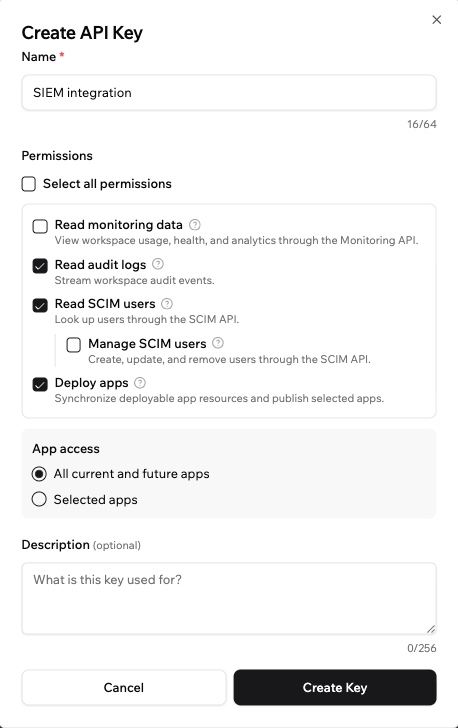
4. Enter a name for the key (required) and an optional description.
5. Under **Permissions**, select the scopes this key should have. See [Choosing permissions](#choosing-permissions) for what each one grants.
6. If you select **Deploy apps**, set its **App access** to **Selected apps** and choose the apps, or to **All current and future apps**.
7. Click **Create Key**.
8. Copy the key and store it somewhere safe.
9. Click **Done**.
 ***
## Choosing permissions
Each API key has one or more permissions, called scopes, that control which parts of your workspace it can access. Give a key only the permissions the integration needs.
| Permission | What it allows |
| ------------------------ | ------------------------------------------------------------------------------------------------------------------------------------- |
| **Read monitoring data** | View workspace usage, health, and analytics through the [Monitoring API](/developers/references/monitoring-api/get-started/overview). |
| **Read audit logs** | Stream workspace audit events through the [Audit Logs API](/developers/references/audit-logs-api/get-started/overview). |
| **Read SCIM users** | Look up the users provisioned to your workspace through [SCIM](/Enterprise/SCIM-provisioning). |
| **Manage SCIM users** | Create, update, and remove SCIM users. Requires **Read SCIM users**. |
| **Deploy apps** | Synchronize and publish apps in your workspace. |
For the **Deploy apps** permission, choose which apps the key can reach:
* **Selected apps:** The key can only deploy the specific apps you choose.
* **All current and future apps:** The key can deploy any app in the workspace, including apps you add later.
You can make changes to a key at any time. To update its name, description, or permissions, edit the key from the **Secrets** page.
***
## Managing your API keys
From the **Secrets** page, you can view all your keys along with who created them, when they were created, and when they were last used. Click the **More Actions** icon next to a key to edit, disable, or delete it.
Creating, editing, enabling, disabling, and deleting a key are all recorded in your workspace [audit logs](/developers/references/audit-logs-api/get-started/overview), and actions taken with a key are attributed to it.
**To manage an API key:**
1. Click your workspace name at the top left and click **Settings**.
2. Click **Secrets** in the sidebar.
3. Click the **More Actions** icon next to the key you want to manage and select an option:
* **Edit:** Update the key's name, description, or permissions.
* **Disable key:** Temporarily prevent the key from being used without deleting it.
* **Enable key:** Re-enable a previously disabled key.
* **Delete key:** Permanently remove the key.
***
## Choosing permissions
Each API key has one or more permissions, called scopes, that control which parts of your workspace it can access. Give a key only the permissions the integration needs.
| Permission | What it allows |
| ------------------------ | ------------------------------------------------------------------------------------------------------------------------------------- |
| **Read monitoring data** | View workspace usage, health, and analytics through the [Monitoring API](/developers/references/monitoring-api/get-started/overview). |
| **Read audit logs** | Stream workspace audit events through the [Audit Logs API](/developers/references/audit-logs-api/get-started/overview). |
| **Read SCIM users** | Look up the users provisioned to your workspace through [SCIM](/Enterprise/SCIM-provisioning). |
| **Manage SCIM users** | Create, update, and remove SCIM users. Requires **Read SCIM users**. |
| **Deploy apps** | Synchronize and publish apps in your workspace. |
For the **Deploy apps** permission, choose which apps the key can reach:
* **Selected apps:** The key can only deploy the specific apps you choose.
* **All current and future apps:** The key can deploy any app in the workspace, including apps you add later.
You can make changes to a key at any time. To update its name, description, or permissions, edit the key from the **Secrets** page.
***
## Managing your API keys
From the **Secrets** page, you can view all your keys along with who created them, when they were created, and when they were last used. Click the **More Actions** icon next to a key to edit, disable, or delete it.
Creating, editing, enabling, disabling, and deleting a key are all recorded in your workspace [audit logs](/developers/references/audit-logs-api/get-started/overview), and actions taken with a key are attributed to it.
**To manage an API key:**
1. Click your workspace name at the top left and click **Settings**.
2. Click **Secrets** in the sidebar.
3. Click the **More Actions** icon next to the key you want to manage and select an option:
* **Edit:** Update the key's name, description, or permissions.
* **Disable key:** Temporarily prevent the key from being used without deleting it.
* **Enable key:** Re-enable a previously disabled key.
* **Delete key:** Permanently remove the key.
