> ## Documentation Index
> Fetch the complete documentation index at: https://docs.base44.com/llms.txt
> Use this file to discover all available pages before exploring further.
# Building a website
> Build a website on Base44 that looks great, works for everyone, and gets found in search. Describe your idea, customize the design, connect a domain, and optimize for SEO and AI visibility.
## Why build your website with Base44
Base44 is not only for building apps. It is also an [AI-powered website builder](https://base44.com/ai-website-builder), so you can create a full website just by describing what you want. You do not need any coding or design skills. Base44 builds it for you, including the design, pages, content, hosting, and everything running behind the scenes.
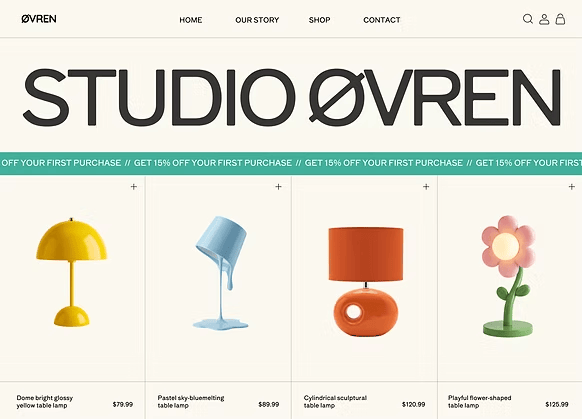 A website is one of the most popular things to build on Base44. Whether you want a simple page to share your work or a full site for your business, Base44 handles the technical side so you can focus on your content and your brand.
* A business or agency website
* A landing page for a product or event
* A personal portfolio or resume site
* An online store or product catalog
* A blog or content site
* A booking or contact page for your services
Build my website now
***
## Step 1 | Describe your website
Start by going to [Base44](https://app.base44.com/) and telling it what kind of website you want in your own words. You can describe the purpose, the pages you need, and the style you are going for. For example, "a clean one-page site for my photography business with a gallery and a contact form."
When you begin, you are asked to sign up so your work is saved and you can return to your website anytime.
There are a few ways to start, depending on what you already have. Pick the one that fits, then follow the full walkthrough in [Starting from your first prompt](/Getting-Started/starting-from-your-first-prompt).
Describe your website in plain language and let Base44 build it. See [Using a prompt](/Getting-Started/starting-from-your-first-prompt#using-a-prompt).
Shape your website with the AI first, then turn the plan into a site. See [Using plan mode](/Getting-Started/starting-from-your-first-prompt#using-plan-mode).
Begin from a website you already own and refine it. See [Starting from an existing URL](/Getting-Started/starting-from-your-first-prompt#starting-from-an-existing-url).
Turn a Figma frame into a working website. See [Starting from a Figma design](/Getting-Started/starting-from-your-first-prompt#starting-from-a-figma-design).
Bring in tools like Google Workspace, Slack, and GitHub from your first prompt. See [Connecting your tools](/Getting-Started/starting-from-your-first-prompt#connecting-your-tools).
***
## Step 2 | See your website come to life
Once you share your idea, Base44 builds your website automatically. It designs the layout, chooses colors and fonts, arranges your sections, and adds the pages and features you asked for, such as a contact form, a gallery, or a booking section.
Base44 keeps simple sites lean, so your website may start as a single page. Ask the AI to add more pages, such as an About or Contact page, whenever you need them.
Everything technical is handled for you in the background, including hosting, data storage, and any login or signup flows your site needs. Watch your website appear in the preview window as Base44 works, and click through it to try it out right away.
***
## Step 3 | Customize your design and content
Once your website is built, you can make it your own. The easiest way is with the AI chat. Type what you want to change, and Base44 updates your site. For example, "Change the main color to deep green," or "Add an About page with our team photos and a short story."
To brainstorm or ask questions before making changes, use Discuss mode in the AI chat. It uses fewer credits. [Learn more about the AI chat modes](/Building-your-app/AI-chat-modes).
There are lots of ways to shape your website:
Change colors, fonts, spacing, and styling to match your brand. You can apply changes across the whole site or to a single page. See [Customizing the design of your app](/Building-your-app/Design).
Set up a design system, responsive layouts, and reusable page structures so every page feels part of the same site. See [Design foundations and layout](/Building-your-app/Design-foundations-and-layout).
Add new pages, control which pages appear in your navigation, and decide which are public. See [Managing your app pages](/Building-your-app/managing-your-pages).
Upload your logo, photos, videos, and other files to make your website stand out. See [Uploading and managing media](/Building-your-app/Using-media).
***
## Step 4 | Make your website accessible
An accessible website works for everyone, including people who use screen readers, navigate with a keyboard, or need larger text and clear contrast. Accessibility also improves your search visibility, since the same structure that helps people helps search engines understand your pages.
Keep this checklist in mind as you build:
Use clear heading levels so each page has one main heading and a logical structure.
Add descriptive alt text to your images so screen readers can describe them.
Choose color combinations with enough contrast between text and background.
Write descriptive link text, such as "Read our pricing," instead of "Click here."
Make sure people can reach every menu, button, and form using only a keyboard.
You can ask the AI chat to help, for example "Check my homepage for accessibility issues and fix the color contrast." For more on building an accessible, well-structured site, see [Design foundations and layout](/Building-your-app/Design-foundations-and-layout).
***
## Step 5 | Test your website
Before you share your website, test how it looks and works from your visitors' perspective.
Click through the preview like a visitor, following your menus and checking every link.
Check your site on both desktop and mobile to catch layout or navigation issues.
Open your site in an incognito or private browser window to see what a first-time visitor experiences.
Test every form, signup, and payment flow end to end to confirm they work and you receive the data.
Proofread your text and check that images and buttons look and work as expected.
Ask the AI chat to help you test key flows, such as submitting your contact form.
***
## Step 6 | Connect a domain
Your website is live on a Base44 web address as soon as it is built. Connecting your own domain, such as `yourbusiness.com`, makes your site look professional, easier to remember, and easier to share. It also has a big impact on your search ranking, since search engines treat sites on a custom domain as more trustworthy than ones on a shared subdomain.
**You have a few ways to set up a domain:**
* Buy a domain directly from Base44 for the simplest setup, with DNS and SSL handled for you. See [Buying a domain from Base44](/Setting-up-your-app/Buying-a-domain-from-Base44).
* Connect a domain you already own by updating your DNS records. See [Connecting an external domain](/Setting-up-your-app/Connecting-an-external-domain).
* Send your website's emails from your own domain, such as `hello@yourbusiness.com`. See [Sending emails from a custom domain](/Setting-up-your-app/Sending-emails-from-a-custom-domain).
For an overview of how domains work in Base44, see [Connecting a domain to your app](/Setting-up-your-app/Setting-up-your-custom-domain).
***
## Step 7 | Publish and share your website
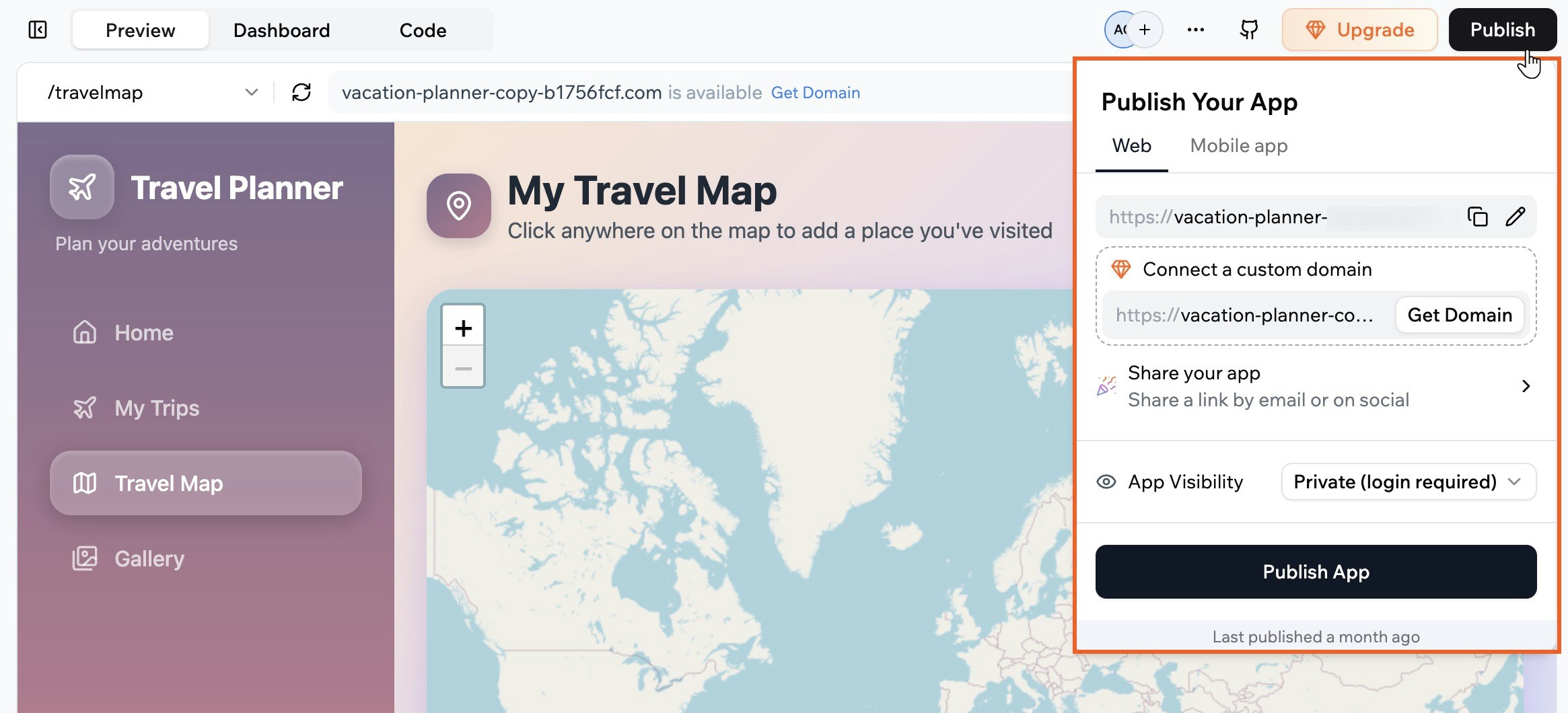
When you are ready to go live, click **Publish** in the top bar. Publishing pushes your latest changes to your live website so visitors can see them.
**From the publish menu, you can:**
* Copy your website's web address.
* Click **Connect a custom domain** or **Get Domain** to use your own address.
* Click **Share your app** to get a link you can send by email or post on social.
* Use **App Visibility** to choose who can access your site.
* Click **Publish App** to push your latest changes live.
A website is one of the most popular things to build on Base44. Whether you want a simple page to share your work or a full site for your business, Base44 handles the technical side so you can focus on your content and your brand.
* A business or agency website
* A landing page for a product or event
* A personal portfolio or resume site
* An online store or product catalog
* A blog or content site
* A booking or contact page for your services
Build my website now
***
## Step 1 | Describe your website
Start by going to [Base44](https://app.base44.com/) and telling it what kind of website you want in your own words. You can describe the purpose, the pages you need, and the style you are going for. For example, "a clean one-page site for my photography business with a gallery and a contact form."
When you begin, you are asked to sign up so your work is saved and you can return to your website anytime.
There are a few ways to start, depending on what you already have. Pick the one that fits, then follow the full walkthrough in [Starting from your first prompt](/Getting-Started/starting-from-your-first-prompt).
Describe your website in plain language and let Base44 build it. See [Using a prompt](/Getting-Started/starting-from-your-first-prompt#using-a-prompt).
Shape your website with the AI first, then turn the plan into a site. See [Using plan mode](/Getting-Started/starting-from-your-first-prompt#using-plan-mode).
Begin from a website you already own and refine it. See [Starting from an existing URL](/Getting-Started/starting-from-your-first-prompt#starting-from-an-existing-url).
Turn a Figma frame into a working website. See [Starting from a Figma design](/Getting-Started/starting-from-your-first-prompt#starting-from-a-figma-design).
Bring in tools like Google Workspace, Slack, and GitHub from your first prompt. See [Connecting your tools](/Getting-Started/starting-from-your-first-prompt#connecting-your-tools).
***
## Step 2 | See your website come to life
Once you share your idea, Base44 builds your website automatically. It designs the layout, chooses colors and fonts, arranges your sections, and adds the pages and features you asked for, such as a contact form, a gallery, or a booking section.
Base44 keeps simple sites lean, so your website may start as a single page. Ask the AI to add more pages, such as an About or Contact page, whenever you need them.
Everything technical is handled for you in the background, including hosting, data storage, and any login or signup flows your site needs. Watch your website appear in the preview window as Base44 works, and click through it to try it out right away.
***
## Step 3 | Customize your design and content
Once your website is built, you can make it your own. The easiest way is with the AI chat. Type what you want to change, and Base44 updates your site. For example, "Change the main color to deep green," or "Add an About page with our team photos and a short story."
To brainstorm or ask questions before making changes, use Discuss mode in the AI chat. It uses fewer credits. [Learn more about the AI chat modes](/Building-your-app/AI-chat-modes).
There are lots of ways to shape your website:
Change colors, fonts, spacing, and styling to match your brand. You can apply changes across the whole site or to a single page. See [Customizing the design of your app](/Building-your-app/Design).
Set up a design system, responsive layouts, and reusable page structures so every page feels part of the same site. See [Design foundations and layout](/Building-your-app/Design-foundations-and-layout).
Add new pages, control which pages appear in your navigation, and decide which are public. See [Managing your app pages](/Building-your-app/managing-your-pages).
Upload your logo, photos, videos, and other files to make your website stand out. See [Uploading and managing media](/Building-your-app/Using-media).
***
## Step 4 | Make your website accessible
An accessible website works for everyone, including people who use screen readers, navigate with a keyboard, or need larger text and clear contrast. Accessibility also improves your search visibility, since the same structure that helps people helps search engines understand your pages.
Keep this checklist in mind as you build:
Use clear heading levels so each page has one main heading and a logical structure.
Add descriptive alt text to your images so screen readers can describe them.
Choose color combinations with enough contrast between text and background.
Write descriptive link text, such as "Read our pricing," instead of "Click here."
Make sure people can reach every menu, button, and form using only a keyboard.
You can ask the AI chat to help, for example "Check my homepage for accessibility issues and fix the color contrast." For more on building an accessible, well-structured site, see [Design foundations and layout](/Building-your-app/Design-foundations-and-layout).
***
## Step 5 | Test your website
Before you share your website, test how it looks and works from your visitors' perspective.
Click through the preview like a visitor, following your menus and checking every link.
Check your site on both desktop and mobile to catch layout or navigation issues.
Open your site in an incognito or private browser window to see what a first-time visitor experiences.
Test every form, signup, and payment flow end to end to confirm they work and you receive the data.
Proofread your text and check that images and buttons look and work as expected.
Ask the AI chat to help you test key flows, such as submitting your contact form.
***
## Step 6 | Connect a domain
Your website is live on a Base44 web address as soon as it is built. Connecting your own domain, such as `yourbusiness.com`, makes your site look professional, easier to remember, and easier to share. It also has a big impact on your search ranking, since search engines treat sites on a custom domain as more trustworthy than ones on a shared subdomain.
**You have a few ways to set up a domain:**
* Buy a domain directly from Base44 for the simplest setup, with DNS and SSL handled for you. See [Buying a domain from Base44](/Setting-up-your-app/Buying-a-domain-from-Base44).
* Connect a domain you already own by updating your DNS records. See [Connecting an external domain](/Setting-up-your-app/Connecting-an-external-domain).
* Send your website's emails from your own domain, such as `hello@yourbusiness.com`. See [Sending emails from a custom domain](/Setting-up-your-app/Sending-emails-from-a-custom-domain).
For an overview of how domains work in Base44, see [Connecting a domain to your app](/Setting-up-your-app/Setting-up-your-custom-domain).
***
## Step 7 | Publish and share your website
When you are ready to go live, click **Publish** in the top bar. Publishing pushes your latest changes to your live website so visitors can see them.
**From the publish menu, you can:**
* Copy your website's web address.
* Click **Connect a custom domain** or **Get Domain** to use your own address.
* Click **Share your app** to get a link you can send by email or post on social.
* Use **App Visibility** to choose who can access your site.
* Click **Publish App** to push your latest changes live.
 ***
## Step 8 | Optimize for search and AI visibility
Once your website is published and connected to a domain, you can help people find it. Base44 handles the technical foundation of search engine optimization (SEO) and generative engine optimization (GEO) for you, so your site can show up both in search engines like Google and in AI tools like ChatGPT and Gemini.
Your website must be published before search engines and AI tools can reach it. Connecting a custom domain is the single biggest improvement you can make to your search visibility.
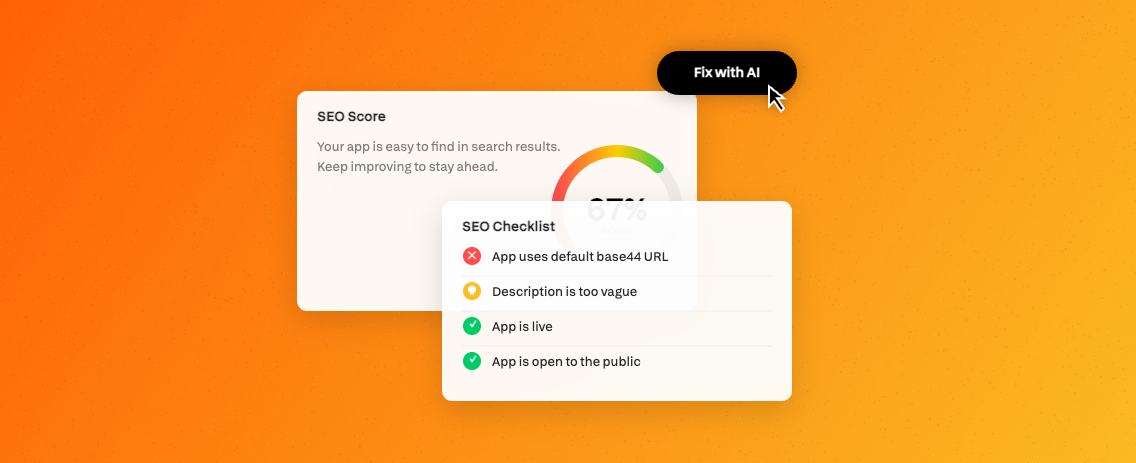
The **SEO & GEO** page in your app dashboard is where you manage this. Run a scan to get a score and a prioritized checklist, set custom titles and descriptions for each page, and control indexing and structured data.
***
## Step 8 | Optimize for search and AI visibility
Once your website is published and connected to a domain, you can help people find it. Base44 handles the technical foundation of search engine optimization (SEO) and generative engine optimization (GEO) for you, so your site can show up both in search engines like Google and in AI tools like ChatGPT and Gemini.
Your website must be published before search engines and AI tools can reach it. Connecting a custom domain is the single biggest improvement you can make to your search visibility.
The **SEO & GEO** page in your app dashboard is where you manage this. Run a scan to get a score and a prioritized checklist, set custom titles and descriptions for each page, and control indexing and structured data.
 **To get your website found:**
1. Learn the fundamentals in [Getting your app found in search](/Performance-and-SEO/SEO-and-search-visibility).
2. Run a scan and fix issues from your dashboard. See [Optimizing your app's SEO & GEO](/Performance-and-SEO/checking-your-seo-and-geo).
***
## Step 9 | Promote and grow your website
With your website live, you can start bringing people to it.
* Generate a social promotion strategy and ready-to-post content for your site. See [Promoting your app](/promoting-your-app/social-content).
* Submit your site to Launchpad for a chance to get featured and reach the Base44 community. See [Submitting your app to Launchpad](/promoting-your-app/submitting-to-launchpad).
***
## FAQs
Click a question below to learn more.
Your first build uses a small, fixed amount, about 1 credit, no matter how detailed your prompt is or which AI model you choose. After that, each change you ask for costs credits based on how much work it involves and the model you use.
Credits are used only when the AI builds or updates something for you, so previewing your website and clicking through it are always free. Learn more about [credits](/Account-and-billing/Credits) and [plans](/Account-and-billing/Billing-and-plans).
No. Your website is live on a Base44 web address as soon as it is built, and you can share that address right away. A custom domain is optional, but it makes your site look more professional and has a big impact on your search ranking.
Yes. Base44 automatically adapts your website for mobile devices. Use the device menu in the top bar to switch to the mobile view and check how everything looks. If you want to adjust the mobile layout, ask the AI chat to do it for you.
Publish your website, connect a custom domain, then run an SEO & GEO scan from your app dashboard and fix the issues it finds. For the full process, see [Optimizing your app's SEO & GEO](/Performance-and-SEO/checking-your-seo-and-geo).
Yes. The **Meta tags** tab on the **SEO & GEO** page lets you set a custom title and description for each public page. These control what appears in search results and when someone shares a link to your site. See [Optimizing your app's SEO & GEO](/Performance-and-SEO/checking-your-seo-and-geo).
Yes. Keep editing your website with the AI chat or manual changes at any time. Your changes go live the next time you click **Publish**.
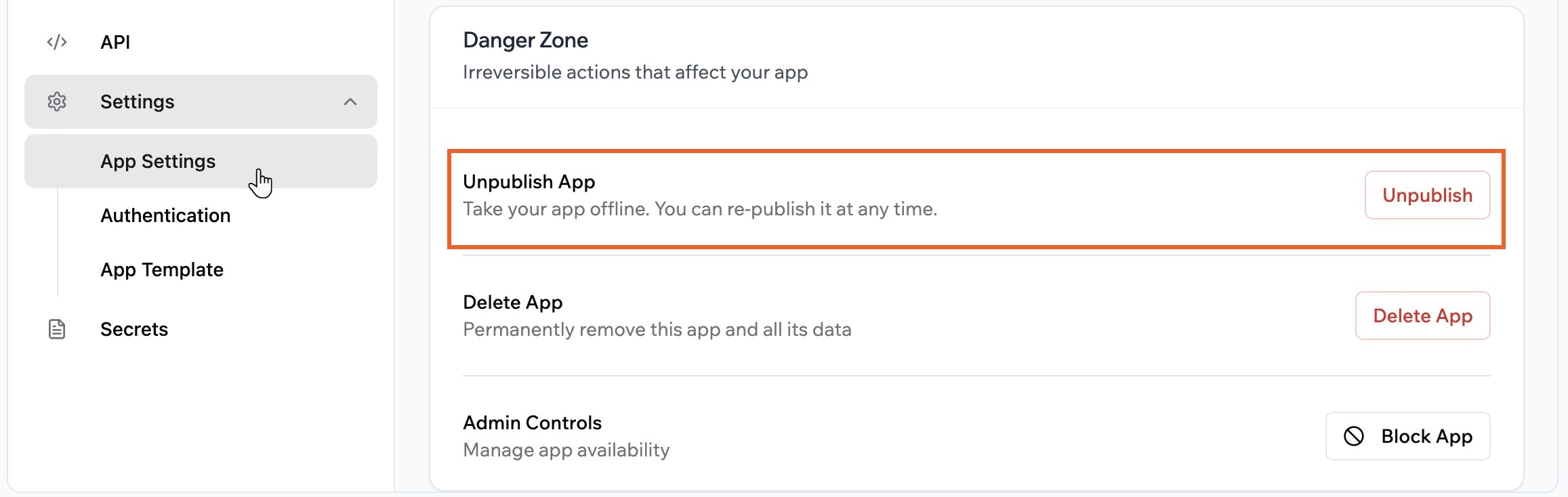
Yes. You can unpublish your website at any time. When it is unpublished, people cannot access it until you publish it again. All your data and settings are saved when you unpublish.
**To unpublish your website:**
1. Go to your app dashboard.
2. Click **Settings**, then **App Settings**.
3. Scroll to **Danger Zone**, and click **Unpublish App**, then **Unpublish** in the dialog.
**To get your website found:**
1. Learn the fundamentals in [Getting your app found in search](/Performance-and-SEO/SEO-and-search-visibility).
2. Run a scan and fix issues from your dashboard. See [Optimizing your app's SEO & GEO](/Performance-and-SEO/checking-your-seo-and-geo).
***
## Step 9 | Promote and grow your website
With your website live, you can start bringing people to it.
* Generate a social promotion strategy and ready-to-post content for your site. See [Promoting your app](/promoting-your-app/social-content).
* Submit your site to Launchpad for a chance to get featured and reach the Base44 community. See [Submitting your app to Launchpad](/promoting-your-app/submitting-to-launchpad).
***
## FAQs
Click a question below to learn more.
Your first build uses a small, fixed amount, about 1 credit, no matter how detailed your prompt is or which AI model you choose. After that, each change you ask for costs credits based on how much work it involves and the model you use.
Credits are used only when the AI builds or updates something for you, so previewing your website and clicking through it are always free. Learn more about [credits](/Account-and-billing/Credits) and [plans](/Account-and-billing/Billing-and-plans).
No. Your website is live on a Base44 web address as soon as it is built, and you can share that address right away. A custom domain is optional, but it makes your site look more professional and has a big impact on your search ranking.
Yes. Base44 automatically adapts your website for mobile devices. Use the device menu in the top bar to switch to the mobile view and check how everything looks. If you want to adjust the mobile layout, ask the AI chat to do it for you.
Publish your website, connect a custom domain, then run an SEO & GEO scan from your app dashboard and fix the issues it finds. For the full process, see [Optimizing your app's SEO & GEO](/Performance-and-SEO/checking-your-seo-and-geo).
Yes. The **Meta tags** tab on the **SEO & GEO** page lets you set a custom title and description for each public page. These control what appears in search results and when someone shares a link to your site. See [Optimizing your app's SEO & GEO](/Performance-and-SEO/checking-your-seo-and-geo).
Yes. Keep editing your website with the AI chat or manual changes at any time. Your changes go live the next time you click **Publish**.
Yes. You can unpublish your website at any time. When it is unpublished, people cannot access it until you publish it again. All your data and settings are saved when you unpublish.
**To unpublish your website:**
1. Go to your app dashboard.
2. Click **Settings**, then **App Settings**.
3. Scroll to **Danger Zone**, and click **Unpublish App**, then **Unpublish** in the dialog.
 Yes, on the Builder plan or higher. You can connect a payment provider such as Stripe to accept payments. See how to [set up payments](/Setting-up-your-app/setting-up-wix-payments) for your site.
For self-serve guidance while you work, click your avatar in your workspace and select **Help Center** to open our docs, or go to [https://docs.base44.com/](https://docs.base44.com/).
If you need more hands-on help, you have a few options to get expert help with your Base44 website.
You can work with a [Base44 Partner](/Getting-Started/Hiring-a-partner) for tailored, one-on-one support on larger or ongoing projects. Partners can help you plan and build full sites and apps, handle complex integrations, and provide long-term strategic guidance. [Choose your partner](https://app.base44.com/partners) →
If you would like feedback from other people building with Base44, you can also [join our Discord community](https://discord.com/invite/ThpYPZpVts). It is a great space to connect with others who can share advice, help, and tips from their own projects.
**Need more help or inspiration?**
Explore [Base44's templates](https://app.base44.com/app-templates) to start your website from a ready-made base.
Yes, on the Builder plan or higher. You can connect a payment provider such as Stripe to accept payments. See how to [set up payments](/Setting-up-your-app/setting-up-wix-payments) for your site.
For self-serve guidance while you work, click your avatar in your workspace and select **Help Center** to open our docs, or go to [https://docs.base44.com/](https://docs.base44.com/).
If you need more hands-on help, you have a few options to get expert help with your Base44 website.
You can work with a [Base44 Partner](/Getting-Started/Hiring-a-partner) for tailored, one-on-one support on larger or ongoing projects. Partners can help you plan and build full sites and apps, handle complex integrations, and provide long-term strategic guidance. [Choose your partner](https://app.base44.com/partners) →
If you would like feedback from other people building with Base44, you can also [join our Discord community](https://discord.com/invite/ThpYPZpVts). It is a great space to connect with others who can share advice, help, and tips from their own projects.
**Need more help or inspiration?**
Explore [Base44's templates](https://app.base44.com/app-templates) to start your website from a ready-made base.