> ## Documentation Index
> Fetch the complete documentation index at: https://docs.base44.com/llms.txt
> Use this file to discover all available pages before exploring further.

# Connectors overview

> Connect your app to popular tools like Google Workspace, Slack, Salesforce, GitHub, Snowflake, and Databricks using managed integrations.

Connectors let your Base44 app work with the tools and data your business already uses. Connect services like Gmail, Slack, Google Workspace, Snowflake, Databricks, and more, then ask the AI chat to help you build app flows that use them.

<Frame caption="Connecting your app to external tools">
  <img src="https://mintcdn.com/base44/4u1s1BOHlfMPQCy4/images/figmaconnectors.png?fit=max&auto=format&n=4u1s1BOHlfMPQCy4&q=85&s=53dec450c3c76a240596bd2548016acd" alt="Connector icons shown across a blue gradient background" className="mx-auto" width="1256" height="716" data-path="images/figmaconnectors.png" />
</Frame>

<Note>
  You need a [**Builder plan**](https://base44.com/pricing) or higher to use connectors.
</Note>

***

## About connectors

Connectors link your app to the tools you already use. Pick a tool, authorize it, and let Base44 handle the setup behind the scenes, no API keys, no manual config.

<Tip>
  Need more control over a specific API? Use a [custom integration](/documentation/integrations/using-custom-integrations).
</Tip>

<iframe src="https://www.youtube.com/embed/OTQH8rXAa3c" title="Using connectors in Base44" className="w-full aspect-video rounded-xl" allow="accelerometer; autoplay; clipboard-write; encrypted-media; gyroscope; picture-in-picture; web-share" allowFullScreen />

***

## Connector types

There are two types of connector, based on whose account the connection uses.

<CardGroup cols={2}>
  <Card title="Connectors for app users" icon="user">
    Each person using your app connects their own account. The app acts on their behalf, and their data stays private to them.

    Best for per-user actions, like a CRM where each sales rep sends email from their own Gmail.
  </Card>

  <Card title="Connectors for app builders" icon="users-gear">
    You connect a tool once at the workspace level, and the app uses that one connection for everyone.

    Best for a shared account or a data platform, like Slack alerts to your team's channel, or a dashboard that queries Snowflake.
  </Card>
</CardGroup>

<Card>
  <div className="b44-spec b44-spec-3col">
    <div className="b44-spec-row">
      <div className="b44-spec-key" />

      <div className="b44-spec-col">Connectors for app users</div>
      <div className="b44-spec-col">Connectors for app builders</div>
    </div>

    <div className="b44-spec-row">
      <div className="b44-spec-key">Whose account</div>
      <div className="b44-spec-val">Each person's own account</div>
      <div className="b44-spec-val">One account, connected once</div>
    </div>

    <div className="b44-spec-row">
      <div className="b44-spec-key">Who connects it</div>
      <div className="b44-spec-val">Every person, the first time they use it</div>
      <div className="b44-spec-val">You, at the workspace level</div>
    </div>

    <div className="b44-spec-row">
      <div className="b44-spec-key">Data the app sees</div>
      <div className="b44-spec-val">Only that person's data, per their granted access</div>
      <div className="b44-spec-val">The single connected account's data, shared across the app</div>
    </div>

    <div className="b44-spec-row">
      <div className="b44-spec-key">Typical use</div>
      <div className="b44-spec-val">A CRM where reps use their own Gmail</div>
      <div className="b44-spec-val">Slack team alerts, or a Snowflake dashboard</div>
    </div>
  </div>
</Card>

***

## Browse available connectors

Find connectors in the **Integrations** tab of your app's dashboard. Search for a specific connector or use the filter to sort the list.

You can also tell the **AI chat** what you want to connect and how you want to use it, and get relevant suggestions based on your app's structure, pages, and data.

To browse the full list with categories and example prompts, see the [connectors catalog](/Integrations/connectors-catalog).

<CardGroup cols={2}>
  <Card title="Send reports and alerts" icon="envelope">
    Email reports, alerts, or summaries through **Gmail** or **Outlook**.
  </Card>

  <Card title="Generate documents and files" icon="file-text">
    Create documents, spreadsheets, presentations, or files using **Google Workspace** tools.
  </Card>

  <Card title="Manage events and availability" icon="calendar">
    Create and manage events or availability using **Google Calendar** or **Outlook**.
  </Card>

  <Card title="Notify your team" icon="comment">
    Send notifications or updates to teams through **Slack**.
  </Card>

  <Card title="Track code and issues" icon="code">
    Track code activity, issues, and pull requests with **GitHub**.
  </Card>

  <Card title="Query data and build dashboards" icon="chart-column">
    Query external data and build dashboards with **Snowflake** or **Databricks**.
  </Card>
</CardGroup>

<Card title="Request a connector" icon="plug">
  You can also request a connector to add to Base44. Go to **Integrations** in
  your app's dashboard and click **Request a connector** at the bottom.
</Card>

***

## How connectors work in your app

Once you connect a tool, you can reuse it across pages, flows, and backend functions. In the **AI chat**, ask Base44 to build pages, tables, dashboards, or automations that read from or write to the connector.

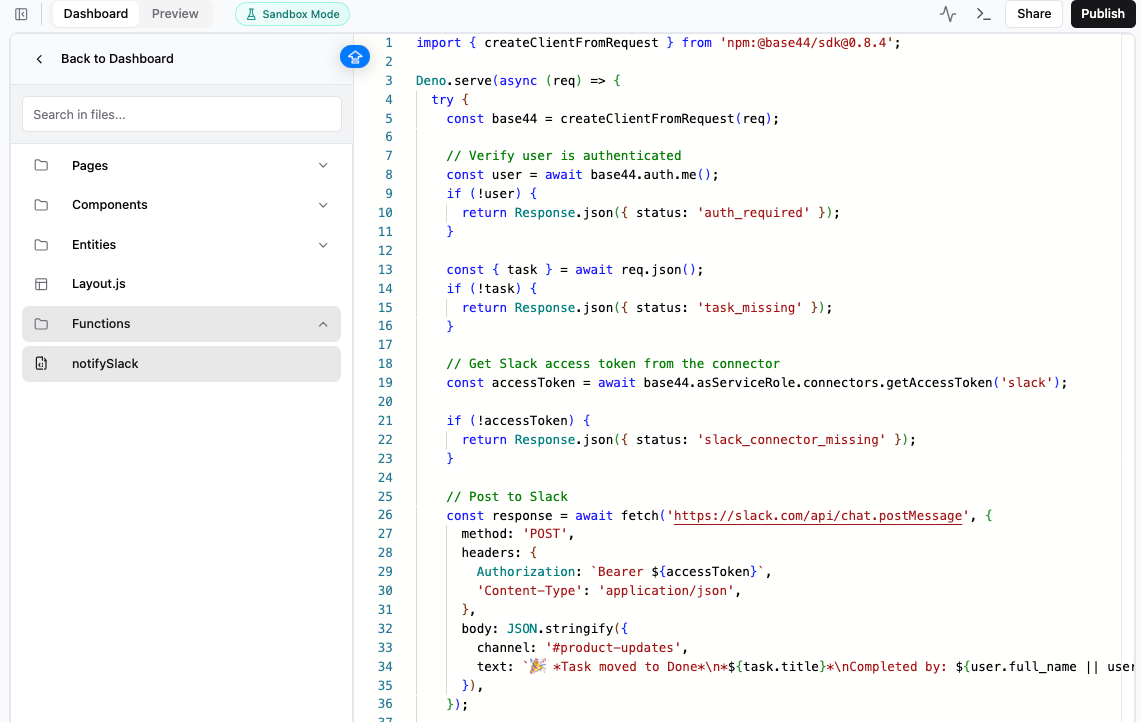
When you include a connector in a flow, Base44 creates a backend function in **Dashboard** → **Code** → **Functions**. Open that function to review the generated code. You can edit it yourself or prompt the AI chat to update it. For example:

```text theme={null}
Send a Slack message to #product-updates when this function runs.
```

If you later add a flow that needs extra permissions, you may be asked to review and approve the new actions and permissions for that tool.

<Frame caption="Slack connector in backend functions">
  <img src="https://mintcdn.com/base44/yBFCOCQofInfb8rN/images/ConnectorFunction.png?fit=max&auto=format&n=yBFCOCQofInfb8rN&q=85&s=09eee2155c15b85d8c9f3458788310fe" alt="Code editor showing a Base44 backend function that posts a message to the #product-updates Slack channel." width="1141" height="722" data-path="images/ConnectorFunction.png" />
</Frame>

***

## Managing connectors

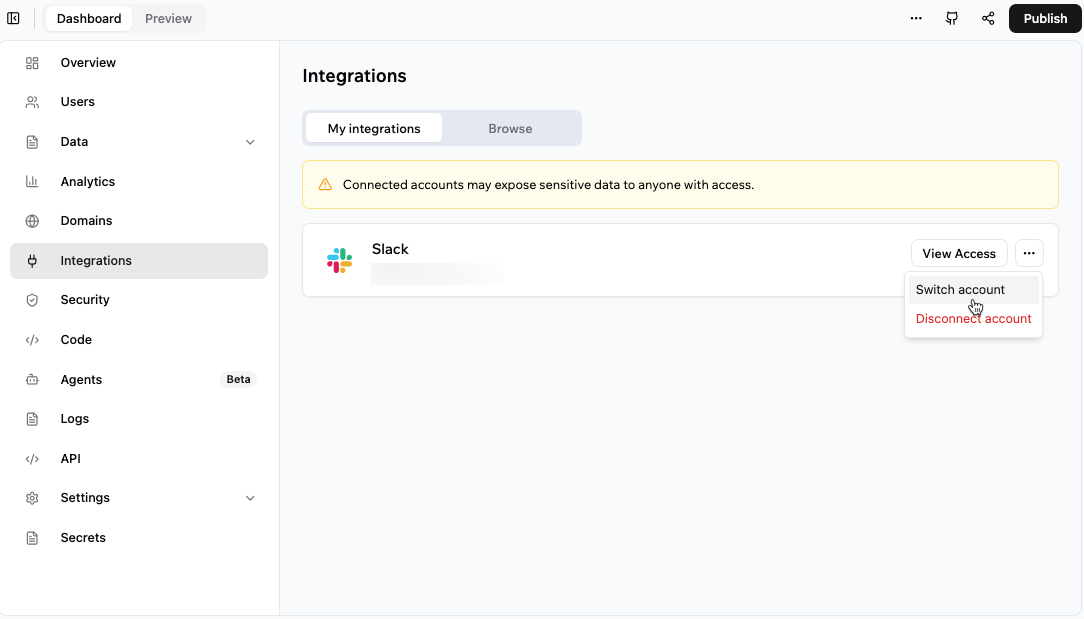
From **Integrations** in your app's dashboard, you can view and manage your app's connectors, review what each can access, and switch, disconnect, or reconnect the connected account per tool as needed.

For connectors for app builders, reconnect from **Integrations** → **My integrations**. For connectors for app users, each person reconnects their own account from inside your app.

**To manage a connector:**

1. Go to your app's dashboard.
2. Click **Integrations**.
3. Click the **My integrations** tab.
4. Find the connector.
5. Click the **More actions** icon (`···`) and choose an option:
   * **View access** to see the connector's current permissions.
   * **Switch account** to connect a different account.
   * **Reconnect** to restore an expired connection.
   * **Disconnect** to remove the connection from this app.
   * **Remove** to delete the connector.
<Frame caption="Viewing and managing your app connections">
  <img src="https://mintcdn.com/base44/mGUAlD89bINtD9VJ/images/MyIntegrationsTab.png?fit=max&auto=format&n=mGUAlD89bINtD9VJ&q=85&s=2e7002711c099c1ad7cb3907e56aa5d7" alt="App dashboard showing the Integrations page with the My integrations tab selected, listing connected tools and a View access button." width="1084" height="619" data-path="images/MyIntegrationsTab.png" />
</Frame>

<Card title="Manage connector availability across your workspace" icon="plug" href="/Enterprise/workspace-connectors">
  Control which external services are available across your workspace and review affected apps before disabling access.
</Card>

***

## FAQs

<AccordionGroup>
  <Accordion title="Can I connect multiple tools to my app?">
    Yes. You can connect multiple tools to the same app.
  </Accordion>

  <Accordion title="Why do I need to reconnect a connector?">
    You may need to reconnect if the account was disconnected, its access was revoked, or the connected service requires you to sign in again. For the steps, see [Managing connectors](#managing-connectors) above.
  </Accordion>
</AccordionGroup>
