> ## Documentation Index
> Fetch the complete documentation index at: https://docs.base44.com/llms.txt
> Use this file to discover all available pages before exploring further.
# Connecting a domain to your app
> Connect your Base44 app to your own domain to show your brand at the front and make your app easy to find, remember, and share.
Every Base44 app is live on a free built-in URL (`myapp.base44.app`) from the moment you create it. You can personalize that URL anytime, or connect your own custom domain to make your app easier to find, remember, and share.
***
## Changing your Base44 app URL
Every Base44 app comes with a free built-in domain (`myapp.base44.app`) that you can personalize anytime. No DNS setup or payment required.
**To change your URL:**
1. Click **Dashboard** in your app editor.
2. Click **Domains**.
3. Click **Edit URL** under your app's **Built-in URL**.
4. Enter a new name for your link. For example: `best-business` → `best-business.base44.app`.
5. Click **Change** to save.
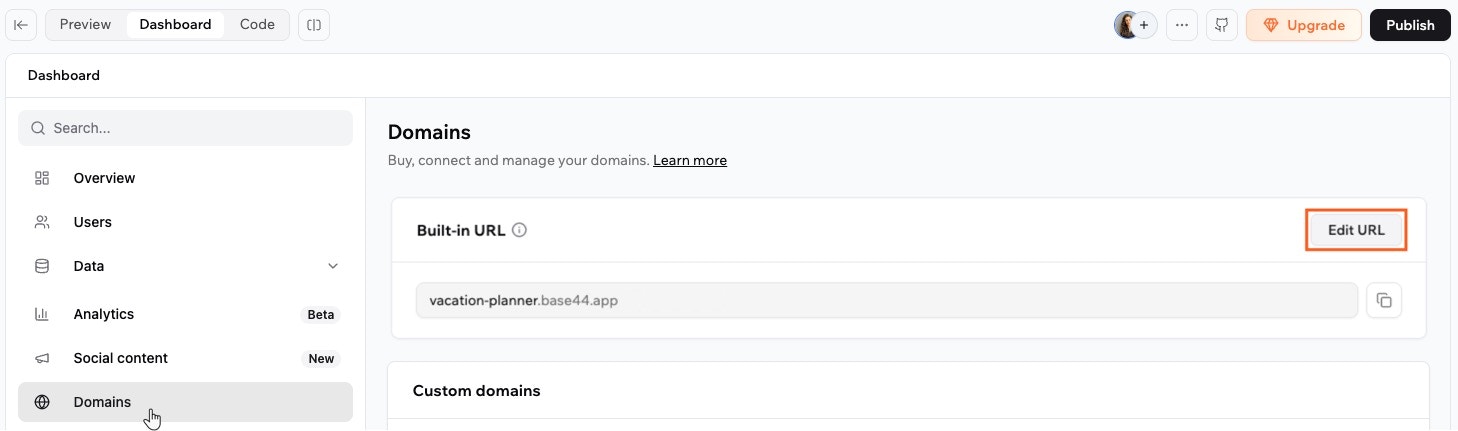 Your new URL is live instantly, and your old link immediately stops working. Make sure to share your updated link with anyone who needs access.
***
## Setting up a custom domain
A custom domain is your own web address, such as `mybusiness.com`, that people use to reach your app instead of the built-in Base44 link. For example, instead of sharing `my-app-948908fb.base44.app`, you can share `mybusiness.com`. A custom domain looks more professional and reinforces your brand every time someone visits.
**Before you begin:**
* Custom domains are available on the Builder, Pro, and Elite plans.
* Allow up to 72 hours for DNS changes if you use an external domain provider.
There are 2 ways to set one up: buy a domain, or connect one you already own. Whichever you choose, Base44 issues and renews your SSL certificate automatically once your domain is connected, so your app is always served securely over HTTPS.
When you buy a domain, Base44 works with two providers, Wix and IONOS. Depending on your account, you may see one or both when you click **Buy Domain**. Use whichever you see, and follow the matching guide below.
Buy a new domain through Wix. DNS and SSL are set up for you automatically.
Buy a new domain through IONOS. DNS and SSL are set up for you automatically.
Already own a domain? Point it to Base44 by updating your DNS records.
***
## Setting up 301 redirects
A 301 redirect permanently sends visitors from an old address to a new one. Old links keep working, and search engines move your existing ranking over to the new address. For example, if you rename your `/pricing` page to `/plans`, a redirect sends anyone who opens the old `/pricing` link straight to `/plans` instead of a missing page.
301 redirects are rolling out gradually, so they might not be available to you yet. They are available on the [Builder, Pro, and Elite plans](https://base44.com/pricing).
Base44 supports 2 types of 301 redirect:
* **Path-level redirect:** Sends one page on your app to another, such as `/old-pricing` to `/pricing`.
* **Whole-domain redirect:** Sends all traffic from one connected domain to another domain on the same app.
Your new URL is live instantly, and your old link immediately stops working. Make sure to share your updated link with anyone who needs access.
***
## Setting up a custom domain
A custom domain is your own web address, such as `mybusiness.com`, that people use to reach your app instead of the built-in Base44 link. For example, instead of sharing `my-app-948908fb.base44.app`, you can share `mybusiness.com`. A custom domain looks more professional and reinforces your brand every time someone visits.
**Before you begin:**
* Custom domains are available on the Builder, Pro, and Elite plans.
* Allow up to 72 hours for DNS changes if you use an external domain provider.
There are 2 ways to set one up: buy a domain, or connect one you already own. Whichever you choose, Base44 issues and renews your SSL certificate automatically once your domain is connected, so your app is always served securely over HTTPS.
When you buy a domain, Base44 works with two providers, Wix and IONOS. Depending on your account, you may see one or both when you click **Buy Domain**. Use whichever you see, and follow the matching guide below.
Buy a new domain through Wix. DNS and SSL are set up for you automatically.
Buy a new domain through IONOS. DNS and SSL are set up for you automatically.
Already own a domain? Point it to Base44 by updating your DNS records.
***
## Setting up 301 redirects
A 301 redirect permanently sends visitors from an old address to a new one. Old links keep working, and search engines move your existing ranking over to the new address. For example, if you rename your `/pricing` page to `/plans`, a redirect sends anyone who opens the old `/pricing` link straight to `/plans` instead of a missing page.
301 redirects are rolling out gradually, so they might not be available to you yet. They are available on the [Builder, Pro, and Elite plans](https://base44.com/pricing).
Base44 supports 2 types of 301 redirect:
* **Path-level redirect:** Sends one page on your app to another, such as `/old-pricing` to `/pricing`.
* **Whole-domain redirect:** Sends all traffic from one connected domain to another domain on the same app.
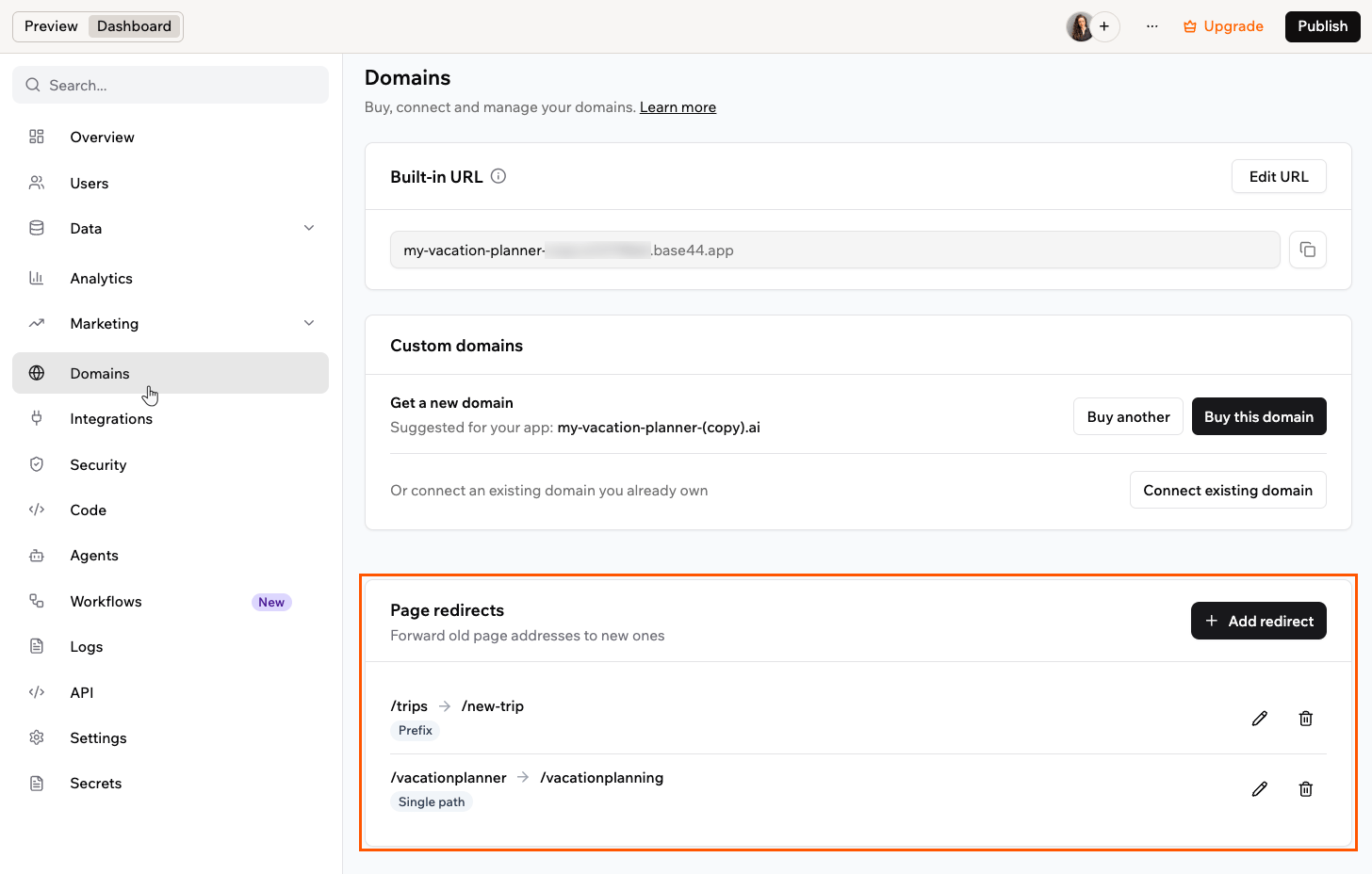 ### Redirecting one page to another
Path-level redirects send visitors from one page on your app to another. A path is the part of a web address that comes after your domain, such as `/pricing`, and usually points to a specific page. Use these redirects when you rename or move a page and want the old links to keep working.
**Path redirect rules:**
* You can add up to 50 redirects per app.
* Source and target paths must be different and both start with `/`.
* The target is a path within your app. You can't redirect to an external website.
* Prefix redirects can't start at the root (`/`).
* You can't redirect sign-in paths (such as login and password reset) or reserved system paths such as `/sitemap.xml`, `/robots.txt`, and `/favicon.ico`.
**To add a path redirect:**
1. Click **Dashboard** in your app editor.
2. Click **Domains**.
3. In the **Page redirects** section, click **Add redirect**.
4. In **Source path**, enter the old path, starting with `/`. For example, `/old-page`.
5. In **Target path**, enter the new path, starting with `/`. For example, `/new-page`.
6. Under **Match type**, choose how the redirect matches:
* **Single path:** Redirects only the exact source path.
* **Prefix:** Redirects the source path and everything under it, keeping the rest of the address.
7. Click **Save redirect**.
### Redirecting a whole domain
A whole-domain redirect sends all traffic from one connected domain to another domain on the same app. The full path and query string are preserved, so `old-domain.com/pricing` goes to `new-domain.com/pricing`. Use it when you move your app to a new domain and want the old one to keep sending visitors to the right place.
A whole-domain redirect needs at least 2 verified domains on the same app: the one you redirect from and the one you send traffic to. The **Redirect domain** option appears only once your app has another verified domain to redirect to.
**To redirect a domain:**
1. Click **Dashboard** in your app editor.
2. Click **Domains**.
3. In the **Custom domains** section, find the domain you want to redirect.
4. Click the **More Actions** icon next to it and select **Redirect domain**.
5. Under **Target domain**, select the domain you want to send traffic to.
6. Click **Save redirect**.
To remove a domain redirect later, open **Redirect domain** again and select **No redirect**.
***
## Sending emails from your domain
Once your custom domain is connected, you can send your app's emails from it, such as `support@your-domain.com`, so they match your brand. See [Sending emails from a custom domain](/Setting-up-your-app/Sending-emails-from-a-custom-domain) to set it up.
***
## FAQs
Click a question below to learn more about domains.
To completely remove a domain from an app and free it up for use elsewhere:
1. Click **Dashboard** in your app editor.
2. Click **Domains**.
3. Click the custom domain you want to remove.
4. Click **Unlink Domain** to disconnect it from the app.
5. Click the red **Delete** icon (trash) to remove the domain from the app's domain list.
Yes. You can connect up to 150 domains and subdomains to a single app, and up to 350 domains in total across your account.
Redirects usually start working within a few minutes of saving them.
No. Redirects are one hop only. If you redirect one domain to a second domain, you can't then redirect that second domain somewhere else in a chain, and loops are not allowed.
### Redirecting one page to another
Path-level redirects send visitors from one page on your app to another. A path is the part of a web address that comes after your domain, such as `/pricing`, and usually points to a specific page. Use these redirects when you rename or move a page and want the old links to keep working.
**Path redirect rules:**
* You can add up to 50 redirects per app.
* Source and target paths must be different and both start with `/`.
* The target is a path within your app. You can't redirect to an external website.
* Prefix redirects can't start at the root (`/`).
* You can't redirect sign-in paths (such as login and password reset) or reserved system paths such as `/sitemap.xml`, `/robots.txt`, and `/favicon.ico`.
**To add a path redirect:**
1. Click **Dashboard** in your app editor.
2. Click **Domains**.
3. In the **Page redirects** section, click **Add redirect**.
4. In **Source path**, enter the old path, starting with `/`. For example, `/old-page`.
5. In **Target path**, enter the new path, starting with `/`. For example, `/new-page`.
6. Under **Match type**, choose how the redirect matches:
* **Single path:** Redirects only the exact source path.
* **Prefix:** Redirects the source path and everything under it, keeping the rest of the address.
7. Click **Save redirect**.
### Redirecting a whole domain
A whole-domain redirect sends all traffic from one connected domain to another domain on the same app. The full path and query string are preserved, so `old-domain.com/pricing` goes to `new-domain.com/pricing`. Use it when you move your app to a new domain and want the old one to keep sending visitors to the right place.
A whole-domain redirect needs at least 2 verified domains on the same app: the one you redirect from and the one you send traffic to. The **Redirect domain** option appears only once your app has another verified domain to redirect to.
**To redirect a domain:**
1. Click **Dashboard** in your app editor.
2. Click **Domains**.
3. In the **Custom domains** section, find the domain you want to redirect.
4. Click the **More Actions** icon next to it and select **Redirect domain**.
5. Under **Target domain**, select the domain you want to send traffic to.
6. Click **Save redirect**.
To remove a domain redirect later, open **Redirect domain** again and select **No redirect**.
***
## Sending emails from your domain
Once your custom domain is connected, you can send your app's emails from it, such as `support@your-domain.com`, so they match your brand. See [Sending emails from a custom domain](/Setting-up-your-app/Sending-emails-from-a-custom-domain) to set it up.
***
## FAQs
Click a question below to learn more about domains.
To completely remove a domain from an app and free it up for use elsewhere:
1. Click **Dashboard** in your app editor.
2. Click **Domains**.
3. Click the custom domain you want to remove.
4. Click **Unlink Domain** to disconnect it from the app.
5. Click the red **Delete** icon (trash) to remove the domain from the app's domain list.
Yes. You can connect up to 150 domains and subdomains to a single app, and up to 350 domains in total across your account.
Redirects usually start working within a few minutes of saving them.
No. Redirects are one hop only. If you redirect one domain to a second domain, you can't then redirect that second domain somewhere else in a chain, and loops are not allowed.