> ## Documentation Index
> Fetch the complete documentation index at: https://docs.base44.com/llms.txt
> Use this file to discover all available pages before exploring further.
# Recording and replaying user sessions
> Record how people use your published app, replay their sessions to spot friction like rage clicks and errors, and get AI summaries of what happened.
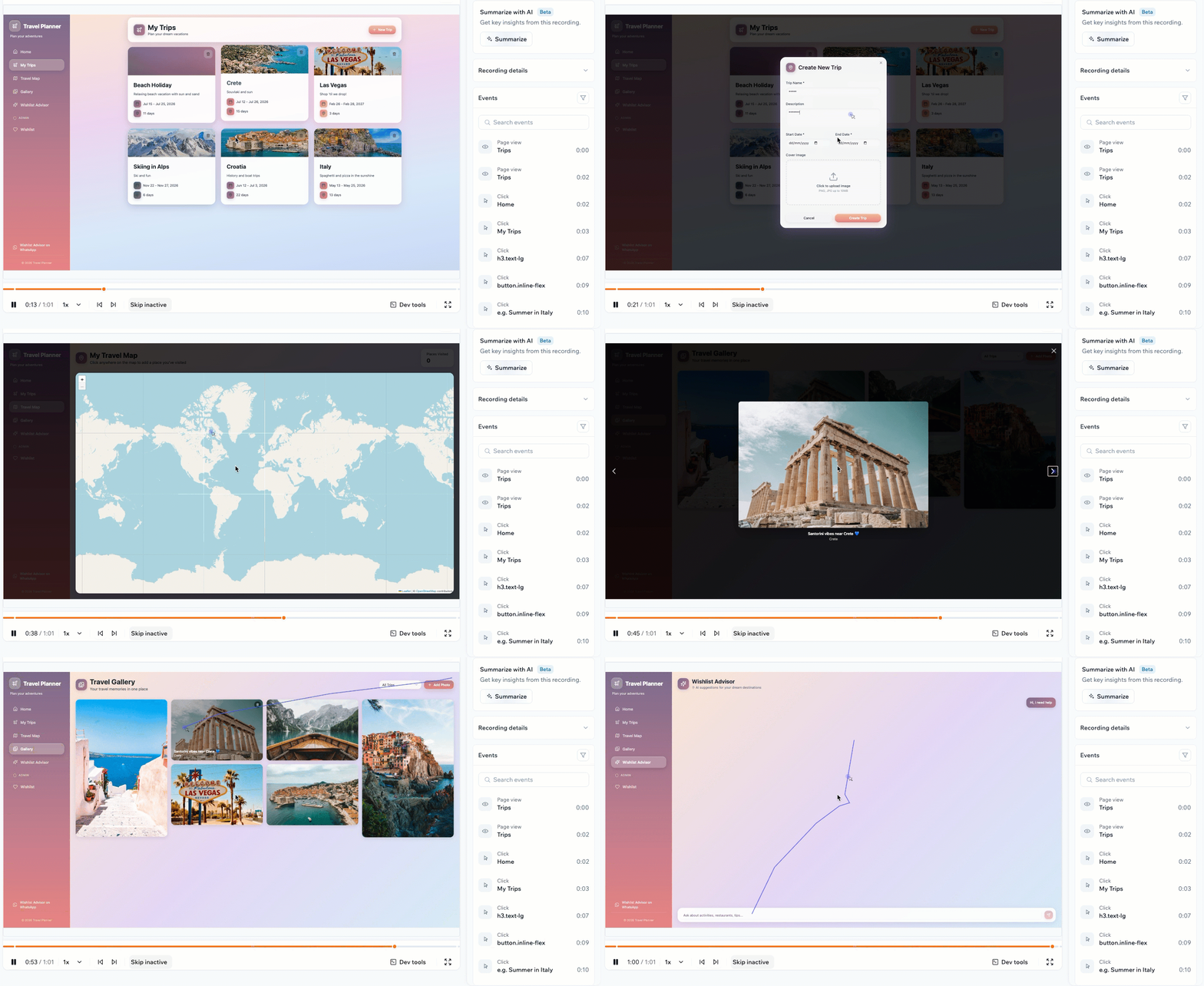
Session recordings let you watch how people actually use your published app, so you can see where they succeed, where they get stuck, and what to improve.
Each recording replays a real visitor's session and flags moments of friction such as rage clicks, dead clicks, and errors. You turn recordings on in your app settings, then review them in the Session recordings tab of your app analytics.
 **Important:**
* Session recordings are available on the **Builder** plan and above. If you are on the Free or Starter plan, upgrade to start recording sessions.
* Recording sessions may require visitor consent in some regions, such as the EU, the UK, and California. You are responsible for letting your app's visitors know that their sessions are recorded and for getting any consent the law requires. Base44 does not add a consent banner to your app, so make sure you meet your local privacy laws before you turn recordings on. Depending on where your visitors are, this may mean adding a cookie or consent banner to your app, or another requirement.
***
## Turning on session recordings
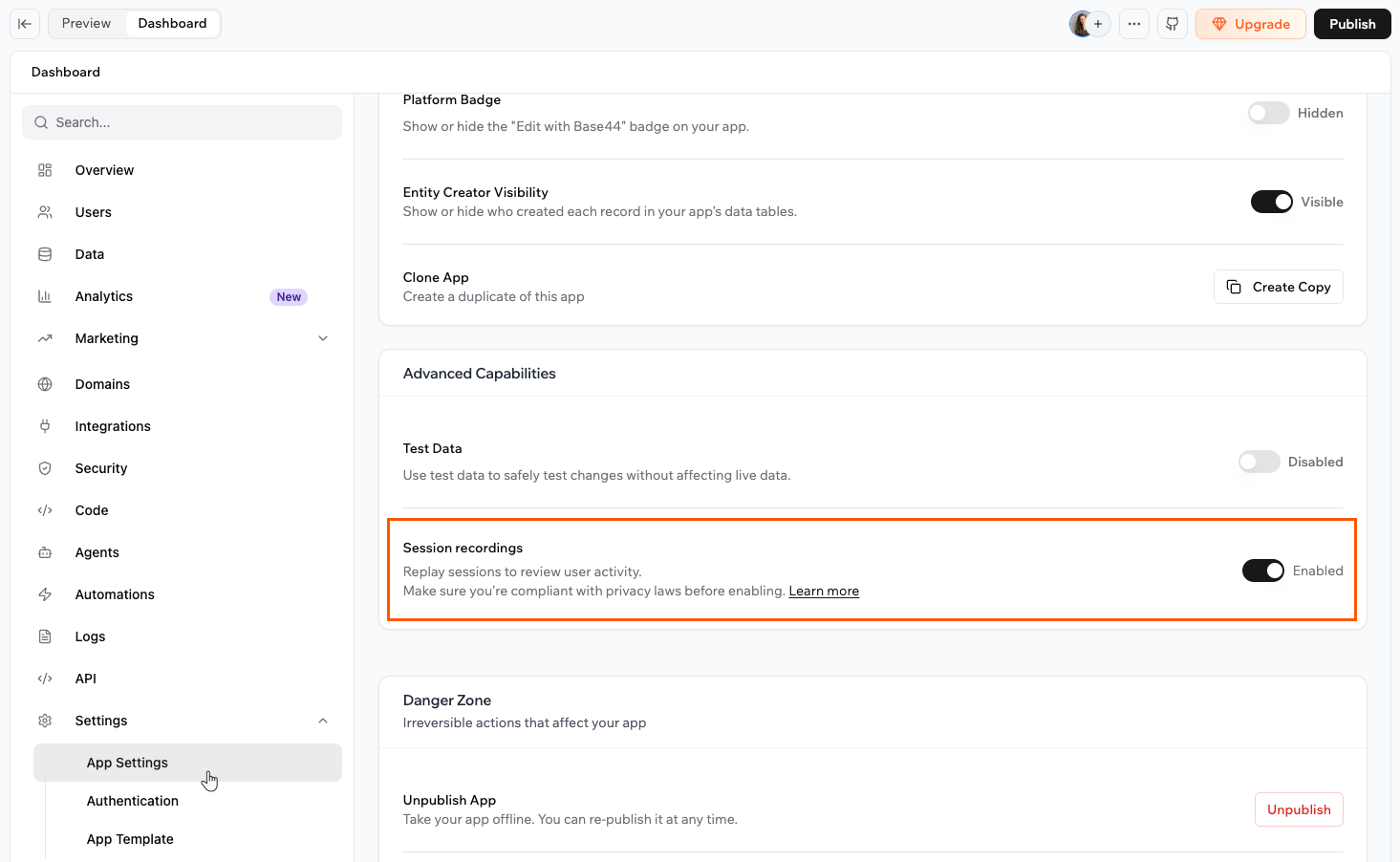
Recordings capture real visitors on your published app, so nothing is recorded until you turn the feature on and publish your app.
**To turn on session recordings:**
1. Click **Dashboard** in your app editor.
2. Click **App Settings**.
3. Scroll to the **Advanced Capabilities** section.
4. Turn on the **Session recordings** toggle.
5. Publish your app so recordings begin as people use it.
**Important:**
* Session recordings are available on the **Builder** plan and above. If you are on the Free or Starter plan, upgrade to start recording sessions.
* Recording sessions may require visitor consent in some regions, such as the EU, the UK, and California. You are responsible for letting your app's visitors know that their sessions are recorded and for getting any consent the law requires. Base44 does not add a consent banner to your app, so make sure you meet your local privacy laws before you turn recordings on. Depending on where your visitors are, this may mean adding a cookie or consent banner to your app, or another requirement.
***
## Turning on session recordings
Recordings capture real visitors on your published app, so nothing is recorded until you turn the feature on and publish your app.
**To turn on session recordings:**
1. Click **Dashboard** in your app editor.
2. Click **App Settings**.
3. Scroll to the **Advanced Capabilities** section.
4. Turn on the **Session recordings** toggle.
5. Publish your app so recordings begin as people use it.
 **What to know about limits and storage:**
* You can record up to 500 sessions every 30 days. When you reach the limit, your existing recordings stay available and new recordings resume on the date shown in your dashboard.
* You can generate up to 50 AI summaries each month.
* Recordings are stored for 30 days, then removed automatically.
***
## Viewing your session recordings
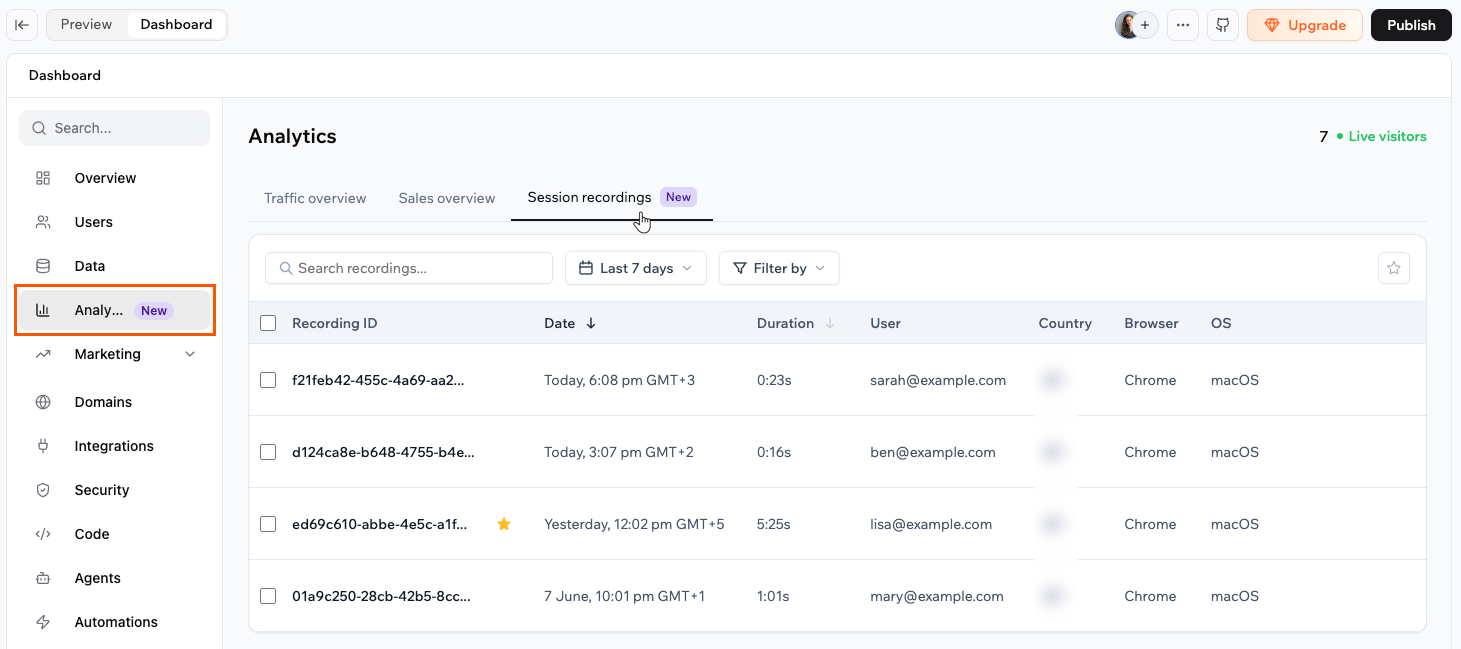
View your recordings any time from your app analytics to see how people are moving through your app. Each recording shows the recording ID, date, duration, user, country, browser, operating system, and device.
**To view your session recordings:**
1. Click **Dashboard** in your app editor.
2. Click **Analytics**.
3. Click the **Session recordings** tab.
4. Click a recording to open it and replay the session.
**What to know about limits and storage:**
* You can record up to 500 sessions every 30 days. When you reach the limit, your existing recordings stay available and new recordings resume on the date shown in your dashboard.
* You can generate up to 50 AI summaries each month.
* Recordings are stored for 30 days, then removed automatically.
***
## Viewing your session recordings
View your recordings any time from your app analytics to see how people are moving through your app. Each recording shows the recording ID, date, duration, user, country, browser, operating system, and device.
**To view your session recordings:**
1. Click **Dashboard** in your app editor.
2. Click **Analytics**.
3. Click the **Session recordings** tab.
4. Click a recording to open it and replay the session.
 ***
## Replaying a session
When you open a recording, you can replay the session and move straight to the moments that matter.
Each recording has the **Summary**, **Details**, and **Events** tabs. Use **Events** to step through everything that happened, such as page views, clicks, and form submissions.
***
## Replaying a session
When you open a recording, you can replay the session and move straight to the moments that matter.
Each recording has the **Summary**, **Details**, and **Events** tabs. Use **Events** to step through everything that happened, such as page views, clicks, and form submissions.
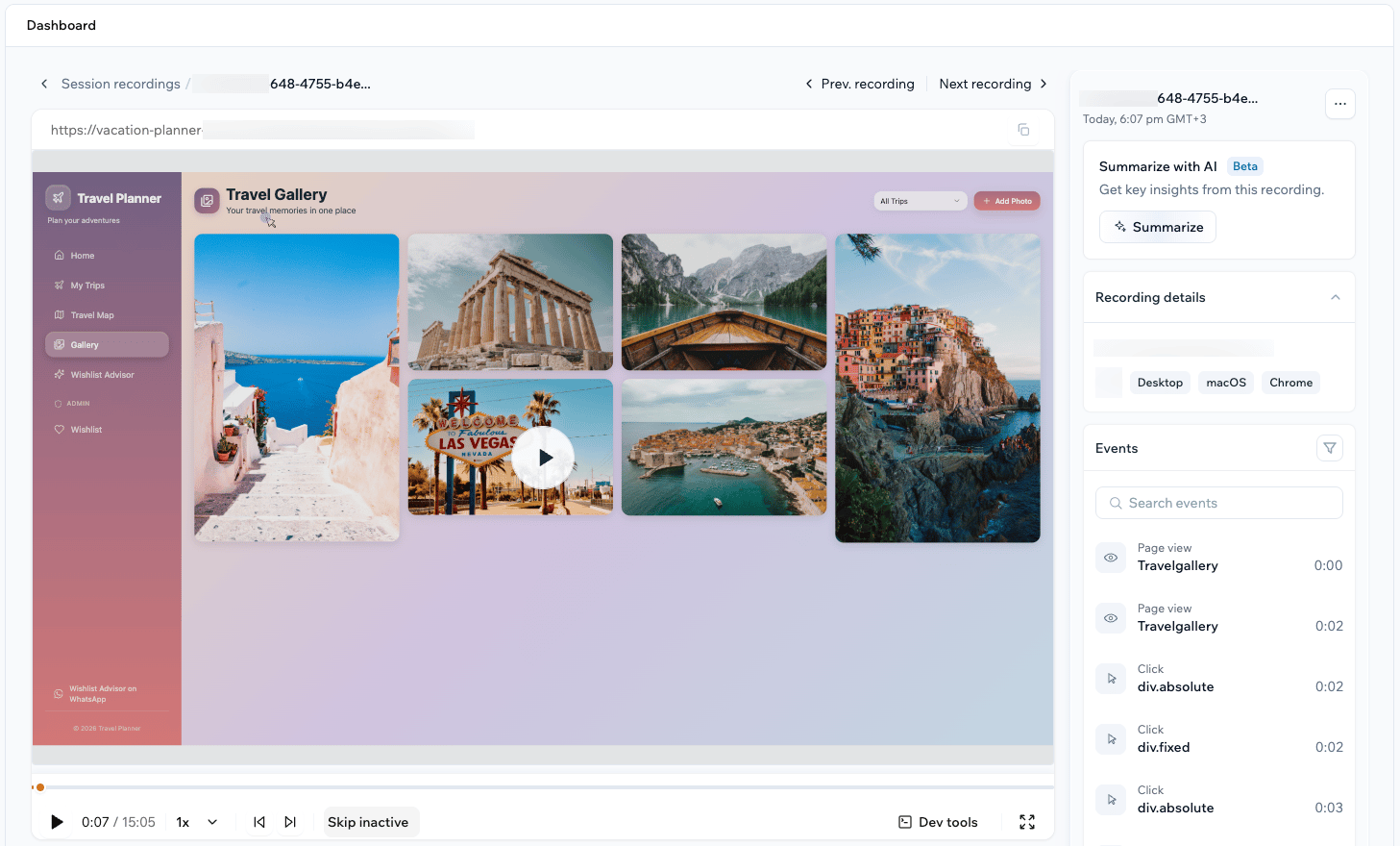 * **Play, pause, and change the playback speed:** Control the replay like a video, and slow it down or speed it up as needed.
* **Skip inactive periods:** Jump past idle time so you only watch moments of activity.
* **Jump to friction points:** Move straight to the errors and rage clicks marked on the timeline.
* **Open dev tools:** Click Dev tools to review the console, network requests, errors, and performance captured during the session.
***
## Summarizing a session with AI
The AI summary turns a recording into key insights so you can understand a session without watching all of it.
The summary gives you a short overview of what happened, **Friction points** flagged by severity such as warnings and information, and **Suggested next steps** to improve the experience.
**To summarize a recording with AI:**
1. Click **Dashboard** in your app editor.
2. Click **Analytics**.
3. Click **Session recordings**.
4. Click **View** on a recording.
5. In the **Summarize with AI** panel, click **Summarize**.
6. Review the **AI summary** when it finishes.
* **Play, pause, and change the playback speed:** Control the replay like a video, and slow it down or speed it up as needed.
* **Skip inactive periods:** Jump past idle time so you only watch moments of activity.
* **Jump to friction points:** Move straight to the errors and rage clicks marked on the timeline.
* **Open dev tools:** Click Dev tools to review the console, network requests, errors, and performance captured during the session.
***
## Summarizing a session with AI
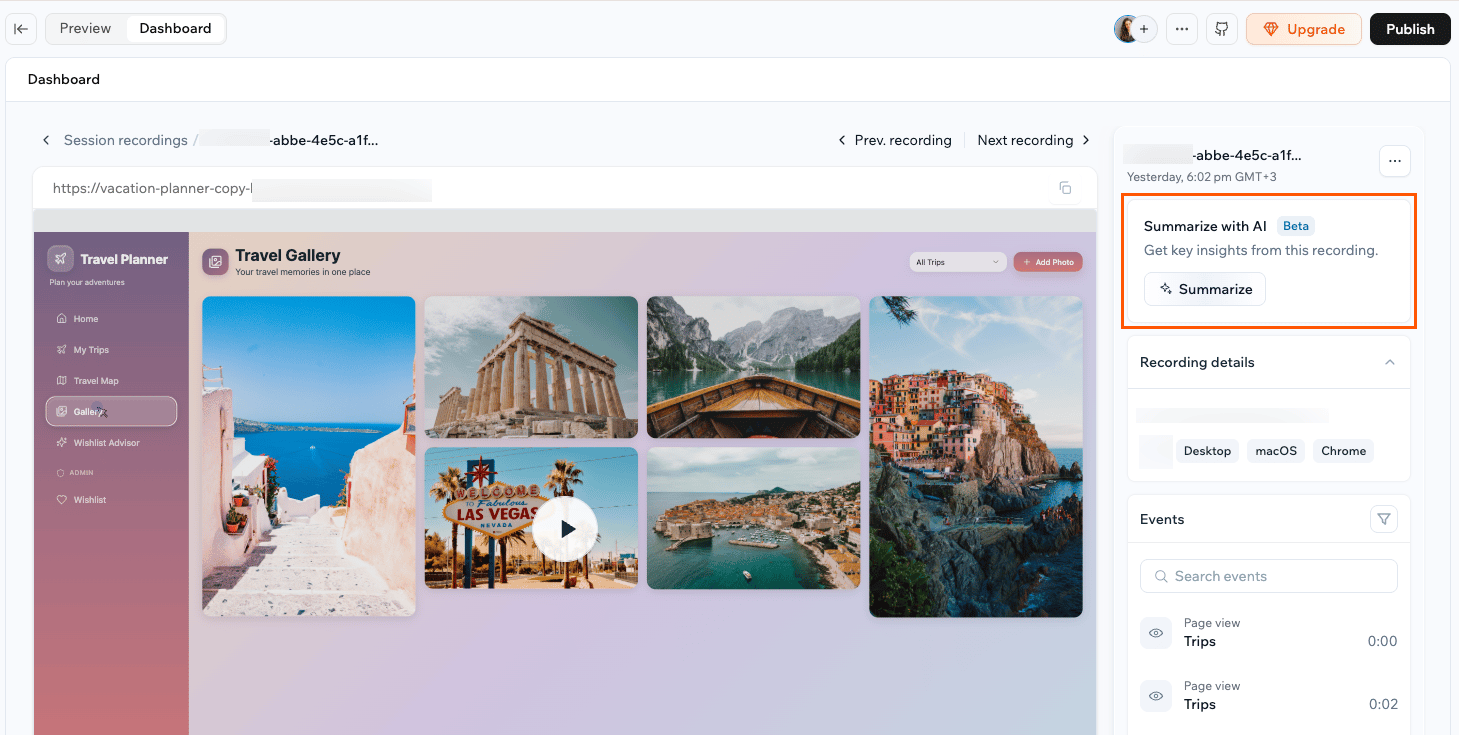
The AI summary turns a recording into key insights so you can understand a session without watching all of it.
The summary gives you a short overview of what happened, **Friction points** flagged by severity such as warnings and information, and **Suggested next steps** to improve the experience.
**To summarize a recording with AI:**
1. Click **Dashboard** in your app editor.
2. Click **Analytics**.
3. Click **Session recordings**.
4. Click **View** on a recording.
5. In the **Summarize with AI** panel, click **Summarize**.
6. Review the **AI summary** when it finishes.
 ***
## Finding specific sessions
Narrow the list down to the sessions you care about using search, filters, and date ranges.
* **Search:** Find a recording by its ID or name.
* **Filter:** Focus on a device, country, browser, operating system, page, or issue type such as errors, rage clicks, dead clicks, a refreshed URL, or a crash.
* **Choose a date range:** View recordings from a preset period or your own custom dates.
* **Show favorites:** Star the recordings you want to revisit, then filter to show only those.
***
## Finding specific sessions
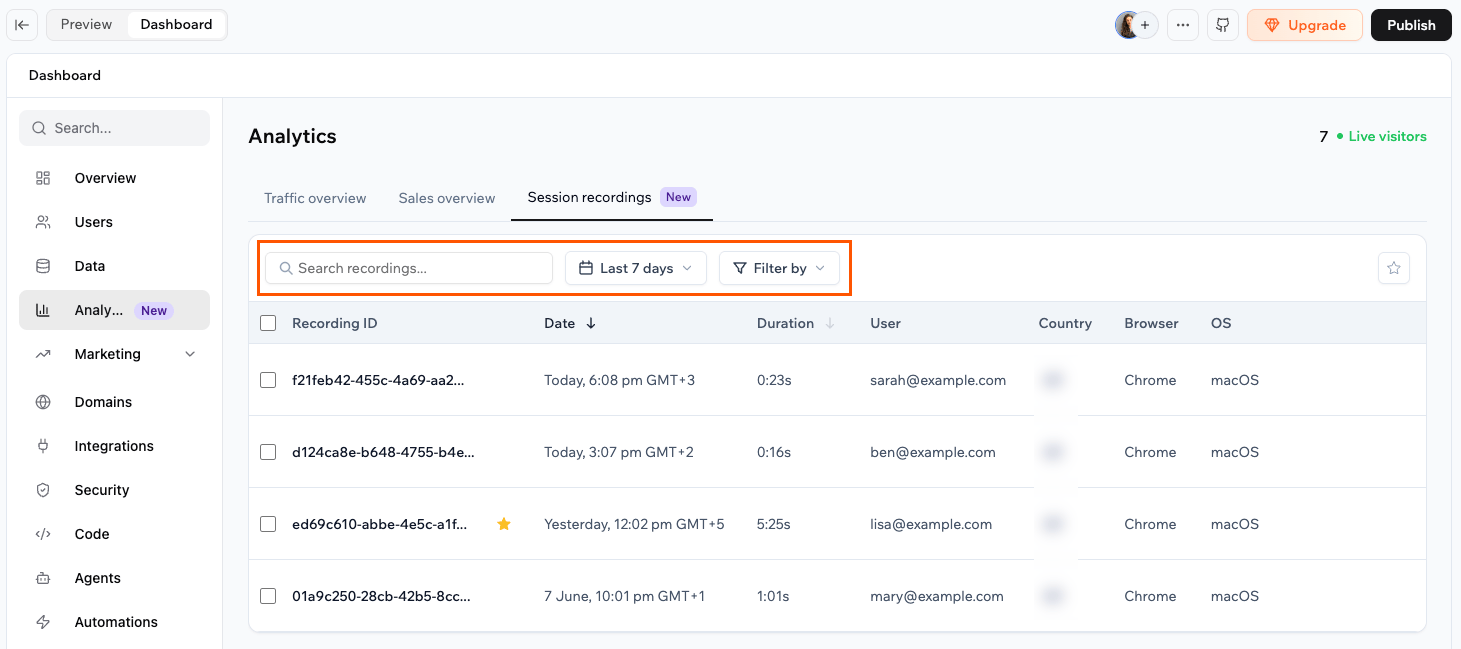
Narrow the list down to the sessions you care about using search, filters, and date ranges.
* **Search:** Find a recording by its ID or name.
* **Filter:** Focus on a device, country, browser, operating system, page, or issue type such as errors, rage clicks, dead clicks, a refreshed URL, or a crash.
* **Choose a date range:** View recordings from a preset period or your own custom dates.
* **Show favorites:** Star the recordings you want to revisit, then filter to show only those.
 ***
## Managing your recordings
Rename a recording to make it easy to find later, or delete recordings you no longer need.
Deleting a recording permanently removes it and its session data. This cannot be undone.
**To rename or delete a recording:**
1. Click **Dashboard** in your app editor.
2. Click **Analytics**.
3. Click **Session recordings**.
4. Hover over a recording and click the **More Actions** icon .
5. Click **Rename** or **Delete**.
***
## Managing your recordings
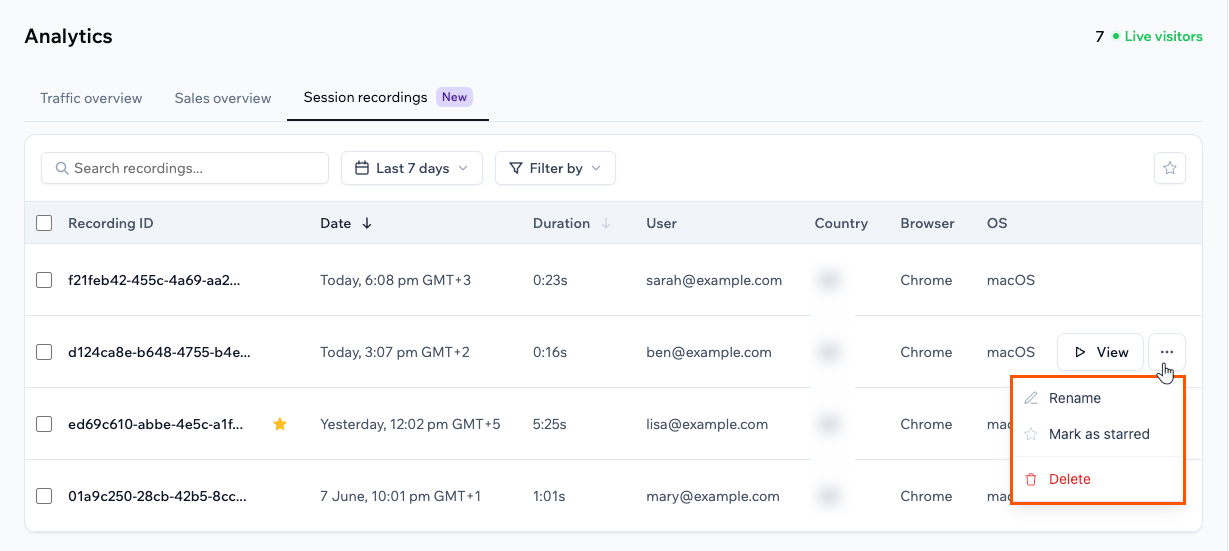
Rename a recording to make it easy to find later, or delete recordings you no longer need.
Deleting a recording permanently removes it and its session data. This cannot be undone.
**To rename or delete a recording:**
1. Click **Dashboard** in your app editor.
2. Click **Analytics**.
3. Click **Session recordings**.
4. Hover over a recording and click the **More Actions** icon .
5. Click **Rename** or **Delete**.
 ***
## FAQs
Find answers to common questions about session recordings in Base44.
Session recordings capture real visitors on your published app. Sessions in preview are not recorded, so publish your app to start collecting recordings.
No. Turning off the toggle stops new sessions from being recorded. Your existing recordings stay available until you delete them or they reach the 30-day storage limit.
New sessions stop being recorded for the rest of the period, and your dashboard shows the date when recording resumes. The recordings you already have stay available.
Session recordings follow your app dashboard permissions. Anyone who can open your app dashboard can view the recordings.
Recording captures sessions across your whole app. To focus on a specific page, country, device, or issue, use the filters in the Session recordings tab after the sessions are recorded.
***
## FAQs
Find answers to common questions about session recordings in Base44.
Session recordings capture real visitors on your published app. Sessions in preview are not recorded, so publish your app to start collecting recordings.
No. Turning off the toggle stops new sessions from being recorded. Your existing recordings stay available until you delete them or they reach the 30-day storage limit.
New sessions stop being recorded for the rest of the period, and your dashboard shows the date when recording resumes. The recordings you already have stay available.
Session recordings follow your app dashboard permissions. Anyone who can open your app dashboard can view the recordings.
Recording captures sessions across your whole app. To focus on a specific page, country, device, or issue, use the filters in the Session recordings tab after the sessions are recorded.