

Renaming your Superagent
Give your Superagent a name that fits how you work with it. To rename your Superagent:- Open your Superagent.
- Click your Superagent’s name at the top of the editor.
- Type the new name and press Enter.
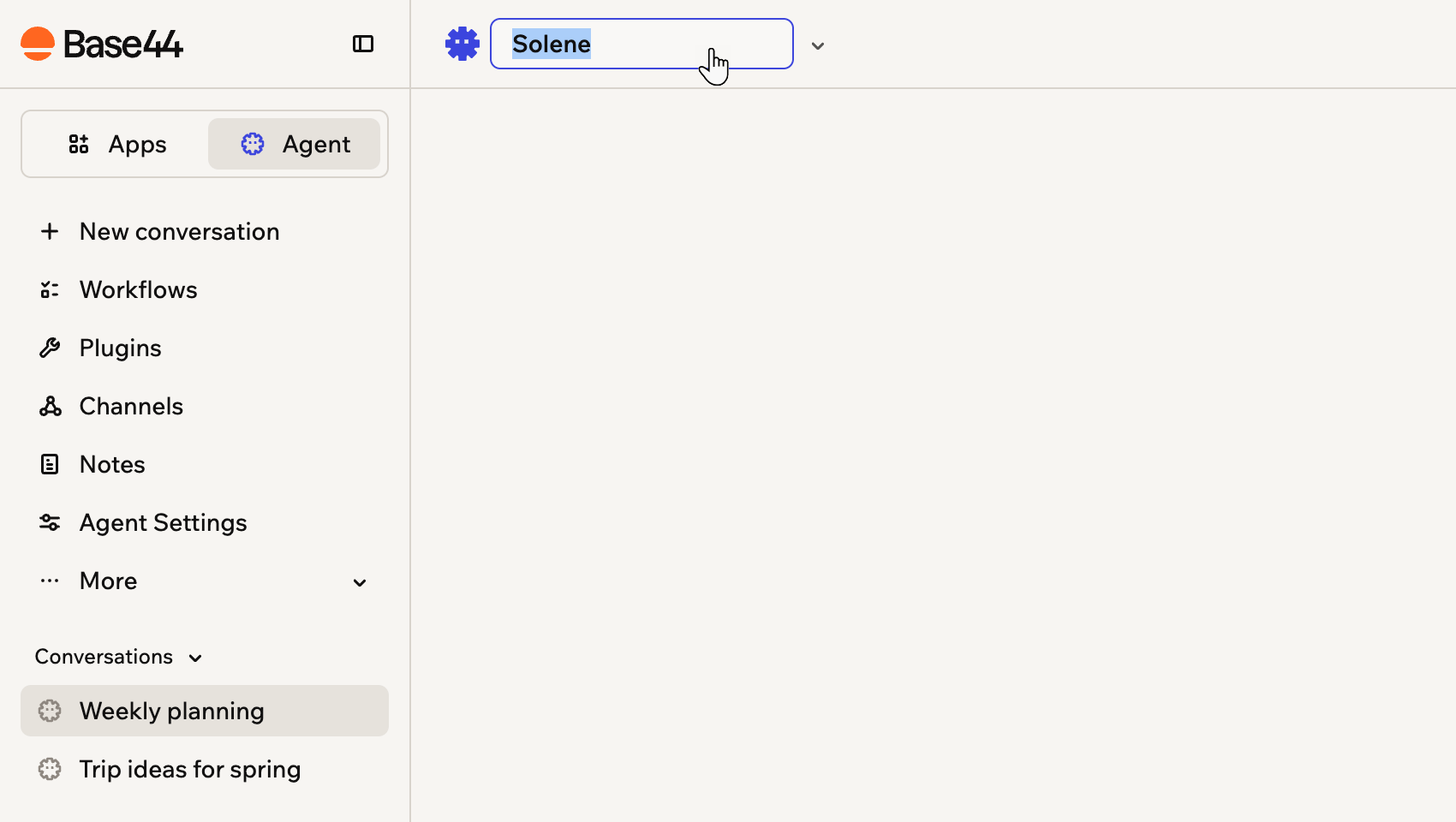
Clicking your Superagent's name to rename it
Deleting your Superagent
Remove your Superagent from your workspace when you no longer need it. To delete your Superagent:- Open your Superagent.
- Click Agent Settings in the sidebar.
- Click General.
- Click Delete this agent.
- Click Delete this agent again to confirm.
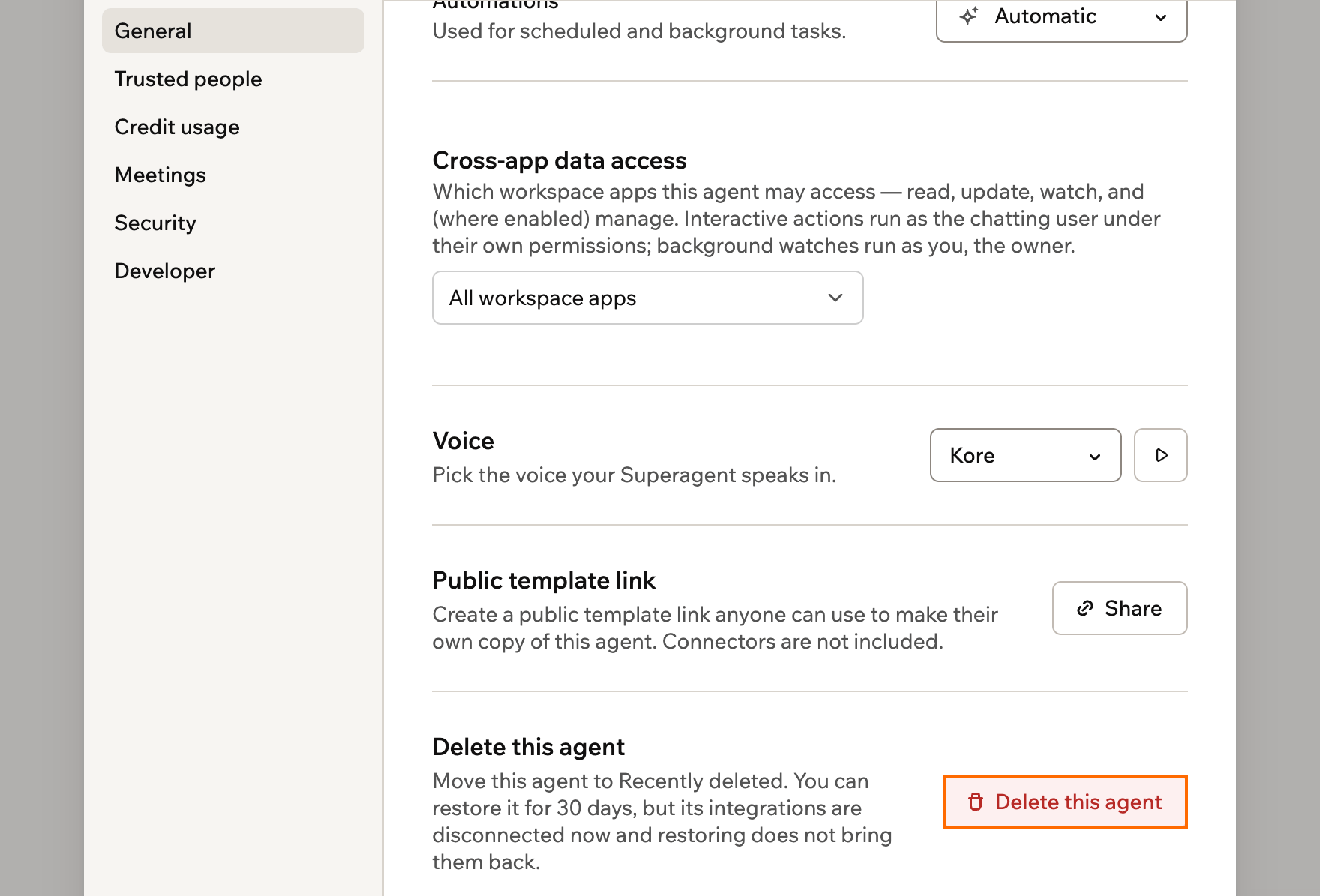
Deleting your Superagent from Agent Settings
Managing several Superagents
If you have more than one Superagent in a workspace, for example when someone shares their Superagent with you, you can switch between them and manage them here.Superagents are designed as one assistant per person, so most workspaces have just one. To keep different kinds of work apart, use separate conversations.
Switch to another agent
Switch to another agent
To switch to another agent:
- Click your Superagent’s name at the top of the editor.
- Under Recent agents, click the agent you want.
Find and manage your agents
Find and manage your agents
The All agents view lists every agent you own, so you can find one and manage it from one place.To find and manage your agents:
- Click your Superagent’s name at the top of the editor.
- Click View all agents.
- Search, filter, or sort to find the agent you want.
- Click the Star icon on its card to add it to your Favorites, or click the More actions icon to rename, clone, or delete it, copy its ID, or open its settings.
Clone an agent
Clone an agent
To clone an agent:
- Open the Superagent you want to copy.
- Click Agent Settings in the sidebar.
- Click General.
- Click Clone agent.
- Choose whether to include chat history, skills, agent memory, files, automations, and API keys.
- Click Clone Agent.
Move an agent to another workspace
Move an agent to another workspace
To move an agent to another workspace:
- Open the Superagent you want to move.
- Click Agent Settings in the sidebar.
- Click General.
- Next to Move to workspace, click Move agent.
- Choose a workspace you belong to, then click Move agent.
FAQs
Click a question below to learn more about managing your Superagent.Can I undo deleting a Superagent?
Can I undo deleting a Superagent?
Yes, for 30 days. A deleted Superagent moves to Recently deleted, and you can restore it during that time.Its integrations are disconnected as soon as you delete it, and restoring the Superagent does not bring them back.
Where do I configure my Superagent's plugins, workflows, and channels?
Where do I configure my Superagent's plugins, workflows, and channels?
Open your Superagent, then use these items in the sidebar:
- Plugins: Manage connectors and skills.
- Workflows: Manage your workflows.
- Channels: Connect messaging apps.
- Agent Settings: Manage security and API access.
How do I use my Superagent for different roles or projects?
How do I use my Superagent for different roles or projects?
Start a separate conversation for each role or project, and put that role’s context and instructions at the top. Your notes, connected tools, and workflows are available in every conversation, and so is memory when it’s set to Shared memory. Learn more in Work in separate conversations.