

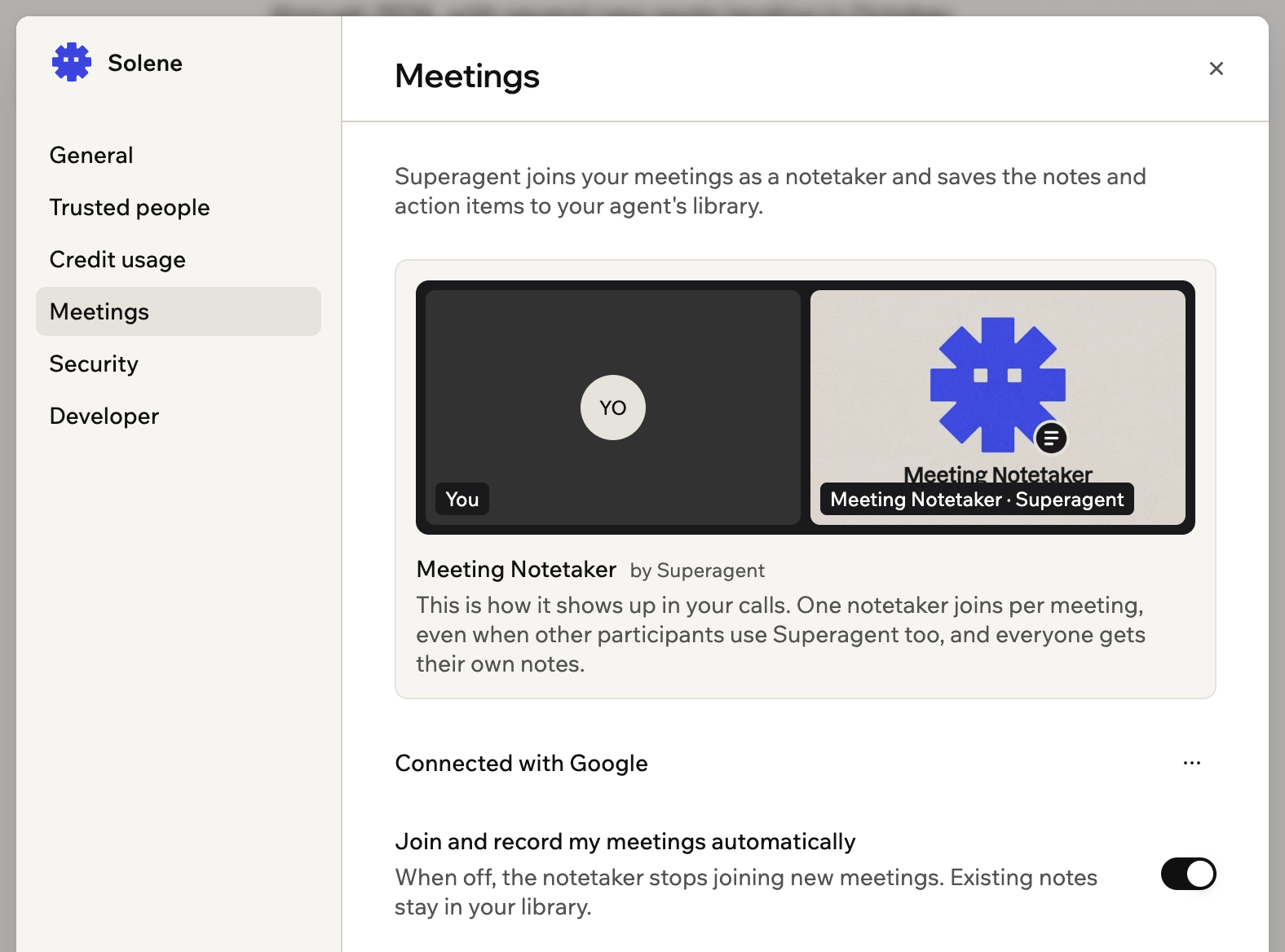
Your Superagent joins your meetings as a notetaker
Connecting your calendar
Your Superagent finds your meetings through the calendar you connected when you created it, either Google Calendar or Microsoft Outlook. Because it reuses that connection, there is no extra sign-in. To connect your calendar:- Open your Superagent.
- Click Agent Settings in the sidebar.
- Click Meetings.
- Click Use my Google calendar or Use my Microsoft calendar, depending on the account you set up with.
Microsoft Outlook works only when you granted calendar access while setting up your Superagent. You cannot connect an Outlook calendar from the Meetings panel afterwards. If you set up with Google, your Superagent uses Google Calendar.
Choosing which meetings to record
Once your calendar is connected, your Superagent joins your meetings automatically. You can turn this off and send it into specific meetings instead. To choose which meetings your Superagent records:- Open your Superagent.
- Click Agent Settings in the sidebar.
- Click Meetings.
- Turn the Join and record my meetings automatically toggle on or off. When it is off, your Superagent stops joining new meetings, and your existing notes stay in your library.
- To send your Superagent into a specific meeting, click Join next to the meeting.
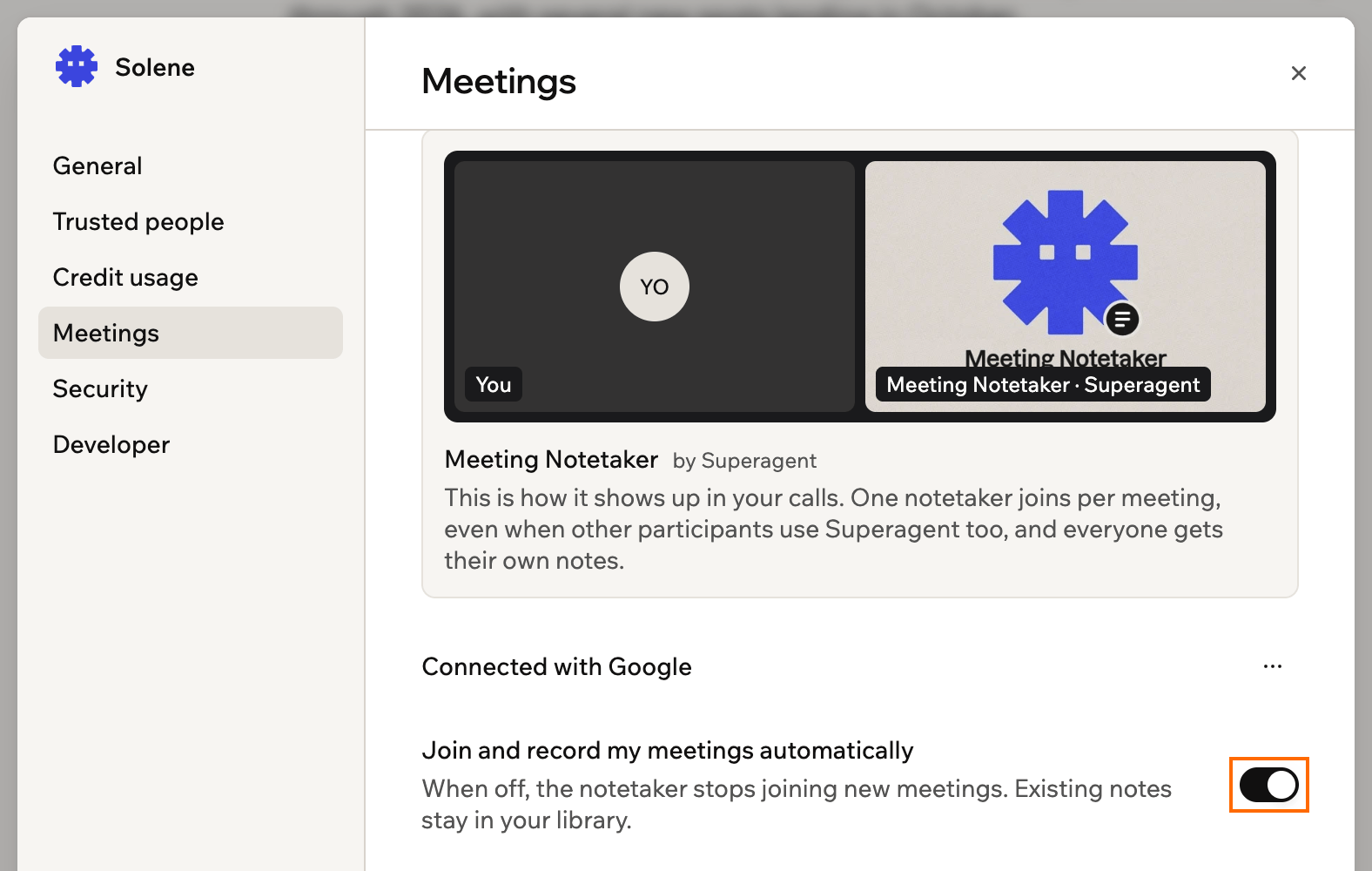
Turning on automatic joining and recording
Reviewing your meetings and notes
When a meeting ends, its notes and action items are delivered to your Superagent’s notes library and your email. Meetings without a video link do not appear in the list.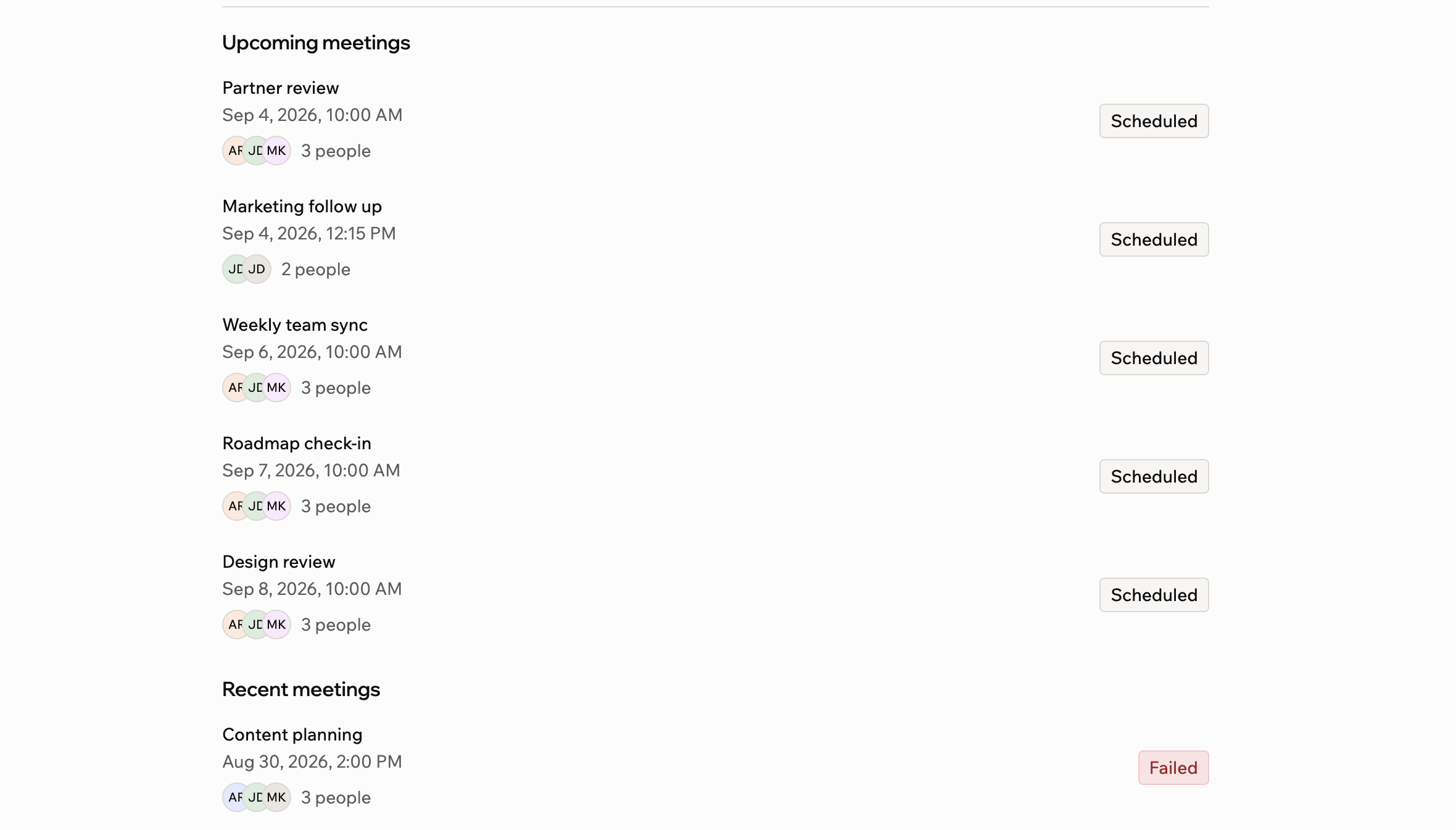
Checking the status of each upcoming and recent meeting
- Open your Superagent.
- Click Agent Settings in the sidebar.
- Click Meetings.
- Check each meeting’s status under Upcoming meetings and Recent meetings:
- Scheduled: An upcoming meeting with a video link that your Superagent plans to join.
- Join: Appears close to the start time. Click it to send your Superagent into the meeting.
- Joining: Your Superagent is connecting to the meeting.
- Waiting to be admitted: Your Superagent is in the waiting room. Let it in to start the notes.
- In meeting: Your Superagent has joined.
- Recording: The meeting is in progress and your Superagent is taking notes.
- Processing: The meeting ended and your Superagent is writing up the notes.
- Notes sent: The notes are ready and in your email. Click Notes to read them.
- Failed: Your Superagent could not join or could not finish the notes. Try sending it into the next meeting.
Managing your calendar connection
Reconnect your calendar if it stops syncing, or disconnect it to stop your Superagent from seeing your meetings. To manage the connection:- Open your Superagent.
- Click Agent Settings in the sidebar.
- Click Meetings.
- Click the More actions icon next to Connected with Google.
- Select Reconnect or Disconnect.
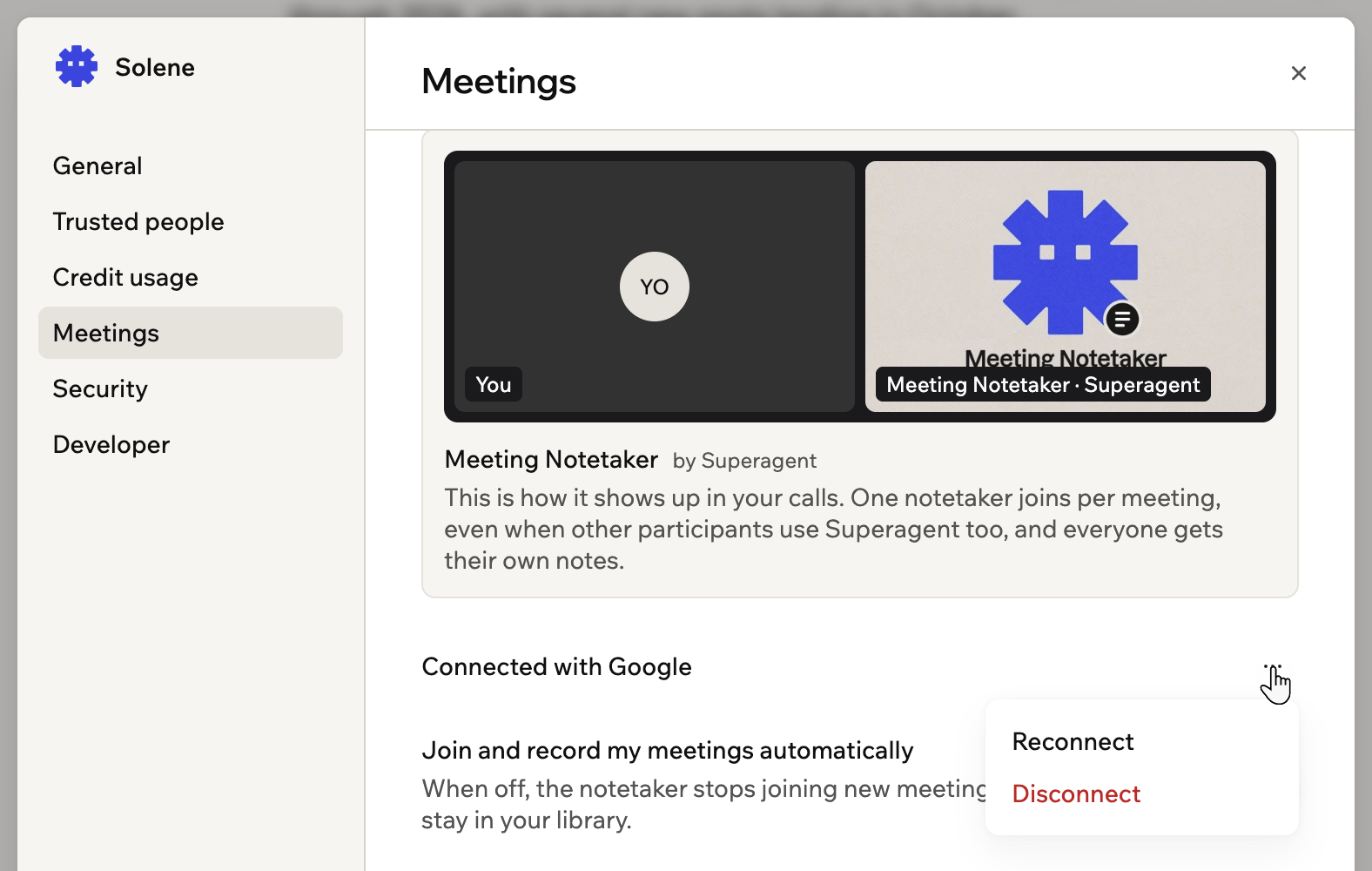
Reconnecting or disconnecting the calendar your Superagent uses
FAQs
Click a question below to learn more about meeting notes.Can I use Outlook or another calendar?
Can I use Outlook or another calendar?
Microsoft Outlook works, as long as you granted calendar access when you set up your Superagent, because your Superagent reuses that connection. You cannot add an Outlook calendar from the Meetings panel later. Other calendars are not supported yet.