

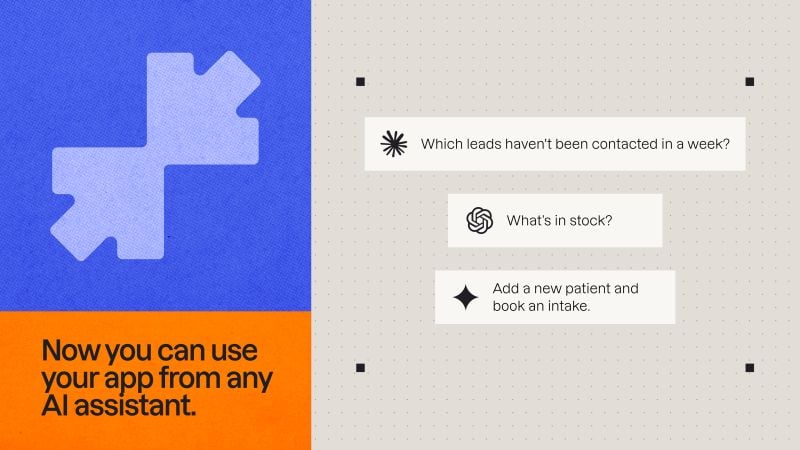
What an assistant can ask your app
What you can do with App MCP
What an assistant can do depends on your server’s access mode:- Public · No sign-in: Give anyone read-only access to the entities you enable. Your app must be open without sign-in.
- Sign in required · OAuth: Require people to sign in with their app account. Their assistant acts as them when using the app data, agents, and custom tools you enable.
How App MCP works
You can control App MCP access at 3 levels:- Access mode: Choose who can connect and whether they need to sign in. Check the current mode under Access on the Overview card. To change it, ask the AI chat.
- Tool access: Choose which entities, agents, and custom tools assistants can use. Edit these settings on the MCP page or ask the AI chat to change them.
- App permissions: Set your app’s data permissions to control what each person can do. With Sign in required · OAuth, assistants use the signed-in person’s permissions for entity operations. Custom tools follow the access checks in their backend functions.
Additional types of Base44 MCP connections
App MCP lets you connect external AI assistants to your published app.Check out additional types of MCP connections:
- Base44 MCP: Build and manage Base44 apps from an external AI assistant.
- Custom MCP connections: Connect the Base44 AI chat to external MCP servers while you build your app.
Setting up MCP access
Set up App MCP separately for each app you want to connect.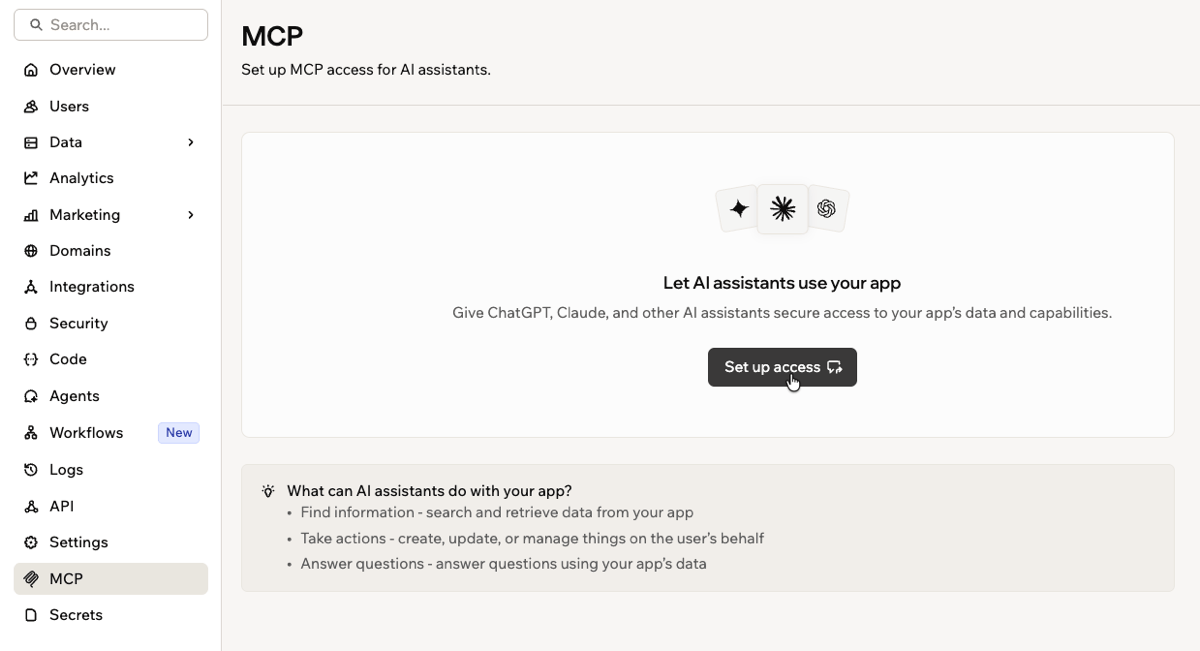
Setting up MCP access for your app
If MCP is turned off for your workspace, ask its owner or an admin to enable it. See Managing MCP access for your workspace.
- Go to your app’s dashboard.
- Click MCP.
- Click Set up access.
- Follow the setup instructions in the AI chat. If your app requires sign-in, Base44 sets up OAuth automatically. Otherwise, choose Public or Sign in required · OAuth.
- Click Publish to activate the MCP server.
How publishing affects access:
- If you change the access mode, publish again.
- Publishing stops every OAuth connection to this app if you remove its MCP configuration or Base44 can’t read it. Restoring the configuration and publishing again doesn’t bring them back: people must reconnect and approve access again.
Managing tool access
Choose which entities, agents, and custom tools connected assistants can use. Public access lets assistants read entity records. With OAuth, you can also let them change records, message agents, and run custom tools. To manage tool access:- Go to your app’s dashboard.
- Click MCP.
- Click Edit in Tool access.
- Choose what assistants can access:
- Entities: Your app’s data tables. Choose Full access to allow all available actions, or Custom access to select individual actions. To remove MCP access for an entity, deselect all its action checkboxes.
- Agents: The AI agents in your app. Set each agent to Enabled or Disabled.
- Custom tools: Backend functions available through MCP. Set each tool to Enabled or Disabled.
- Click Save changes.
- Click Publish to apply your changes.
For assistants connected with Sign in required · OAuth:These changes take effect after you publish. When people reconnect, they approve every tool and action currently available, not just the new ones. They can’t approve only some.
- Added access: People must reconnect to use new entities, actions, agents, or custom tools.
- Removed access: Removed tools and actions stop working. People must reconnect if you remove all their approved tools.
- Name or function changes: People must reconnect to use a renamed entity, agent, or custom tool, or a custom tool you point at a different backend function. If that was their only approved tool, their whole connection stops working until they reconnect.
- Title or description changes: People with existing connections don’t need to reconnect.
Connecting an AI assistant
Use your app’s MCP connection URL to connect an AI assistant. To connect an AI assistant:- Go to your app’s dashboard.
- Click MCP.
- Click the copy icon next to Connection URL.
- Follow your AI client’s setup guide to add a remote MCP server with these details:
- Server URL: The connection URL you copied from Base44.
- Transport: Streamable HTTP.
- Authentication: No authentication for Public access, or OAuth for Sign in required · OAuth.
- If your server requires sign-in, sign in with your app account and approve access when prompted.
Helping people connect AI assistants to your app
After setting up App MCP and publishing your app, ask the AI chat to add a/connect page for people using your app. The page includes your app’s MCP connection URL and instructions for connecting their own AI assistants.
To add a connection page:
- Go to your app’s dashboard.
- Click MCP.
- Click the Send to chat icon on the How to connect AI assistant card.
- Review the connection instructions generated by the AI chat, then click Publish.
Managing MCP access for your workspace
Control whether apps in your workspace can use App MCP. The policy you set applies to every app in your workspace and overrides app-level settings.Before you set a policy:
- You need an Enterprise plan and must be a workspace owner or admin.
- App MCP is off by default in Enterprise workspaces.
- Policy changes take effect immediately, without publishing.
- Open your workspace Settings.
- Click Governance.
- Under MCP access for AI assistants, select a policy:
- Allowed: Apps can use App MCP, with or without sign-in.
- Sign-in required: Only OAuth servers can run. Existing Public servers stop accepting requests until you change them to OAuth and publish again.
- Not allowed: Apps in the workspace cannot use App MCP.
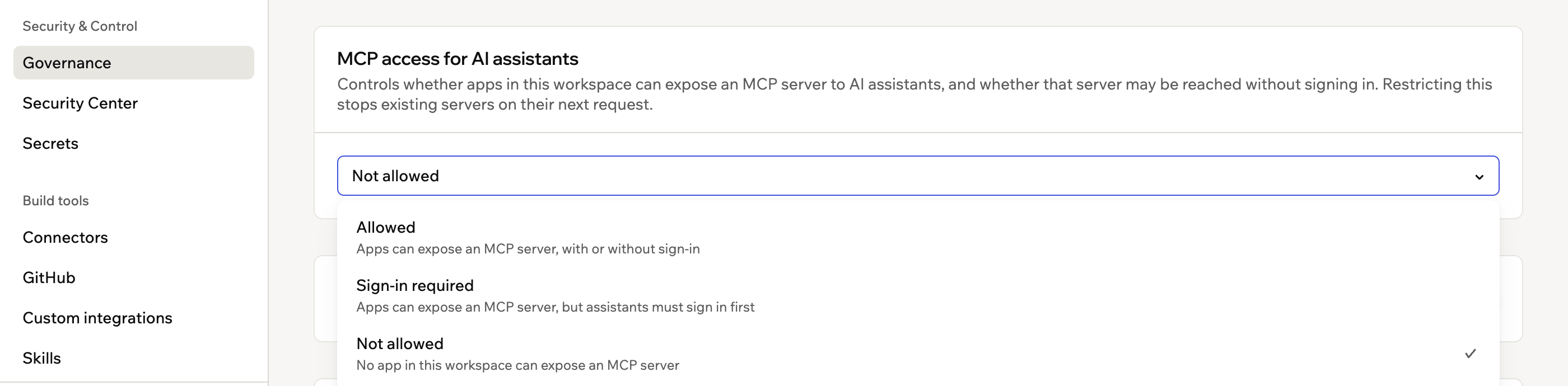
The MCP access for AI assistants policy on the Governance page
Troubleshooting
MCP is turned off for this workspace
MCP is turned off for this workspace
Ask your workspace owner or an admin to enable App MCP. If you’re an owner or admin, click Open workspace settings to change the MCP policy.
Your Public server won't activate
Your Public server won't activate
If the MCP page shows Your app requires login but your MCP server is exposed publicly, ask the AI chat to switch the server to Sign in required · OAuth, then publish your app again.
Claude has no custom connector option
Claude has no custom connector option
Ask your Claude admin whether custom connectors are enabled for your account.