

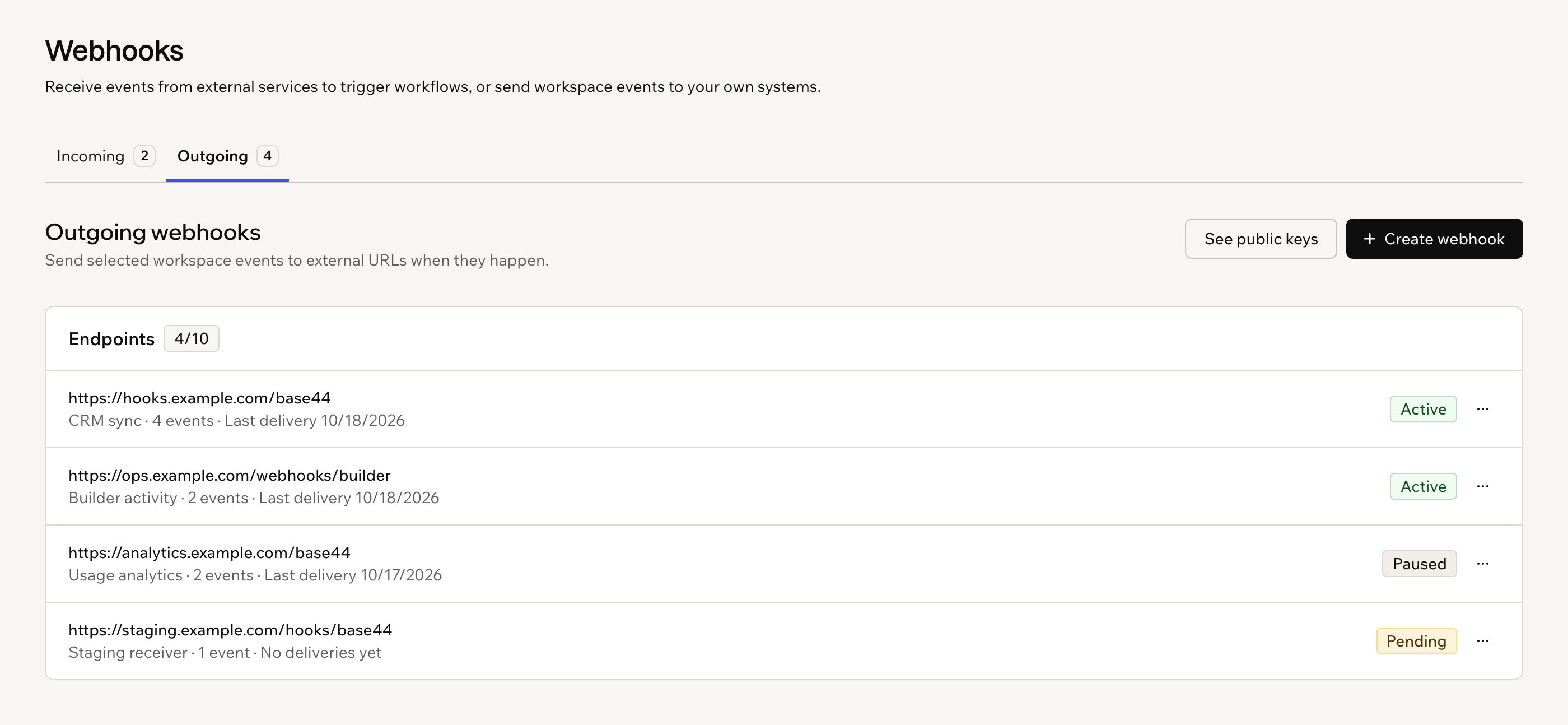
Outgoing webhooks on the Webhooks page
Creating a webhook
Create a webhook for each URL that should receive events. You can create up to 10 per workspace. A new webhook is Pending and receives nothing until you activate it. After you create it, Base44 shows your workspace’s public signing key, which your receiver uses to confirm each request came from Base44. The key is safe to share with your developers. To create a webhook:- Click your workspace name at the bottom left and click Settings.
- Click Webhooks in the sidebar, then click the Outgoing tab.
- Click Create webhook.
- Enter the Endpoint URL. It must start with
https://. - Under Events to send, select the events this URL should receive. There are 2 kinds:
- App events: An app in your workspace is created, published, taken offline, moved to trash, or restored from trash.
- AI chat events: The AI chat in the app editor starts working on a message (Chat turn started) or finishes it (Chat turn ended).
- (Optional) Enter a Description so your team knows what the webhook is for.
- Click Create webhook.
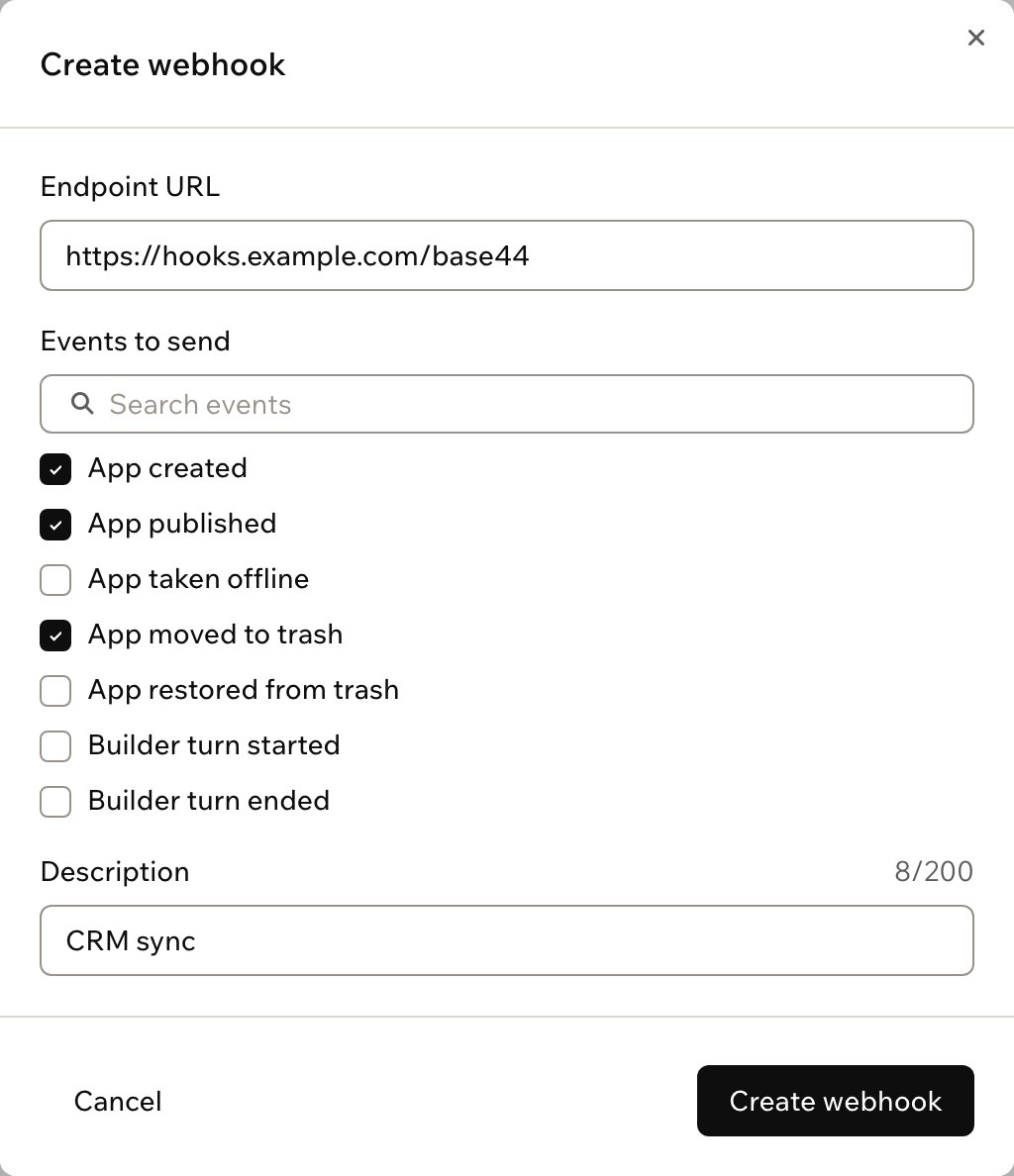
Creating a webhook
Activating a webhook
Activating sends a test event to your URL. The webhook becomes Active when your receiver answers and returns the code in the test event. If activation doesn’t complete, Base44 says why, for example that your endpoint didn’t answer in time or didn’t return the code. Fix the receiver and activate again. To activate a webhook:- Click your workspace name at the bottom left and click Settings.
- Click Webhooks in the sidebar, then click the Outgoing tab.
- Click the More actions icon next to the webhook and select Activate.
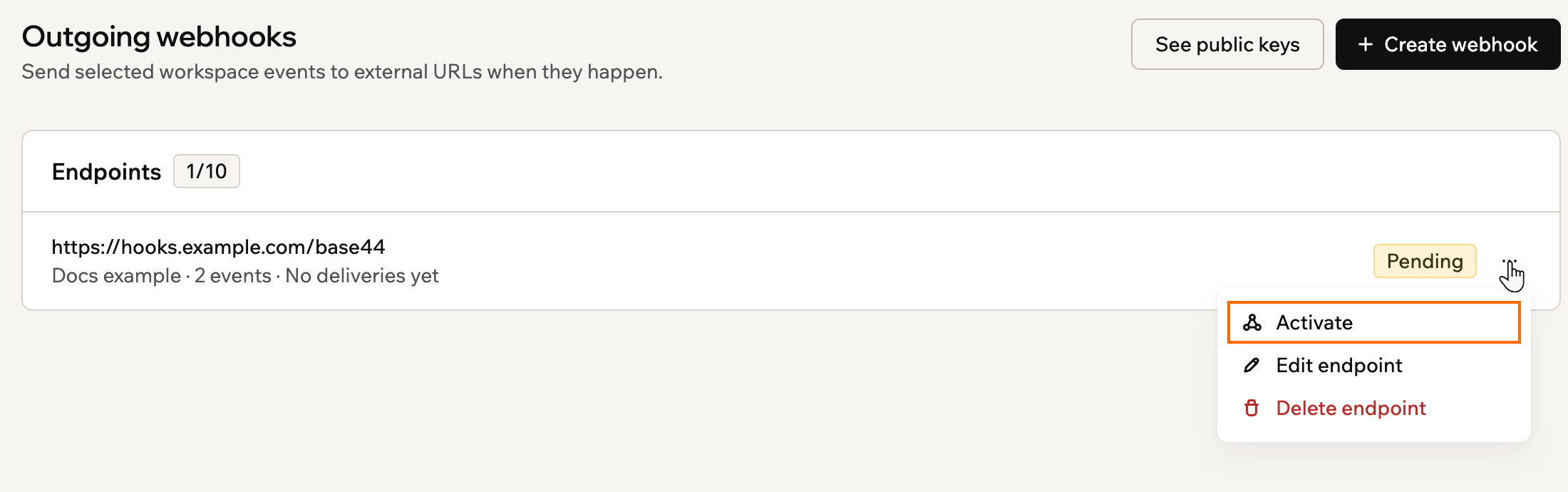
Activating a pending webhook
Managing webhooks
Pause a webhook while your receiver is being updated, change what it receives, or remove it. A webhook that fails for several days in a row is Auto-paused by Base44. When your receiver works again, resume it, and Base44 runs the activation test again before it starts sending. To manage a webhook:- Click your workspace name at the bottom left and click Settings.
- Click Webhooks in the sidebar, then click the Outgoing tab.
- Click the More actions icon next to the webhook and select an option:
- Send test event: Sends a test event to check your receiver.
- Edit endpoint: Changes the URL, the events or the description. Changing the URL stops deliveries until you activate the new URL.
- Pause deliveries or Resume deliveries: Stops or restarts sending. Events that happen while a webhook is paused aren’t sent later.
- Delete endpoint: Stops sending to the URL immediately.
Subscriptions to the old
builder.turn_started.v1 and builder.turn_ended.v1 events no longer receive events. Select Chat turn started and Chat turn ended instead.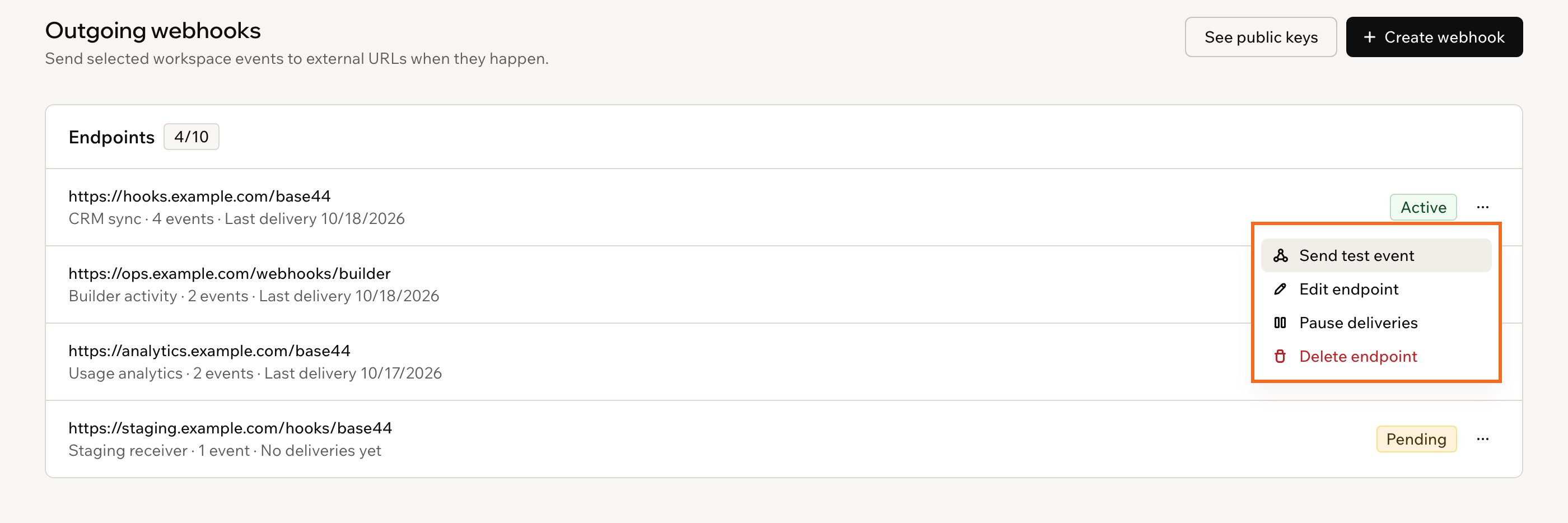
Managing a webhook
Managing the signing key
Every request is signed with your workspace’s key. Rotating replaces it with a new one: Base44 signs with both the old and the new key for 24 hours, so your receiver keeps working while your developers add the new key. When they’re done, click Finish rotation to stop using the old key sooner. To rotate the signing key:- Click your workspace name at the bottom left and click Settings.
- Click Webhooks in the sidebar, then click the Outgoing tab.
- Click See public keys.
- Click Rotate key, then click Rotate key to confirm.
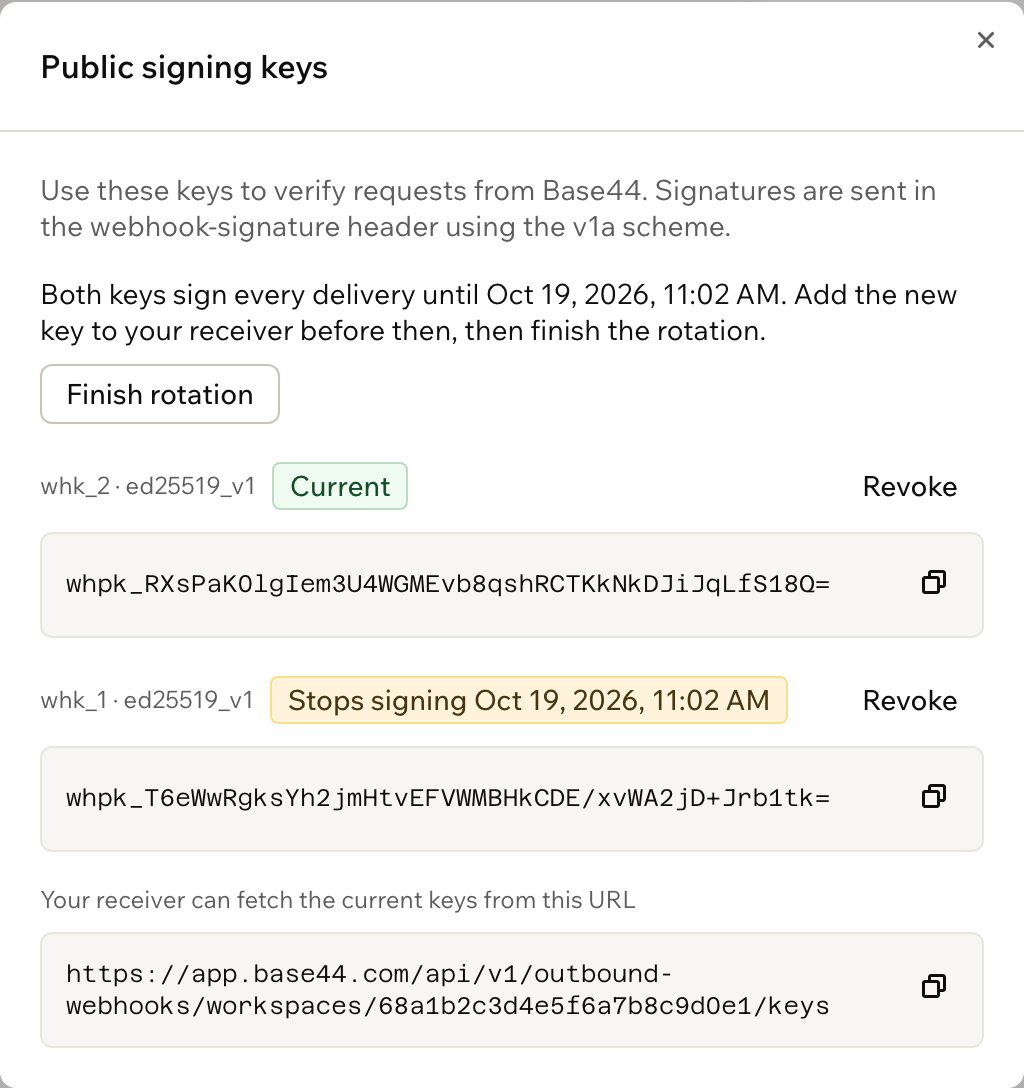
The signing keys during a rotation
FAQs
Click a question below to learn more about outgoing webhooks.Can a webhook send events for just one app?
Can a webhook send events for just one app?
No. A webhook receives the events you choose for every app in your workspace. Each event includes the app it’s about, so your receiver can ignore the apps it doesn’t need.
What happens if my server is down?
What happens if my server is down?
Base44 keeps retrying each event for about a day, waiting longer between each try. If your webhook keeps failing for several days, Base44 auto-pauses it. When your server works again, resume the webhook from its More actions menu.
Do webhooks use credits?
Do webhooks use credits?
No. Sending events to your webhooks doesn’t use any credits.
How do my developers build a receiver?
How do my developers build a receiver?
Share the outgoing webhooks developer guide with them. It covers the event types, verifying requests and delivery and retries.