

Supported security partners
You can connect these security partners today. Each partner’s setup guide explains where to enter your Base44 key in their product.
More partners are coming soon: Upwind (security), Pluto (AI workspace security) and Zenity (AI agent security).
For the latest list of partners and their setup guides, see the Compliance API page on base44.com.
Choosing permissions
When you create the key, you choose which kinds of data your partner can read. Choose only what your partner needs.How the permissions work:
- Your partner always sees your whole workspace, even if you limit the key to selected apps, so their report doesn’t miss anything.
- If you leave out a permission, your partner’s report shows that data as not shared, rather than as empty.
Connecting your partner
Create a workspace API key with the compliance permissions, then send it to your partner. To connect a security partner:- Click your workspace name at the bottom left and click Settings.
- Click Secrets in the sidebar.
- Click + Create API Key.
-
Enter a name that says who the key is for, for example
Orca Security. -
Under Permissions, open Workspace and select Read compliance inventory, plus any other compliance permissions you want to share.
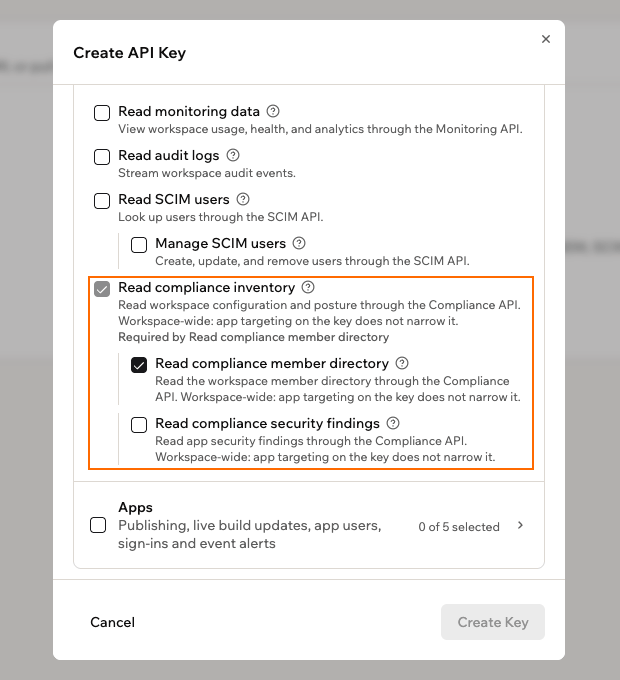
Choosing compliance permissions for your partner's key
- Click Create Key.
-
Click the copy icon next to your key to copy it. It’s only shown once, so copy it before you click Done.
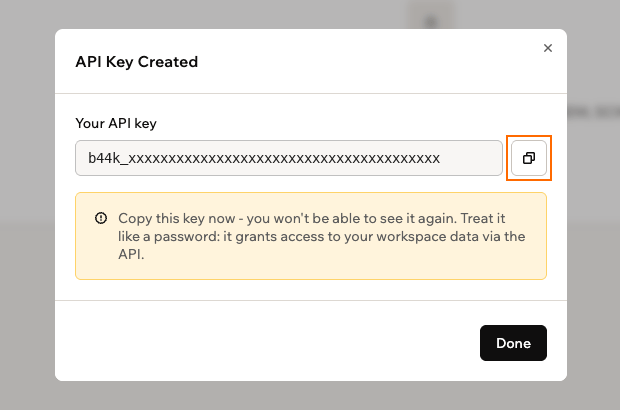
Copying your new key to send to your partner
- Send the key to your security partner through a secure channel, and finish the setup in their product using their setup guide.
What stays private
Your partner sees how your workspace is set up, never your content or credentials. Whatever permissions you choose, the Compliance API never shares:- The data in your apps, such as records and uploaded files
- Your chats with the AI chat and your agents’ conversations
- Secret values, API keys, tokens and passwords
- Your backend function code and your agents’ instructions
- Your app users’ identities
- MFA details, such as phone numbers and authenticator codes
Your partner can only read. The Compliance API can’t change or delete anything in your workspace.
Seeing your partner’s scans
Your partner’s reads are recorded in your workspace’s audit logs asworkspace.compliance_api.read. Each record names the API key that was used and the partner that called, so you can see when scans run and investigate if a key is ever misused.
To keep your audit logs readable, Base44 records each kind of read once an hour, not every request. You see at most one record an hour for each key, partner, type of data read, and result (succeeded or failed), so the number of records doesn’t match the number of requests.
Managing your partner’s key
You can rename your partner’s key, pause their access, or remove it for good from your Secrets page. When you disable or delete the key, your partner can’t read your workspace from that moment. To manage your partner’s key:- Click your workspace name at the bottom left and click Settings.
- Click Secrets in the sidebar.
-
Click the More actions icon next to your partner’s key.
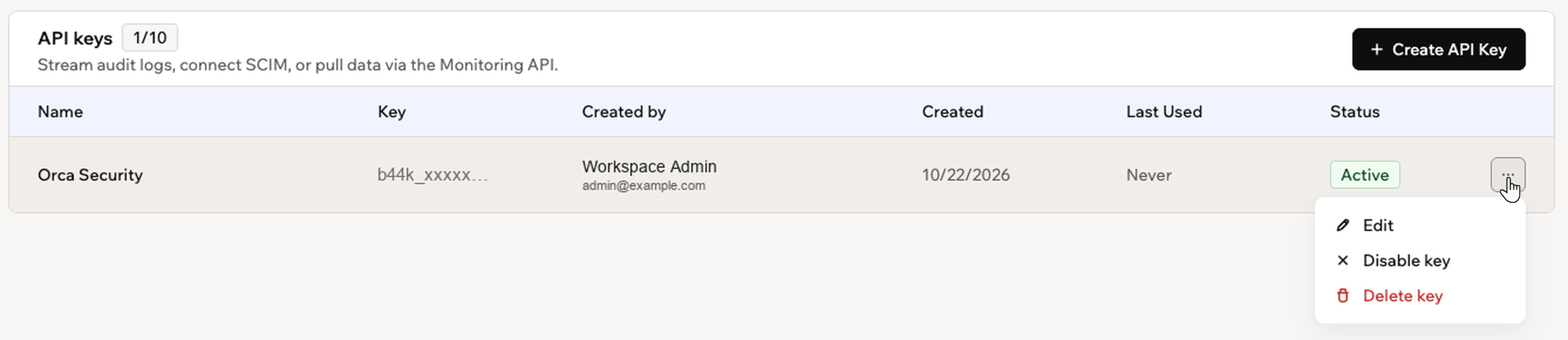
Managing your partner's key from the More actions menu
- Do one of the following:
Edit the key
Edit the key
Click Edit to change the key’s name, description or permissions. To change what your partner can see, select or clear the compliance permissions, then save. Your partner keeps using the same key, so you don’t need to send them anything.
Disable the key
Disable the key
Click Disable key to pause your partner’s access without removing the key. Their scans stop straight away. To let them back in, click Enable key in the same menu.
Delete the key
Delete the key
Click Delete key, then click Delete Key to confirm. Your partner’s access stops straight away, and you can’t undo it. To connect the partner again, create a new key and send it to them.
FAQs
Click a question below to learn more about connecting a security partner.Can I connect more than one security partner?
Can I connect more than one security partner?
Yes. Create a separate key for each partner and name it after them. That way you can stop one partner’s access without affecting the others, and your audit logs show which partner made each scan.
How often does my partner scan my workspace?
How often does my partner scan my workspace?
Your partner decides how often to scan, usually once a day. Each scan reads your workspace’s current setup, and you can see when scans run in your audit logs.
What happens if my workspace leaves the Enterprise plan?
What happens if my workspace leaves the Enterprise plan?
Your partner can no longer read your workspace, because the Compliance API is only available on the Enterprise plan. Their scans start working again if your workspace returns to the Enterprise plan, as long as the key hasn’t been deleted.