

Understanding what uses a static IP
Static outbound IPs cover these kinds of traffic from your workspace:- Backend functions: HTTPS requests your apps’ backend functions make to outside services.
- App sandboxes and Superagents: Requests your apps’ sandboxes and your Superagents make while they work.
- GitHub sync and publishing: Base44 syncing an app’s code with its GitHub repository, and getting the code from GitHub when you publish a GitHub-connected app.
- Connector sign-ins: The sign-in step when a supported connector connects to a service.
What static IPs don’t cover:
- Traffic from Base Code projects, apps built for iPhone and Android, and games still leaves from shared addresses. If one of these is connected to a GitHub organization with an IP allowlist, its syncing can be blocked.
- Direct TCP connections, such as database drivers connecting to Postgres, MySQL, or MongoDB, still leave from shared addresses.
- Routing through the static IPs can add latency, and can change the location a service sees your requests coming from.
Turning on static outbound IPs
Turn the setting on, then allowlist the addresses Base44 shows you in every service your apps call. Allowlist every address and range in the list, so every kind of traffic can connect. If your organization uses an IP allowlist on GitHub, add every address and range there too, so your GitHub-connected apps can keep syncing and publishing. GitHub explains how in managing allowed IP addresses for your organization. To turn on static outbound IPs:- Click your workspace name at the bottom left of your account.
- Click Settings.
- Click Governance under Security & Control.
- Under Network access, turn on Static outbound IPs.
- Click the copy icon next to the list of addresses to copy them all, one per line, then add them to the allowlist of each service your apps call, including your GitHub organization’s IP allowlist, if it has one.
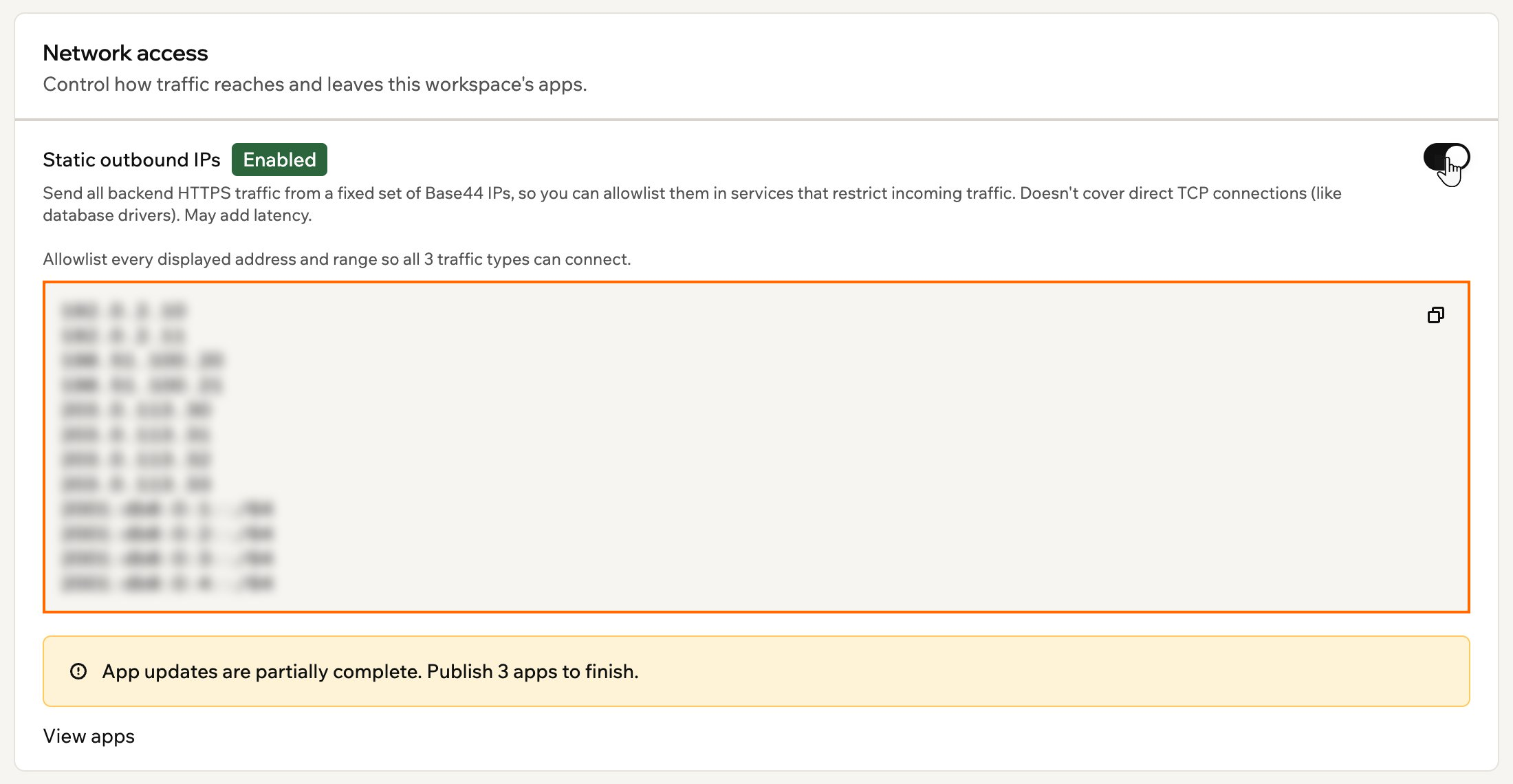
Copying the static outbound IP addresses
Finishing the rollout
Turning the setting on updates every app in your workspace so its traffic goes out through the static IPs. While that runs, the setting shows Enabling… and a progress bar counts the app workers as they update. It shows Enabled once every app is done. Some apps need you to publish them before they can finish. When that happens, Base44 shows how many apps are waiting. Click View apps to see each app and its status:- Updating: The app is still switching over.
- Pending publish: Publish the app and it finishes updating automatically.
- Failed: The update didn’t go through. Click Retry updates to try again.
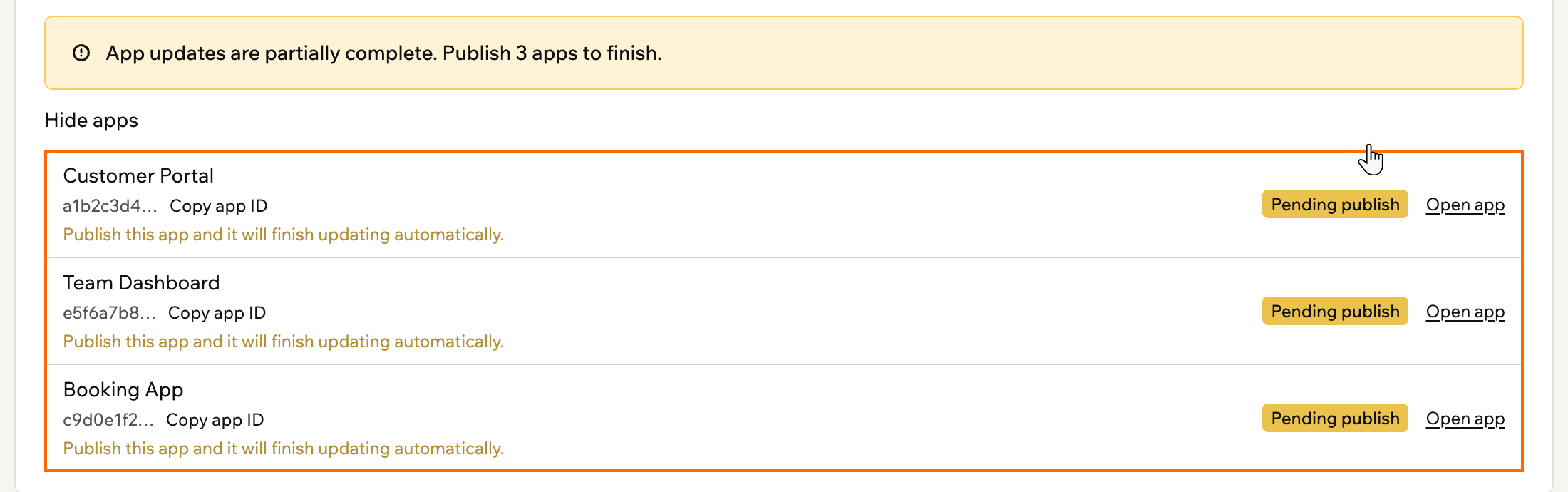
Finishing the rollout by publishing each pending app
Turning off static outbound IPs
When you turn off static outbound IPs, your apps go back to sending their traffic from shared addresses. If you turn the setting on again later, your apps use the same static addresses. To turn off static outbound IPs:- Click your workspace name at the bottom left of your account.
- Click Settings.
- Click Governance under Security & Control.
- Under Network access, turn off Static outbound IPs.
The setting shows Disabling… while your apps switch back to shared addresses. Wait until it shows Disabled before you remove the static addresses from your services’ allowlists.