

- Messages: Your client requests, and direct messages with other partners.
- Hire a partner: The public Partner Directory, where clients browse partners, filter by service and language, see who is near them, or describe a project and get matched with 3 partners.
- Partners channels: Group chat with other Base44 partners.
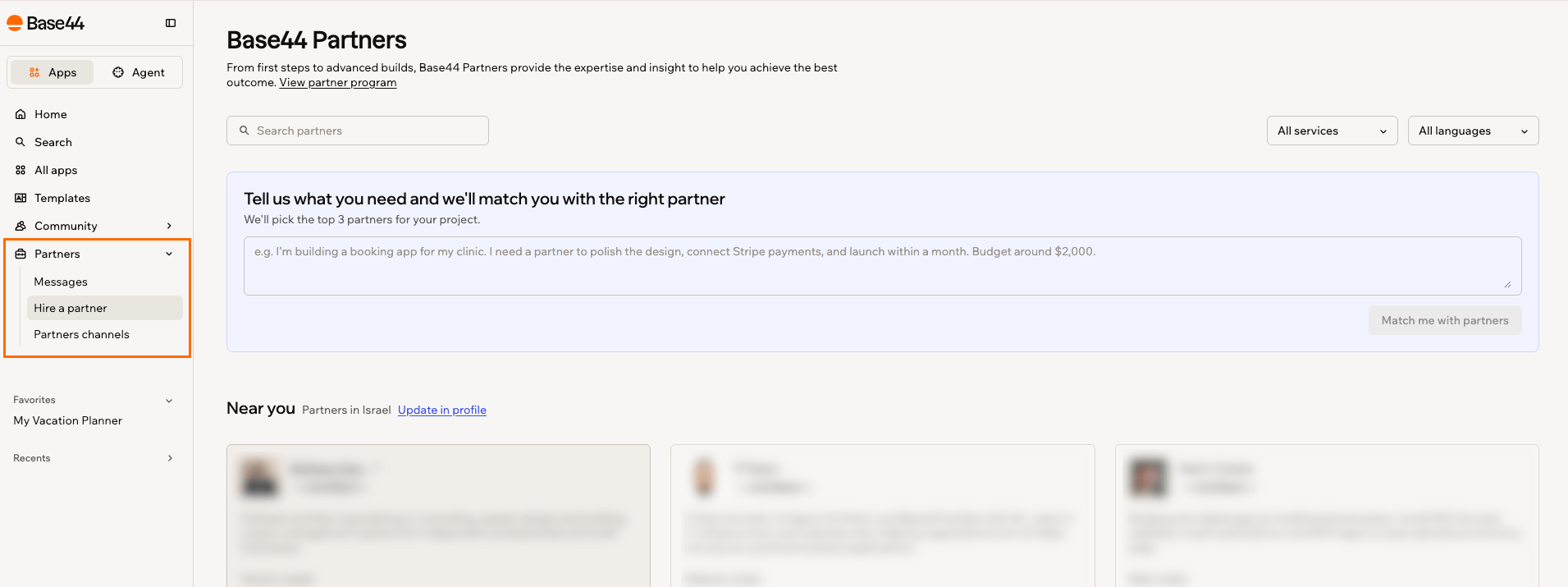
The Partners section in the sidebar of your workspace
Managing client conversations
Talk to your clients from the Clients tab in Messages. Message them to scope a project, share updates, and get access to their app, all in one conversation per client. You decide what stays in a conversation and who can keep writing to you.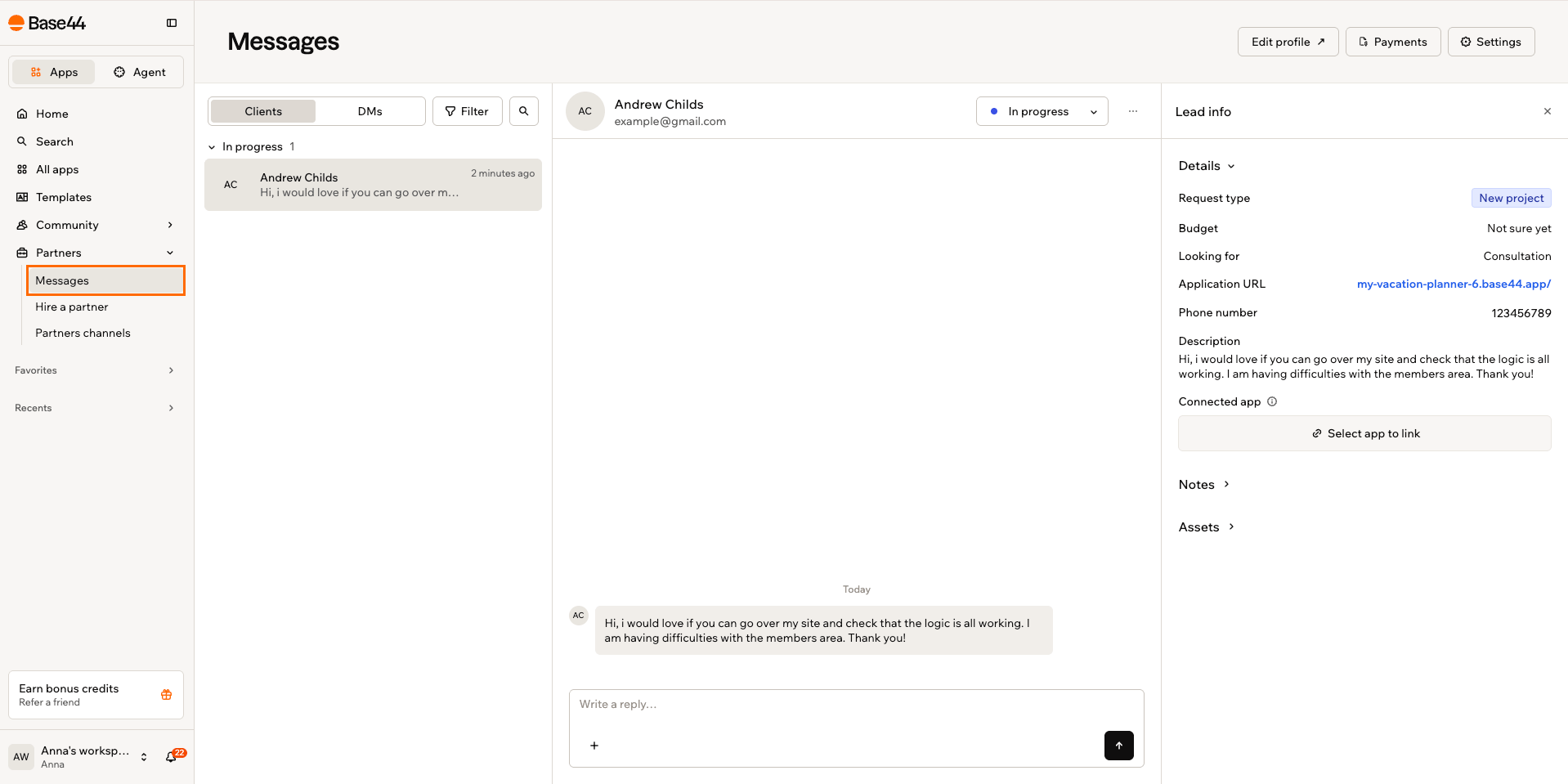
A client request on the Clients tab, with the conversation and its lead info
Replying to a client request
When someone clicks Contact on your partner profile and fills in the form, their request arrives on the Clients tab in Messages as a new conversation. Everything about that project stays in the one conversation, so you can pick it up whenever you have time. A client can give you editor access to their own app from inside the conversation, using the plus menu next to the message box. That is usually the point where you can quote real work, because you can see what they have actually built. Next to the conversation, Lead info shows what the client is after at a glance: the request type, budget, what they are looking for, and a link to their app. To reply to a client:- In your workspace, click Partners in the sidebar, then click Messages.
- On the Clients tab, select the conversation you want to answer.
- Write your reply and send it.
Filtering your requests
As your client list grows, filter your requests to work through them by stage, and each stage shows how many conversations are in it. You can also use the search to find a conversation by client or by app.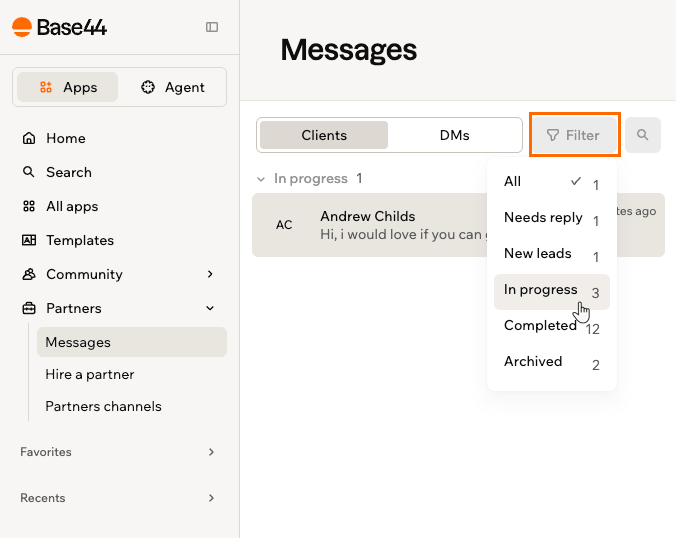
Filtering client requests by stage
- In your workspace, click Partners in the sidebar, then click Messages.
- On the Clients tab, click Filter.
- Choose a stage: All, Needs reply, New leads, In progress, Completed, or Archived.
Deleting a message
You can delete your own messages in a client conversation, including replies your agent sent for you, since those go out under your name. Clients can delete their own messages the same way. You cannot delete anything the other person wrote. To delete a message:- In your workspace, click Partners in the sidebar, then click Messages.
- Open the conversation and find your message.
- Click the Delete icon on the message, then confirm.
Blocking a client
If you no longer want to hear from a client, block them. They cannot contact you again, the conversation is archived, and neither of you can write in it, so blocking ends the exchange rather than pausing it. A blocked client is not told: they see the same thing as someone messaging a partner who is away, so blocking never becomes something you have to explain. You can see everyone you have blocked, and let someone back in with Unblock, under Blocked clients in the Settings of Messages.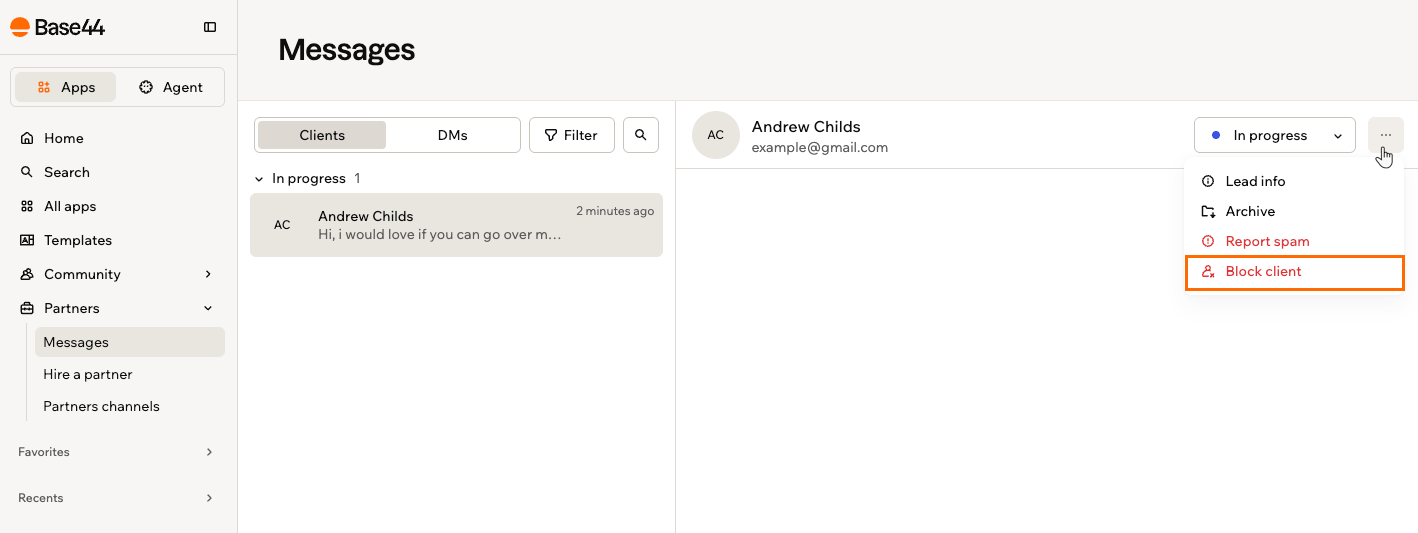
Blocking a client from the More actions menu
- In your workspace, click Partners in the sidebar, then click Messages.
- Open the conversation on the Clients tab.
- Click the More actions icon and click Block client.
- Read the confirmation, then click Block client again.
Reporting spam
If a request is spam or abuse rather than a real client, report it instead of just blocking. Base44 reviews the conversation, and the sender is blocked and the conversation archived, the same as a block.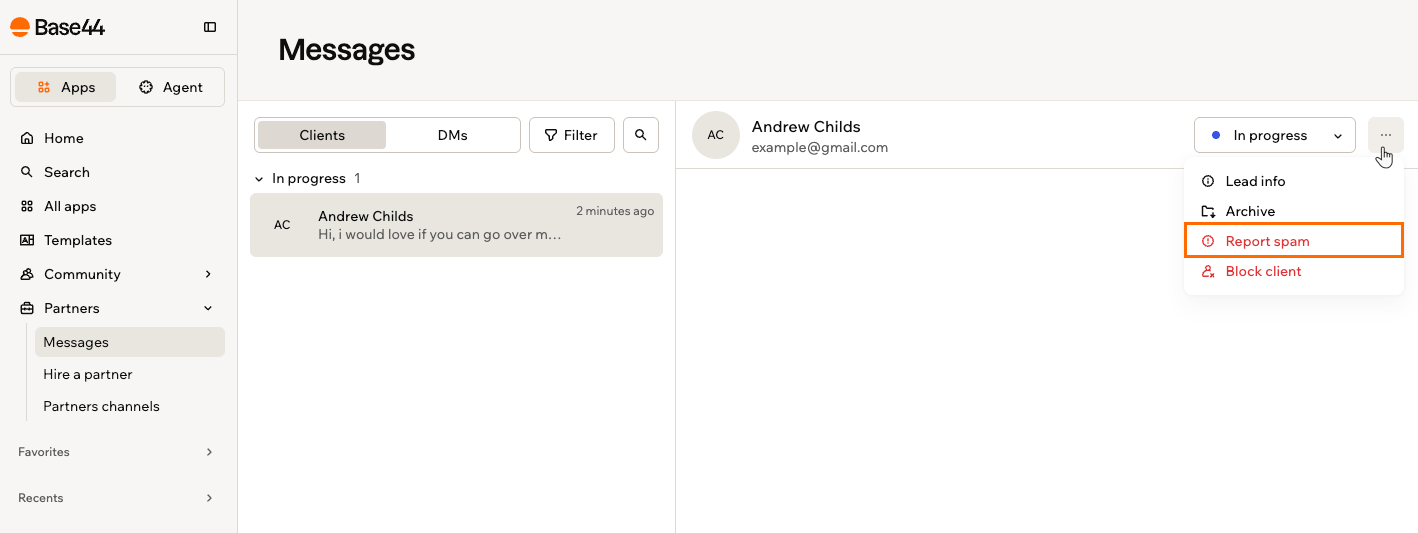
Reporting a conversation as spam from the More actions menu
- In your workspace, click Partners in the sidebar, then click Messages.
- Open the conversation on the Clients tab.
- Click the More actions icon and click Report spam.
- Read the confirmation, then click Report and block.
Setting up your Client Management Agent
Every partner gets an agent that can manage their clients for them. Yours answers new leads and follow-ups around the clock, replies in your voice using the details on your partner profile, and leaves anything that needs a real decision to you.Turning on your agent
Your agent is off until you set it up, and you choose how much it handles before it goes live. Out of the box, new leads are answered automatically and follow-ups are drafted for your approval. To turn on your agent:- In your workspace, click Partners in the sidebar, then click Messages.
- Click Settings, which opens on Client Management Agent.
- Click Get started.
- Set Answer follow-up questions, which is how it keeps replying in active conversations:
- Auto: Sends the reply straight away.
- Draft: Prepares a reply and waits for you to approve it.
- Off: Leaves that kind of message to you.
- Set Answer new leads, which is the first reply that introduces you and gives a ballpark quote, to Auto, Draft, or Off. The options work the same as for follow-ups.
- Under Instructions for your agent, tell it how to respond, in plain language.
- Choose a Tone of voice.
- Click Enable.
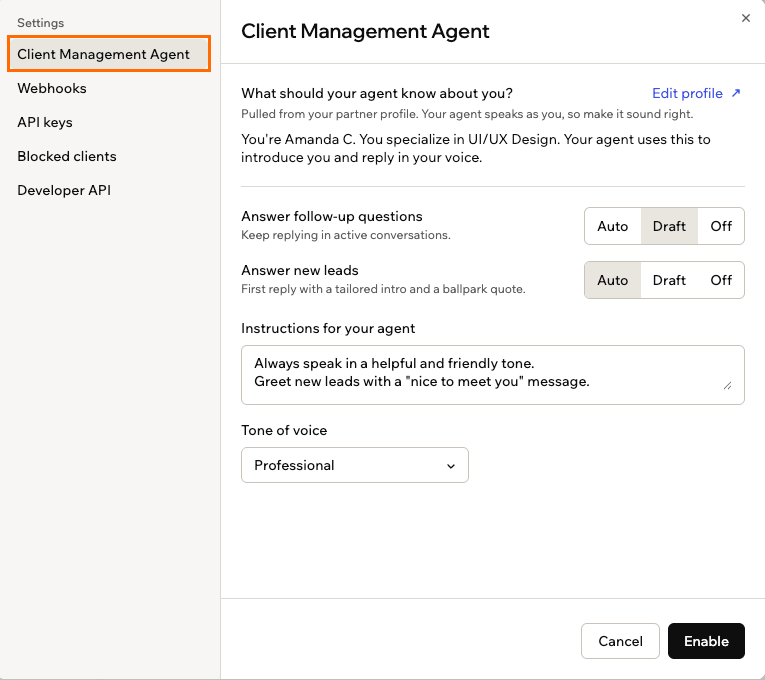
Setting up your Client Management Agent
Using your agent
Once your agent is on, new leads get a first reply without you, and anything you set to Draft waits in the conversation for you to approve, edit, or ignore. You can change either setting whenever you like, so you can let it run while you are heads-down and take the conversations back when you have time. Your agent’s replies go out under your name, so they read as yours. What it knows about you comes from your partner profile, which means it introduces you and prices work the way your profile says. Click Edit profile from the agent settings to change that.- Give a firm quote. Every price it mentions is a rough estimate, and it says it will bring you in for anything that needs committing to.
- Agree to timelines, payment terms, or legal terms on your behalf.
- Mention your other clients or conversations, or reveal that an agent is handling replies.
- Invent experience or past work it cannot back up. If it does not know, it says it will check with you.
Managing your agent
After setup, your agent’s settings become its control panel. You can turn it on and off, change how it replies, rewrite its instructions, and connect channels, and every change saves automatically. To manage your agent:- In your workspace, click Partners in the sidebar, then click Messages.
- Click Settings, which opens on Client Management Agent.
- Do any of the following:
- Turn your agent on or off with its toggle.
- Click How your agent replies to change how it answers new leads and follow-up questions.
- Click Instructions to update its instructions and tone of voice.
- Under Channels, click Connect WhatsApp or Connect Telegram to message your agent directly from those apps.
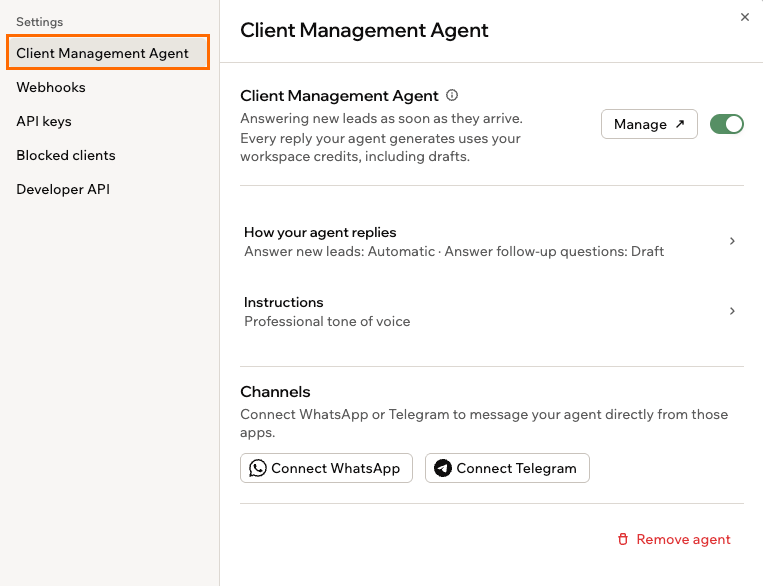
Managing your Client Management Agent
Connecting your CRM
If you run client work through your own CRM, you can pass client messages into it and reply from there instead of the partner hub. You set this up from Settings in Messages: a webhook for messages going out to your system, and an API key for replies coming back.Adding a webhook
Webhooks send messages out to your system. Add an endpoint and every new message lands there automatically. Once a webhook exists, it lists every delivery it makes, and its More actions icon lets you send a test delivery or rotate its signing secret. To add a webhook:- In your workspace, click Partners in the sidebar, then click Messages.
- Click Settings, then click Webhooks.
- Click Add webhook.
- Enter your Endpoint URL, and a Description if you want one.
- Choose which events to send: New lead, Client reply, or both.
- Leave Sign deliveries on so your endpoint can confirm each request really came from Base44.
- Click Create webhook.
- Copy the signing secret and store it somewhere safe, because you won’t see it again.
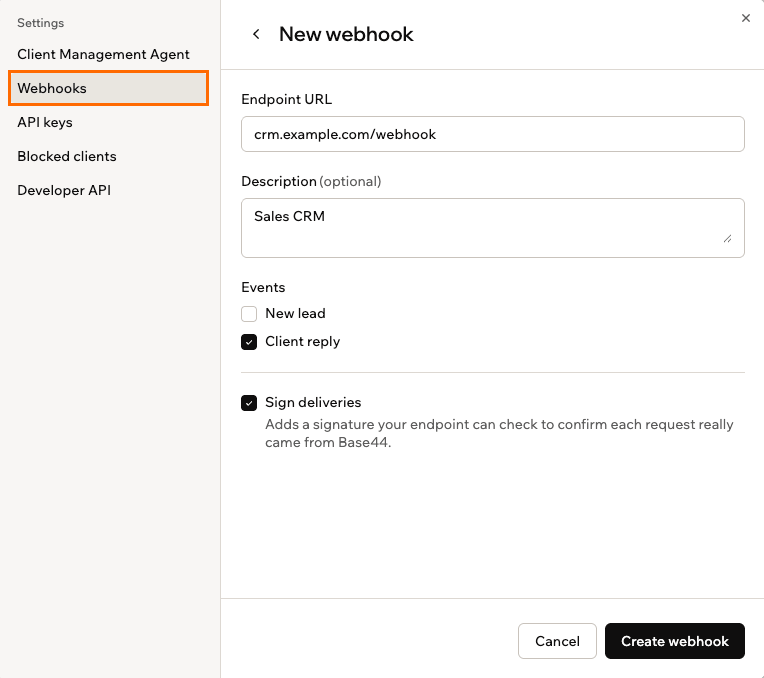
Adding a webhook that sends client messages to your CRM
Creating an API key
An API key lets your CRM reply back into a client conversation. Each key works for a single partner profile, and you can have up to 5 keys. For the endpoint, request format, and examples, click Settings in Messages and click Developer API. To create an API key:- In your workspace, click Partners in the sidebar, then click Messages.
- Click Settings, then click API keys.
- Click Create a key.
- Give the key a name, then click Create.
- Copy the key and store it somewhere safe.
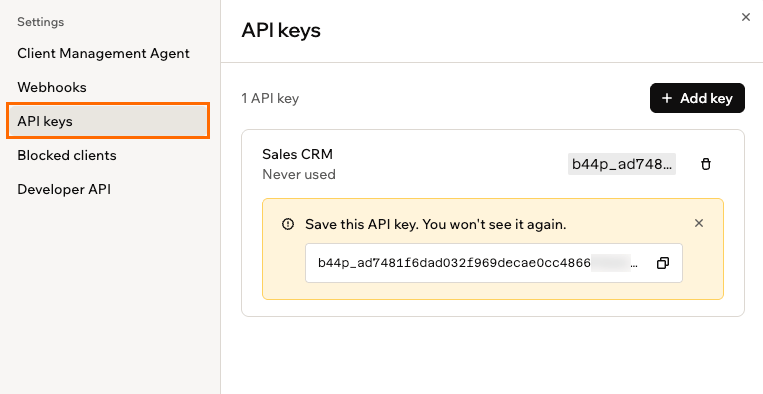
A newly created API key, shown once
Messaging other partners
You can talk to other partners in 2 places, both separate from your client conversations: the partners channels for group chat, and DMs for private conversations.Using partners channels
Partners channels is group chat for all partners. You can attach a file to a post, react to someone else’s, and reply in a thread to keep a discussion together, and each channel shows how many partners are online. There are 3 channels:- General: Open chat for all partners.
- Feature requests: Suggest and discuss product ideas.
- Collab requests: Find partners to team up with on a project.
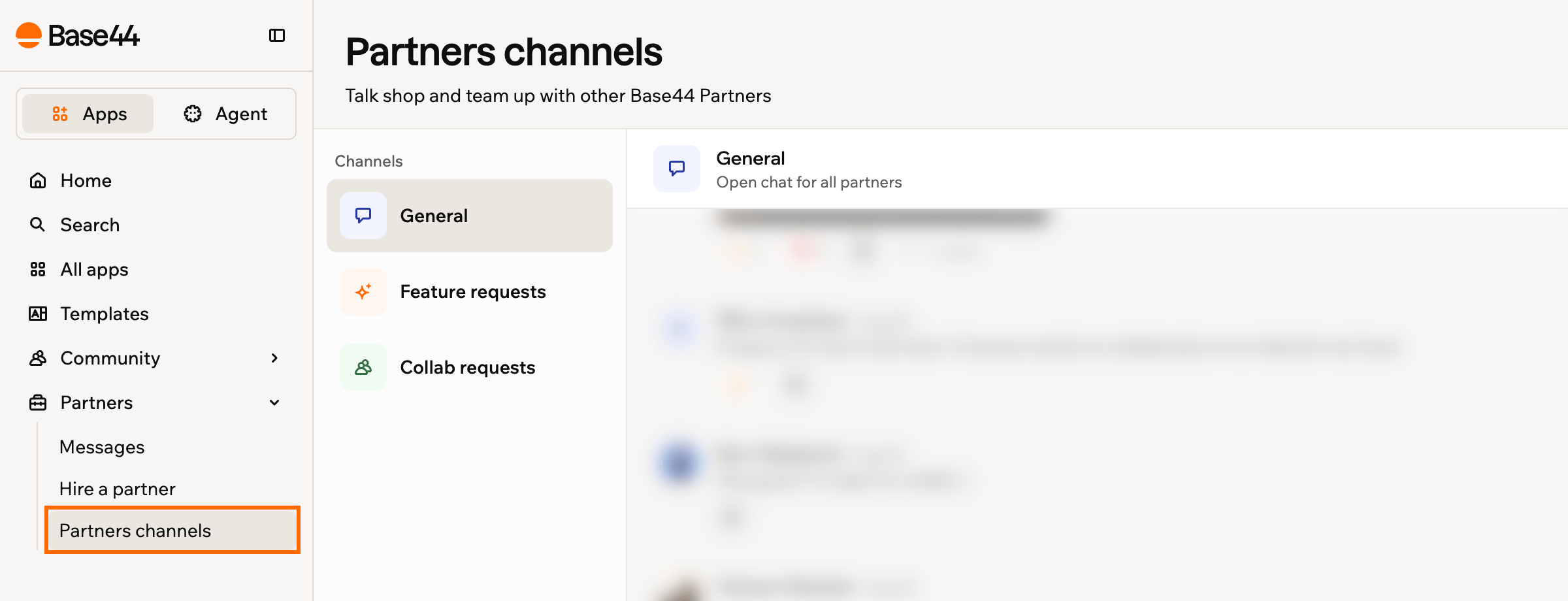
Talking to other partners in the partners channels
- In your workspace, click Partners in the sidebar, then click Partners channels.
- Select a channel and start posting.
Sending a DM
For a private conversation with one partner, use the DMs tab in Messages. Your direct conversations with partners appear there. To open your DMs:- In your workspace, click Partners in the sidebar, then click Messages.
- Click the DMs tab.
- Select a partner to open the conversation.
Hiding your partner details
Control when you want to work and when you are seen as a partner. Going on vacation, or just have too much going on? You can pause new requests or hide your partner details completely, from Work & rates on your Base44 profile.Pausing new requests
Turn off Open to new project requests when you want a break. Your profile shows “On vacation - not taking projects”, and the Contact button is disabled so nobody can send a new request. Your existing conversations carry on as normal. To pause new requests:- In your workspace, click Partners in the sidebar.
- Click Edit profile at the top right.
- On your profile, click Edit profile again.
- Scroll to Work & rates.
- Turn off the Open to new project requests toggle.
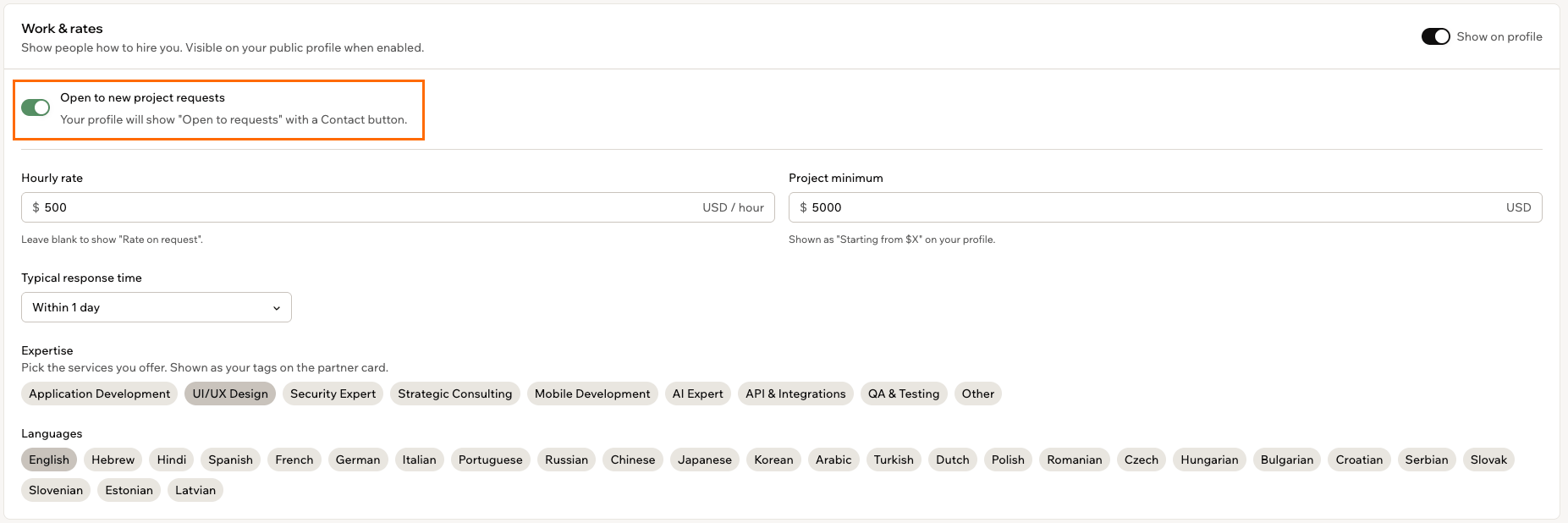
The Open to new project requests toggle on Work & rates
Hiding your details from your profile
Turn off Show on profile to take your partner details off your public profile entirely, including your listing in the Partner Directory. To hide your partner details:- In your workspace, click Partners in the sidebar.
- Click Edit profile at the top right.
- On your profile, click Edit profile again.
- Scroll to Work & rates.
- Turn off the Show on profile toggle.
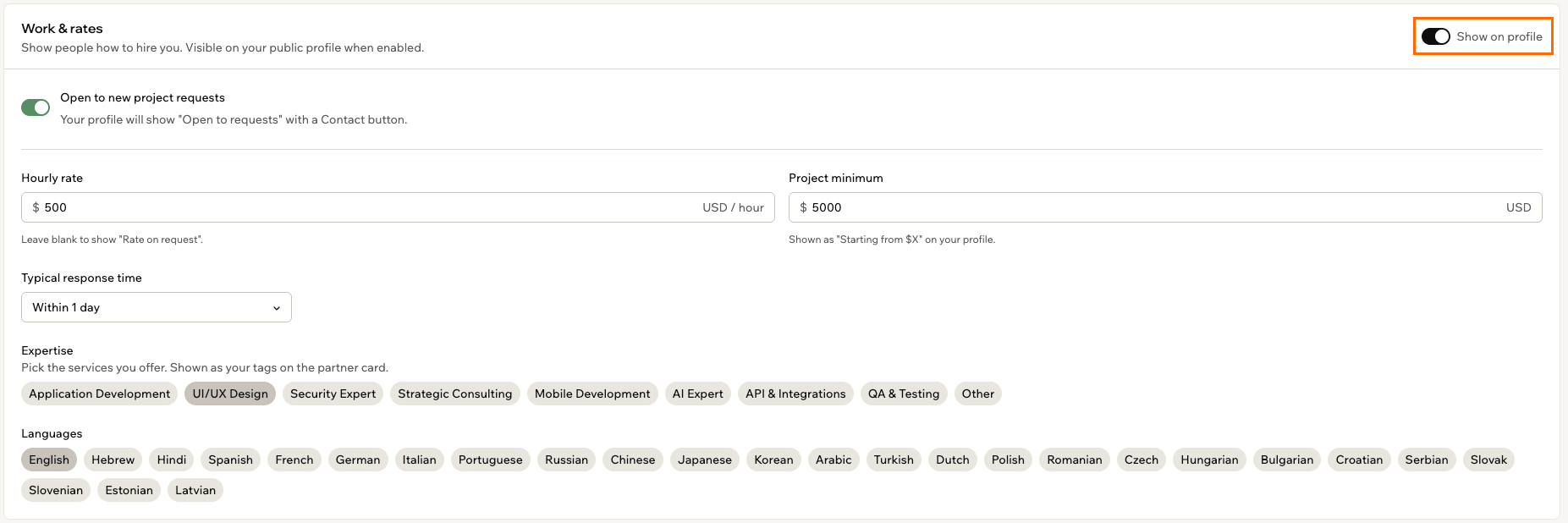
The Show on profile toggle on Work & rates
FAQs
Click a question below to learn more about working with clients as a partner.How do I remove my agent completely?
How do I remove my agent completely?
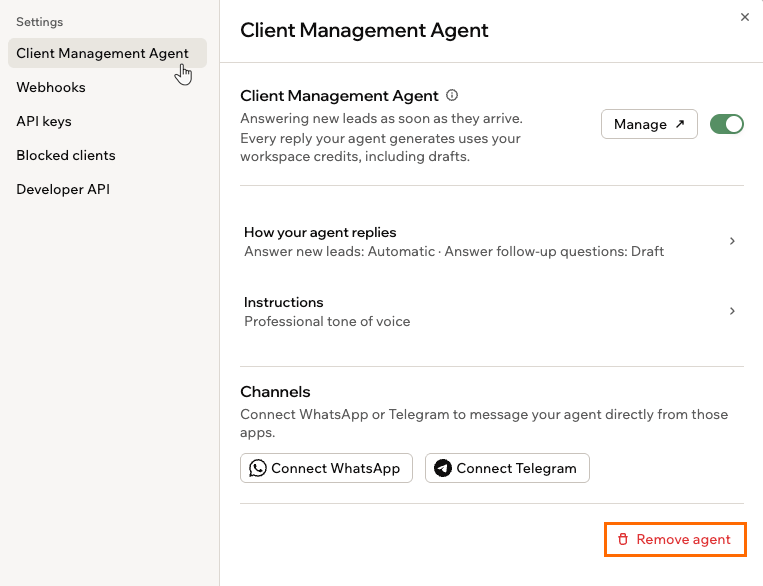
Removing your agent from its settings
How do I stop a webhook?
How do I stop a webhook?
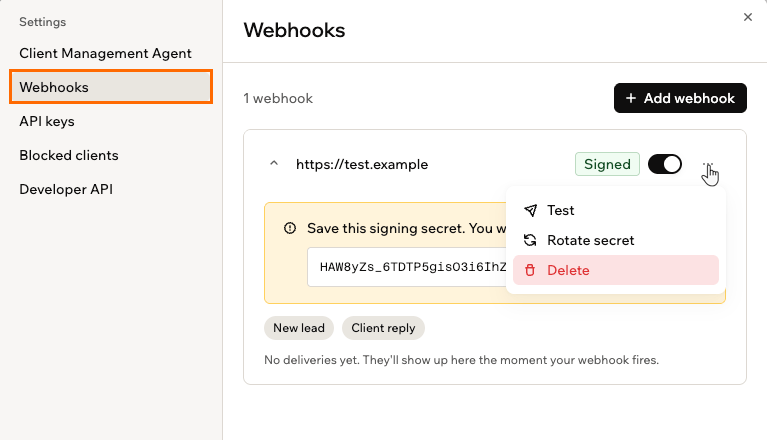
Deleting a webhook from the More actions menu
How do I revoke an API key?
How do I revoke an API key?
Can I use my CRM and the partner hub at the same time?
Can I use my CRM and the partner hub at the same time?
Can I accept payments from clients through Base44?
Can I accept payments from clients through Base44?
How do I stop being a partner altogether?
How do I stop being a partner altogether?
- Click your workspace name at the bottom left of your account.
- Click Account preferences.
- Click Builder.
- Under Partner Settings, click Leave partner program.
- Review the confirmation dialog, then click Leave program.