

Where user data lives
A person’s data can appear in several parts of your app, depending on how you built it. Check each place that applies to your app when you get a request:Handling a request
When someone asks you to delete their data, work through the same steps each time so nothing gets missed.After you delete someone:
- Files they uploaded through your app stay.
- If your app lets people connect their own accounts, such as their Google Calendar, through user connectors, those connections stay.
- If your app uses custom SSO, their SSO sign-in records are kept.
- Their own Base44 account, if they have one, isn’t affected.
- If your app is public, they can sign up again with the same email address, which creates a new account. If your app is private, they need a new invite or an approved access request to get back in.
- Confirm the request comes from the person whose data it is, for example by replying from the email address on their account.
- If they also asked for a copy of their data, export their data before you delete anything.
- Remove them from App Users.
- Permanently delete their profile from Recently deleted straight away, instead of waiting 30 days.
- Permanently delete their records in the Data tab.
- If your app has an in-app agent with memory turned on, delete their saved memories.
- Contact any other services you shared their data with, such as a payment provider, a mailing tool, or a connected app. You’re responsible for asking them to delete it too.
- Let the person know their request is complete.
Deleting their records
Your app’s tables in the Data tab can hold personal data about the person, such as their form submissions, survey responses, support tickets or orders. Find and permanently delete every record that relates to them.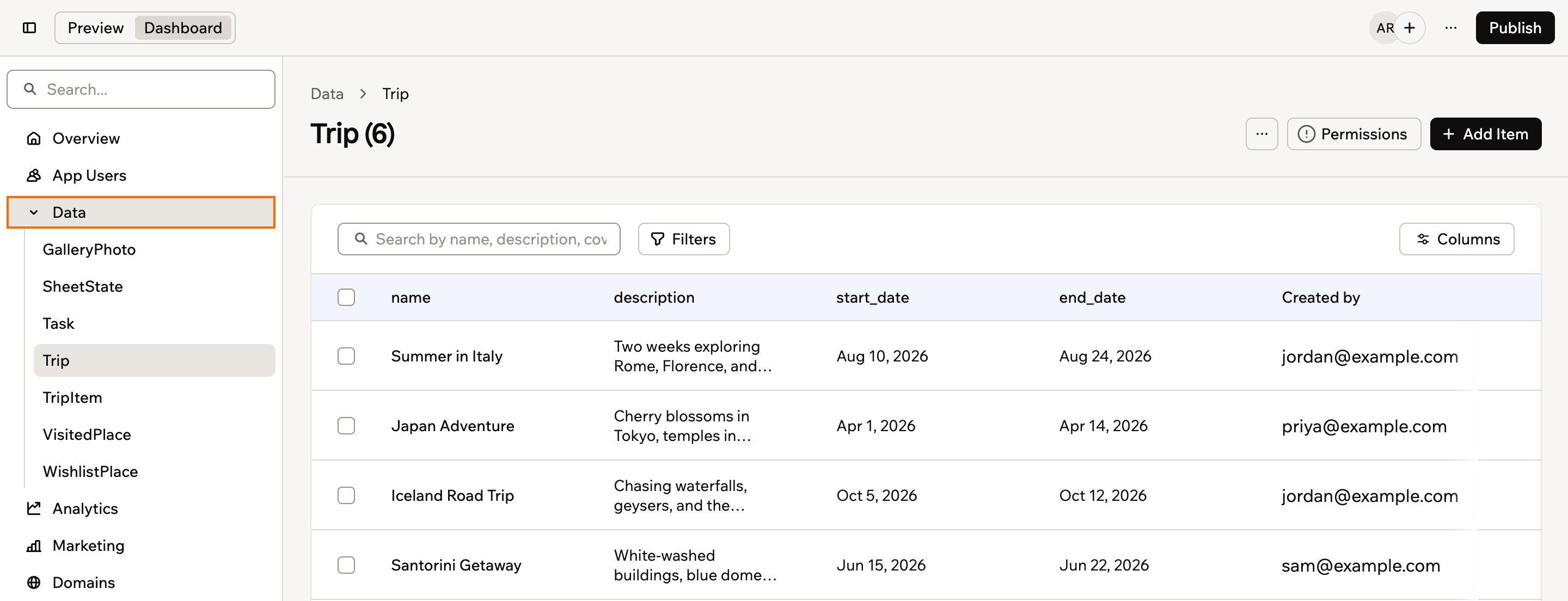
Deleting your app users' data
- Click Dashboard in your app editor.
- Click Data.
- Open each table that might contain personal data, such as contacts, orders, or form submissions.
- Use filters or search fields to find records that belong to the person who requested deletion, for example by email address, user ID, or another unique identifier. Records they created show their email address under Created by.
- Select the records that relate to this person.
- Click Move to trash, then click Move to trash again to confirm.
- Click the More actions icon at the top of the table and select Recently deleted.
- Click the Delete icon next to each record you deleted, then click Delete Permanently to confirm.
- Repeat steps 3 to 8 for any other tables where this person’s data may appear.
Deleting agent memories
If your app has an in-app agent with memory turned on, it may have saved details about the person. Each saved memory shows whether it belongs to one person or is shared with everyone. To delete an agent memory:- Click Dashboard in your app editor.
- Click Agents.
- Click Edit Agent on the relevant agent.
- Click Memory.
- Under Saved Memories, hover over a memory about the person and click the Delete icon .
- Repeat for each agent in your app.
Giving someone their data
Some privacy laws also let people ask for a copy of the data you hold about them. You can export it from App Users and from each table in the Data tab. To export someone’s data:- Click Dashboard in your app editor.
- Click App Users.
- Click the More actions icon at the top of the page and select Export to CSV.
- Click Data.
- For each table that holds their records, click the More actions icon and click Export.
- Remove everyone else’s rows from the exported files before you send them.
Both exports include every row, not only the person’s. Always remove other people’s data before you share a file.