

Creating a new workspace
When you create a new workspace, you are automatically the workspace owner and only you can manage it until you invite others.There is a limit on how many workspaces you can own. See How many workspaces can I have?
- Click your workspace name at the bottom left of your account.
- Click your workspace name at the top of the menu to open the list of workspaces.
- Click Add new workspace at the bottom of the list.
- Enter a name for your workspace.
- Click Create workspace.
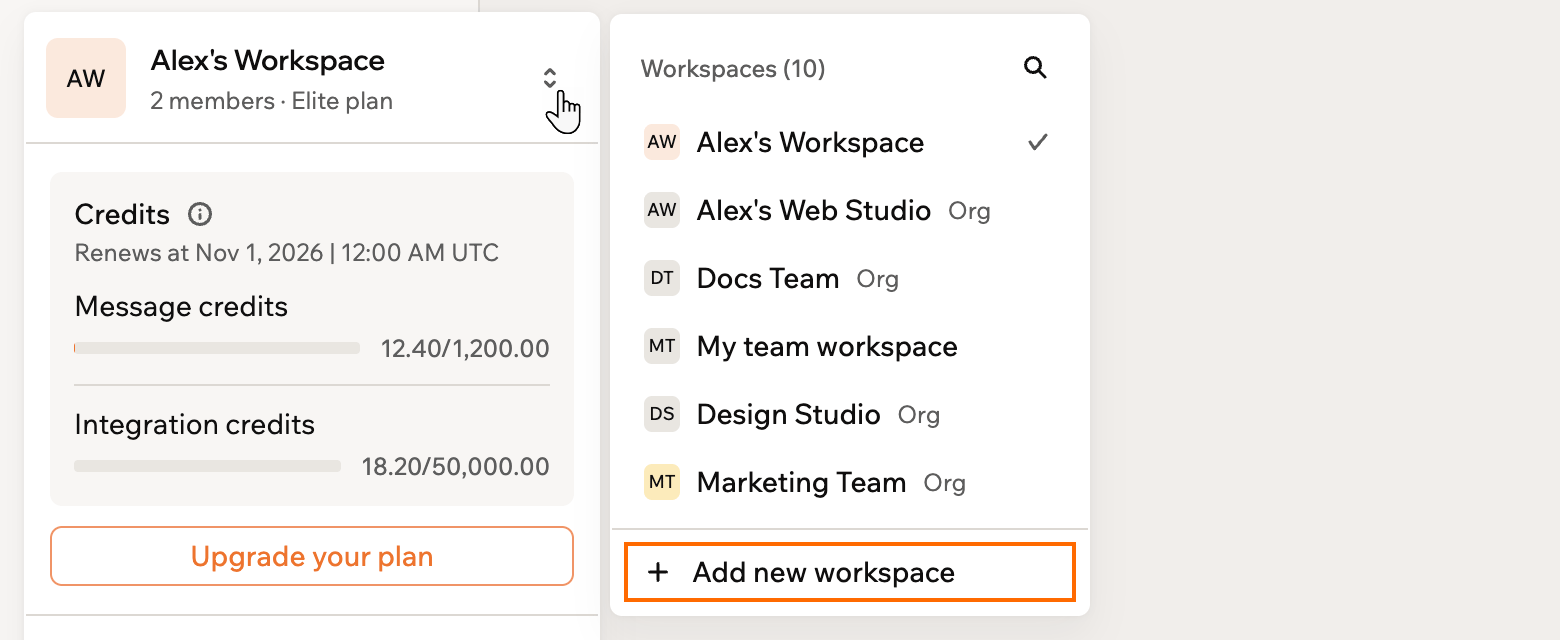
Creating a new workspace in your Base44 account
Setting up a workspace
As an owner or admin of a workspace, you can customize your workspace settings to match your team’s needs. From workspace settings, you can manage your workspace name and description, plan and billing, credit usage, members, and authentication. On an Enterprise plan (Business or Enterprise), you can also configure app-level options from Governance. To set up your workspace:- Click your workspace name at the bottom left of your account.
- Click Settings.
- Under General, click Overview.
- Update your settings, including your Workspace name and Workspace description.
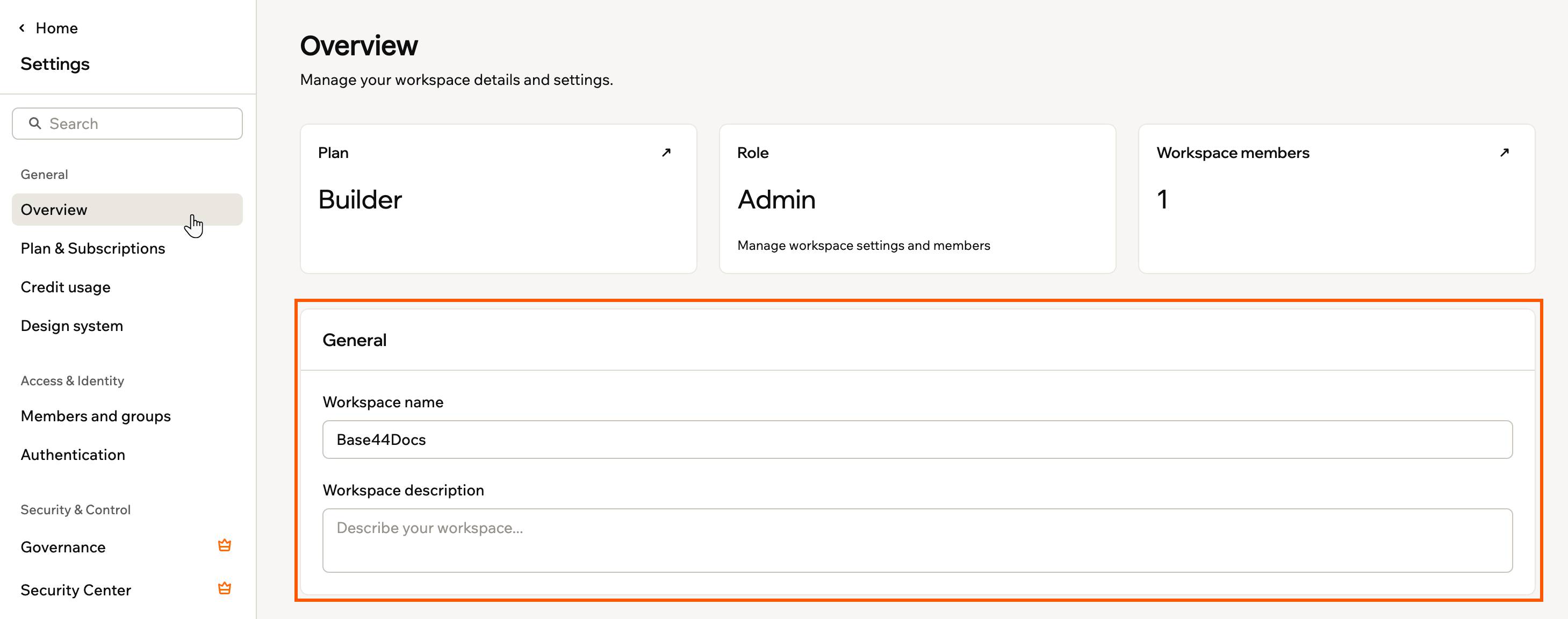
Setting up your workspace information
Setting up SSO for your workspace
Single Sign-On (SSO) lets everyone in your organization access Base44 with your company login instead of separate passwords. When you enable SSO for your workspace, your identity provider (such as Google or Microsoft) controls who can sign in, which helps keep access secure and onboarding simple. To connect your workspace to your identity provider and turn on SSO, follow the steps in Setting up SSO.Verifying your workspace domain
Verifying your workspace domain confirms that you control the domain you entered and lets you safely use it with SSO and email-based access rules in your workspace.DNS verification can take a few minutes, depending on your domain provider. Once your DNS records are updated, Base44 automatically verifies your domain. If verification does not complete after some time, click Reset in the Domain Verification section to generate a new TXT record and try again.
- Click your workspace name at the bottom left of your account.
- Click Settings.
- Click Authentication.
- Under Verified Domains, enter your domain in the Add domain field.
- Click Verify.
- In the Add DNS records for [your-domain] panel, copy the Host / Name and Value details for the TXT record.
- In a new tab, sign in to your domain provider.
- Go to the DNS settings for your domain.
- Add a new TXT record using the exact Host / Name and Value shown in your workspace.
- Save your DNS changes with your domain provider.
- Return to your workspace and wait while Base44 checks your DNS records. You see the status update under Verified Domains.
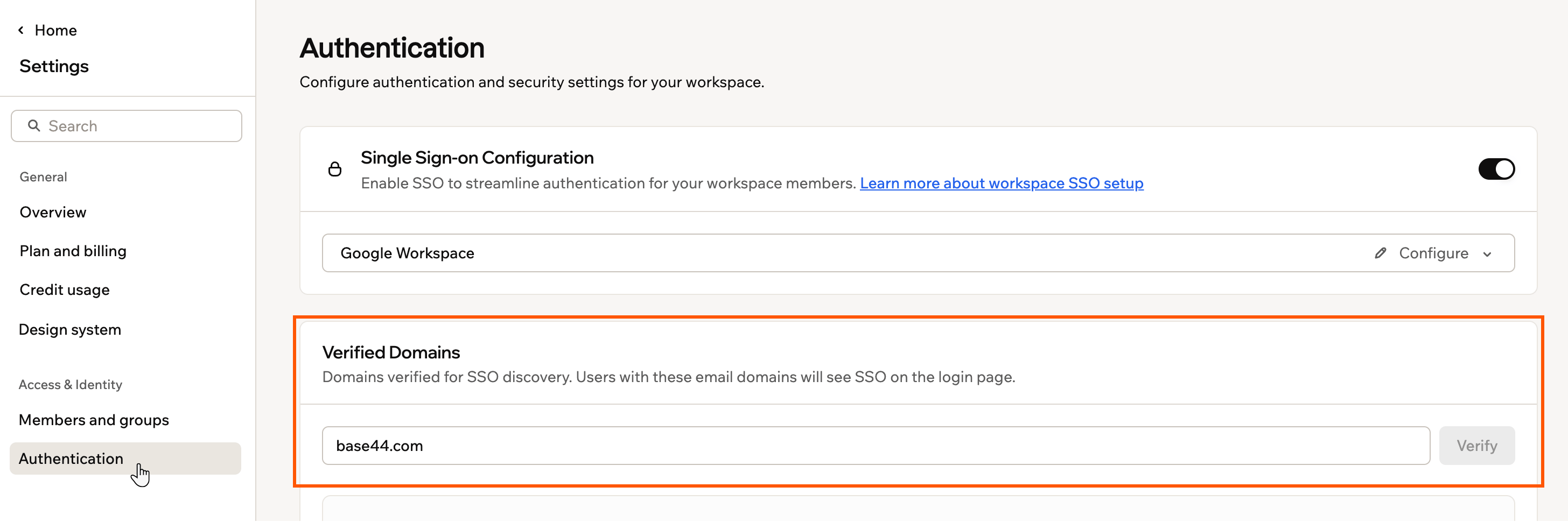
Verifying your workspace domain
Managing your workspace
Rename your workspace, hand it over to another member, or leave a workspace you no longer need.Renaming a workspace
Give your workspace a name that makes it easy to recognize, for example your team or company name. To rename a workspace:- Click your workspace name at the bottom left of your account.
- Click Settings.
- Under General, click Overview.
- Under Workspace name, enter a new name.
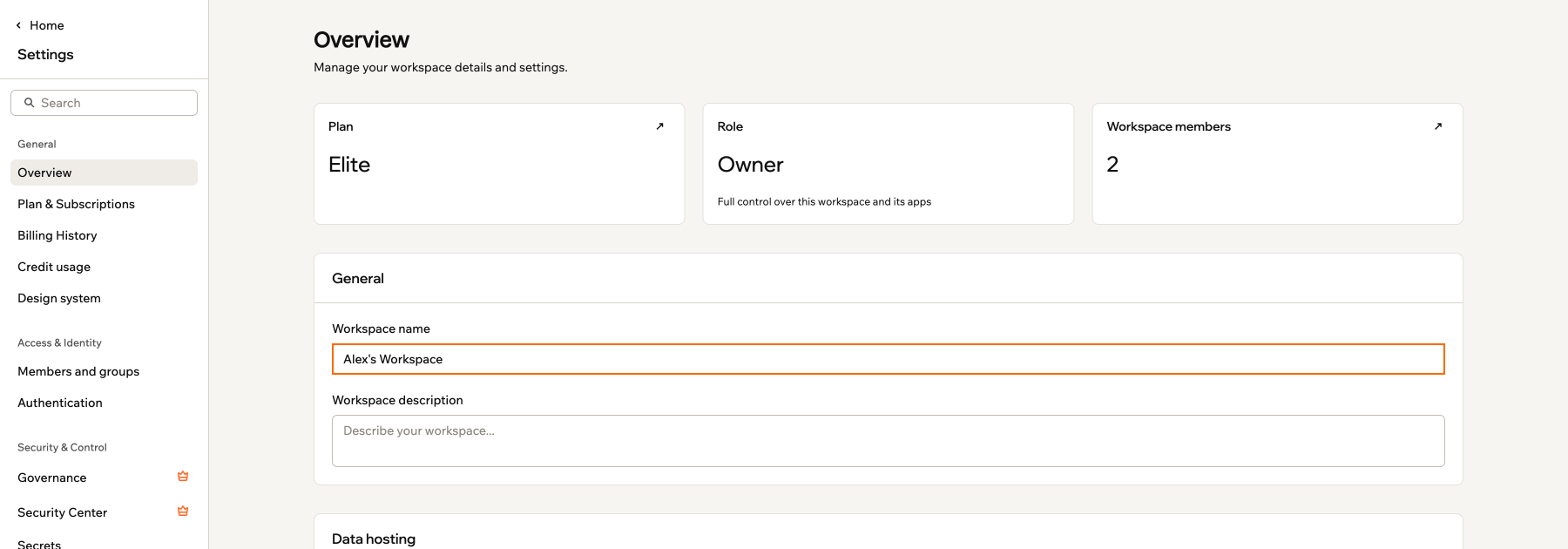
Renaming a workspace from Overview settings
Transferring ownership
Each workspace has one owner, and you can’t change the owner from the member list. To make another member the owner, contact Customer Care and tell them which member should take over. After the transfer:- The new owner has full control of the workspace, including billing. The previous owner stays in the workspace as a member.
- The plan, credits, members, and apps stay with the workspace.
- The payment method on file doesn’t change, so the new owner should update the payment method if they’re taking over payments.
- If it was the previous owner’s personal workspace, the one created when they signed up, it becomes a regular shared workspace.
Leaving a workspace
If you’re a member of a workspace, you can leave it at any time from Overview in your workspace settings. When you leave, you lose access to all its apps, and any apps you own move to the workspace owner. If you’re the owner, you can’t leave the workspace, but you can transfer ownership first.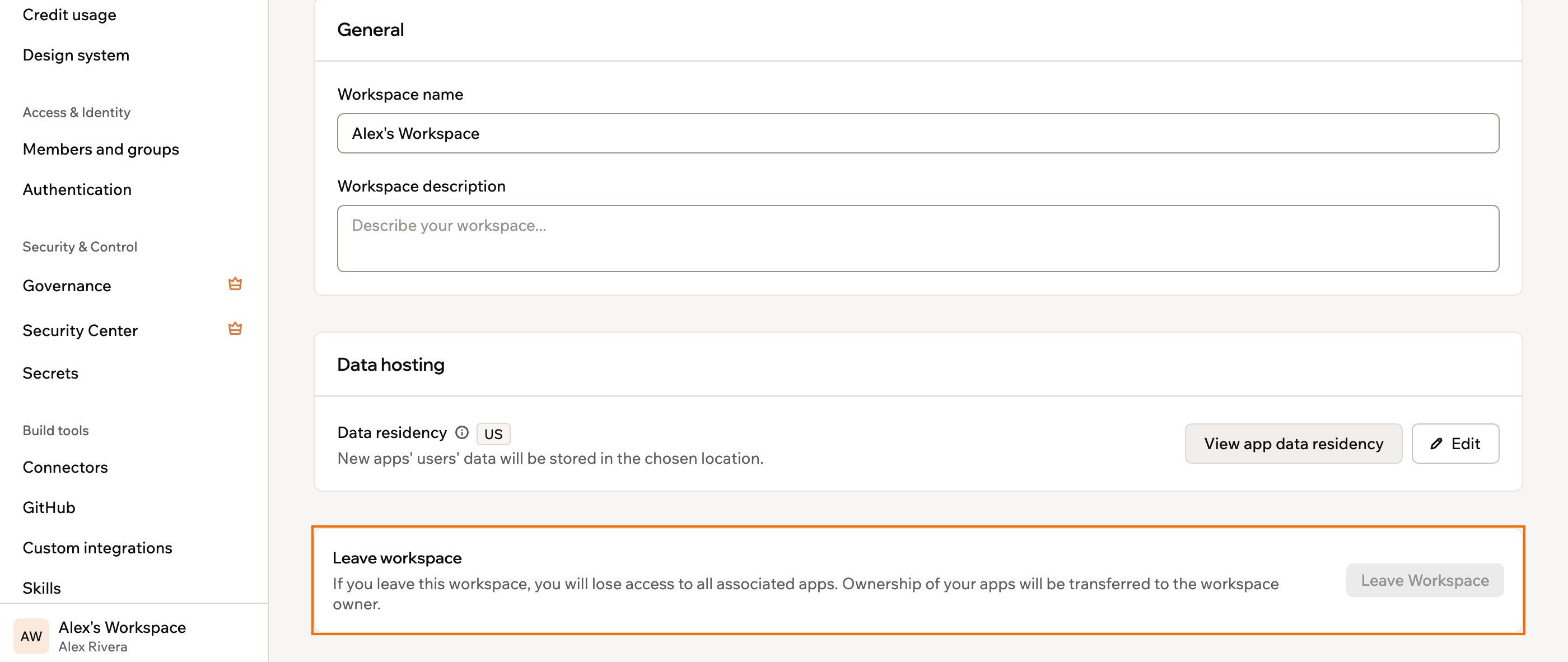
Leaving a workspace