

Creating a workspace template
A workspace template is visible only to members of the workspace that owns the app. It skips marketplace review, so it is ready to clone as soon as you save it. To share your app with the whole Base44 community instead, see creating public templates. To create a workspace template:- Publish the app you want to turn into a template.
- Click Dashboard in your app editor.
- Click Settings.
- Next to Create App Template, click Create template.
- Select Workspace only, then click Continue.
- Under Basic info, enter a Template name and a Description of what makes your app worth trying.
- Under Categories, select at least one category that describes your app.
- (Optional) Under Integration secrets, choose which API keys and secrets are copied when a member clones the template.
- Under Template screenshots, click Add screenshot and upload at least one screenshot, up to 7. Your first screenshot is the template’s cover and must be 16:9, such as 1920x1080. Use the crop icon if it is not.
- Click Create template at the top right.
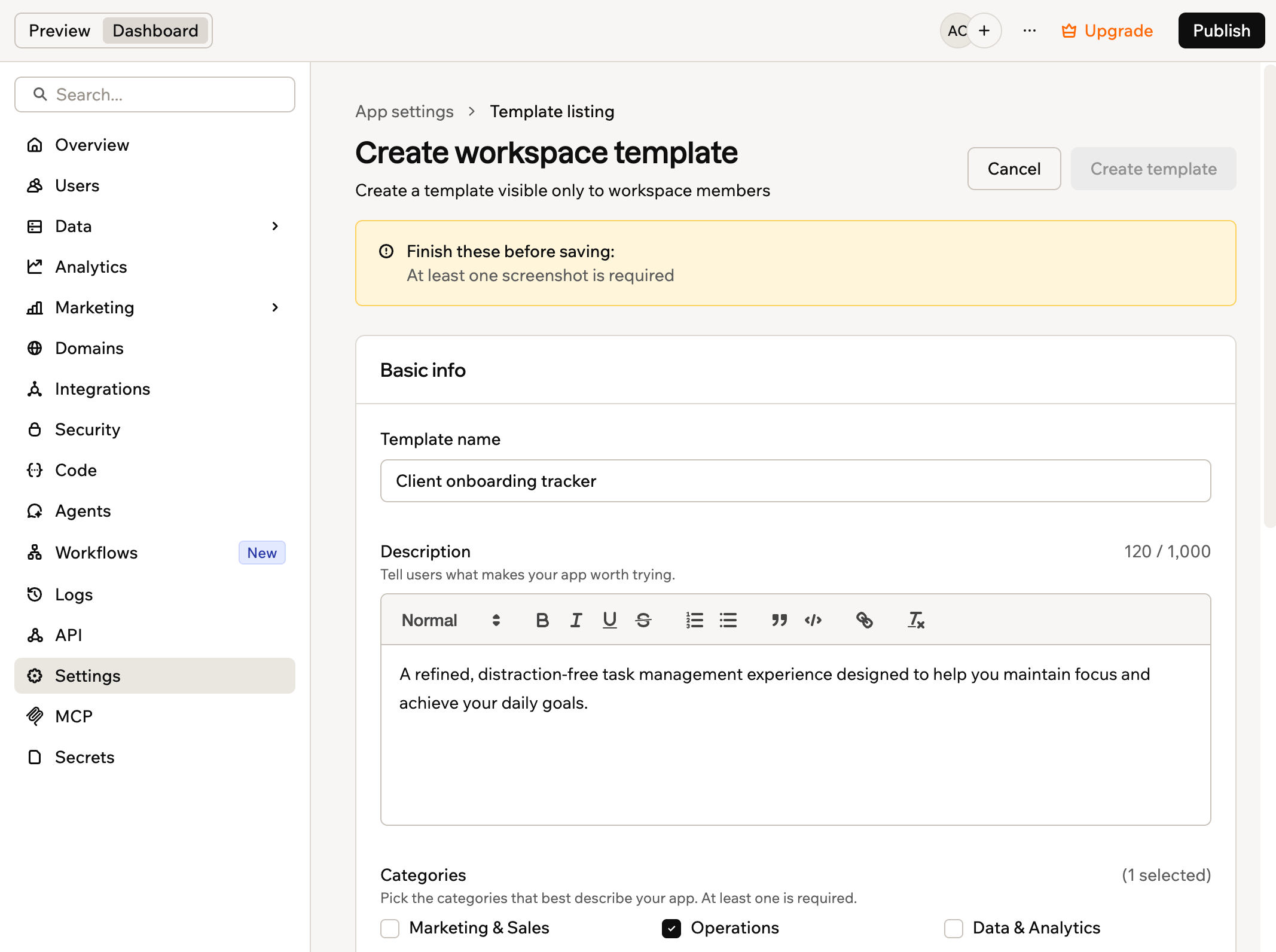
Creating a workspace template
Sharing integration secrets
If your app uses API keys or other secrets, you can decide which of them travel with the template. Anything you do not share, members provide themselves when they clone the app.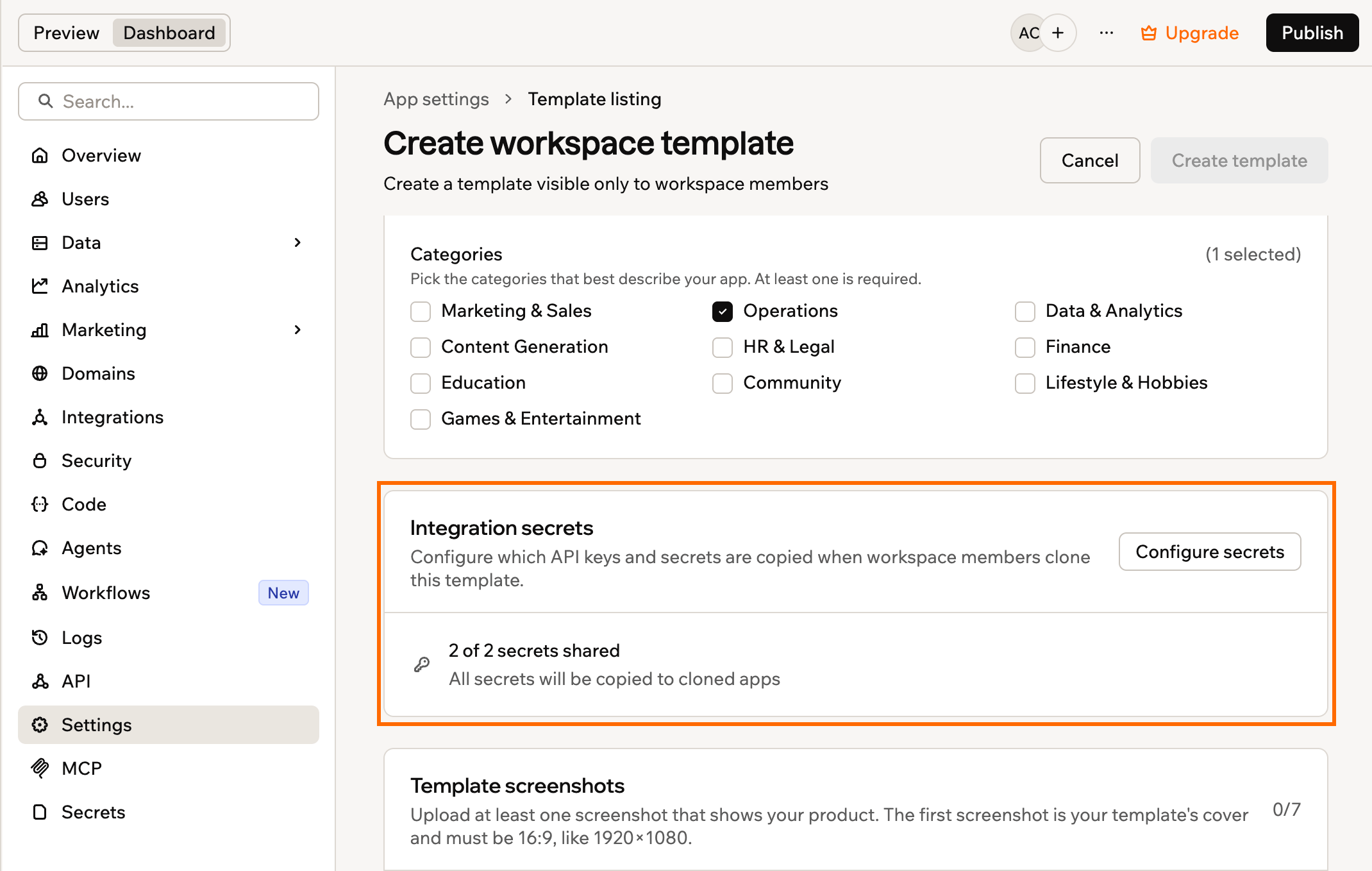
Choosing which secrets are copied to cloned apps
- Next to Integration secrets, click Configure secrets.
- Select each secret you want copied when a member clones the template.
- Click Save.
- Secrets are copied once, at clone time. Changing one here later does not update apps that members have already cloned.
- Only members who can edit apps in your workspace receive the shared secrets. Viewers and app guests are asked to provide their own.
Viewing your templates
The App Templates page splits templates across tabs. My Templates holds the listings you created, and Workspace holds every template shared in the workspace you are in. Each tab appears only once there is something in it. To view your workspace templates:- Click Templates in the left sidebar of your workspace.
- Click the My Templates tab.
- Hover over the template you would like to view and click View details.
- Choose what you want to do:
- Use Template: Create a new app from the template.
- View app: View the published app that the template was created from.
- Manage Listing: Submit an update to the listing or remove it from App Templates.
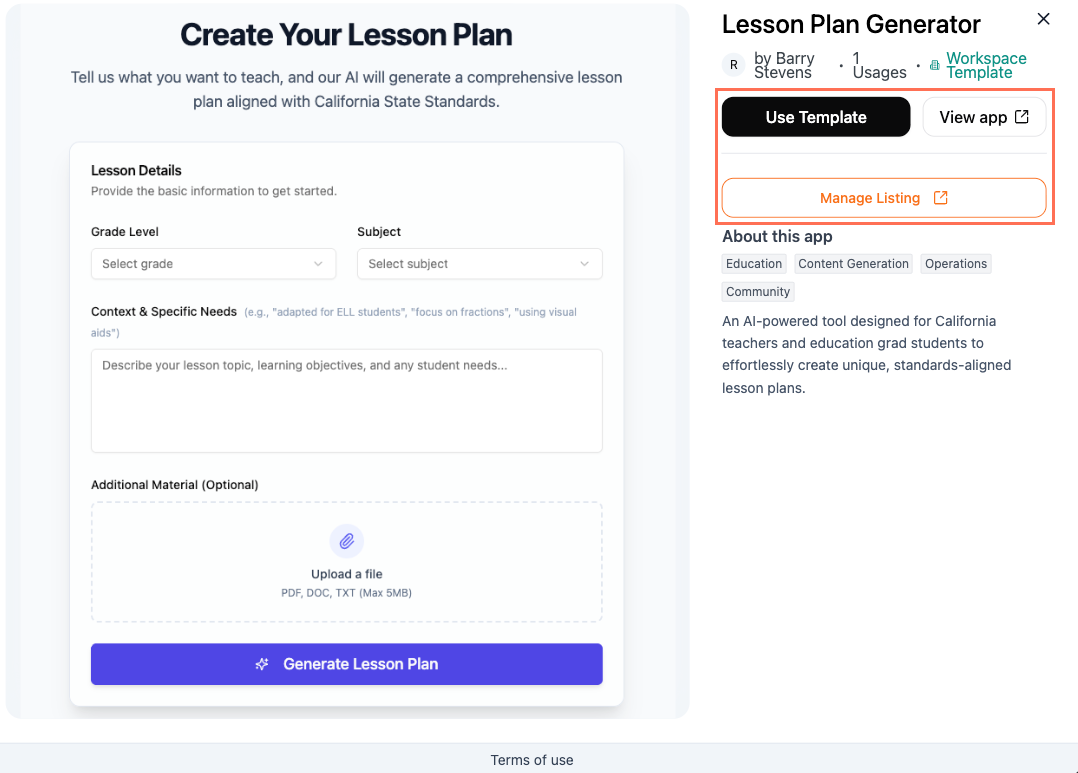
Choosing how to use or manage a template
Updating your template
Your template stays linked to the app you created it from, so what you need to do depends on what changed.- App functionality or design: Publish your app as usual. Members who clone it from then on get the latest version, and you do not need to submit anything.
- Listing details: Submit an update to change the name, description, categories, or screenshots. Unlike a public template, it does not go through review, so your changes appear straight away.
Members who already cloned the template keep their own copy, and your changes do not reach it.
- Click Dashboard in your app editor.
- Click Settings.
- Next to App Template, click Submit Update.
- Make your changes to the listing.
- Click Submit Update to confirm.