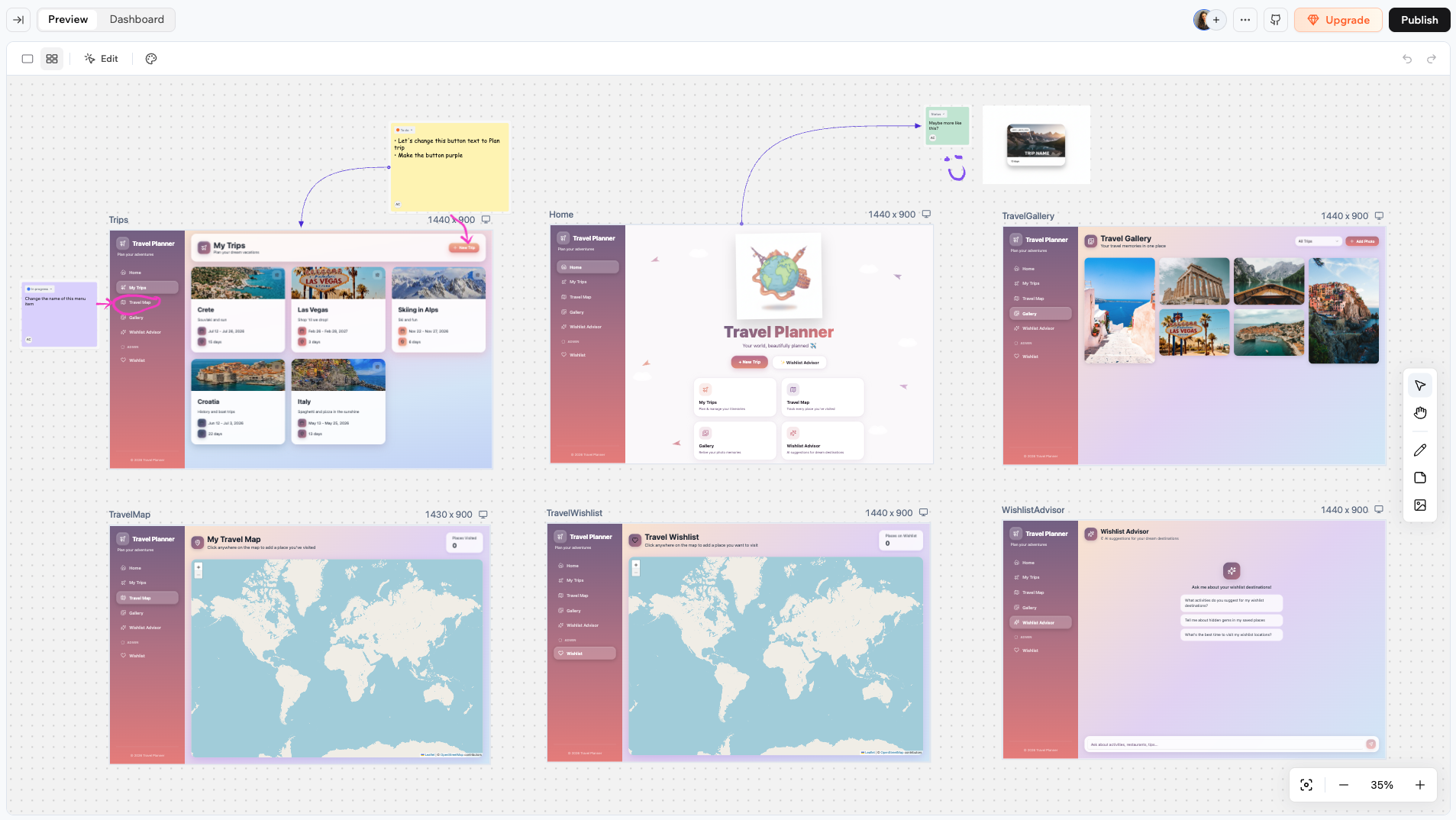
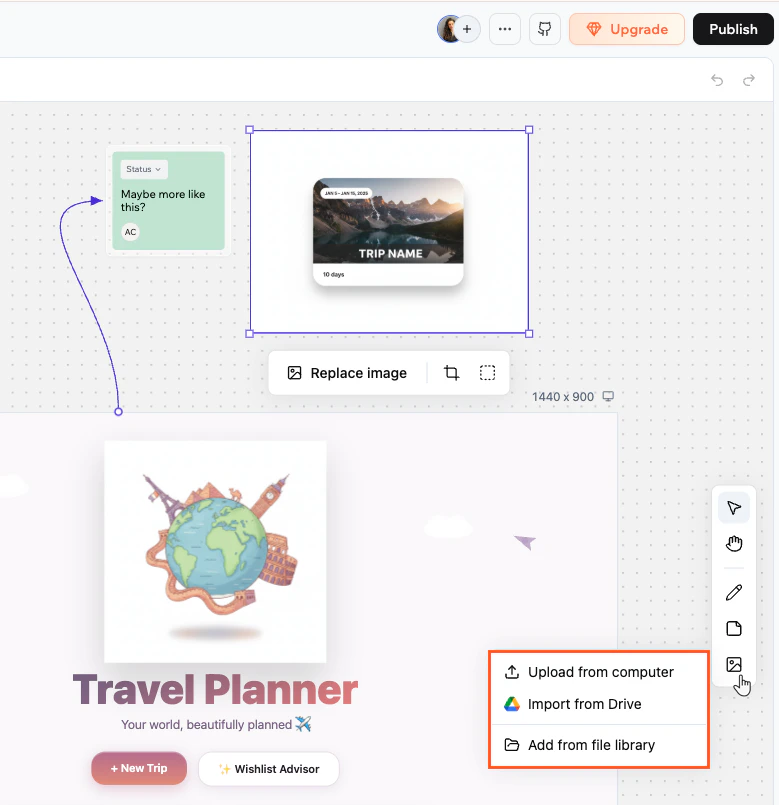
View and work on all your app pages at once. Add notes, drawings, and images, collaborate with your team in real time, and send ideas straight to the AI chat.
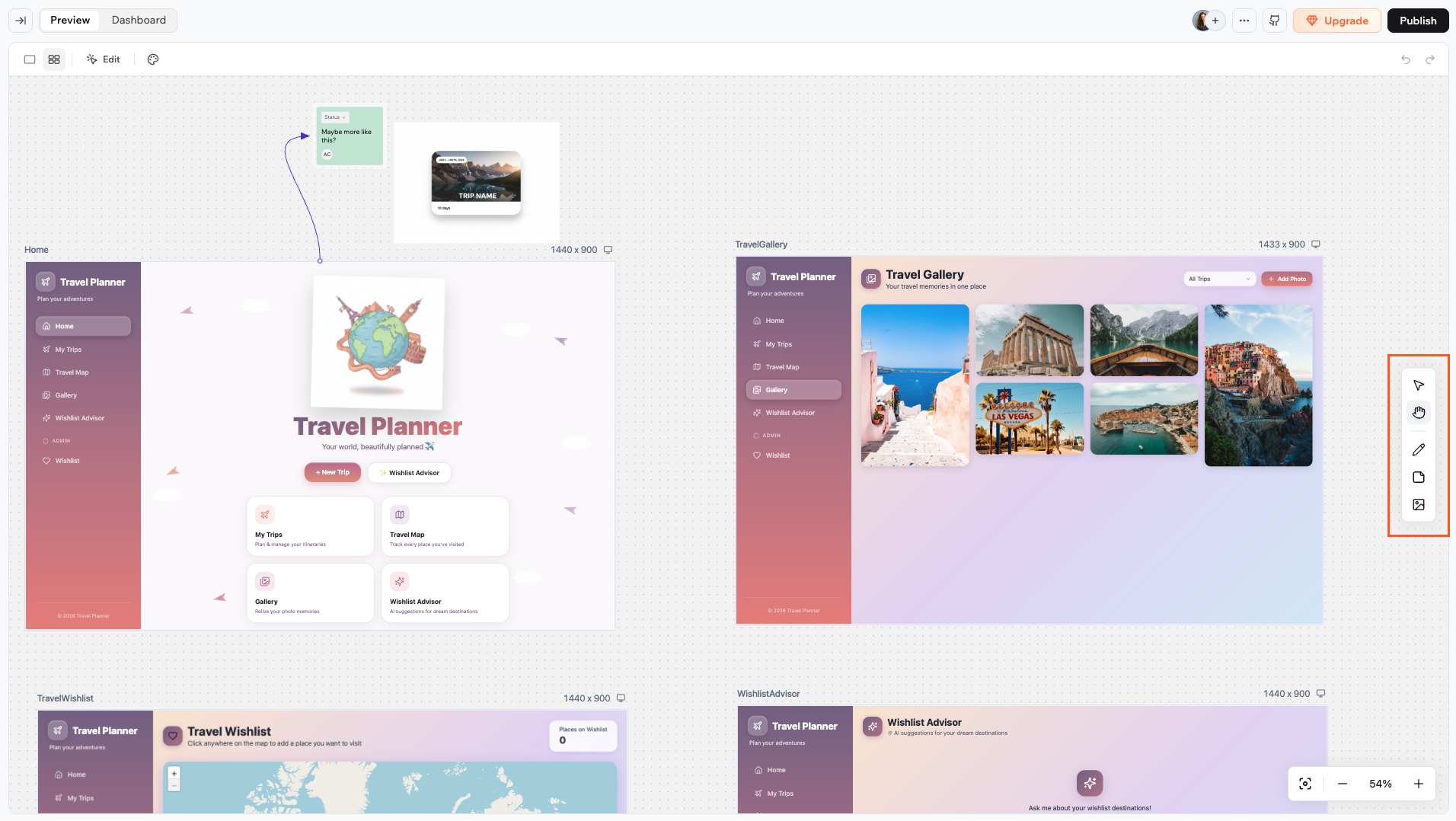
The canvas lets you view and work on all your app pages at once. Every page appears as a live-preview frame on an infinite board that you can arrange, annotate, and build on together with your team. Everything saves automatically as you work.
The canvas overview with app page frames
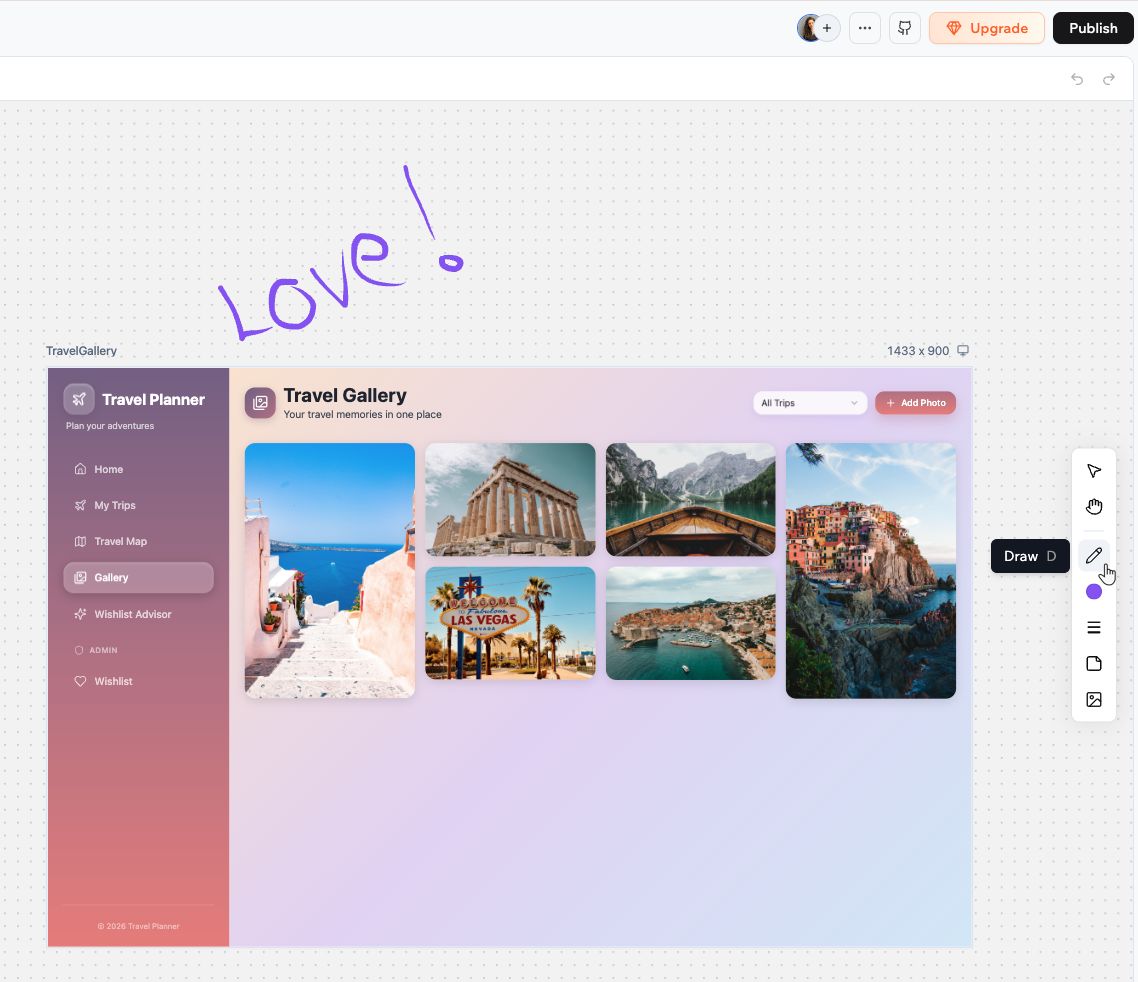
Use the canvas to plan your app layout, leave notes and feedback for yourself or your team, sketch ideas with drawings, or send instructions straight to the AI chat for implementation.
You can use Edit mode on the canvas just as you would in the regular editor. Click Edit in the top bar to select and style elements on any page frame.
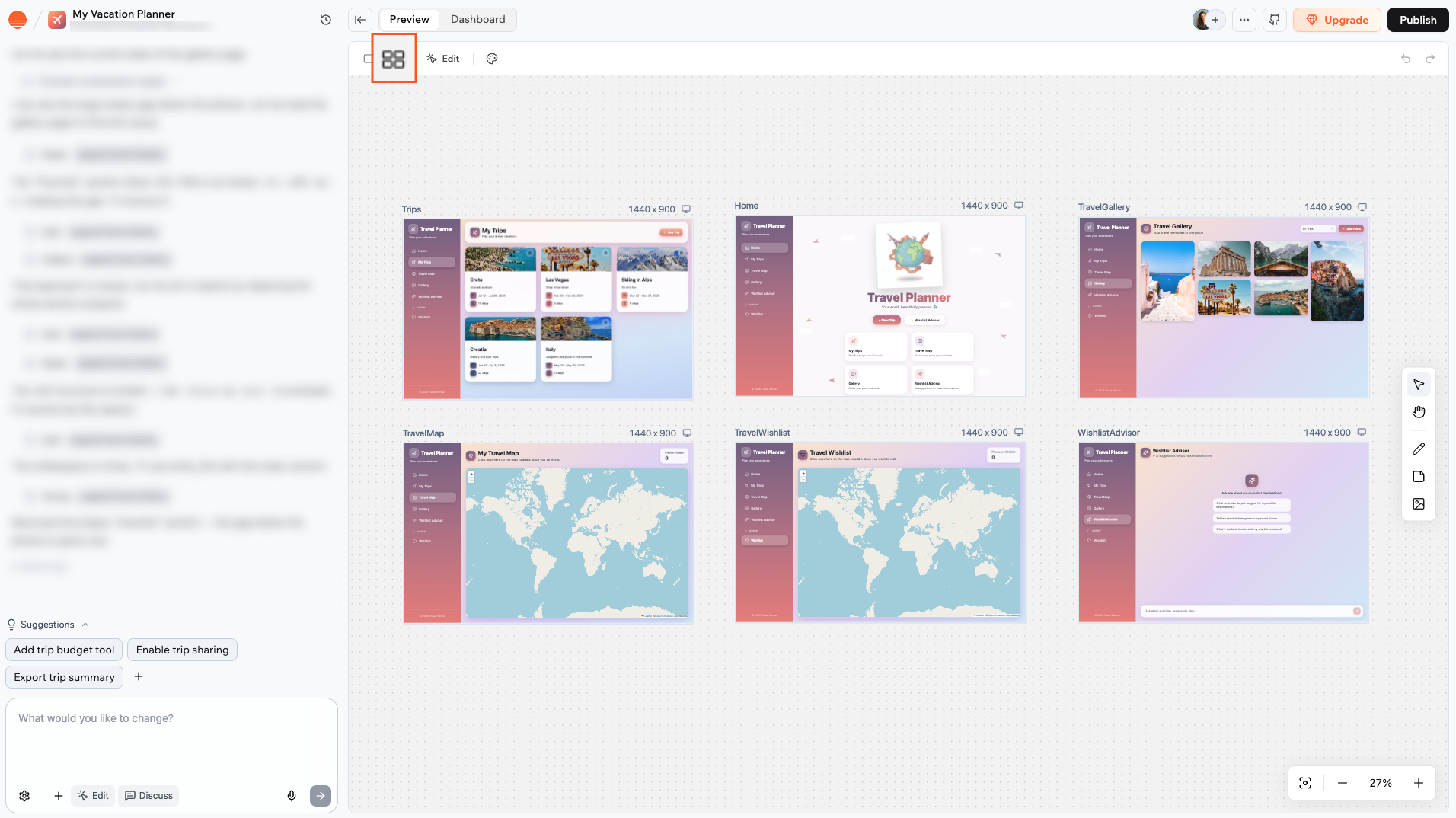
To access the canvas, open your app editor and click the Canvas icon in the top bar.
Accessing your canvas
When you open the canvas for the first time, it fits all your app pages into view. After that, your zoom level and position are saved per device, so the canvas reopens where you left off.
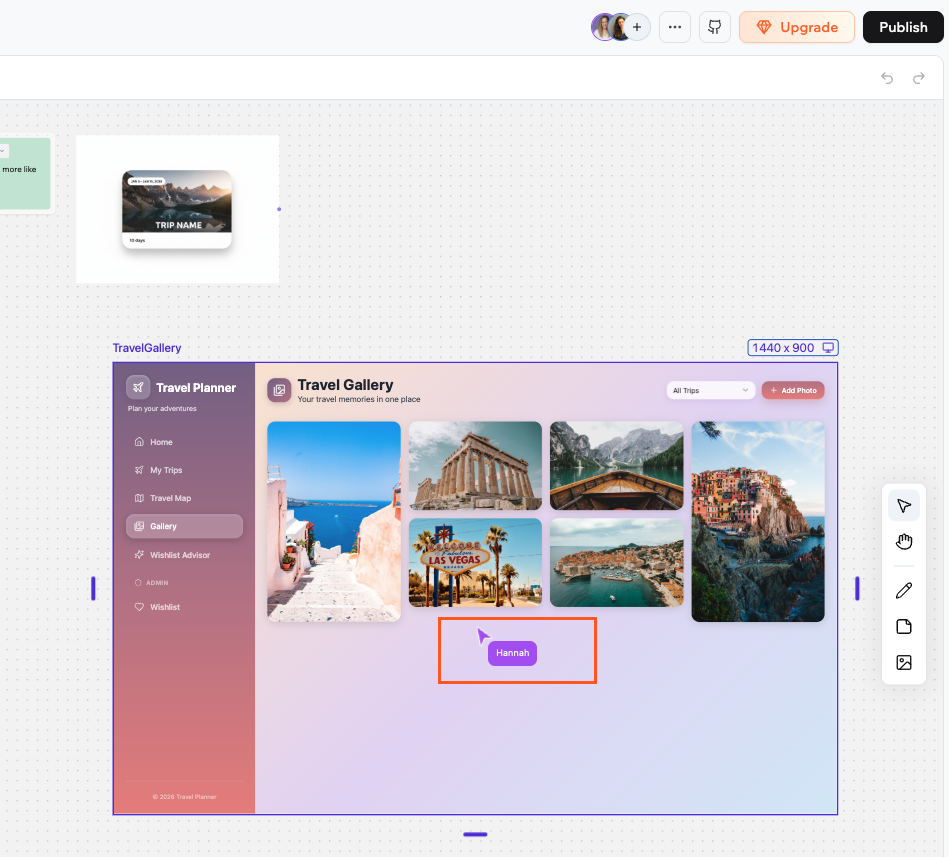
Multiple people can work on the canvas at the same time. Each collaborator’s cursor appears as a named pointer as they move around. Colored outlines show which elements each person has selected.
Every page in your app appears as a frame on the canvas, showing a live preview of that page.
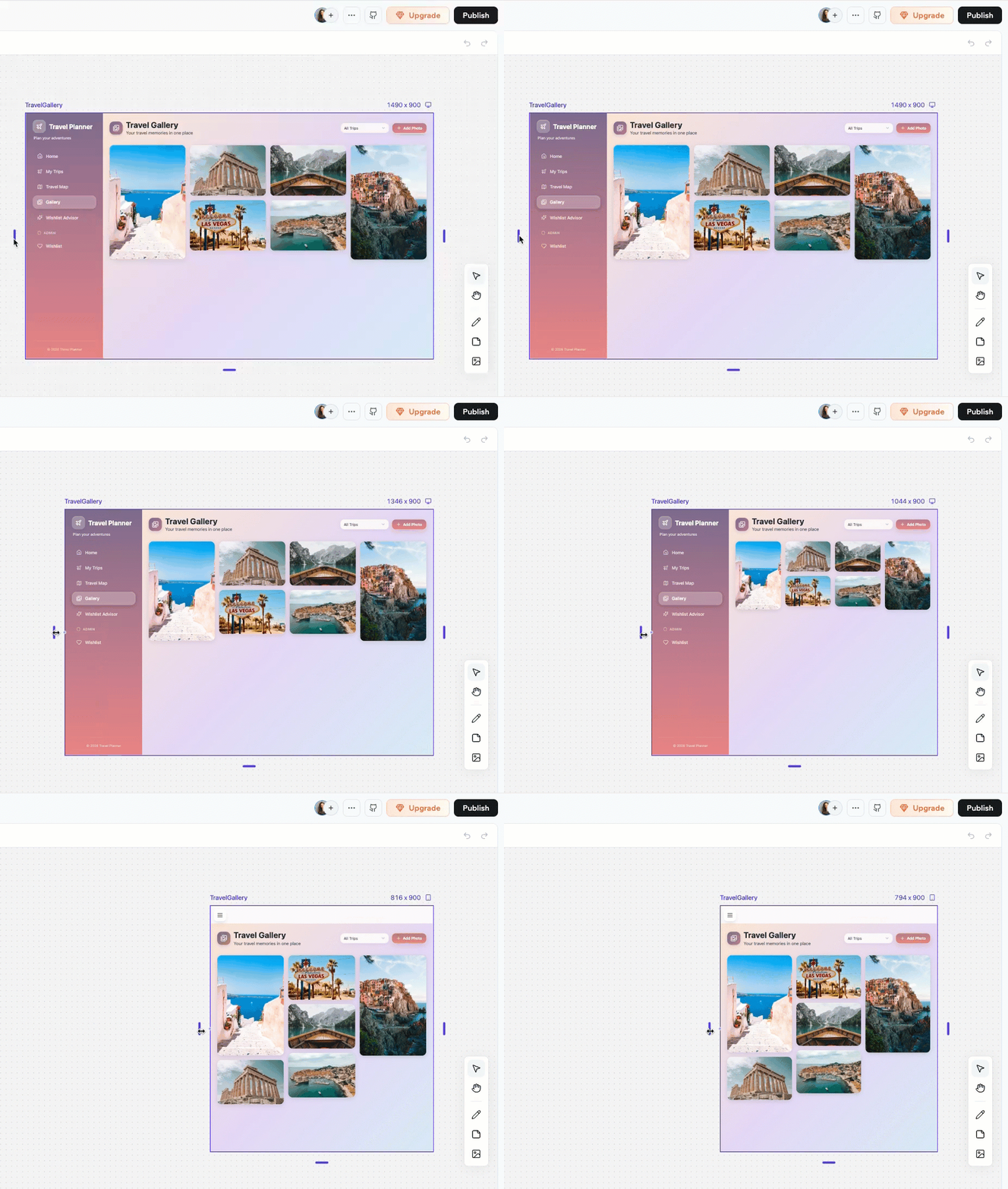
Resizing a page frame on the canvas
You can do several actions on your page frames.
Moving a page on the canvas
Click the frame to select it first, then click and drag the frame to move it wherever you want on the canvas.
Changing the view (desktop, tablet, phone)
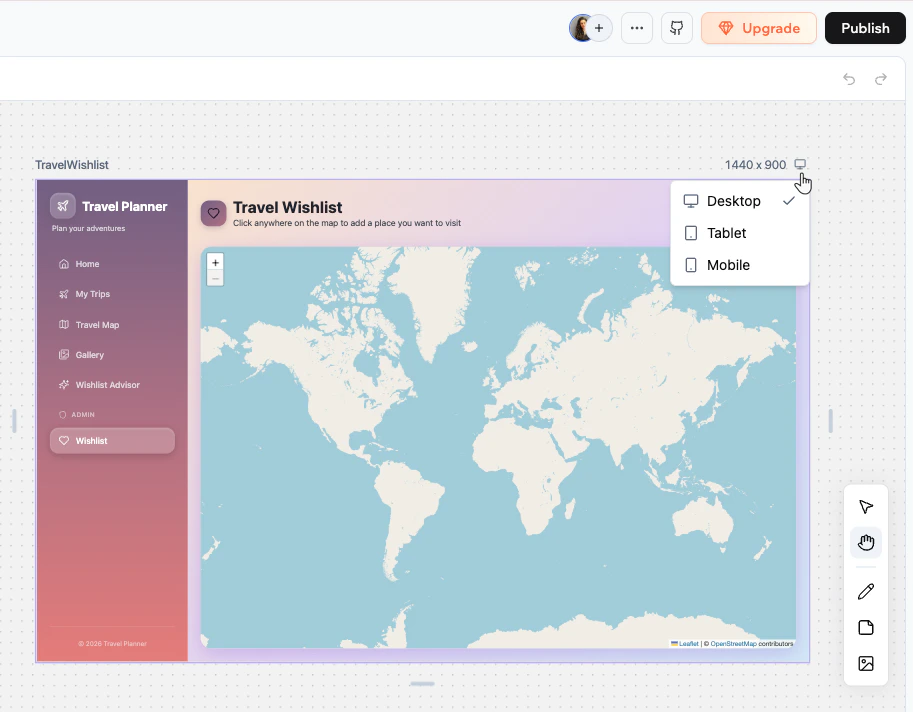
Each frame has a viewport dropdown in the top right of its header. Click it to switch between Desktop, Tablet, and Phone to see how the page looks on different screen sizes.
Switching a frame's viewport
Resizing a page frame
Click the frame to select it. Resize handles appear on the edges. Drag any handle to adjust the frame’s width and height.
Refreshing a page
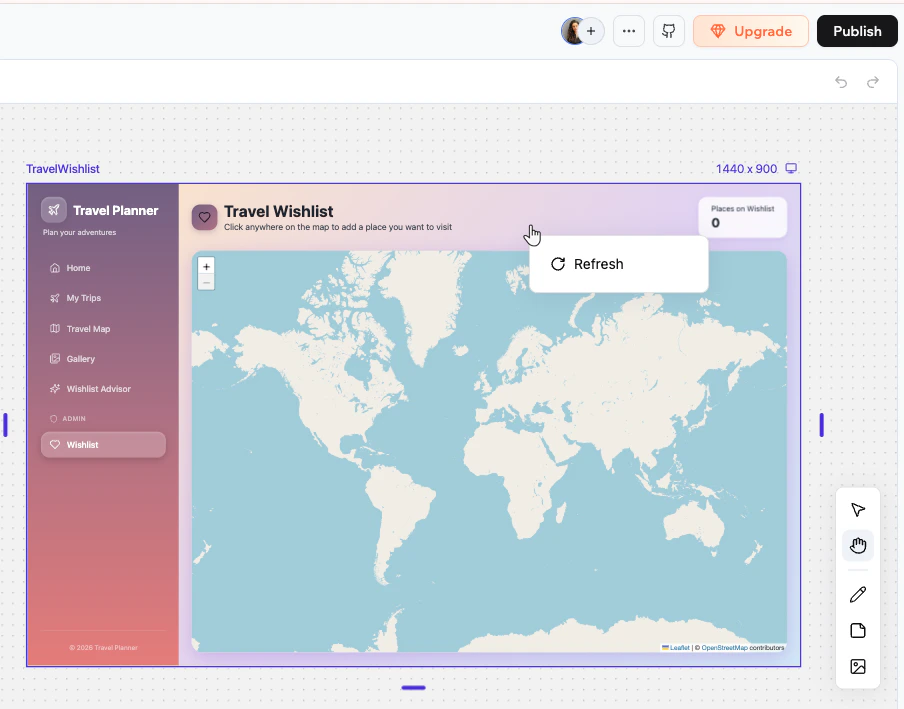
Right-click the frame and select Refresh to reload the page preview.
Refreshing a page frame
Pages cannot be deleted from the canvas. To remove a page, ask the AI chat to delete it for you.
Sticky notes are the main way to leave ideas, feedback, and instructions directly on the canvas.
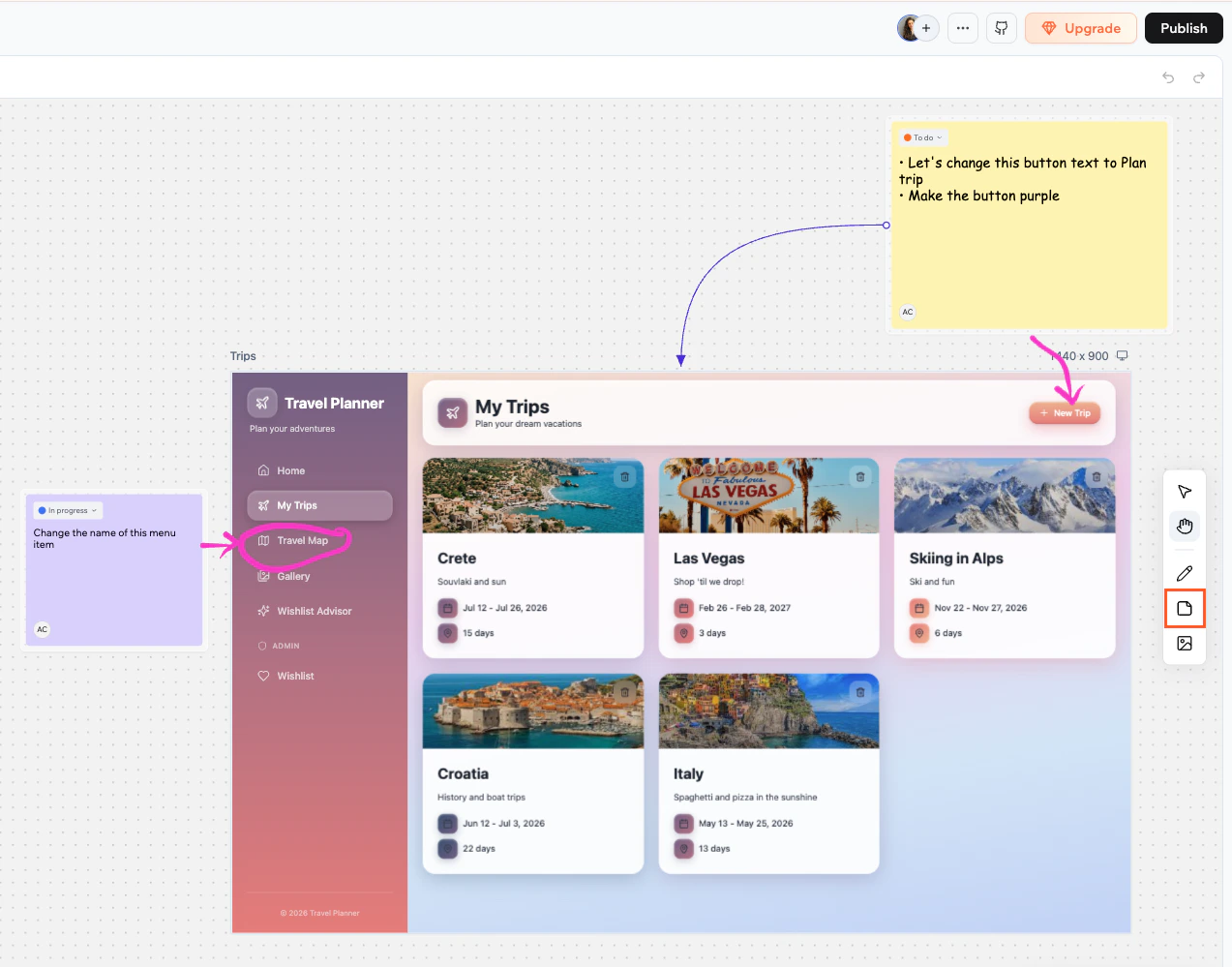
A sticky note on the canvas
Learn more about sticky notes:
Adding a sticky note
To add a sticky note:
Click the Sticky note tool in the toolbar or press N.
Click anywhere on the canvas to place the note.
Double-click the note to start typing.
The avatar of the person who created the note appears at the bottom left.
Customizing your note
When a sticky note is selected, a toolbar appears below it with formatting options:
Color: choose a background color for the note.
AaFont family: Choose from 4 styles: default, handwriting, mono, or serif.
SFont size: Small, Medium, Large, or Extra large.
BBold: make the text bold.
Bullet list: format the note as a bulleted list.
Changing the status of a note
Each sticky note has a Status dropdown at the top. Click it to set the status:
To do (orange)
In progress (blue)
Done (green)
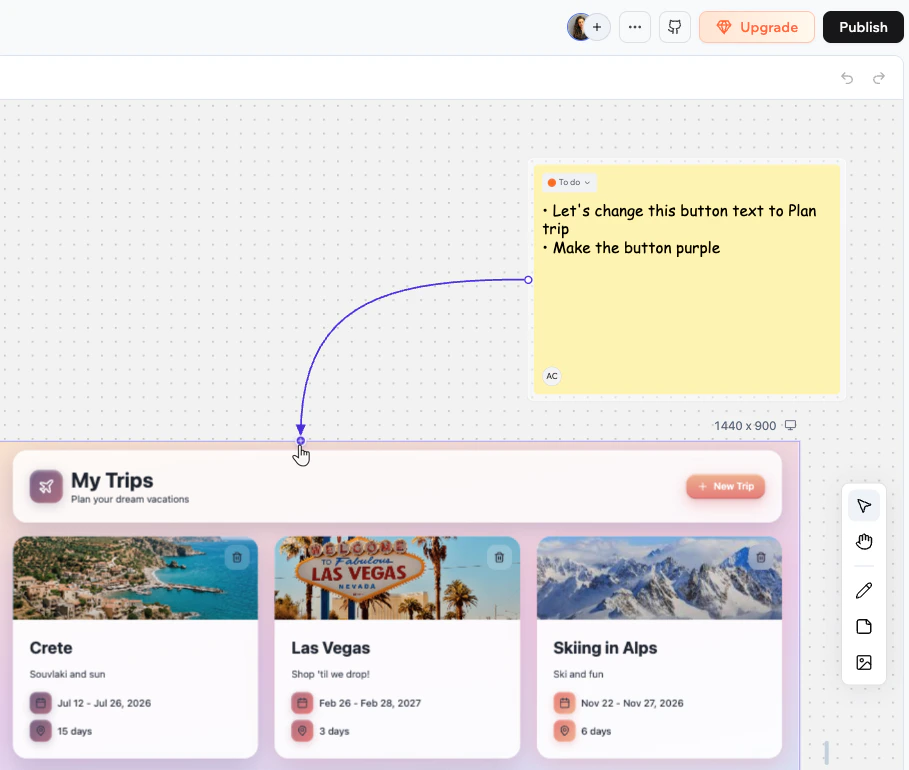
Connecting a sticky note to a page
Connect a sticky note to a page frame to show which page it relates to.To connect a sticky note to a page:
Hover over the note to reveal the connection handles on its edges.
Drag from a handle to the page frame you want to connect.
Sending a note to the AI chat
Once you write a note, you can send its content to the AI chat for implementation. Hover over or select the note, then click Send to chat at the bottom right of the note.
If the note is connected to a page frame, the AI applies the change to that specific page.
If the note is not connected to a page, the AI decides which page to update based on the content of the note.
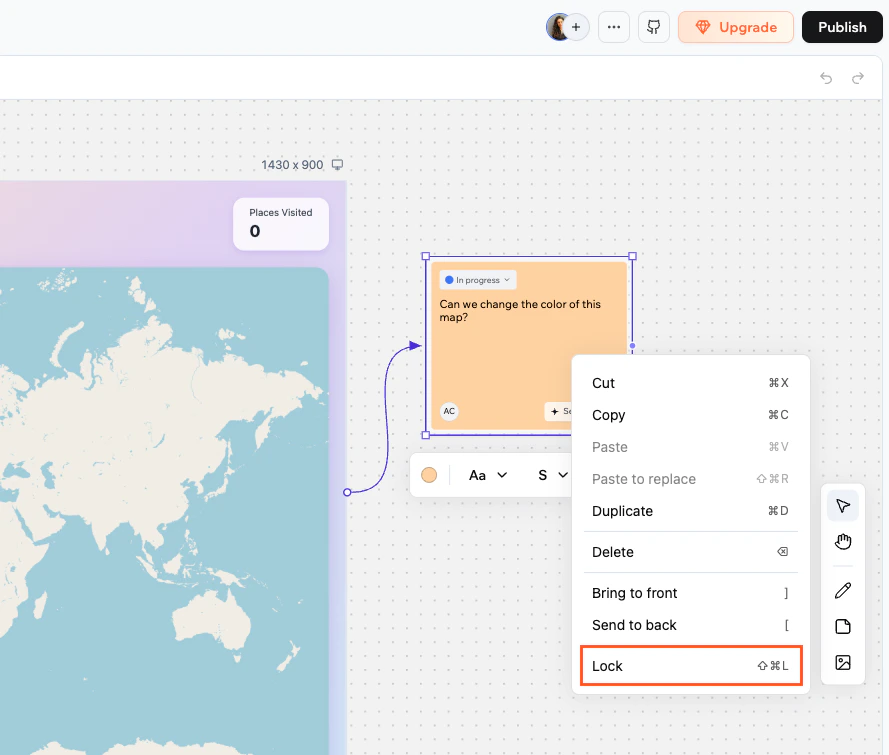
Locking an element prevents anyone from moving, resizing, or editing it until it is unlocked. This helps avoid conflicts when multiple people are working on the same canvas. You can lock sticky notes, drawings, and images.
Locking an element on the canvas
To lock or unlock an element:
Right-click the element and select Lock or Unlock.
You can undo and redo your recent canvas edits using keyboard shortcuts or the undo/redo buttons that appear in the toolbar when there is history to step through.Undo and redo cover most canvas actions: creating, moving, resizing, editing, deleting, locking, and connecting elements.
Action
Mac
Windows
Undo
⌘Z
Ctrl+Z
Redo
⇧⌘Z
Ctrl+Shift+Z or Ctrl+Y
Undo and redo are personal. Your history is separate from your collaborators’, so undoing a change only reverses your own edits, not theirs. The canvas keeps up to 50 steps of history.