

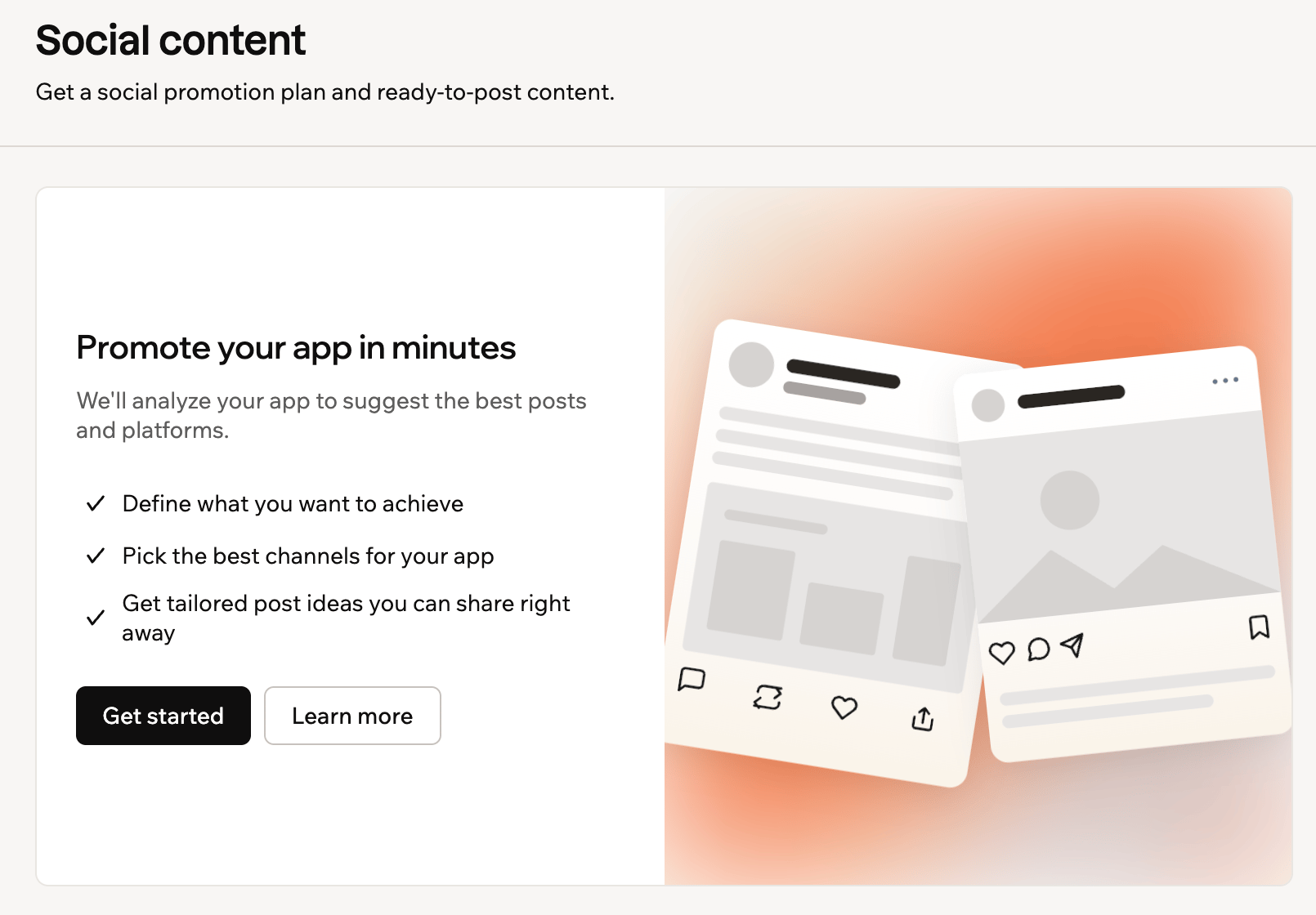
Getting started with Social content
You need the Builder plan or higher to publish posts to social channels automatically or semi-automatically.
Creating your content plan
Define your goals and strategy to create your content plan. Choose whether to publish your ready-made posts automatically or share them yourself. To create your content plan:- Click Dashboard in your app editor.
- Click Marketing.
- Click Social content.
- Click Get started.
- Answer each question and click Continue, or Let’s go on the last one.
-
Review your goal, approach and platforms under Review your suggested strategy. You can also:
- Change channels: Adds or removes channels in your content plan.
- Match your tone (optional): Writes the posts in the voice of a social profile you link.
- Click Generate posts.
-
Choose a mode under How should these go out?
- Automatic: Base44 writes 3 posts a week for each LinkedIn, Instagram, Facebook and X channel and publishes them for you. You can cancel any post before it goes out.
- Semi-automatic: Base44 writes the same posts and publishes only the ones you approve.
- Manual: Copy or download the posts and publish them yourself. Click Use manual to finish.
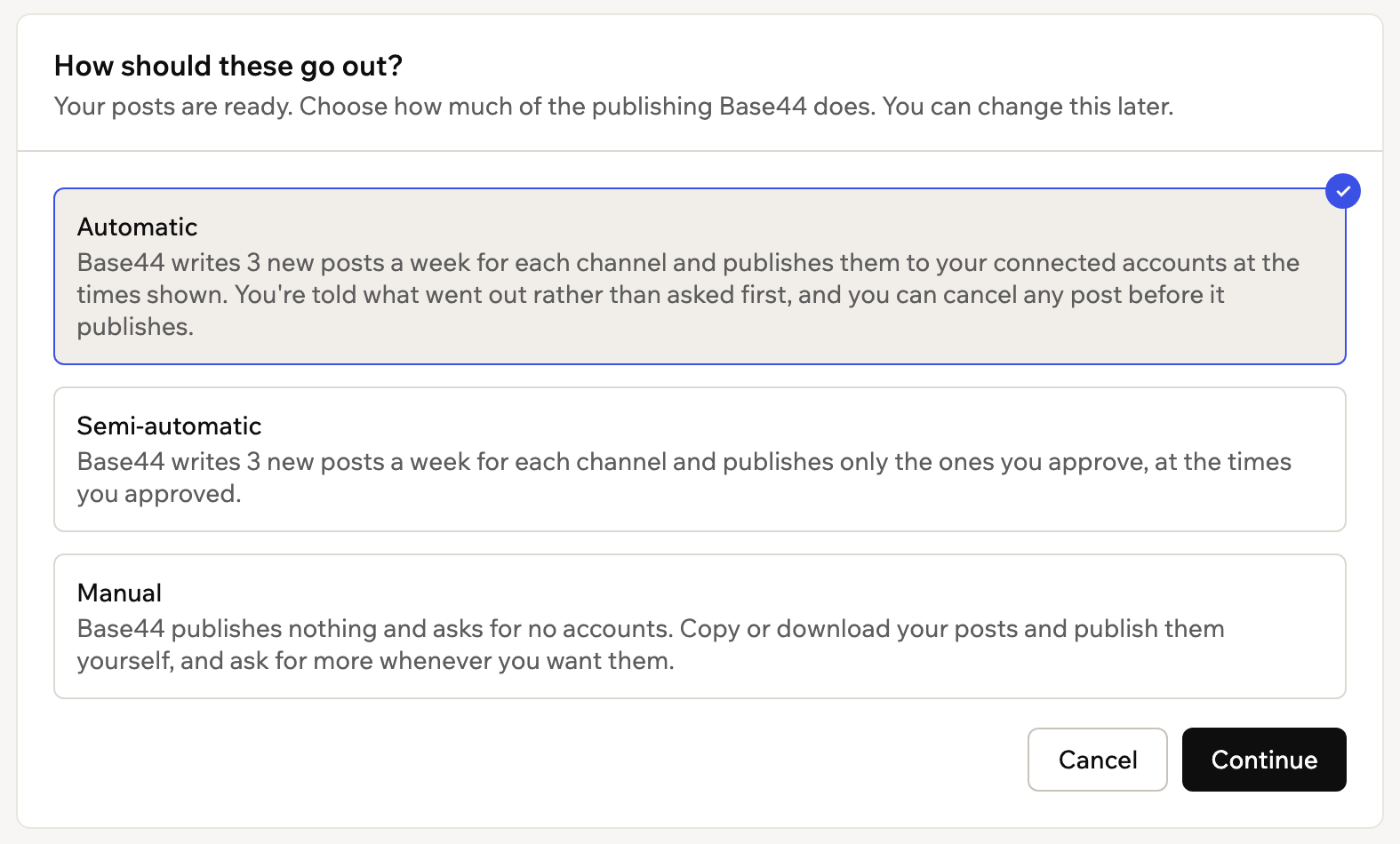
Choosing a publishing mode
- For Automatic or Semi-automatic, click Continue.
- Click Connect next to each account you want Base44 to publish to, then sign in.
- Click Turn on.
Reviewing and sharing posts
Your posts appear on a timeline, day by day. Check and edit each one, then schedule it or share it yourself.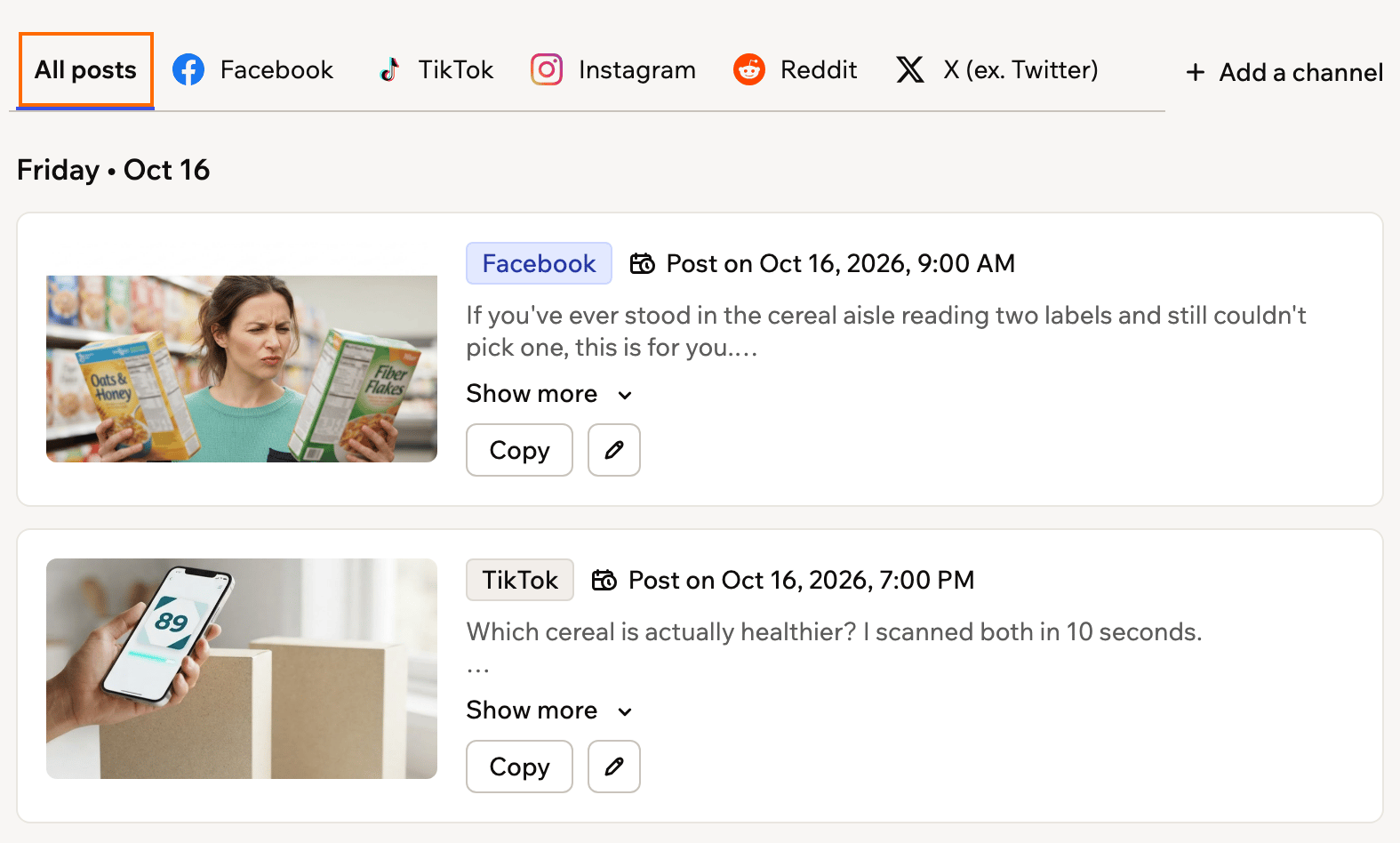
Reviewing your posts on the timeline
- Click Dashboard in your app editor.
- Click Marketing.
- Click Social content.
- Click All posts or a platform tab.
- Do any of the following:
- Edit post: Opens the post so you can change its text, date or time, rewrite it with Improve with AI, or create a new image with Regenerate image.
- Schedule: Schedules the posts you select, or all of them with Select all. In Semi-automatic, this is how you approve posts.
- Cancel post: Removes a post from your content plan, or stops a scheduled post from going out.
- Share: Opens the platform’s post composer with your text, for X, LinkedIn and Reddit.
- Copy: Copies the text so you can paste it into a new post.
- Download image: Saves the post’s image so you can attach it.
- View post: Opens a published post on its platform.
Managing your content plan
Adjust your content plan as your goals change.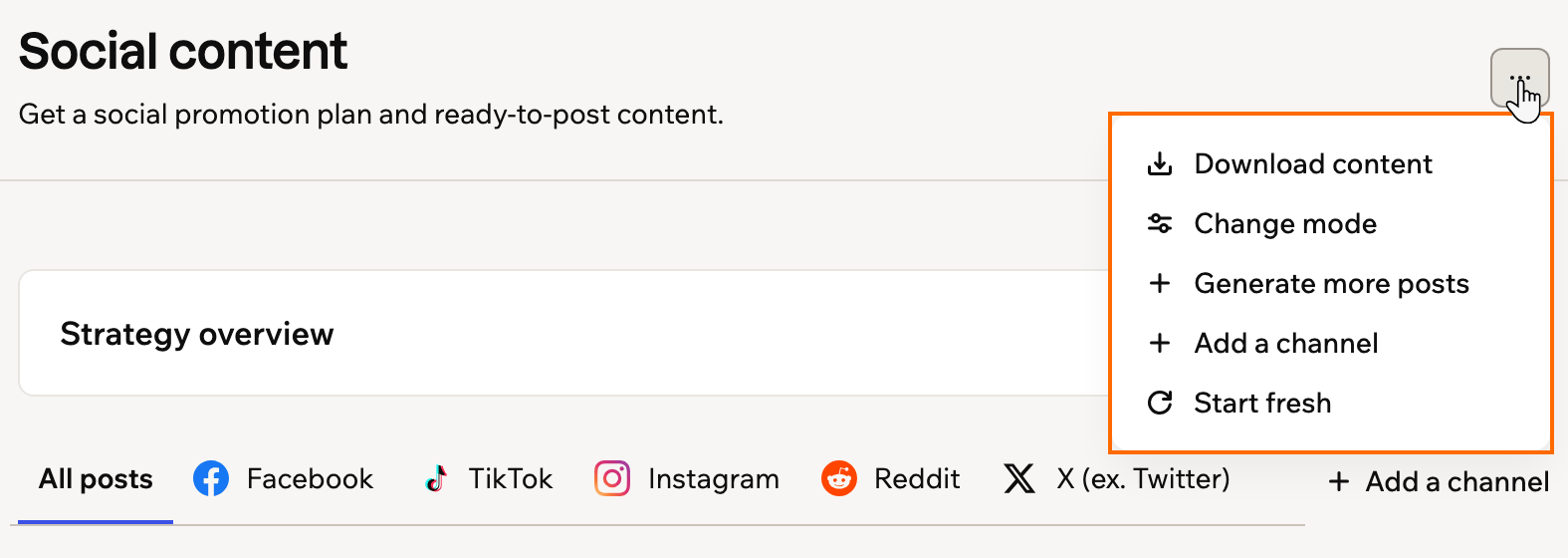
Managing your content plan from the More actions menu
- Click Dashboard in your app editor.
- Click Marketing.
- Click Social content.
- Click the More actions icon at the top right.
- Select one of the following:
- Download content: Saves all your generated images and text.
- Change mode: Switches between Automatic, Semi-automatic and Manual, and keeps your posts. For Automatic or Semi-automatic, connect your accounts and click Turn on.
- Generate more posts: Adds more posts to your content plan in Manual mode.
- Add a channel: Adds another channel to your content plan.
FAQs
Which platforms can Base44 publish to?
Which platforms can Base44 publish to?
Automatic and Semi-automatic publish to LinkedIn, Instagram, Facebook and X. You share TikTok and Reddit posts yourself.
What happens to channels I don't connect?
What happens to channels I don't connect?
Your content plan includes posts for channels as part of your strategy. Copy them and post them yourself, or connect the account so Base44 can publish them.
Which Facebook Page should I connect?
Which Facebook Page should I connect?
When Facebook asks you to choose the Pages you want Base44 to access, select Opt in to current Pages only, then select only the Page you want Base44 to publish to.
Can I use the generated posts on other platforms?
Can I use the generated posts on other platforms?
Yes. Copy or download any post and use it anywhere.
Will I get notified about my posts?
Will I get notified about my posts?
If you own the app, you receive notifications when posts publish or need attention, and a daily email summary when there’s activity to report.