

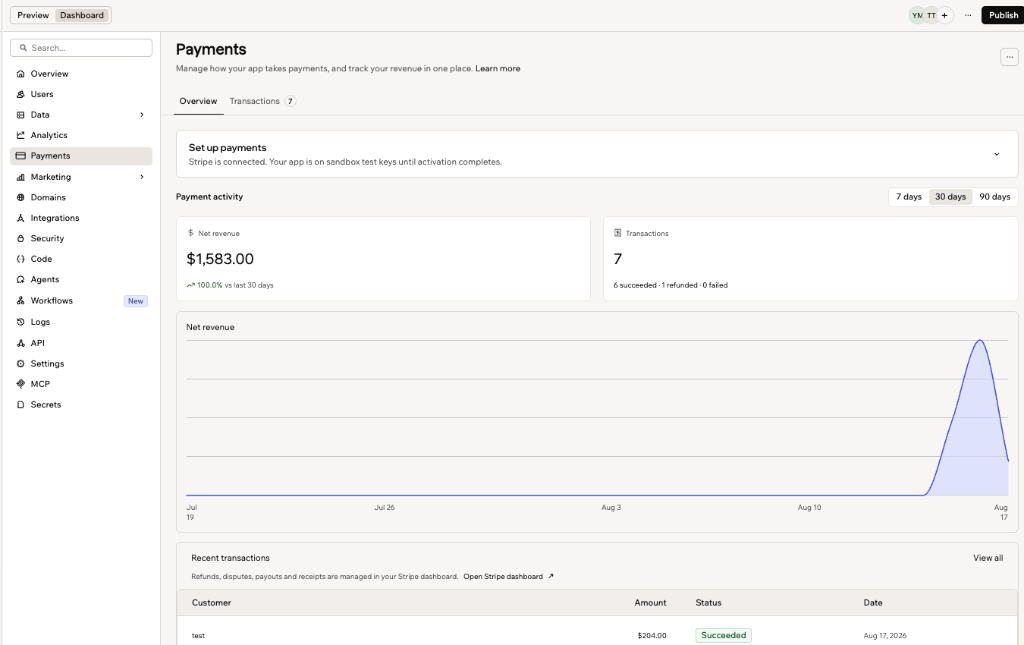
The Payments tab in your app dashboard
Viewing your payments
Your payment data is grouped into tabs: Overview for your totals and revenue trend, Transactions for every individual payment, and Subscriptions when your app sells recurring plans.Overview
The Overview tab summarizes how your app is selling over a period you choose. To view your payment overview:- Go to your app dashboard.
- Click Payments.
- Under Payment activity, click 7 days, 30 days, or 90 days.
- Net revenue: Your total for the selected period, with the change against the previous period and a chart of the trend, calculated net of refunds.
- Transactions: A count for the period, with a breakdown of how many succeeded, were refunded, and failed.
- Active subscriptions: A count of the customers currently on a plan.
- Recent transactions: Your latest 5, with View all to open your full list.
When your app takes payments in more than one currency, a Currency picker appears on the Overview tab. Use it to choose which currency to report, so your net revenue and your chart always show a single currency.
Transactions
The Transactions tab lists every transaction for your app, with the newest first. To view your transactions:- Go to your app dashboard.
- Click Payments.
- Click Transactions.
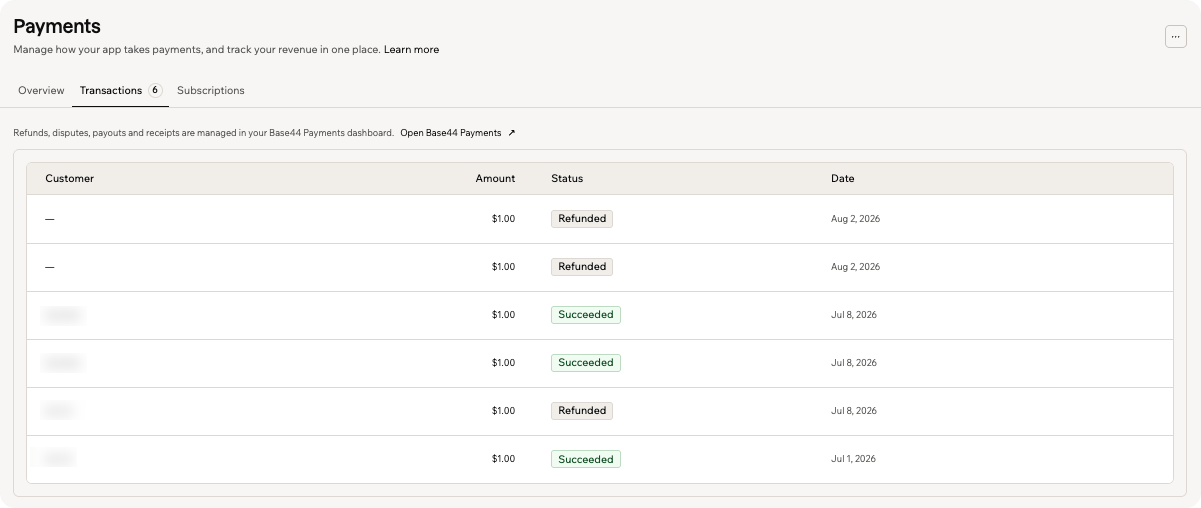
The Transactions tab, listing every payment and its status
- Succeeded: The payment went through.
- Refunded: The amount was returned to the customer.
- Failed: The payment was reversed after a dispute.
Subscriptions
Your app can sell recurring plans through either Base44 Payments or Stripe. Ask the AI chat to add subscriptions to get started. The Subscriptions tab appears once your app sells plans through Base44 Payments. To view your subscriptions:- Go to your app dashboard.
- Click Payments.
- Click Subscriptions.
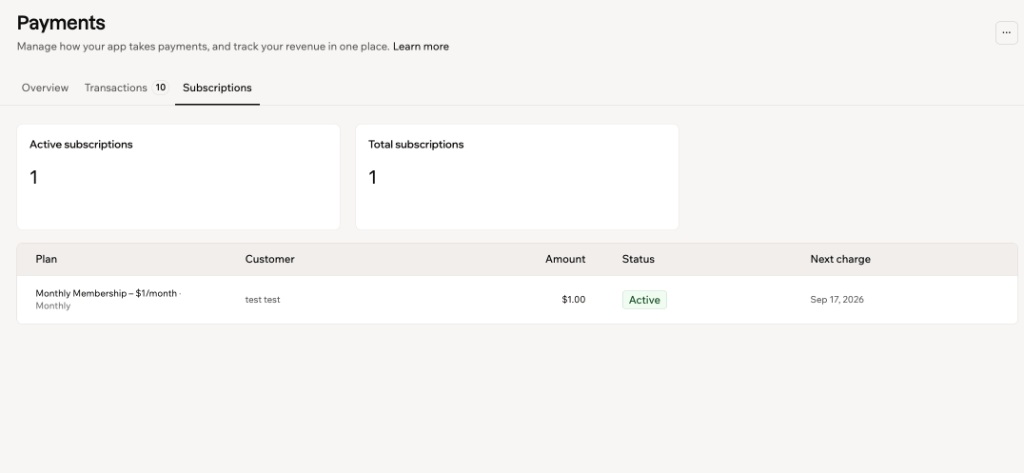
The Subscriptions tab, listing your recurring plans
- Active: Billing on schedule.
- Canceling: The plan stays active until the end of the current period, then stops renewing.
- Past due: A payment failed and the plan is at risk.
- Canceled: The plan has stopped.
- Paused: Billing is on hold.
View and manage subscriptions sold through Stripe in your Stripe dashboard. See Setting up payment flows.
FAQs
Click a question below to learn more about tracking your payments.Where does the payment data come from?
Where does the payment data come from?
The Payments tab reads the transactions and subscriptions recorded for the payment provider connected to your app, so the figures match what your provider has processed.
Why is my net revenue different from the total of my transactions?
Why is my net revenue different from the total of my transactions?
Net revenue subtracts refunded amounts, so it can be lower than your transaction total. Your transaction counts include every transaction, including the ones that were refunded or failed.
How do I refund a customer or handle a dispute?
How do I refund a customer or handle a dispute?
Refunds, disputes, payouts, and receipts are managed in your payment provider’s dashboard. Open it from your Payments tab: click Open Base44 Payments, or Open Stripe dashboard if your app uses Stripe. Refunds and disputes appear in your Transactions list once they are processed.For Base44 Payments, see Issuing refunds. For Stripe, see Refunds in the Stripe documentation.
Why don't I see the Payments tab in my native app?
Why don't I see the Payments tab in my native app?
Apple’s App Store rules limit how payments are handled inside native apps, so the Payments tab is not part of the Base44 app on iPhone and iPad. Open your app dashboard in a browser to view your revenue, transactions, and subscriptions.