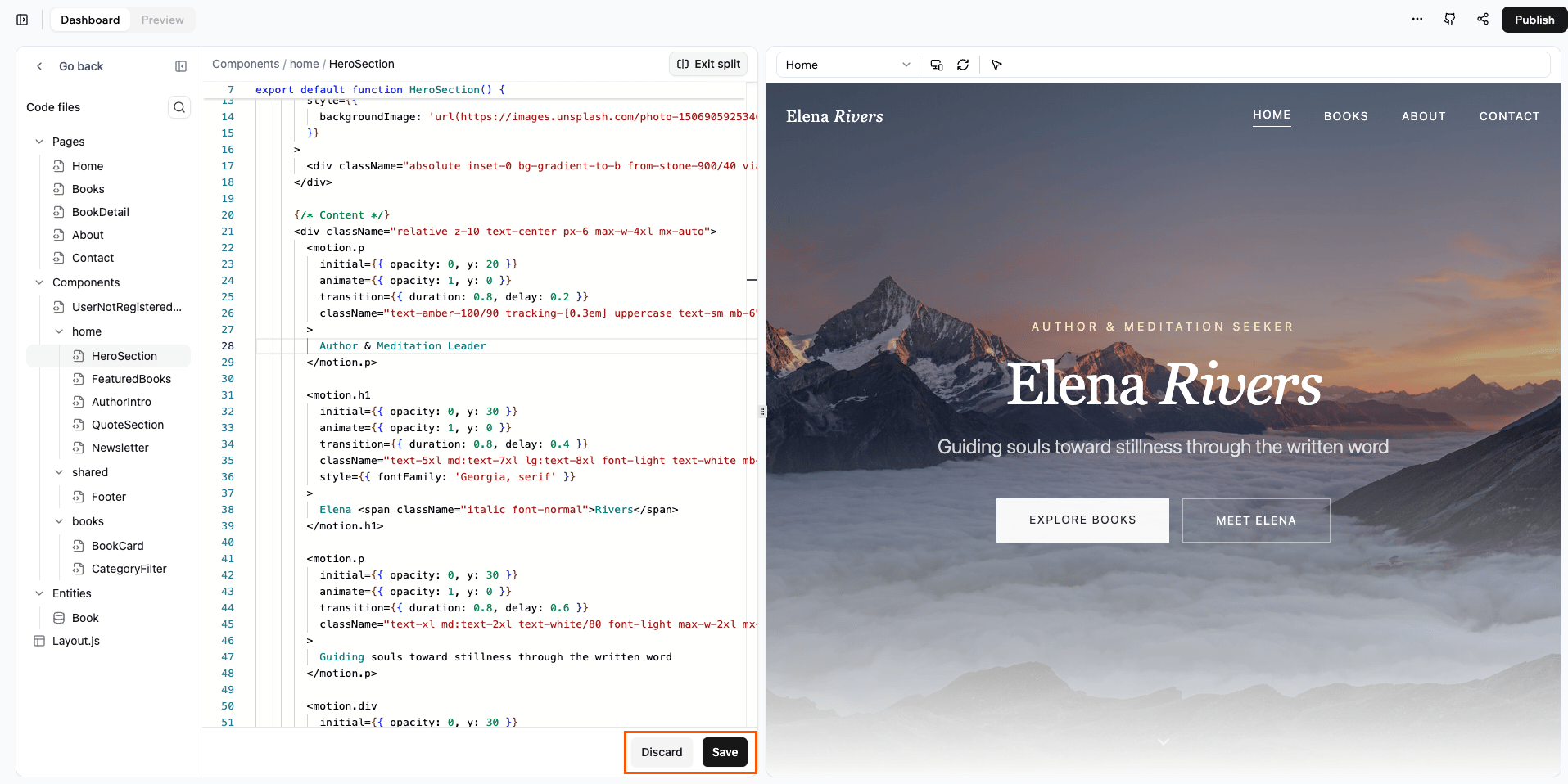
Explore the developer tools in Base44. Work with your app’s code, use in-product tools, connect GitHub, call external APIs, and use Base44 as a backend service.
Base44 gives you a flexible, developer friendly environment to build an app, extend it, and maintain it on top of the Base44 platform. You can work directly with your app’s code, use in-product developer tools, integrate with GitHub for version control, and rely more and more on Base44 as a backend service as the platform evolves.
Base44 lets you work with your app’s code so you can create custom experiences while still relying on the platform for infrastructure and runtime. You stay close to the Base44 app model and APIs, which helps your app behave consistently across environments and makes it easier to adopt new platform capabilities over time.You can mix low code and full code in the same project. Start from Base44 primitives, then drop into code when you need custom logic, integrations, or UI that go beyond what is available out of the box. This balance gives you both speed and control without forcing you to maintain your own underlying platform.
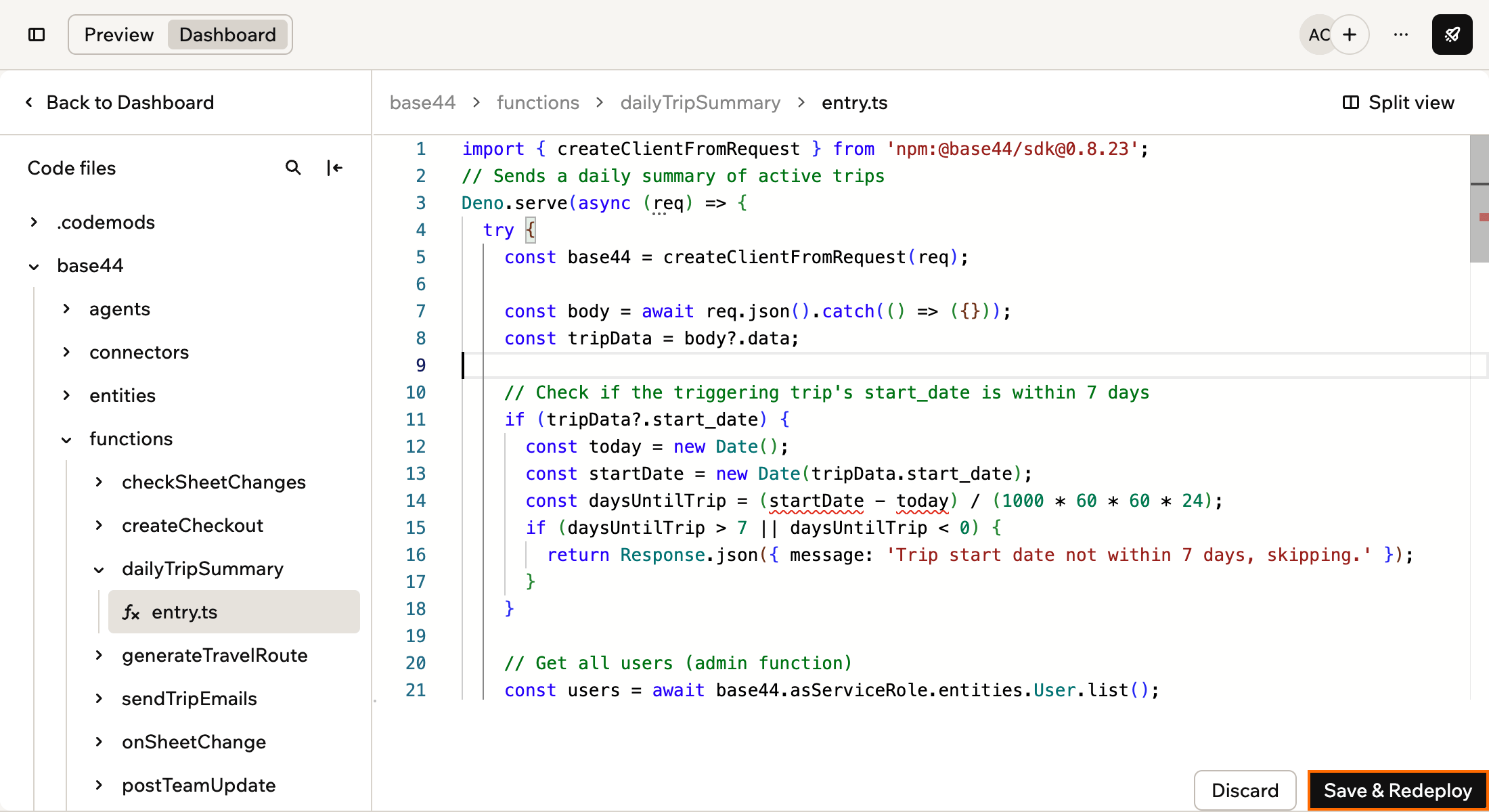
Backend functions run your app’s server-side logic, such as sending emails, processing payments, or calling other services. You can edit a function’s code yourself in Code, redeploy it, and test it before you publish.
You need a paid plan to edit code. On the Free plan, you can view your app’s code but not change it. Learn more about plans.
To edit and redeploy a backend function:
Click Dashboard at the top of the app editor.
Click Code.
Under Code files, open base44 > functions > your function’s folder, then click entry.ts.
Edit the code.
Click Save & Redeploy.
Saving and redeploying a backend function
What redeploying changes:
Your preview and tests: They use the new version right away.
Your live app: It keeps running the version from your last publish until you publish again. Publishing sends all your changes on main live together, so you can’t publish one function on its own.
Automations and workflows: They use the new version right away, without a publish.
Branches: You can redeploy on main only. On a branch, the button is Save, and your change reaches main when you merge. Learn more about backend functions on a branch.
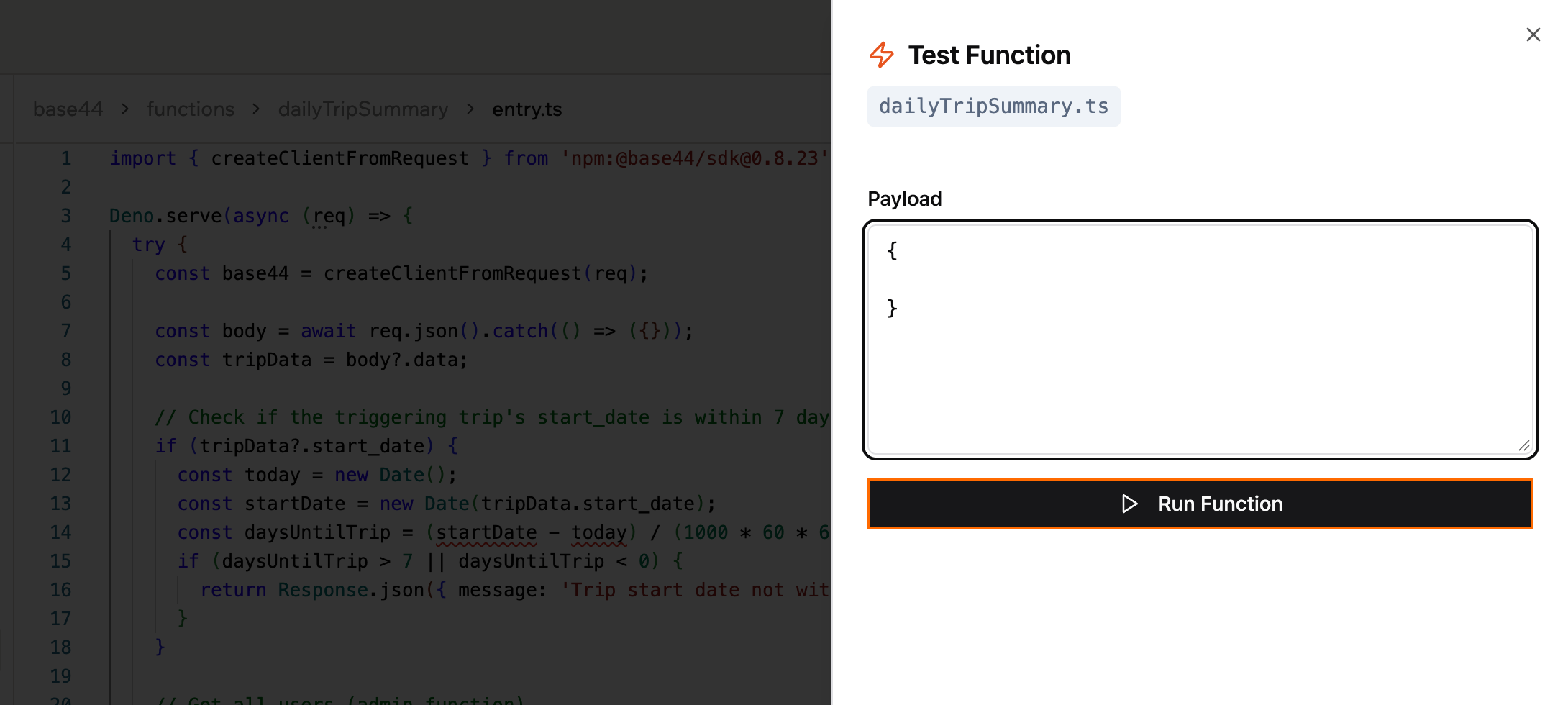
To test a backend function:
Click Dashboard at the top of the app editor, then click Code.
Open your function’s entry.ts file, and save or discard any changes.
Click Test Function at the bottom right.
Under Payload, enter the JSON input your function expects.
Base44 includes developer tools that help you understand how your app behaves in real time and debug issues more efficiently. Instead of adding your own ad hoc logging or building separate dashboards, you can inspect what is happening directly from the Base44 environment.These tools let you see how your app talks to Base44 services and external integrations, monitor requests and responses, and surface important events, errors, or warnings. You can validate assumptions while you work, then iterate safely in staging or preview environments before you roll changes out more broadly.
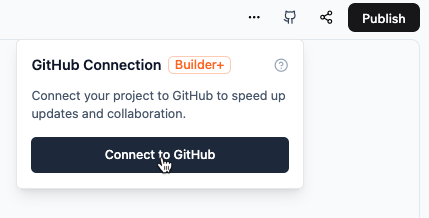
Base44 supports a GitHub based workflow so you can manage your app code with modern version control practices. Connecting your app to GitHub makes it easier to collaborate with your team and keep a clean history of every change that goes into your app.You can use branches and pull requests to review work before it goes live, enforce review or check requirements, and keep your main branches stable. When you connect GitHub workflows and checks, you can test and validate each change, then let Base44 handle deployment from the reviewed code. This creates a clear, auditable path from commit to production.
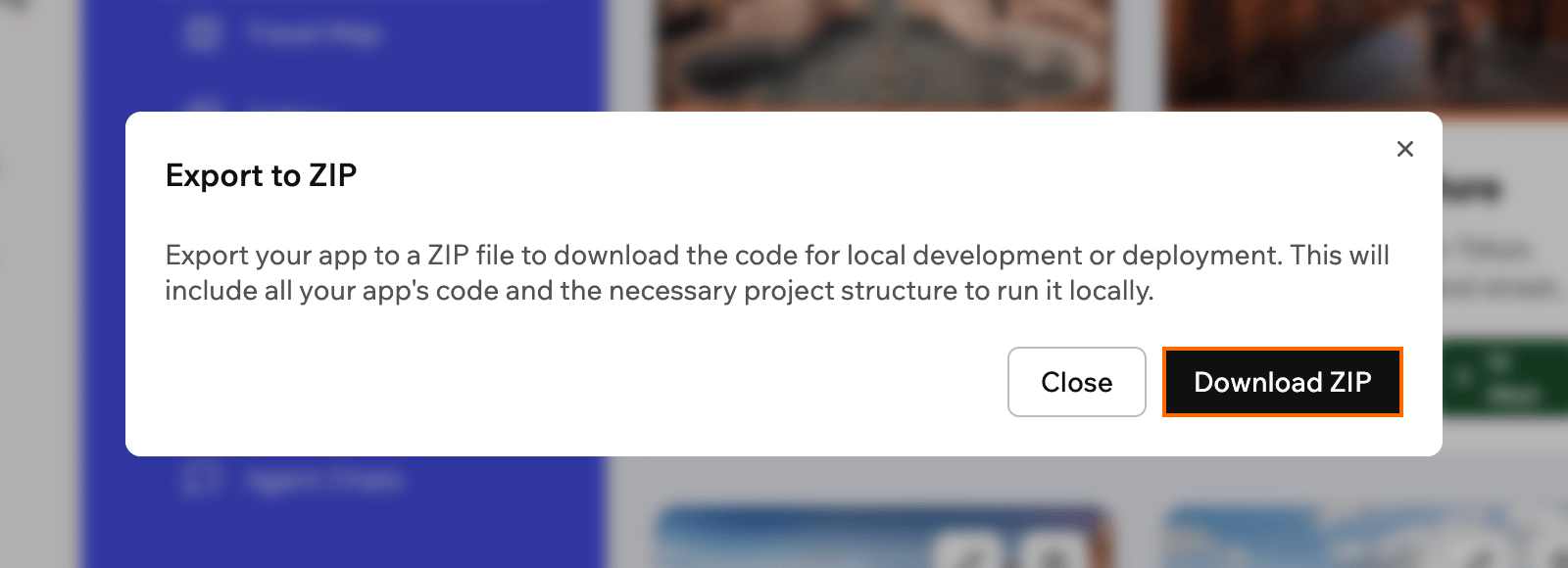
You can download your app’s code as a ZIP file to keep a copy, review it, or work on it in your own tools. The exported code still relies on Base44 to run, so a ZIP is a copy of your code, not a way to move your app off Base44.
What you need to export:
A paid plan: ZIP export is available on the Builder plan and higher. Learn more about plans.
Edit access: If you can only view an app, you can’t export it.
A computer: The option isn’t available when you use the app editor on a phone.
Your exported code is built to work with Base44. It uses the Base44 SDK to connect to your app’s backend on Base44 for data, logins, backend functions, and integrations. If you run the code somewhere else, those features still come from Base44 and use your live app’s data.Base44 doesn’t support self-hosting. You can’t run the Base44 backend, including the database, login system, and integrations, on your own servers. To run your app fully outside Base44, you’d need to replace those parts with your own backend and change the code that uses them.Here’s what you can do with your code instead:
Edit the code in your own editor
Connect your app to GitHub to keep your code in sync both ways. You can then edit it in your own editor, run it on your computer with the Base44 CLI, and see your changes in the app editor. Learn how to connect to GitHub and set up local development.
Keep a backup of your app
Export your code as a ZIP, then export each data table as a CSV file from Data in your app’s dashboard. Together, they give you a copy of your app’s code and its records.
Base44 includes an integrations layer that lets your app call external services without you managing every API call by hand. Instead of wiring each provider yourself, you use Base44 integrations to handle common patterns like talking to AI models, working with files, sending email, or calling custom APIs, while Base44 manages credentials and execution on the backend.There are 2 main types of integrations:
Built in integrations cover common tasks such as generating text or images with AI, uploading and serving files, or extracting structured data from documents.
Custom integrations let a workspace administrator import an OpenAPI specification for almost any external API and expose it to your apps as a reusable, named integration that is proxied through the Base44 backend.
Integration calls always run on Base44 infrastructure, so secrets and tokens never live in your frontend. You can invoke them either in the context of the current person using your app or with a service role that has elevated permissions for admin and automation workflows. This gives you a flexible way to connect Base44 to the rest of your stack while keeping security and access control in one place.
Base44 includes a managed backend platform that is built with AI agents and modern full stack apps in mind. It handles core backend concerns such as data storage, authentication, real time updates, serverless functions, integrations, and hosting so you can focus on product logic and experience.
Base44 as a backend
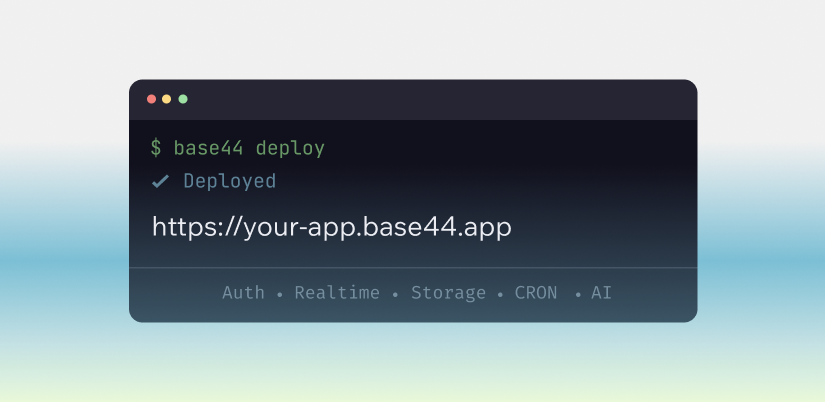
You can run Base44 as a backend only service when you bring your own frontend or connect existing applications, or use it as the backend for full stack projects generated from Base44 templates. The CLI scaffolds projects with the configuration you need and connects them to your Base44 backend, while the dashboard lets you manage data, auth, functions, and integrations.Any frontend framework can talk to Base44 through the JavaScript SDK. During local development your frontend runs on its own dev server and connects to the hosted Base44 backend for data and functions. When you are ready to go live, you can either keep hosting your frontend elsewhere or deploy its built assets to Base44 hosting with custom domains and automatic HTTPS.Base44 provides a flexible NoSQL data layer, built in authentication and access control, and real time subscriptions so your app can react to changes as they happen. You can add custom backend logic with TypeScript based functions and plug in external services through connectors and integrations, for example for AI models, email, or file handling.
Most backend function errors come from the request, the function’s code, or the way functions call each other.If a backend function isn’t working, find your situation below.
My function returns a 404 or an error when I open its URL
Backend functions accept both GET and POST requests, so the request method doesn’t cause a 404. Opening a function’s URL in your browser sends a GET request with no body. If the function expects data, it returns an error even though it works.Start by testing the function from Code. If the test passes, your function works, and the problem is in the request. Send the data the function expects, in the query string for a GET request or in the request body for a POST request.If the test also returns a 404, or none of your integrations can reach your functions:
Check that your plan includes backend functions. Learn more about plans.
Check that the URL or call uses the function’s exact name, which is the name of its folder under base44 > functions in Code.
Open the function’s entry.ts file and click Save & Redeploy to deploy it again.
Test the function again.
I see an ISOLATE_INTERNAL_FAILURE error when I save a function
This error means your function couldn’t start when Base44 deployed it. It’s sometimes a short-lived problem, so try Save & Redeploy again first. If it keeps failing, something in the function’s code stops it from running.To fix the error:
Ask the AI chat to fix the function:
This backend function returns ISOLATE_INTERNAL_FAILURE. Make it compatible with Deno.serve without changing what it does.
If you edited the code yourself, check it against the format the AI uses. Functions in the app editor wrap their logic in Deno.serve(), and each import starts with npm:, jsr: or node:, or is a relative path such as ./helpers.ts.
Click Save & Redeploy, then publish your app so your live app gets the fixed function.
Calls from my function to Base44 fail with 403 'DNS points to prohibited IP'
A call that a backend function makes to Base44 fails with a 403 error and the message “The domain’s DNS records point to a prohibited IP address.” The response can also be just error code: 1000. Any call can fail this way, including reading or writing records, integrations, and calls to other functions. Retrying doesn’t help, but starting the same process again from the beginning works.This happens when the function sits too deep in a chain of backend functions calling each other. Each call from one function to another adds a level to the chain, whether it uses base44.functions.invoke() or a fetch() to a function’s URL. A chain can be up to 7 functions long, counting the function that starts it. The 8th function in a chain, and any after it, can’t reach Base44 at all.To fix the error:
Find the chain. Look for a function that invokes itself, or functions that invoke each other one after another, such as a function that processes one step of a long job and then invokes itself for the next step.
Start each step from a new request instead of from the previous step. Have the function process one step, save its progress on a record, and return. Then start the next step from your app’s frontend, or from a scheduled workflow that picks up unfinished work.
If a function calls another function only to reuse its code, move that code into a file in base44/shared/ and import it in both functions instead. See Share code between functions.
If you’re not sure where the chain is, ask the AI chat to find it:
Calls from my backend functions to Base44 fail with 403 "DNS points to prohibited IP". Find backend functions that call themselves or each other in a chain, and change them so each step starts from a new request instead of from the previous function.
My Telegram or WhatsApp webhook gets a 403 error
Some services, such as Telegram and WhatsApp, send webhook requests from their own servers and can’t include login details like an API key or custom headers. If the function that receives the webhook requires authentication, these services get a 403 error.Change the receiving function so it doesn’t check for a logged-in user or an API key. To keep authentication on your other functions, create a separate public function just for these services, and use it only for actions that aren’t sensitive.
If a function still doesn’t work, contact Customer Care. Include your app link, the names of the affected functions, and when the problem started, such as after a publish or a code change.
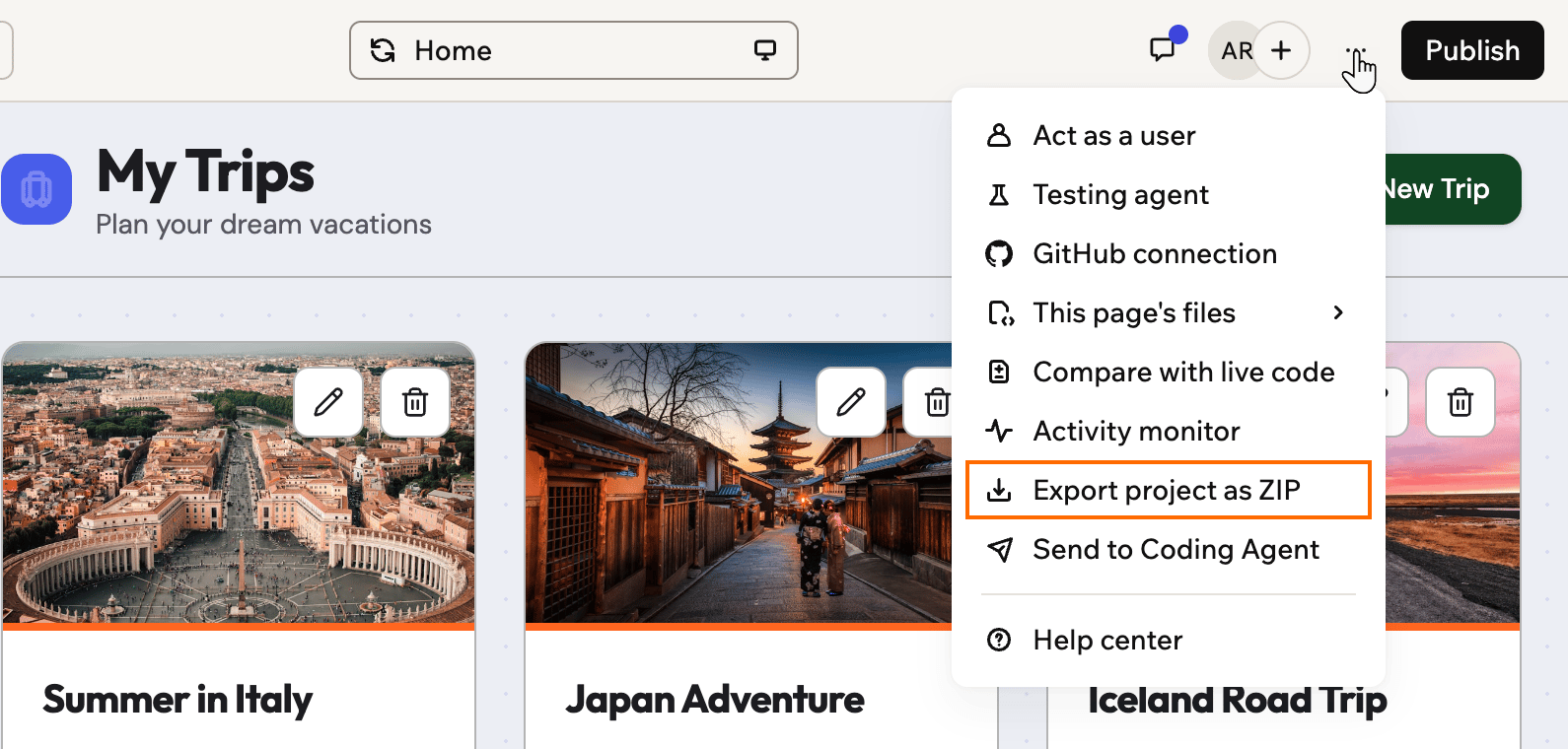
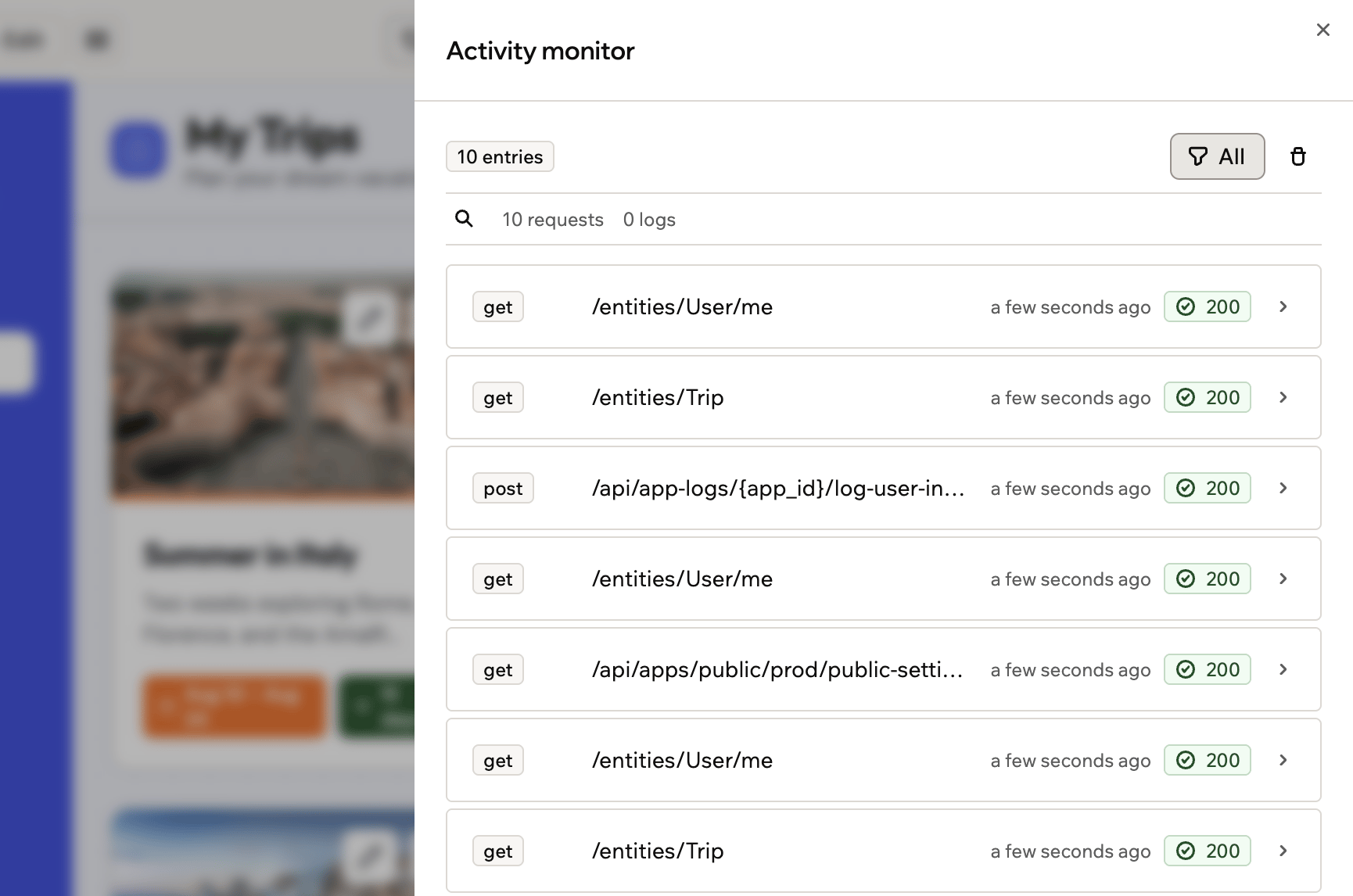
The activity monitor displays the latest actions and requests made by your app. You can use it to view user activity, track performance, and troubleshoot any issues in real time.To open it, click the More actions icon in the top bar and select Activity monitor:
The activity monitor lists the requests your app makes
How do I view my app's files and components?
You can see the files and components that power your app from the top bar and the code view.
Click the More actions icon in the top bar and select This page’s files to view the files that are currently used on the page you are editing. Use See all files to open the full file list.
Click Dashboard, then Code to open the full file structure for your app and browse components.