


Building an app on a phone
Using Base44 from a mobile browser
You can create, edit, and manage your apps directly from a mobile browser, without needing to download anything. This lets you capture ideas, make quick changes, and keep your work moving wherever you are.Creating an app on mobile
Start a new app project wherever you are, using just your mobile device. This helps you capture ideas, build quickly, and manage your work even when you’re away from your computer. To create a new app from your mobile browser:- Open your browser on your mobile device.
- Go to base44.com and tap Start Building.
- Sign up or log in.
- Write your prompt and start building.
Editing your app on mobile
Update your app directly from your mobile browser, making it easy to adjust content, add features, or make quick changes while on the go.Some features such as connecting a domain and managing your app’s security are not available on mobile. You need to go to a desktop to make changes to these.
- Open your browser on your mobile device.
- Go to base44.com and tap Start Building.
- Log in to your account.
- Tap your app.
- Tap Chat to Edit to make changes using AI.
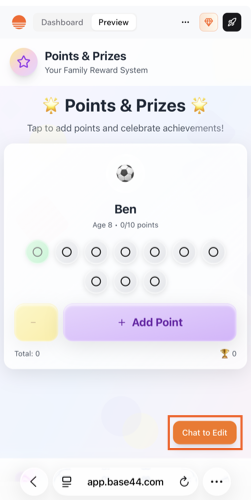
Editing from a phone
Getting the Base44 app
Download the Base44 app to build, edit, and manage your apps on your phone or your Mac. The app is available in English, German, Spanish, French, Japanese, and Portuguese. It follows your device language by default, and you can choose a different one in the app.
Where to get the app
Android
The Base44 Android app is available on Google Play. Download it to build, edit, and manage your apps directly from your Android device. Download from Google PlayiOS
The Base44 iOS app is available on the Apple App Store. Download it to build, edit, and manage your apps directly from your iPhone or iPad. Download from the App StoreMac
Use Base44 in its own window on your Mac, with a dock icon, instead of a browser tab. It’s the same Base44 as on the web, so your workspaces and apps are all there, and it keeps itself up to date. To install the Base44 app for Mac:- Go to base44.com/downloads/desktop/mac. The Base44.dmg file starts downloading.
- Open Base44.dmg and drag the Base44 icon into the Applications folder.
- Open Base44 from your Applications folder, and sign in with your Base44 account.
When you close the window, Base44 keeps running in your dock. Updates download in the background and install the next time you restart the app.
Sharing and installing your app
Your app works in any mobile browser without needing to be in an app store. Share the link to your published app and let your app users know they do not need to download anything.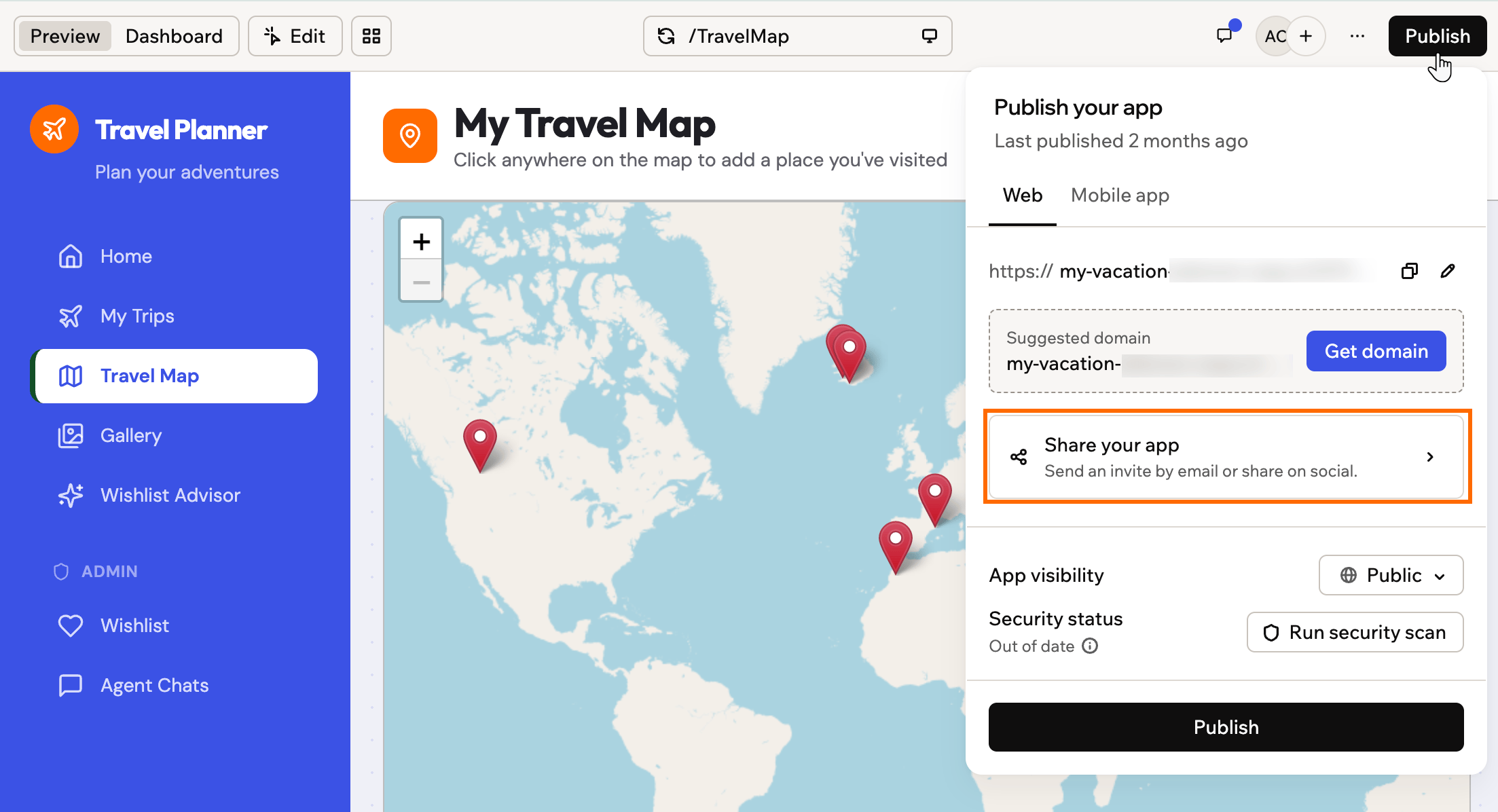
Sharing your published app from the Publish panel
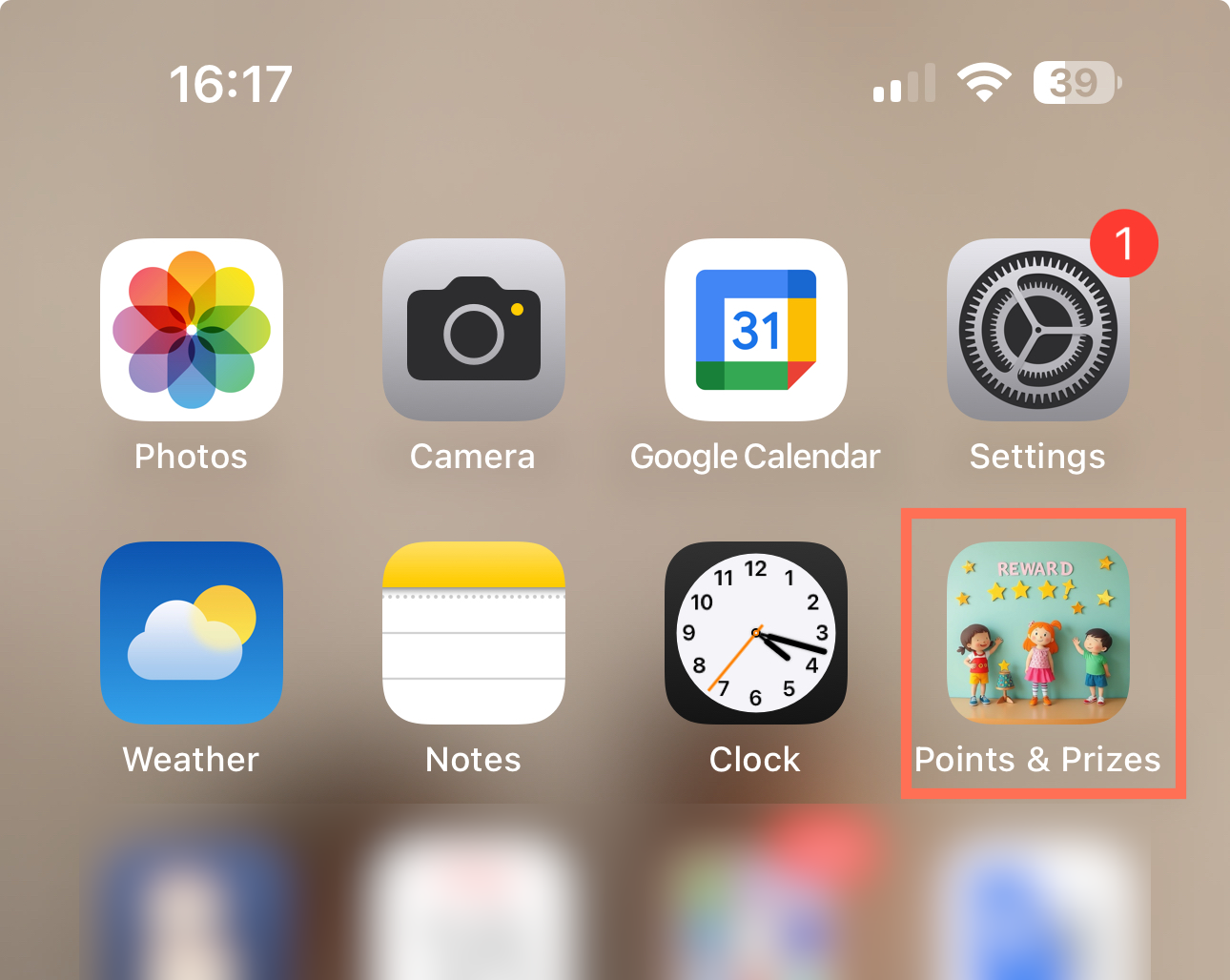
An app on the home screen
Your app updates automatically, so everyone opening it from the home screen always sees the latest version.
- Open the app link in your mobile browser.
- Tap the share option in your browser.
- Tap Add to Home Screen.
- Edit the shortcut name if you want, then tap Add.
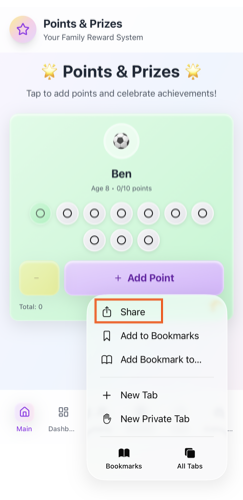
Adding your Base44 app to your mobile home screen
Using device features
When you publish your app to the App Store or Google Play, it runs your published Base44 app in a secure web view, so it can use the same device features a mobile browser can. Ask the AI chat to add the feature you need, and Base44 sets up the device permissions when you generate your app files.Adding device features
You can add features that use the phone’s hardware while your app is open. When your app first needs access, the phone asks the person to allow it, with a short explanation of what your app uses it for. Device features your app can use:- Camera: Take a photo, record a video, or scan a code.
- Photos and files: Choose a photo or file from the phone’s gallery or storage and upload it.
- Microphone: Record audio or a voice note.
- Location: Find the person’s location while they’re using your app, for example to show nearby places on a map.
Sending push notifications
Push notifications appear on someone’s phone even when your app is closed, for example to tell them an order shipped or remind them about an appointment. They only reach people who installed your app from the App Store or Google Play, not people using it in a browser or from a home screen shortcut. To send push notifications from your app:- Click Publish in your app editor, then click the Mobile app tab.
- Generate your App Store or Google Play files with push notifications turned on, and upload your push credentials. See adding push notifications.
- Submit the new version of your app to the stores.
-
Describe in the AI chat when your app should send a notification. For example:
Unsupported features
Some features need native code that the mobile app doesn’t include, so you can’t add them to your app. Features that aren’t supported, and what to do instead:- Face ID and fingerprint sign-in: Your app can’t unlock with Face ID or a fingerprint. People sign in with the methods you choose in your app’s authentication settings, and they stay signed in when they close and reopen the app.
- Background location: Your app can only get someone’s location while it’s open on their screen. It can’t track location when the app is closed or the phone is locked.
- Passkeys: Base44 sign-in doesn’t support passkeys. Use email and password or a social sign-in method instead.
Submitting your app to app stores
You can prepare your app for the Apple App Store and Google Play directly from the app editor. Scan your app against store guidelines, use AI to fix issues, and generate the IPA and AAB files that you need to upload in your Apple and Google developer accounts.Exporting your app
If you have a Builder plan or higher, you can sync your app’s code with GitHub or download it as a ZIP file, then use third-party tools such as Capacitor, PWABuilder, or Trusted Web Activities (TWA) to wrap your app’s URL or exported code for the mobile app stores. These wrappers are managed outside of Base44, and any native-only features like push notifications must be set up separately. Your exported code still uses Base44 for your data, logins, and integrations. Learn more about exporting your code, including what the ZIP includes. For advanced help and community support, visit the Base44 Discord community to connect with other builders and share tips.FAQs
Click a question below to learn more about using your app on mobile.Is there a Base44 app for Windows?
Is there a Base44 app for Windows?
Not yet. The desktop app is only available for Mac. On Windows, use Base44 in your browser.
Can I customize how my app looks on mobile?
Can I customize how my app looks on mobile?
Yes. Your app automatically adjusts its layout for any device, but you can fine-tune how it looks and works on mobile. See Customizing your app for mobile in the design doc.
Do my users need to update the app?
Do my users need to update the app?
No. Any time you make or publish changes, your visitors automatically see the latest version.
Can my users interact with forms, features, and all content on mobile?
Can my users interact with forms, features, and all content on mobile?
Yes, every element, form, and feature of your app works on both desktop and mobile devices. We recommend testing your entire app on mobile and making any necessary adjustments in the app editor to ensure the best experience for your app users.
How do I add or configure the manifest.json file for my PWA?
How do I add or configure the manifest.json file for my PWA?
You do not need to create or upload a manifest.json file for your app. Base44 automatically generates and manages the manifest.json for you.You can view your app’s manifest at:
https://yourdomain.com/api/apps/manifests/YOUR_APP_ID/manifest.jsonTo change what appears in the manifest, update your app information instead of editing the file directly:- Go to your App Dashboard and click Overview.
- Update your app name, descriptions, icons, and other branding details.