

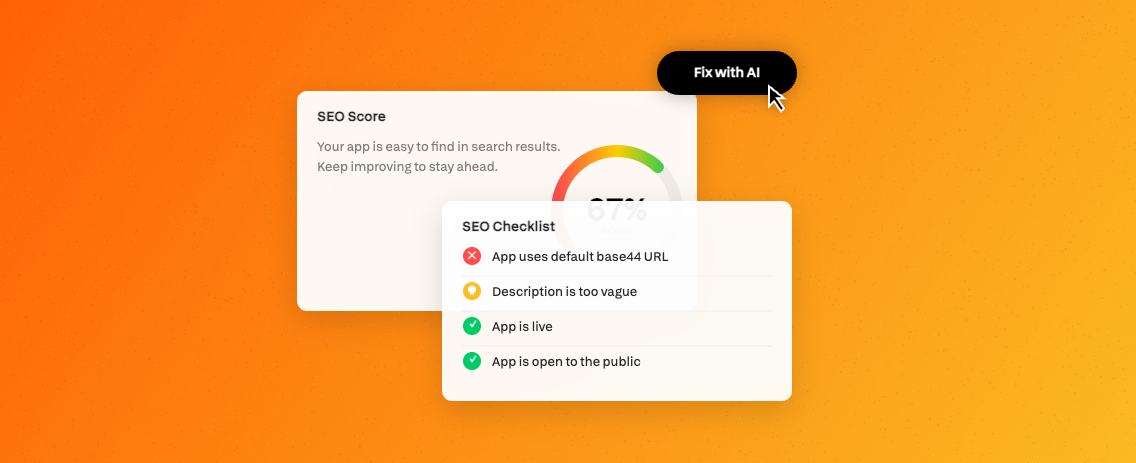
Your SEO score and checklist
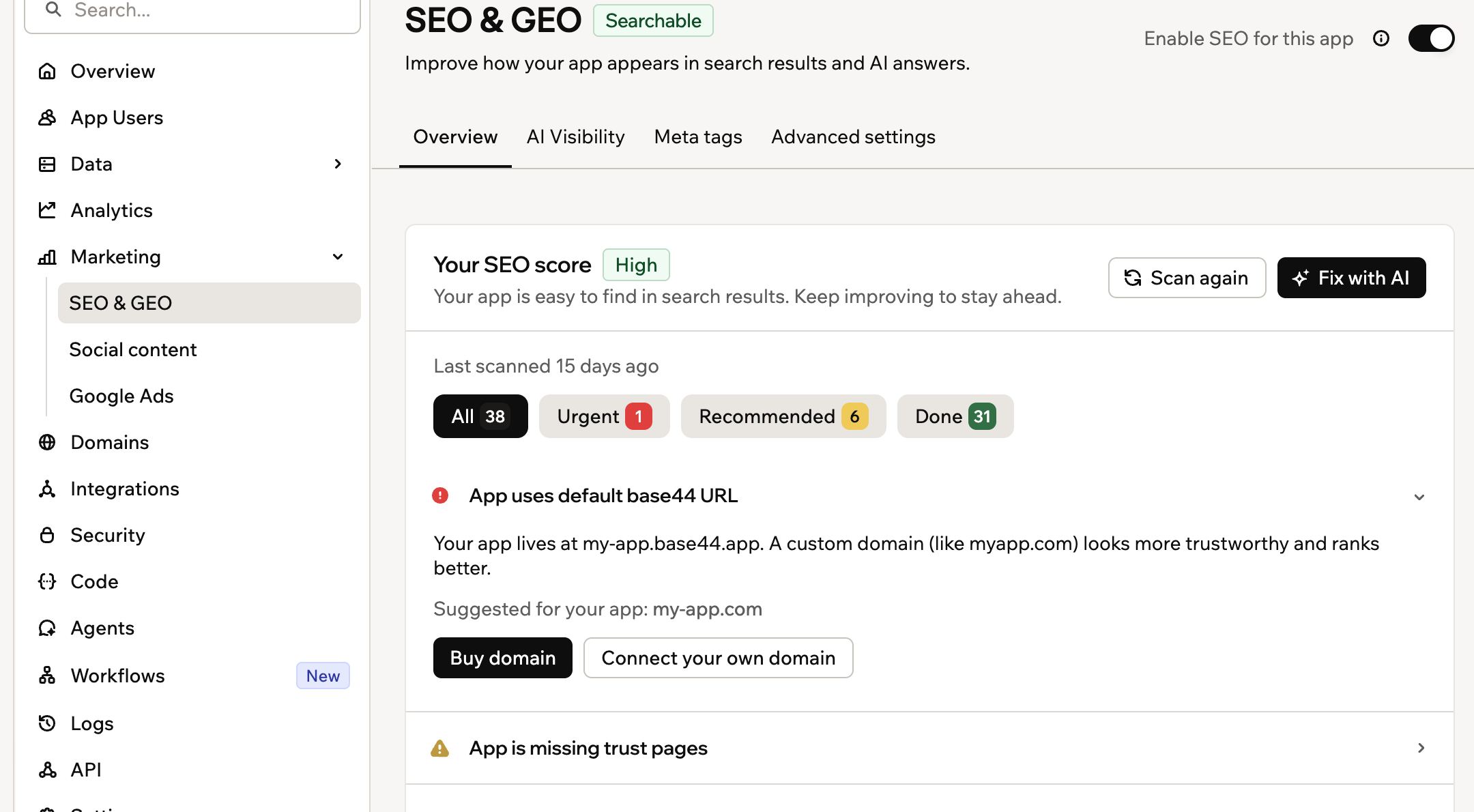
Opening your SEO dashboard
Overview
The Overview tab is your main SEO control panel. It contains your setup checklist and, once you connect it, your Google Search Console data. Run a scan to see how your app scores, fix the issues it finds, and manage the SEO files and features Base44 generates for you.Running a scan
The SEO & GEO scan checks your app against a full list of SEO and GEO criteria and gives you a prioritized checklist of issues to fix. Your score reflects how well your app is set up for search engines and AI-powered search platforms. To run a scan:- Click Dashboard in your app editor.
- Click SEO & GEO under Marketing.
- Click Run scan.
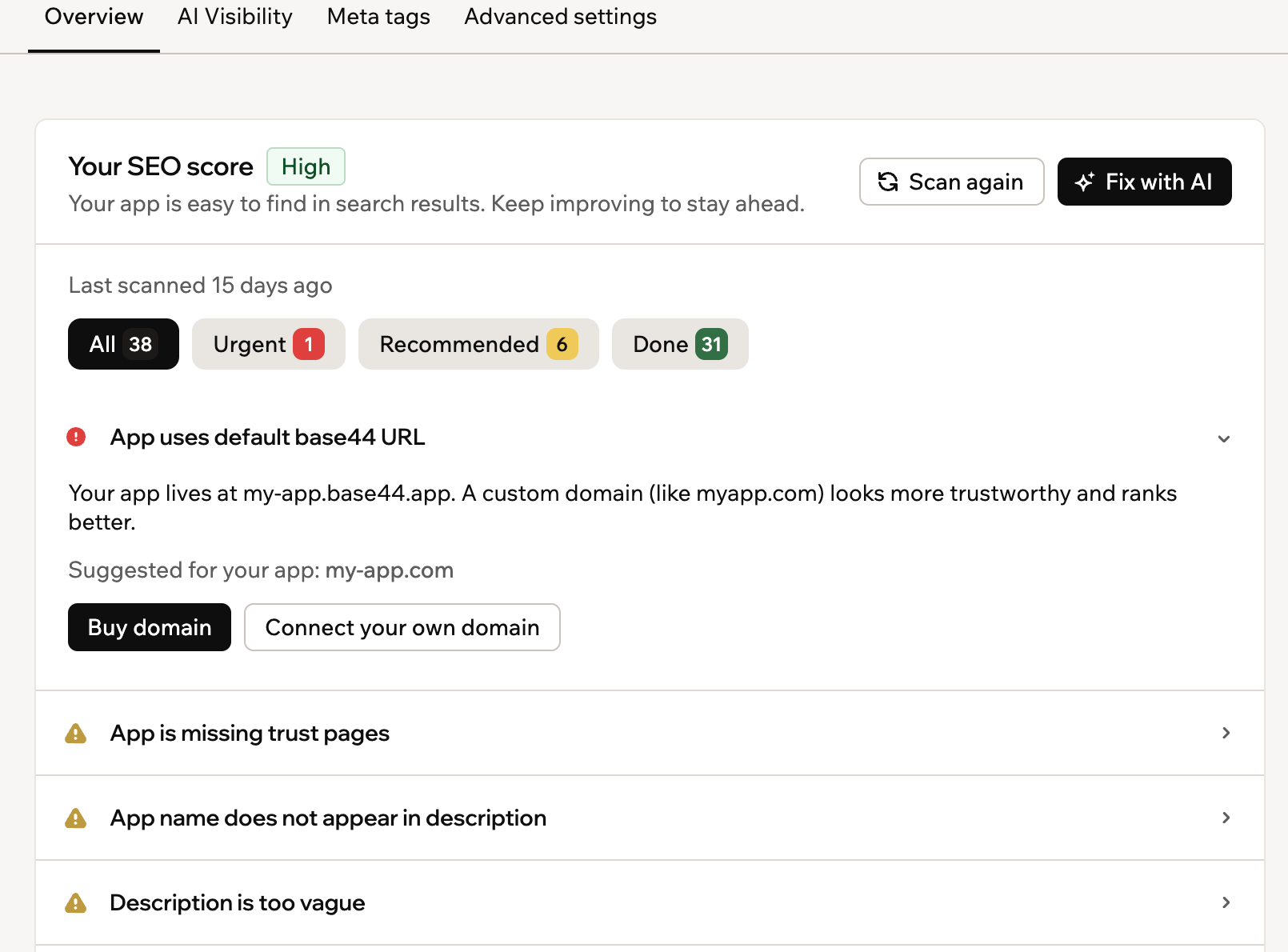
Reviewing your SEO score and suggested fixes
Reading your score and checklist
After the scan, Your SEO score shows a rating of Low, Moderate, or High, with a checklist of everything the scan found. Click any item to expand it and see what it means and what you can do about it. Use the filters above the checklist to focus on what matters most:- All: Every item in the checklist.
- Urgent: Issues that are directly hurting your visibility and should be fixed first.
- Recommended: Improvements that can boost your score but are not blocking your current performance.
- Done: Checks your app has already passed.
Fixing issues
After running a scan, you can fix issues one at a time or send everything to the AI chat at once.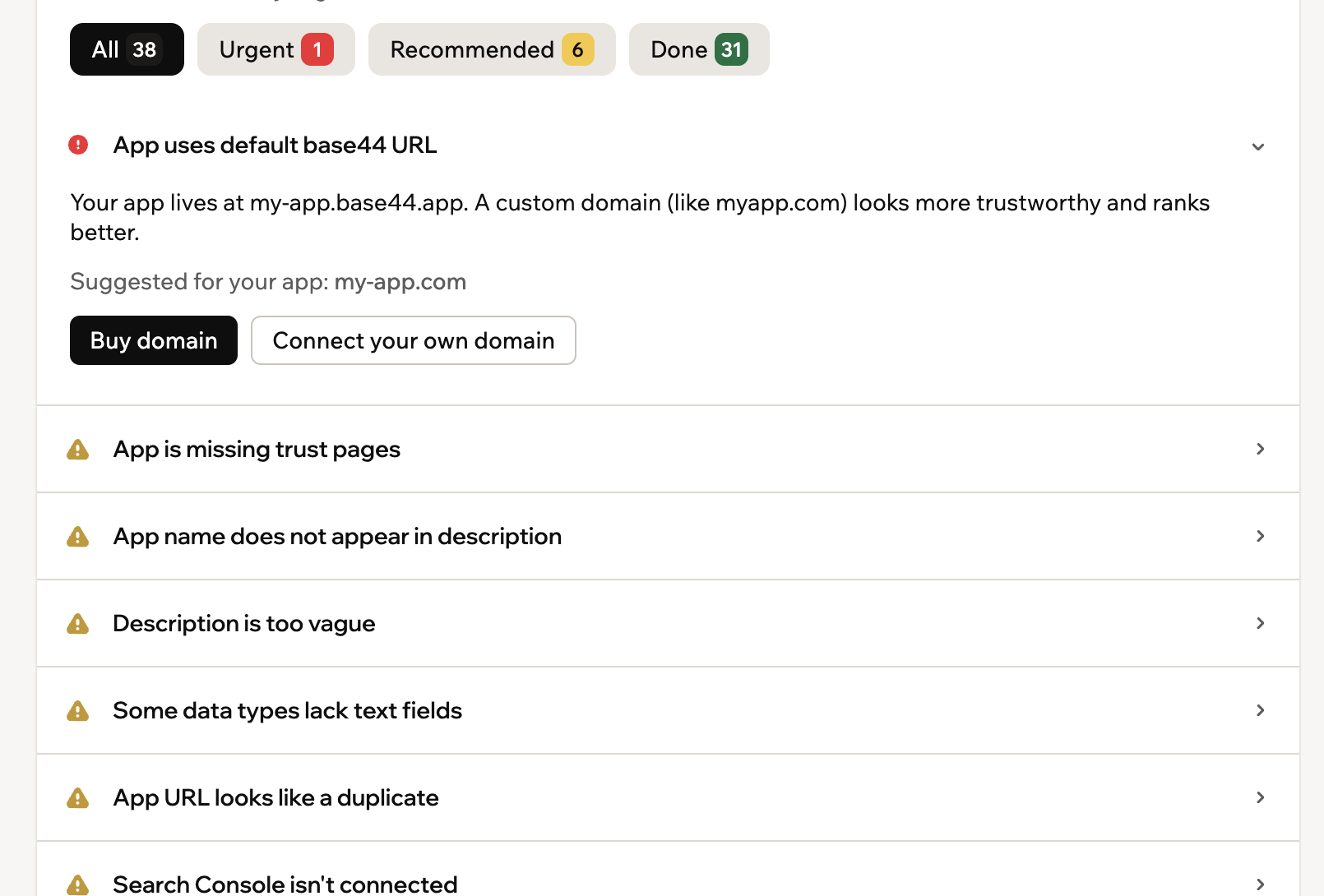
Reviewing the suggested action for an SEO issue
Fixing all issues
Fixing all issues
- After running a scan, click Fix with AI in the SEO Checklist section.
- Send the prompt in the AI chat.
Fixing an individual issue
Fixing an individual issue
- After running a scan, click the item you want to fix to expand it.
- Click the action button:
- If it’s an auto-fix button (for example, Auto-generate brand info or Improve description), the fix is applied immediately.
- If it’s Fix with AI, send the prompt in the AI chat to apply the fix.
Connecting Google Search Console
When you connect your app to Google Search Console, your clicks, top searches, and indexing show up right on the Overview tab. Base44 verifies your site and submits your sitemap for you. To learn how to connect it, fix verification problems, and read your data, see Connecting Google Search Console.AI Visibility
When someone asks an AI assistant a question your app can answer, the assistant opens one of your pages to read it. The AI Visibility tab shows you which pages get read, which assistants read them, and how many of those people then clicked through to your app. Everything on this tab covers the last 7 days, and your activity is kept for 60 days. If you have just published, you may see No AI reads yet. It can take a while for AI assistants to find a new app. To open AI Visibility:- Go to your app’s dashboard.
- Click Marketing in the left menu.
- Click SEO & GEO.
- Click the AI Visibility tab.
Summary cards
4 cards across the top give you the shape of your AI traffic at a glance. Your app in AI answers also shows the change against last week when it rises.AI crawled your app
Your app in AI answers
Visits from AI
Most-read page
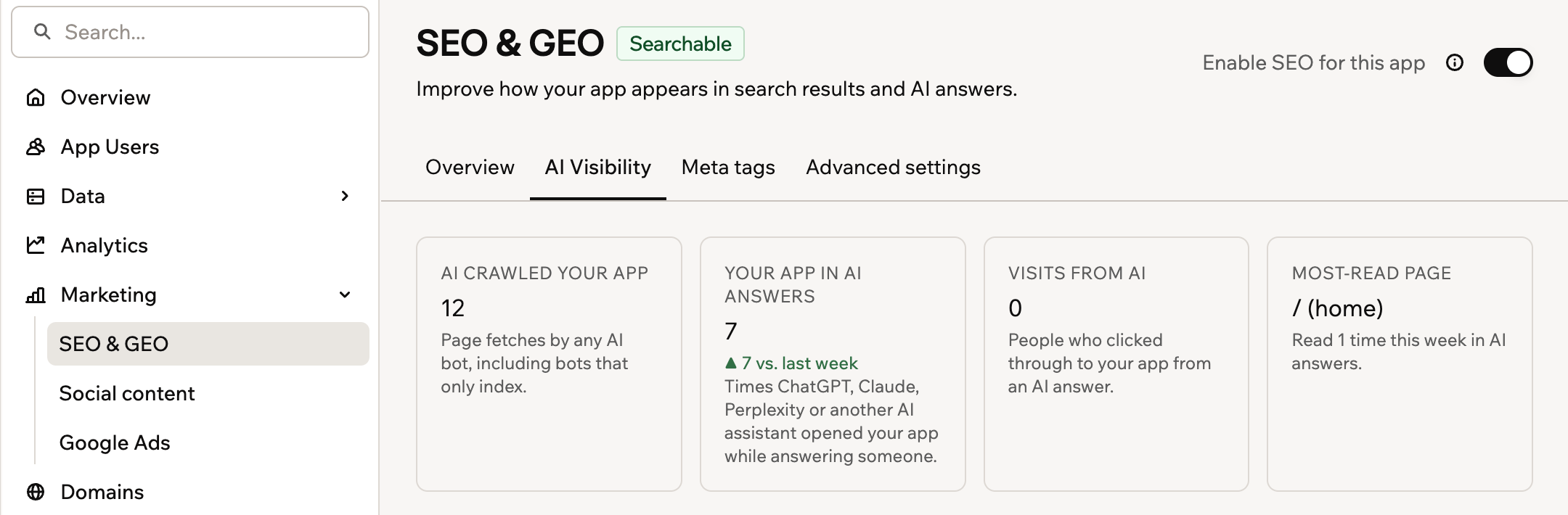
The AI Visibility summary
Pages AI read to answer someone
This list shows one row per page and assistant, with how many times that page was read. It is the detail behind the Your app in AI answers card, so you can see exactly which content is doing the work. Base44 recognizes ChatGPT, Claude, Perplexity, Gemini, and Meta AI.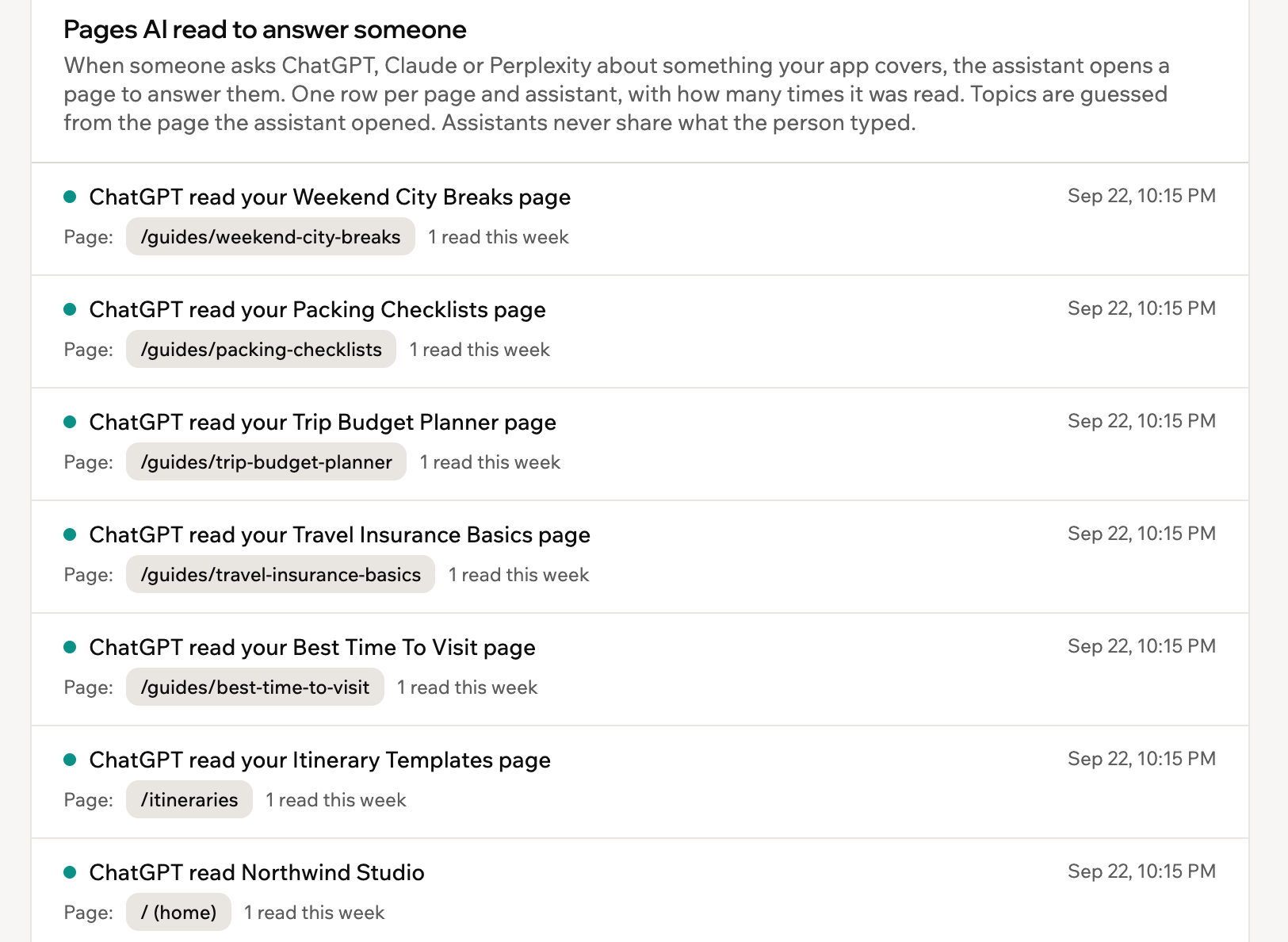
Which pages AI assistants read
Where AI sends people
The cards tell you that AI is reading your app. This section tells you whether any of it turns into visitors. It appears once an assistant has actually sent you someone, so if Visits from AI is still 0, you don’t see it yet. It lists the assistants that sent you real people, how many visits came from each, and the page each one lands on most. An assistant that reads a lot but sends nobody is a sign your content is answering the question so completely that there is no reason to click, which may be fine or may mean the page needs a clearer reason to visit. Referrals are recognized from ChatGPT, Claude, Perplexity, Gemini, Meta AI, Copilot, DeepSeek, Grok, and Mistral.Meta tags
Meta tags are hidden snippets of text in your page code. Search engines read them to understand what each page is about. They control the title and description shown in Google search results, and what appears when someone shares a link to your app on social media. Setting clear, accurate meta tags for each page can improve your click-through rate in search results. The Meta tags tab is where you set those tags and choose which pages are allowed to appear in search at all.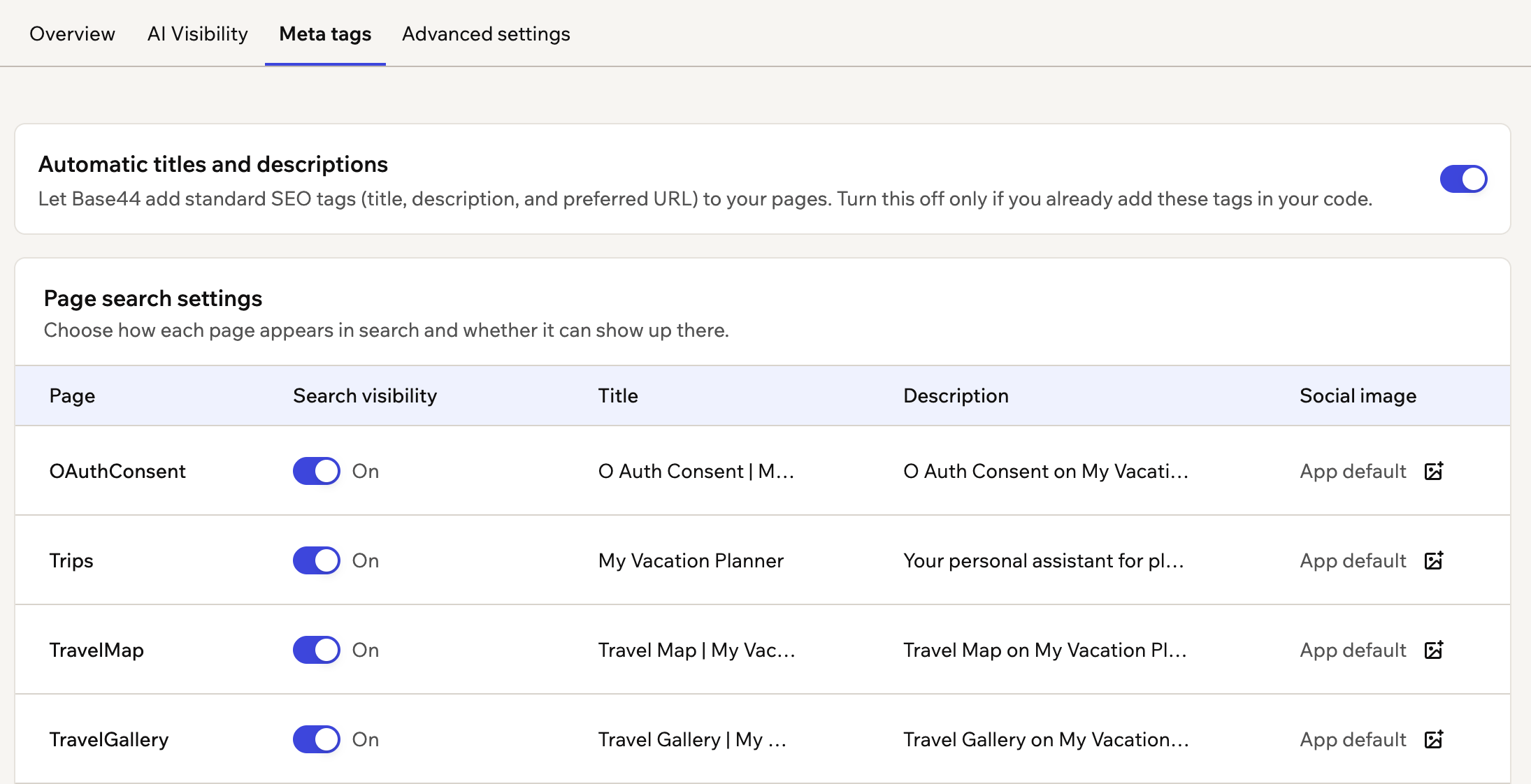
The Meta tags tab, with a row for each page in your app
Letting Base44 write your tags
Automatic titles and descriptions lets Base44 add a standard title, description, and preferred URL to every page. Leave it on unless you already set these tags yourself in your app’s code, in which case turn it off so Base44 does not add its own alongside yours.Editing a page’s meta tags
Page search settings lists every page in your app, with its title and description. You edit each one right in the table. A page that’s hidden from search can’t have its own title or description. To edit a page’s meta tags:- Click Dashboard in your app editor.
- Click SEO & GEO under Marketing.
- Click the Meta tags tab.
- Click the title or description you want to change next to the page.
- Type the new text. Titles can be up to 60 characters and descriptions up to 160.
- Click the Save icon .
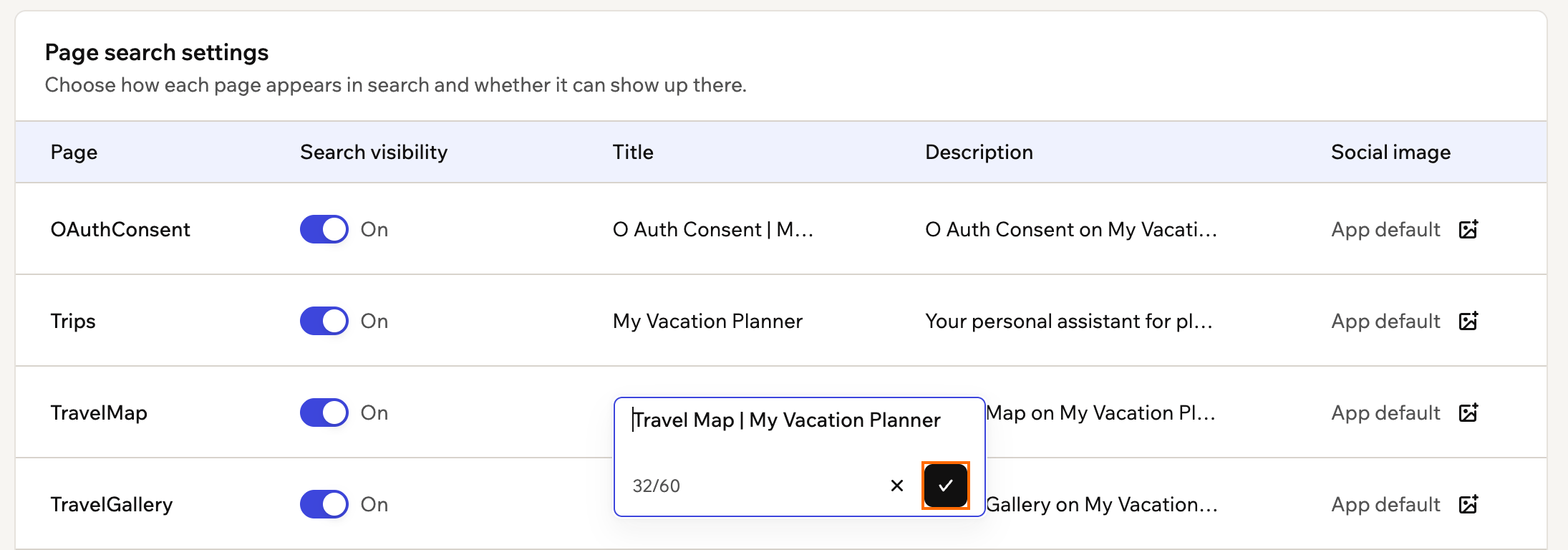
Editing a page's title in the Meta tags table
Setting page social images
You can give any page its own share image, so a link to that page shows a picture that fits it. A page’s image replaces your app’s social image for that page only. Pages without their own image show App default in the Social image column and use your app’s social image. A page that’s hidden from search can’t have its own image. To set a social image for a page:- Click Dashboard in your app editor.
- Click SEO & GEO under Marketing.
- Click the Meta tags tab.
- Click the Upload icon in the Social image column next to the page.
- Choose a PNG, JPG, or WebP image of up to 5MB.
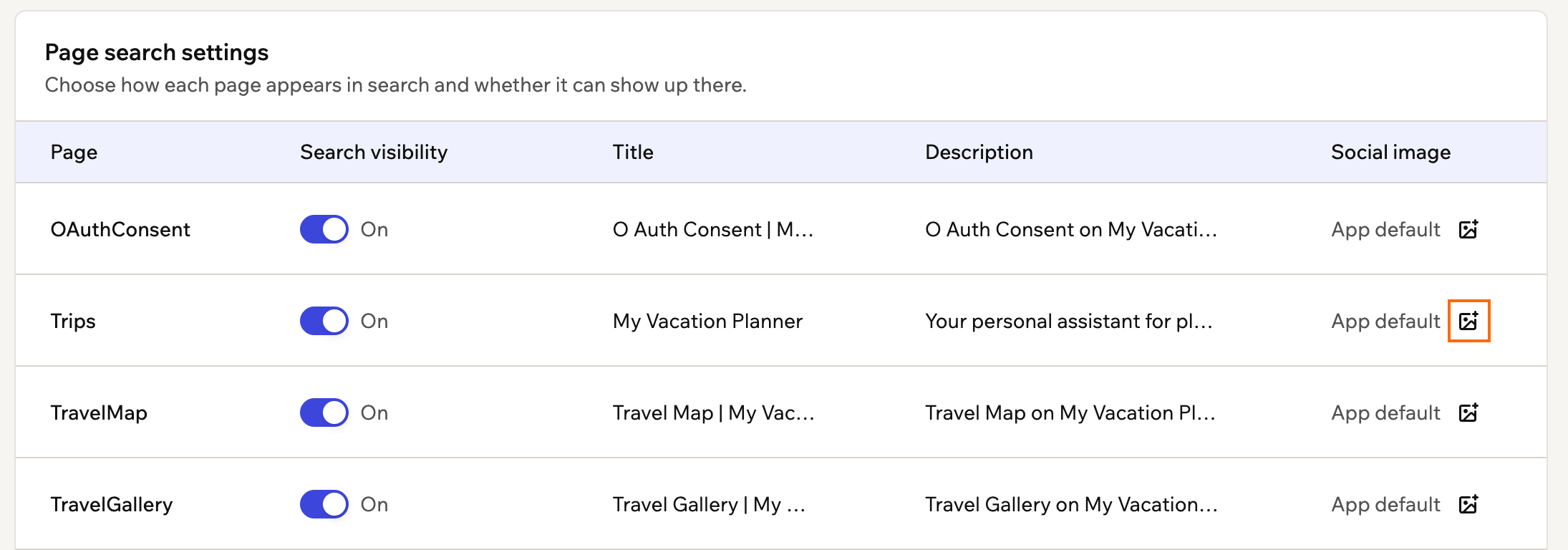
Uploading a social image for a page
Choosing which pages appear in search
Indexing is how search engines read your pages and add them to their database so they can appear in search results. If a page is not indexed, it doesn’t show up in search results or AI recommendations. Each row in Page search settings has a Search visibility toggle, and every page starts switched on. Turn a page off to keep it out of search: Base44 removes it from your sitemap andllms.txt file, and adds a noindex tag to it.
Turning a page off also hides the pages under it in your app’s web address. For example, if you turn off a Units page at /units, a page at /units/123 is hidden too, and its row says it’s hidden because Units is off. To show one of those pages in search anyway, switch its toggle on. Only that page comes back, and the other pages under Units stay hidden.
To choose whether a page appears in search:
- Click Dashboard in your app editor.
- Click SEO & GEO under Marketing.
- Click the Meta tags tab.
- Under Page search settings, turn the Search visibility toggle off or on next to the page.
Advanced settings
The Advanced settings tab controls the files and extra data Base44 creates for search engines and AI tools.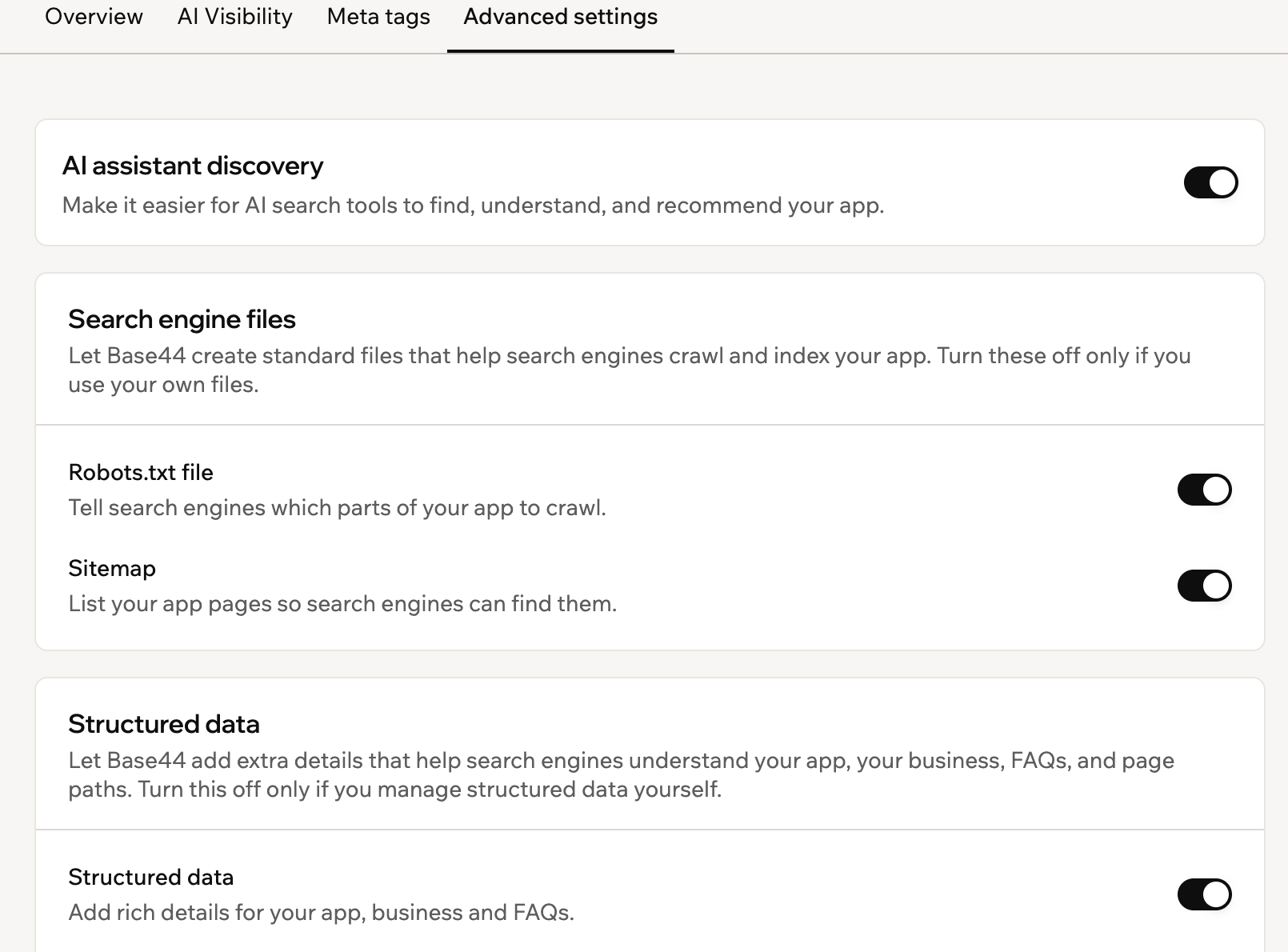
Managing how search engines and AI tools discover your app
AI assistant discovery
When someone uses an AI assistant such as ChatGPT, Gemini, or Perplexity to find or compare tools, those platforms scan the web and use structured signals to decide what to surface. Base44 generates anllms.txt file for your app, a lightweight file that gives AI crawlers a clear, structured summary of what your app does. This helps your app be understood and recommended by AI-powered search tools.
Turn AI assistant discovery on or off to control whether Base44 generates this file.
Search engine files
These are the standard files that help search engines crawl and index your app. Turn one off only if you serve your own version of that file.- Robots.txt file: Tells search engines and AI crawlers which parts of your app they are allowed to visit. When it is on, Base44 generates the file for you. When it is off, Base44 serves your deployed
public/robots.txtif it exists, or returns a 404. - Sitemap: Lists your app’s pages so search engines can find and index them faster. When it is on, Base44 generates the file for you. When it is off, Base44 serves your deployed
public/sitemap.xmlif it exists, or returns a 404.
Structured data
Structured data is hidden code in your page that gives search engines extra context about your app, such as your brand details, page structure, and FAQs. Search engines use it to show richer results, like FAQ dropdowns or brand information.- Structured data: Adds details about your app, your business, and your FAQs. Turn it off if you provide your own structured data, so Base44 does not add its own alongside it.
- Breadcrumbs: Creates the trail of links shown on a page, such as Home > Products > Item, so search engines understand where a page sits in your app. Turn it off to serve your own breadcrumb structure as it is.
FAQs
Click a question below to learn more.Does running a scan use credits?
Does running a scan use credits?
How often should I run the scan?
How often should I run the scan?
What is GEO and why does it matter?
What is GEO and why does it matter?
What is the difference between urgent and recommended issues?
What is the difference between urgent and recommended issues?
Does fixing all issues guarantee a perfect score?
Does fixing all issues guarantee a perfect score?
Why is my score lower than expected?
Why is my score lower than expected?
- App not published: Search engines cannot reach an unpublished app. Publish your app before running a scan.
- App requires a login: If your app is login-gated, search engines cannot access any of your pages.
- No live homepage: If your homepage is returning an error, search engines cannot crawl your app.
- No custom domain: Apps on a Base44 subdomain are treated as staging or test sites by search engines. Connecting your own domain is the single biggest improvement you can make to your score.
Can I turn off SEO for my app?
Can I turn off SEO for my app?
llms.txt. Your app remains publicly accessible to search engines, but without any platform SEO enhancements.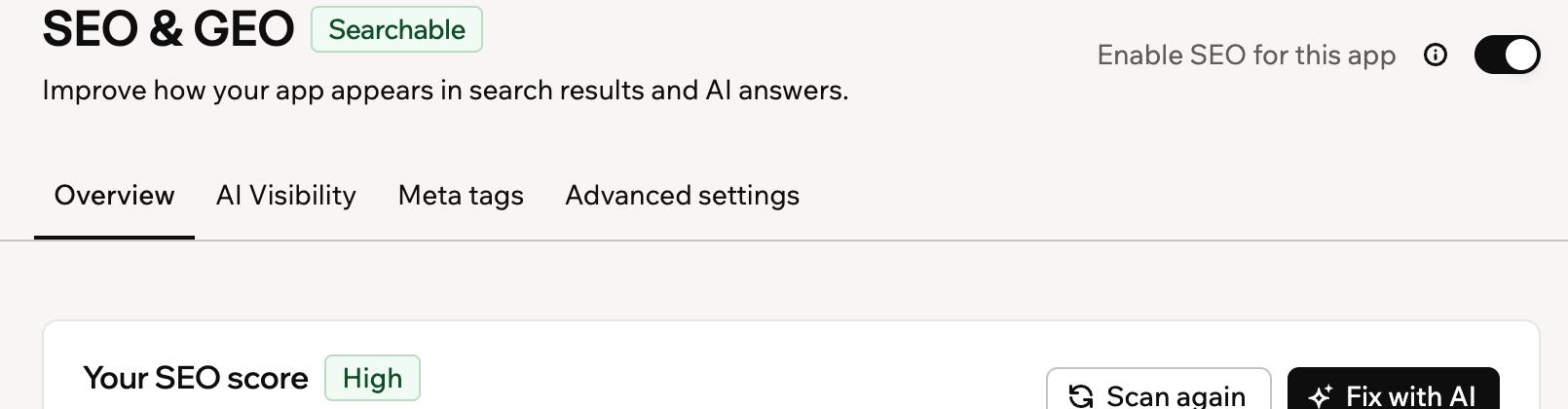
Controlling your app’s search visibility
Can I control which pages get scanned or indexed?
Can I control which pages get scanned or indexed?