

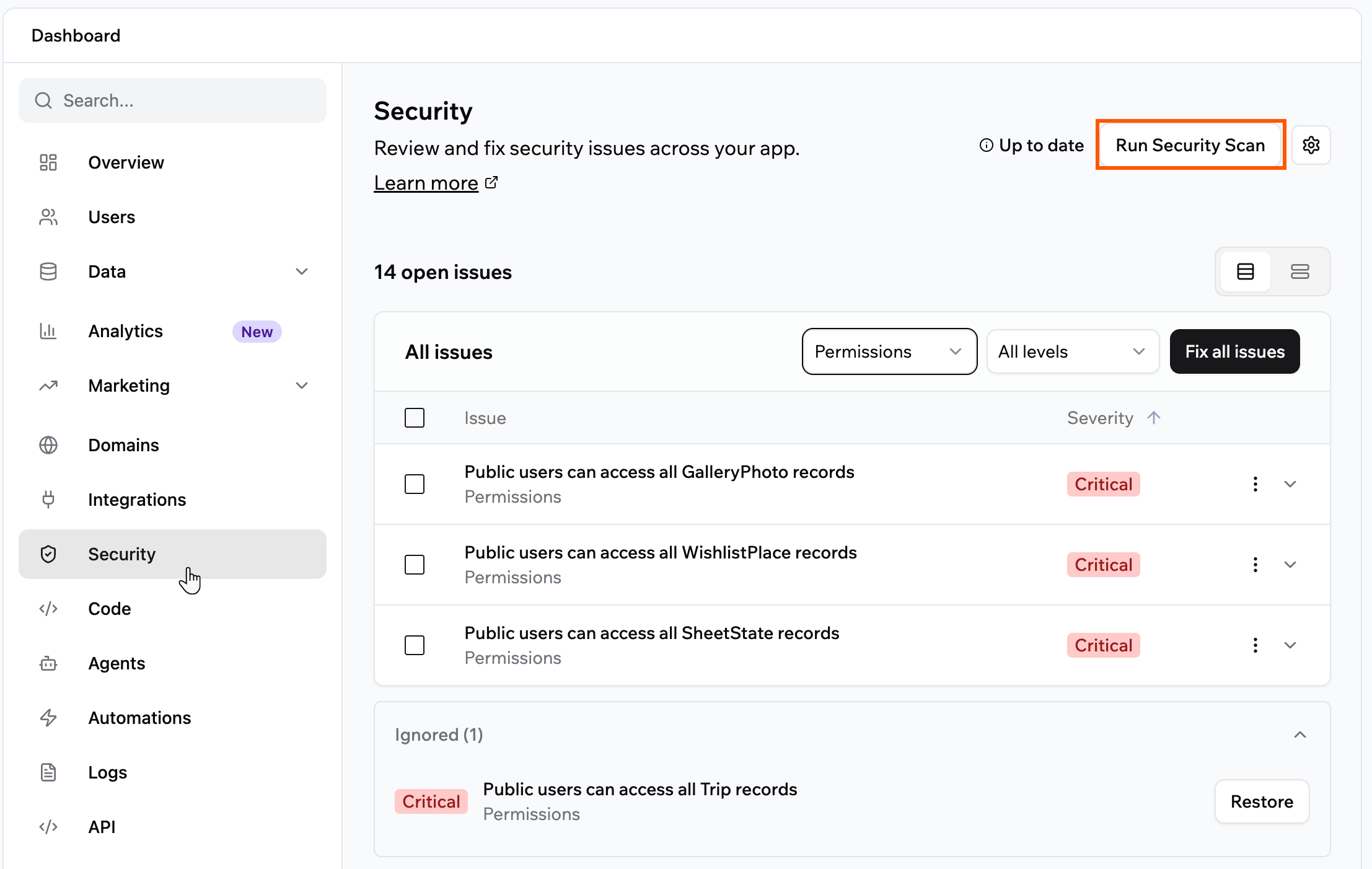
The Security page
Running a scan
Run a security scan whenever you want to check your app for issues and apply the recommended fixes. When you publish, the publish panel also shows your app’s Security status: No risks, Out of date with a Scan button, or Risks found, which opens the Security page. It warns you, but it doesn’t stop you from publishing. To run a security scan:- Click Dashboard in your app editor.
- Click Security.
- Click Run Security Scan. Each area shows Checking while it runs, and its results appear as soon as it finishes, so you can start reviewing before the whole scan is done. If an area shows Not checked, run the scan again to retry it.
- Review the issues the scan finds. Switch between the By category and By severity views, and use the drop-downs to jump to a group of issues or a severity level.
- Apply fixes once the scan finishes:
- Click Fix all at the top of the list in the severity view to apply every recommended fix at once, or on a group in the category view to fix just that group.
- Select specific issues and click the fix button, which shows how many you chose, such as Fix 3 selected.
- Expand an individual issue to review and fix it on its own. The per-issue buttons appear in the By category view.
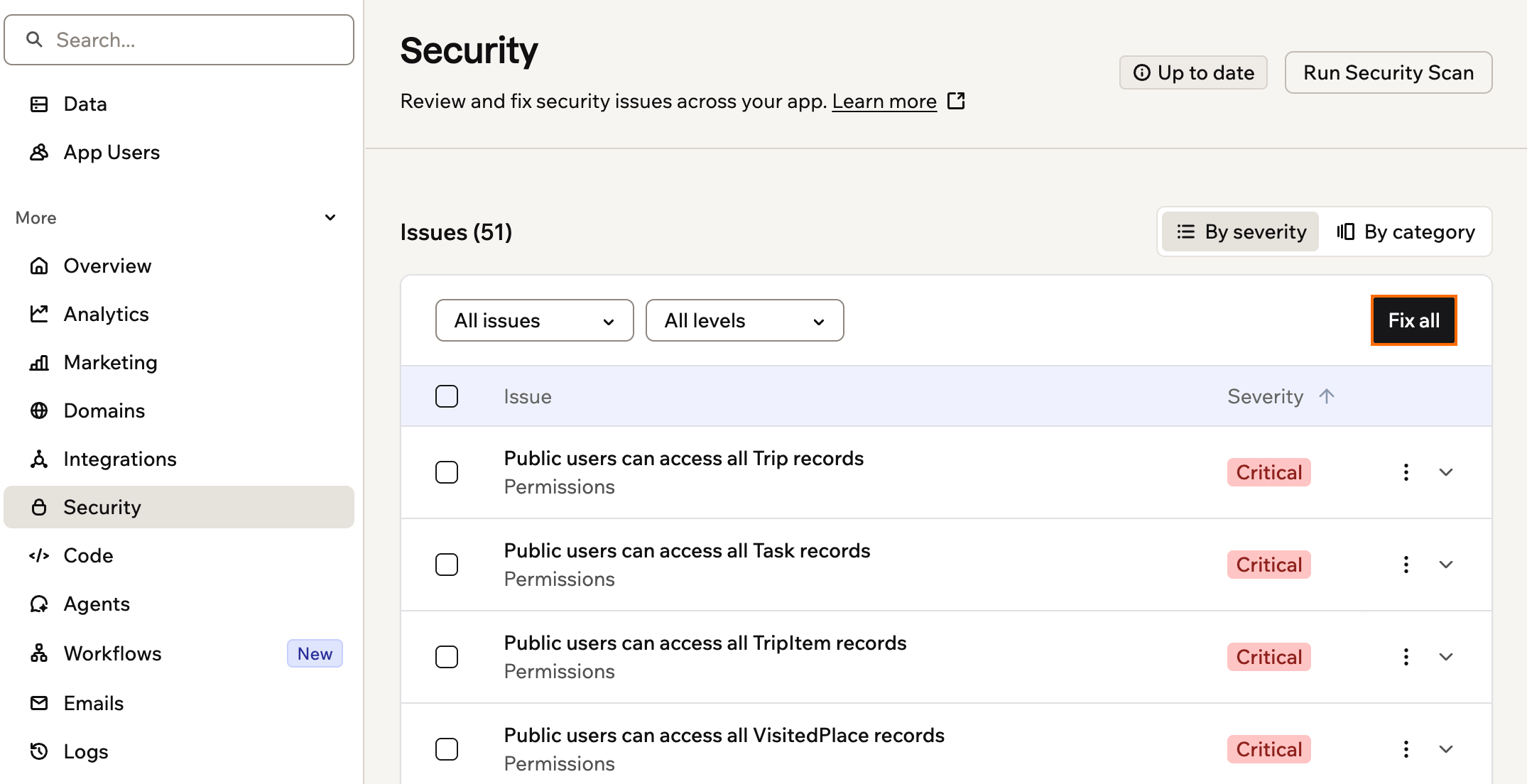
Reviewing and fixing security scan issues
Acknowledging issues
If an issue is not a security concern for your app, click the More actions icon on that issue and select Acknowledge. It moves to the Acknowledged section at the bottom of the list and don’t reappear the next time you scan. To bring an acknowledged issue back, open the Acknowledged section and click Restore.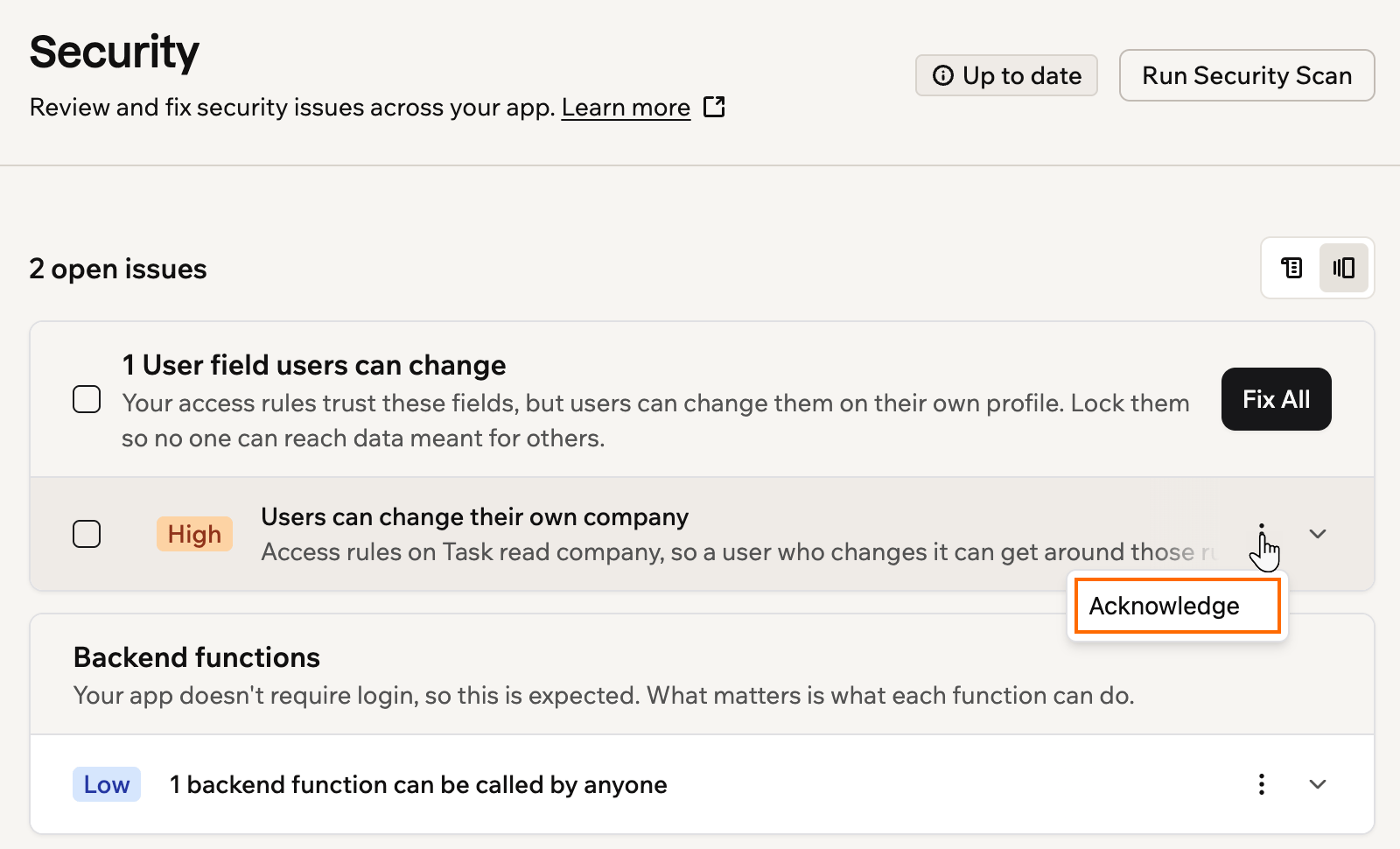
Acknowledging an issue
Tracking and reverting fixes
When you apply a fix, whether you use Fix all or fix a single issue, Base44 records it as a message in your app’s AI chat and creates a checkpoint before making the change. Each message shows what the issue was and what changed, so you have a clear record of every security change made to your app. If a fix does not work the way you expected, revert it from its checkpoint in the chat to roll your app back to the state it was in before the fix.Understanding the scan results
The scan checks for the following types of issues.Data permission issues
These appear when a data table is missing permission rules, or when people have more access than they should. Each issue shows the affected table, a description of the problem, and a table of recommended rules. Click Fix all to apply the recommendations, or click into the table to customize permissions manually. If your app doesn’t require login, a permissions fix can break a page where visitors look up something they submitted, such as a booking, without logging in. When that happens, the fix’s message in the AI chat shows Fix the visitor lookup page. Click it to send the AI a ready-made request to get that page working again while keeping the records private.User field access
App users can change the custom fields on their own user profile. If your access rules rely on one of these fields, such as a company field that decides which records someone sees, a user could change it to another organization’s value and get that organization’s access. The scan lists each of these fields under User fields users can change, along with the data tables whose rules read it. Expand an issue to see the rules that read the field and what the fix does. These issues are rated High if anyone can sign up for your app, and Medium otherwise. Click Fix all on the card. The AI locks each field so only your app’s editors can change it, and moves every place your app sets it, such as during onboarding, into a check that runs on the server. Test any signup or onboarding steps that set the field, then run the scan again.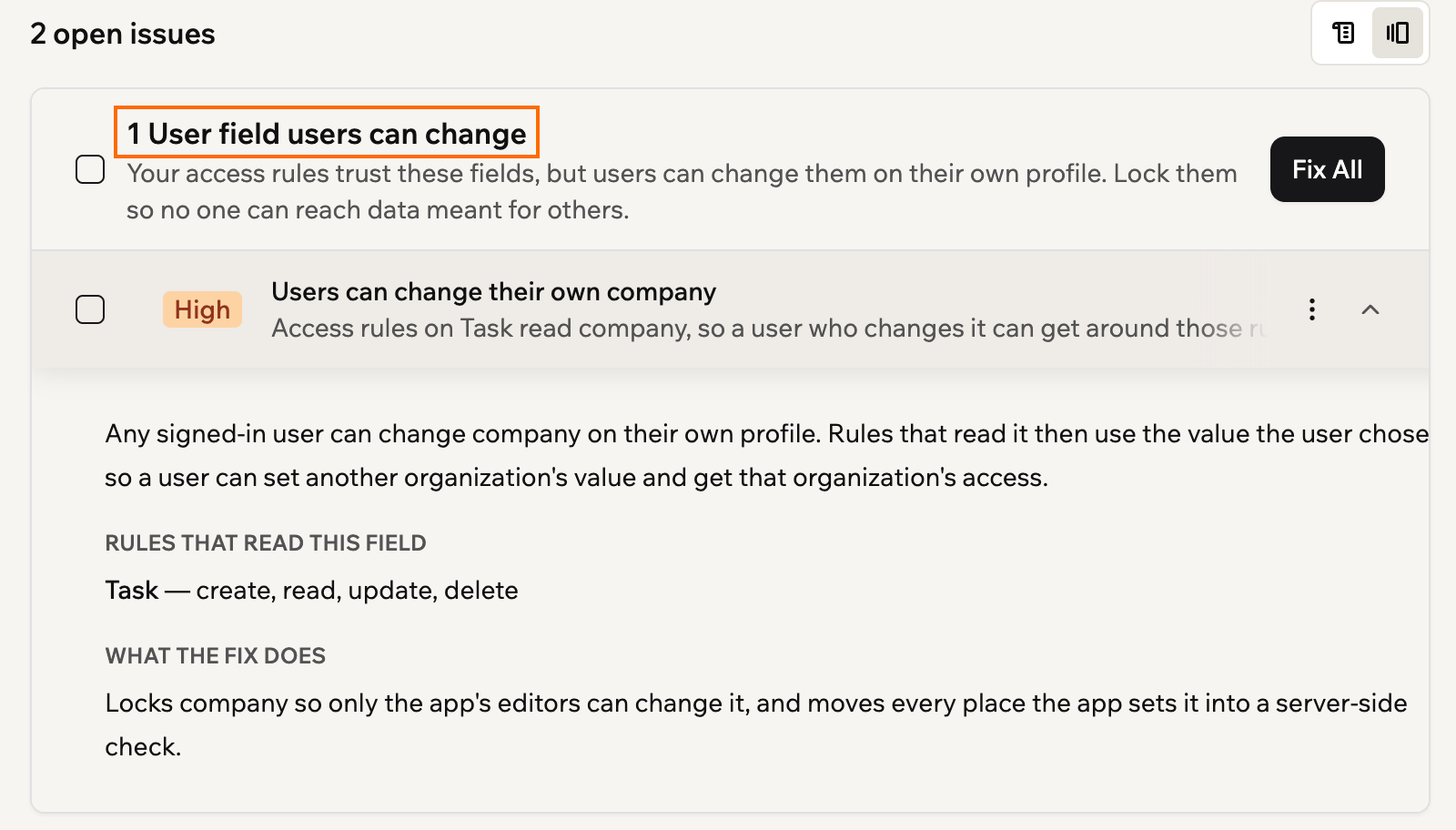
An expanded issue under User fields users can change
Exposed secrets
These appear when API keys, passwords, or tokens are found somewhere app visitors could access them. Anyone who finds these credentials could use them to access your external services or data. To fix an exposed credential, remove it from the affected area and store it securely. Paste the issue into the AI chat in Discuss mode for step-by-step instructions.Unauthenticated backend functions
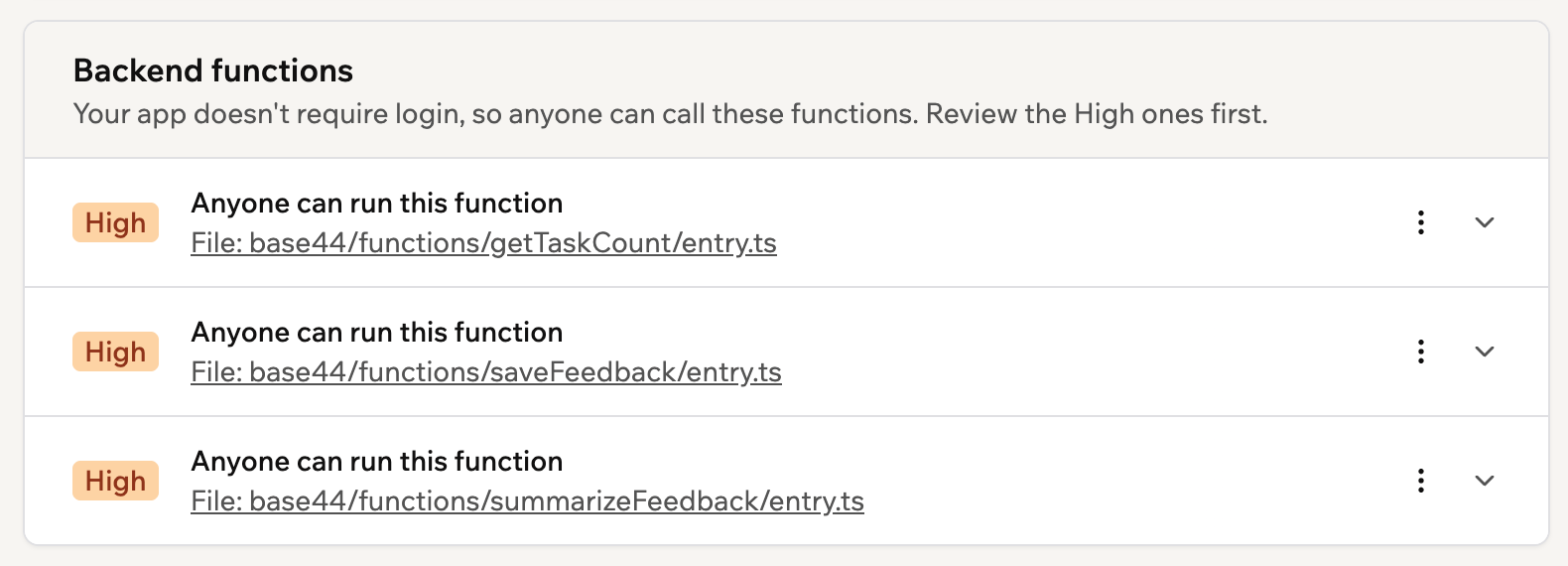
Backend functions are the parts of your app that run behind the scenes, and each one has its own web address. The scan checks whether a stranger could call them without signing in. What you see depends on whether your app requires login.- Your app requires login
- Your app doesn't require login
Each function that doesn’t check who’s calling shows as Anyone can run this function, with the file it’s in. Click Fix with AI and Base44 makes the function require a signed-in user, and limits the data it touches to that user.
Credit protection
These appear when your app’s credit-using features, such as AI, image generation, or email, can be reached directly from outside your app. Someone who finds them could run them and spend your integration credits. This includes AI calls made from your app’s pages in the browser. The issue is titled Prevent unauthorized credit usage and is rated High. What the issue offers depends on your app:- Your app can be protected as it is: Click Fix. It restricts access to those features while preserving the access your app already allows, so it doesn’t change how your app works.
- Some features are reachable from the wrong place: Click Resolve with AI. It moves those calls, including AI calls from your app’s pages, into backend functions and updates your app to use them there. Test the affected flows, then run the scan again.
- Your published app is behind: If your latest changes are ready but your live app still runs an older version, the issue reads Publish changes before protecting credits. Click Publish changes, then run the scan again.
App dependencies
These appear when a third-party library or tool your app uses has a known security issue. Every scan checks your app’s libraries. Each issue includes a severity level (Critical, High, Medium, or Low) and the recommended version to upgrade to. Some issues can’t be fixed with a simple upgrade, either because no fix has been released yet, or because the fix needs a new major version that could break your app. Those issues offer Resolve with AI instead of a version, under the More actions icon on the issue. It sends the package and its vulnerabilities to the AI chat, which works out a safe fix, such as a newer version or a maintained replacement. Fix all and selected fixes cover every dependency issue you include. Base44 upgrades the packages it can, then sends the rest to the AI chat together in one message. The AI suggests what to do for each package, which can include leaving it as it is, and checks with you before it changes your app’s packages. Run the scan again afterwards to confirm the issues are gone.Code vulnerabilities
These appear when the scan analyzes your app’s own code and finds patterns that could be exploited, such as missing access checks, unsafe handling of user input, or sensitive data that is not properly protected. Each issue shows a severity level (Critical, High, Medium, or Low) and the affected file. Expand an issue and it breaks down into:- Impact: what someone could do with the weakness.
- Security category: the industry classifications it maps to, such as an OWASP Top 10 category and a CWE number.
- Evidence: the part of your code that caused the finding.
- Attack Scenario: a walkthrough of how it could be exploited.
- Suggested fix: the change to make, which you can expand when you are ready to act on it.
Security header recommendations
These appear when your app is missing browser-level protections that the scan recommends based on your app’s risk profile. For example, if your app has login or payments, it flags missing headers as high severity. Each one shows its severity. Click Fix all to turn on the recommended headers. To change them yourself, click the More actions icon on a row and select Go to Security Headers. You can also change these settings at any time without running a scan first. There are 2 headers the scan checks for:- Block iframe embedding (X-Frame-Options): Stops your app from being displayed inside an iframe on another site. This protects against clickjacking attacks, where someone tricks a visitor into clicking something on your app without realizing it. Fixing it stops other websites from showing your app.
- Restrict unused browser features (Permissions-Policy): Only your app can use the camera, microphone, location, and payments, not content from other websites shown inside it. This reduces your app’s attack surface.
If your workspace has an embedding policy, your app follows it, and you can only make embedding stricter. The setting then shows Set by your workspace.
- Click Dashboard in your app editor.
- Click Settings.
- Under Browser Security, next to iFrame embedding, choose where your app can appear:
- Any website: Any website can show your app.
- Only websites you choose: Add each website under Allowed websites, such as
https://example.com. To include every subdomain, put the wildcard at the start, such ashttps://*.example.com. - No websites: Your app can’t appear on other websites.
- Turn Protect camera and location on or off.
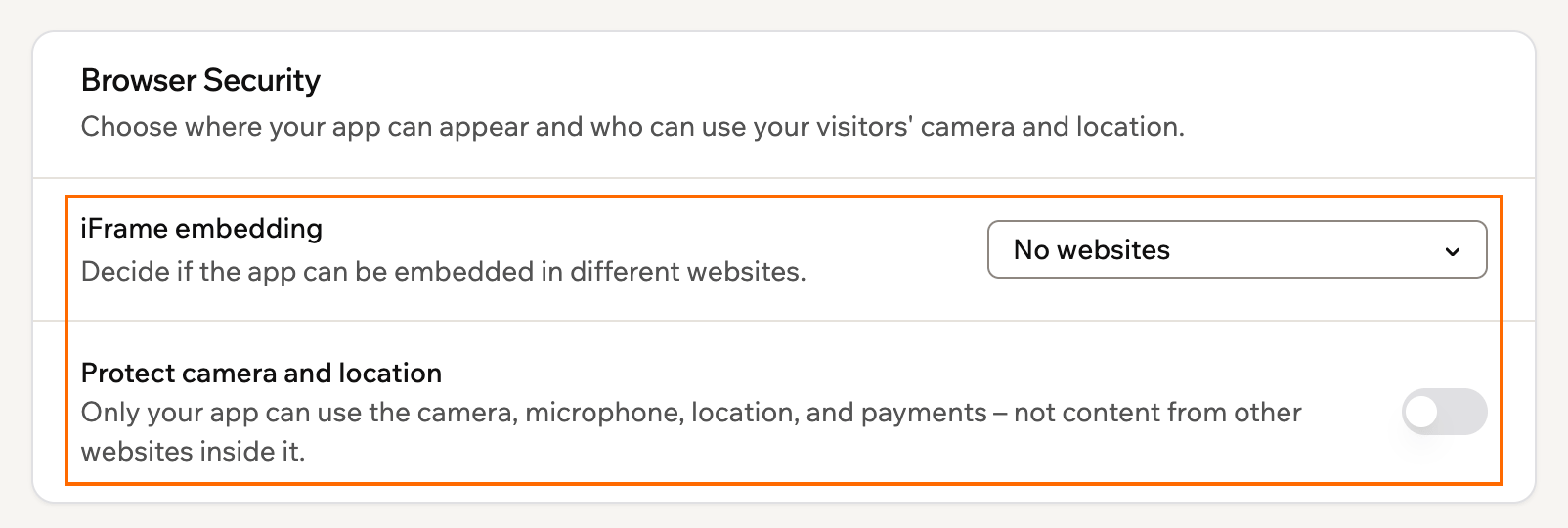
Choosing where your app can appear and protecting camera and location
FAQs
Find answers to common questions about security scans in Base44.How often should I run the security scan?
How often should I run the security scan?
Run the scan before you publish your app for the first time, and again any time you make significant changes, such as adding new data tables, updating permissions, or connecting new integrations. The Security tab shows an out-of-date warning when your scan results are no longer current, so you know when to run it again.
How do I securely connect to third-party APIs?
How do I securely connect to third-party APIs?
Handle all requests to third-party services in backend functions and store API keys using secrets management. This keeps credentials out of places your app’s visitors could find them.
Are my data tables encrypted?
Are my data tables encrypted?
All data tables and private apps are encrypted. However, data is not end-to-end encrypted, which means Base44 admins can access your data if needed.