

Keeping your design consistent
These sections cover how to establish consistent, app-wide design patterns using the AI chat, so your colors, type, spacing, and components feel cohesive across your app.Color system
Color is one of your strongest tools to set mood and guide attention. Start by defining roles rather than random hex codes. Aim for:- 1 primary brand color
- 1 secondary color
- 1 accent color for highlights
- 3 to 5 neutral grays for backgrounds, surfaces, and borders
- Clear colors for success, warning, and error states
I want AI to build a color system for me
I want AI to build a color system for me
I have hex codes I want to use
I have hex codes I want to use
I have a color palette image I want to use
I have a color palette image I want to use
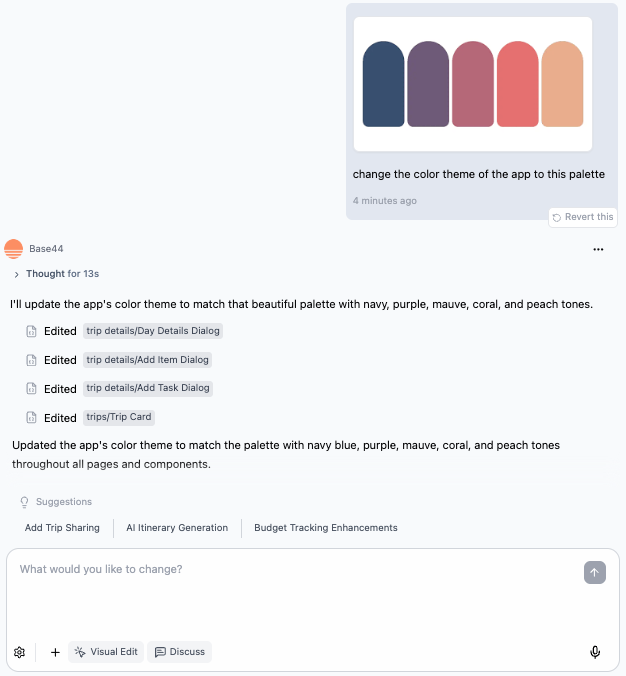
Changing the color palette of your app in Base44
Typography system
Typography controls how readable and scannable your app feels. It is better to have a few clear text styles than many similar ones. Define roles such as:- Page title
- Section heading
- Body text
- Small metadata such as labels and timestamps
Adding custom fonts (for example Google Fonts)
Adding custom fonts (for example Google Fonts)
- Get the embed snippet (for example from Google Fonts at https://fonts.google.com).
- Ask AI to add it to
Layout.jsand wire it into your type system.
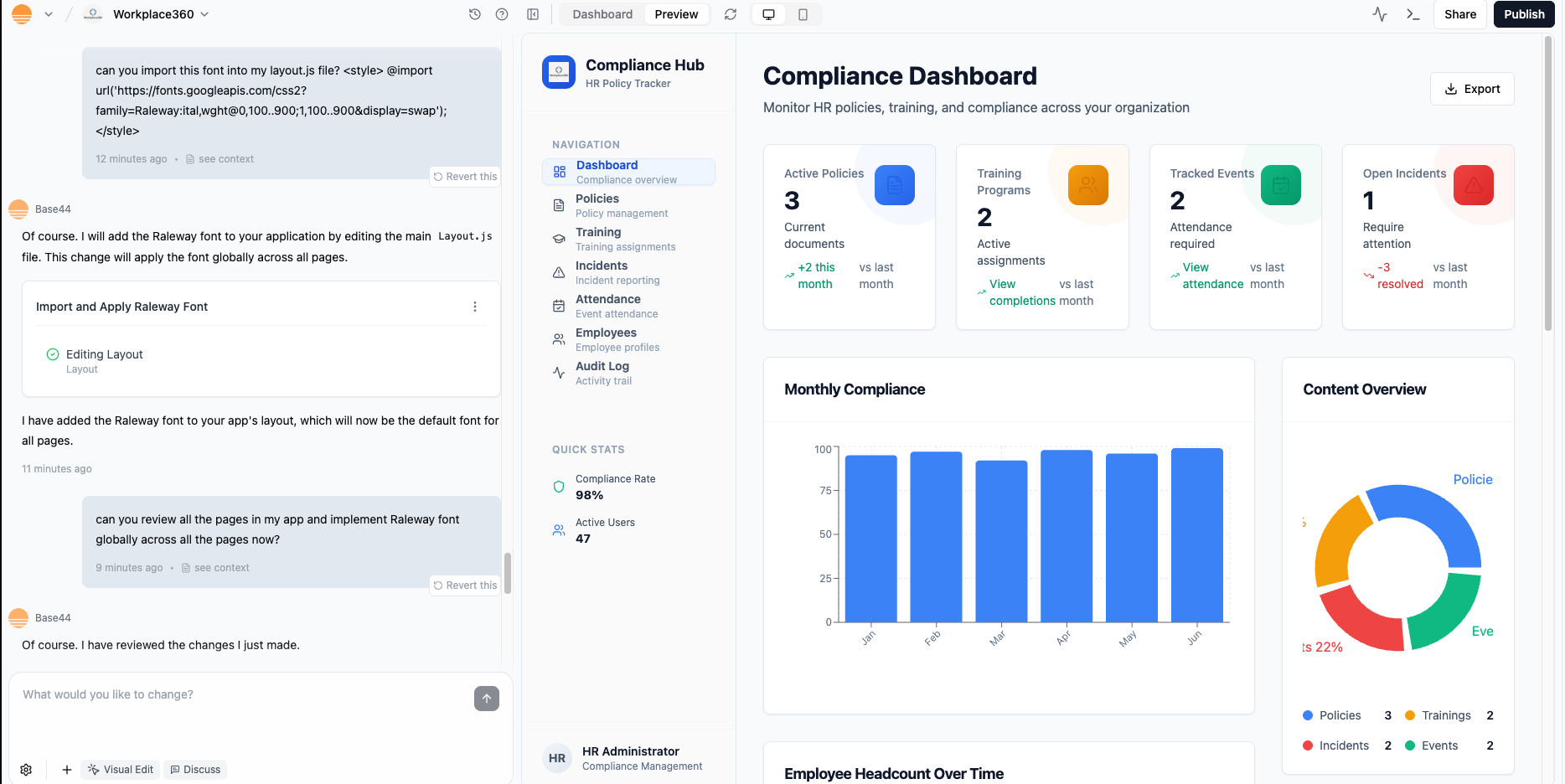
Importing a custom font
Spacing and density
Spacing and density control how comfortable your app feels to use. A simple spacing scale prevents random gaps and cramped sections. You can define a scale such as 4, 8, 12, 16, 24 and ask AI to apply it:Core elements and states
Once color, type, and spacing are in place, standardize the building blocks you use everywhere. Focus on:- Buttons (primary, secondary, and text only)
- Cards and panels
- Navigation bars and sidebars
- Form fields (default, focus, error, disabled)
- Chips, tags, and badges if you use them
Images and visual assets
Visual assets such as images, icons, and videos shape how your app feels. AI can help you create, place, style, and connect them to your data and code.Hero images and visual assets
Hero images and visual assets
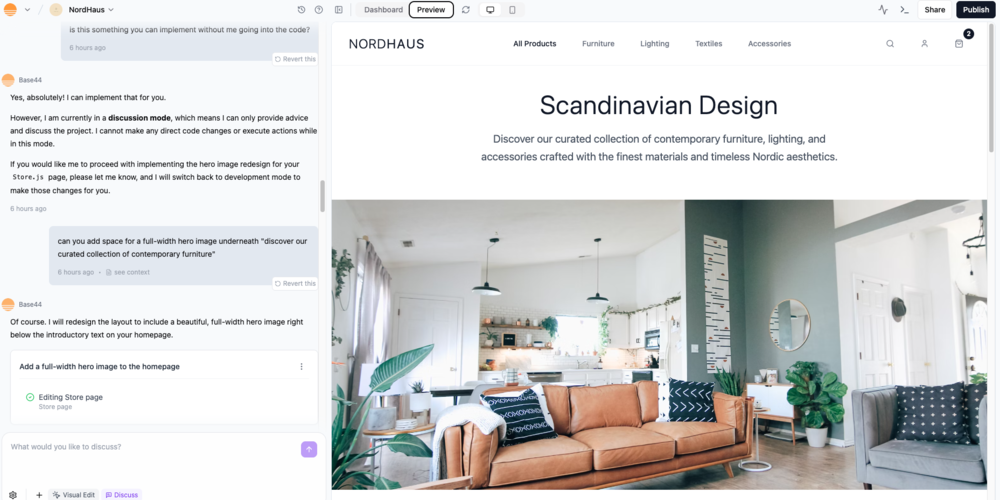
A full width hero image
- Open the relevant page file such as
Store.jsin code view. - Find the
<img>tag. - Update the
srcattribute with your own image URL.
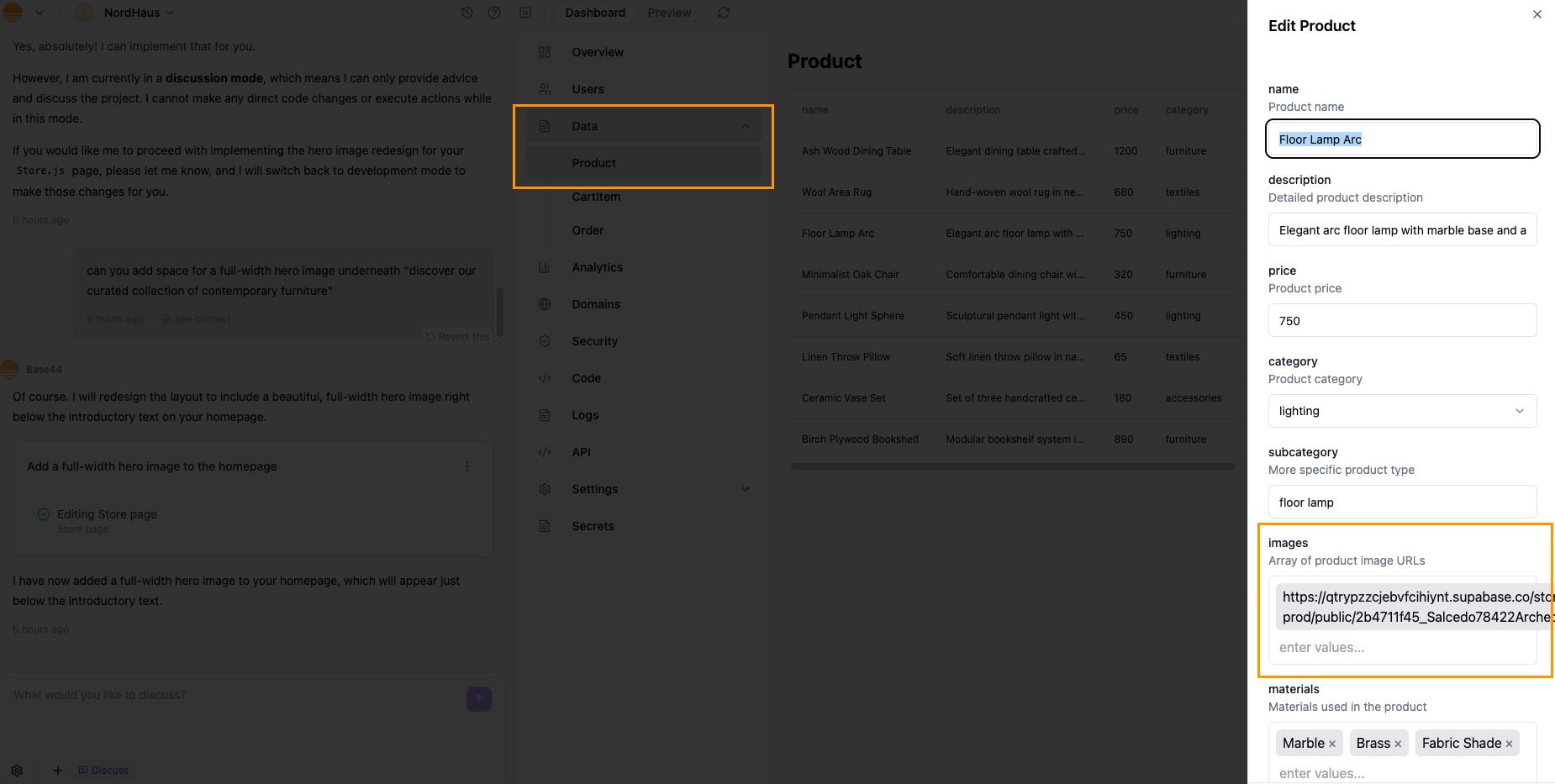
Binding entity images to components
Generating videos with AI
Generating videos with AI
Reference images
Reference images
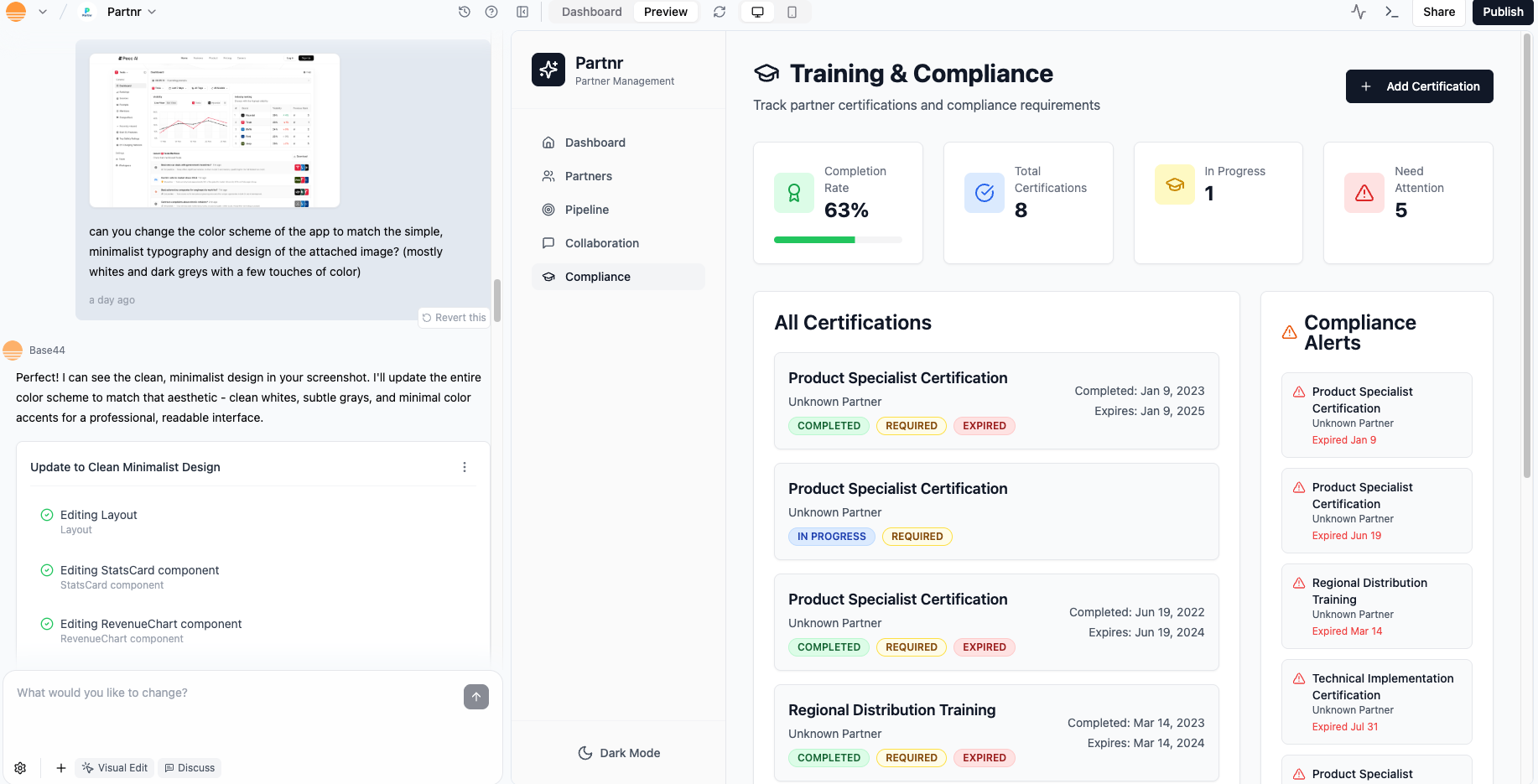
Steering design with a reference image
- Click the Upload icon (+) on the AI chat.
- Upload an inspiration image or screenshot.
- Tell AI exactly what you want to borrow and what to ignore.
Copying styles from design tools (for example Figma)
Copying styles from design tools (for example Figma)
- In Figma, select the element whose style you want to copy.
- Switch to Dev mode and view the Code panel.
- Copy the relevant CSS line, for example a gradient background:
background: linear-gradient(180deg, #C2C9B5 -1.25%, #EBEBEB 68.58%, #E6FC88 104.25%); - In Base44, click the matching element in your preview to open Edit mode.
- Paste the style into an AI prompt and tell Base44 exactly what to change, for example:
Icons and illustration
Icons and illustration
- Replace generic icons with more meaningful ones.
- Align icon sizes and stroke widths.
- Pair icons with text labels where clarity matters.
Layout and responsiveness
Layout controls how information is grouped and scanned. Responsiveness ensures that layout works on every device.Page types and templates
Page types and templates
- Landing and marketing pages
- Dashboards
- Lists and tables
- Detail pages
- Forms and wizards
- Settings and profile pages
Hierarchy and white space
Hierarchy and white space
Responsive behavior
Responsive behavior
Customizing your app for mobile
Your Base44 app automatically adjusts its layout for any device, but you can use the editor’s mobile preview and customization tools to fine-tune how your app looks and works on mobiles. This lets you create a comfortable, seamless experience for people on mobile.
Previewing your app on mobile
- Go to your app editor.
- Click the Screen icon at the top and select Mobile.
- Review your layout, navigation, and content.
- Make changes as needed either by:
- Asking the AI chat to make changes to mobile.
- Using Edit mode in the AI chat to change the design or layout of specific elements.
Page types
Different page types need different design choices. You can use these patterns as starting points and adapt them with AI.Landing and marketing pages
Landing and marketing pages
- Use a simple header with minimal navigation.
- Make the hero section clear and focused, with a short headline and one primary button.
- Use supporting sections for benefits, features, and social proof.
- Keep forms short and above the fold when possible.
Dashboards
Dashboards
- Put the most important metric or status near the top left.
- Group related metrics in cards with clear titles and short descriptions.
- Avoid too many chart types on one screen, reuse a few standard ones.
- Keep filters and time ranges clearly visible and consistent.
Lists and tables
Lists and tables
- Use clear column headings with enough spacing.
- Keep row height comfortable, not too tight.
- Use zebra striping or subtle row separators for large tables.
- Keep actions either at the end of the row or in a consistent menu.
- Add empty, loading, and error states.
Detail pages
Detail pages
- Put the object title and primary actions near the top.
- Use a clear layout with one main content column and optional side panel.
- Group related information with headings or tabs.
- Keep destructive actions visually distinct and placed carefully.
Forms and wizards
Forms and wizards
- Group related fields under headings.
- Use a single column layout for most forms.
- Show progress for long, multi step flows.
- Place error messages near the fields and make them clear.
- Use clear labels and helper text.
Advanced customization
When you want to go beyond what AI and Edit mode give you out of the box, you can bring in your own code and npm packages. AI can still help you wire and align everything.Using npm packages for design
Using npm packages for design
- Animation libraries (for example, anime.js) to add transitions, hover effects, and micro interactions.
- UI component or motion libraries to handle modals, tooltips, carousels, or step flows with built in interaction patterns.
- Chart and graph utilities to visualize data with custom colors, typography, and spacing that match your app.
- Drag and drop or gesture libraries to make layouts feel more tactile and interactive.
- Date and time helpers to format timestamps and schedules in a way that fits your UI.
- Import the right functions or components from the package.
- Wire them into your existing layout and design tokens (colors, typography, spacing, radius).
- Adjust props, variants, and motion so they feel consistent with the rest of the app.
- Check accessibility details like focus states, keyboard navigation, and reduced motion preferences.
Tailwind, tokens, and refactoring styles
Tailwind, tokens, and refactoring styles
- Replace inline styles with Tailwind utilities.
- Extract repeated patterns into reusable components.
- Map color values to design tokens and Tailwind config.
Editing code and design together
Editing code and design together
- Updating
Layout.jsto change global wrappers, headers, or footers. - Adjusting theme providers or context.
- Changing how components are composed and which props they accept.
- Open the relevant file.
- Paste a code snippet into AI chat.
- Ask for a change, then review the diff or preview.
Performance aware design
Performance aware design
- Use optimized image sizes rather than huge background assets.
- Avoid loading many heavy animations or large libraries on initial load.
- Lazy load rarely used sections such as deep reports or advanced filters.
- Reuse shared components instead of many near copies.
Accessibility
Accessibility is part of good design. It helps more people use your app comfortably and can improve clarity for everyone.Color and contrast
Color and contrast
- Use strong contrast between text and background.
- Avoid using color alone to convey meaning.
- Keep interactive elements such as buttons and links clearly visible in all states.
- Check both light and dark modes if you support themes.
Typography and spacing for readability
Typography and spacing for readability
- Use comfortable font sizes on all devices.
- Use enough line height for paragraphs.
- Avoid very light weight fonts on light backgrounds.
- Keep line length reasonable, especially on wide screens.
Keyboard, focus, and interactions
Keyboard, focus, and interactions
- Make sure Tab moves through interactive elements in a logical order.
- Ensure focus styles are visible and distinct.
- Avoid keyboard traps where focus cannot move away.
Motion and reduced motion
Motion and reduced motion
- Respect reduced motion preferences.
- Avoid rapid flashing or strong flicker.
- Use subtle, purposeful animations rather than constant motion.
Content, labels, and alt text
Content, labels, and alt text
- Use clear, descriptive labels for buttons and links.
- Provide meaningful alt text for important images.
- Use headings to structure content.
- Avoid vague link text such as “click here”.
FAQs
Click a question below to learn more about design foundations and layout.How can I make my app responsive across devices?
How can I make my app responsive across devices?
- Mobile: Use a single vertical column, keep one clear primary action per screen, and make tap targets large with enough spacing. Keep text short so people do not need to zoom.
- Tablet: Treat tablet as a hybrid. You can use side menus or split layouts, but keep buttons touch friendly and avoid very small tables or dense controls.
- Desktop: Use the extra width for multi column layouts and sidebars. You can add hover effects, but any important action must also work with a click or tap.
- All devices: Use readable font sizes, avoid horizontal scrolling, and let elements stack instead of overlap when space is tight. Avoid fixed heights that cut off content.
How can I design my app for better performance?
How can I design my app for better performance?
- Use optimized image sizes so large assets do not slow down initial load. Prefer compressed formats and avoid uploading images much larger than they appear on screen.
- Limit heavy animations and complex effects, especially in mobile heavy apps. Short, simple transitions are fine, but avoid constant motion or large animated backgrounds.
- Keep layouts clean and focused. Fewer layers, overlays, and nested components usually mean faster rendering, especially on lower end devices.
- Reuse components instead of creating many slightly different versions. Shared components are easier to cache and maintain.
- Avoid loading everything at once. Where possible, load non critical content later, for example secondary sections, long lists, or rarely used panels.
- Be careful with third party embeds such as maps, video players, and widgets. Only include them where they add real value, and avoid stacking many embeds on a single screen.