Upload images, videos, audio, and documents from your computer, file library, or Google Drive. Check upload limits and set your app’s logo and social image.
Listen to this page17 min 2 sec
Media files such as images, videos, audio, documents, and data files help you create a rich, interactive app experience for people using your app. You can upload files while building your app and in your live app, giving people new ways to share and engage.
Bringing your app to life with media
You can also add a custom logo that appears when someone adds your app to their home screen. The logo is also used as the browser favicon, so your app always looks professional and on-brand from both desktop and mobile.
Your app has its own file library where Base44 stores files that you upload or generate while you build. This gives you one place to organize and reuse media and reference files across your app. You can keep images, videos, brand guides, PRDs, and data exports in your file library, then use them in your app or add them to the AI chat as context.Any images and videos the AI generates and any files you upload from the editor or AI chat are automatically stored in the file library, and when you add a file from the library to the AI chat, the AI uses it as context for your prompts.
The file library is per app. Files saved in one app’s library are not shared with other apps in your workspace.
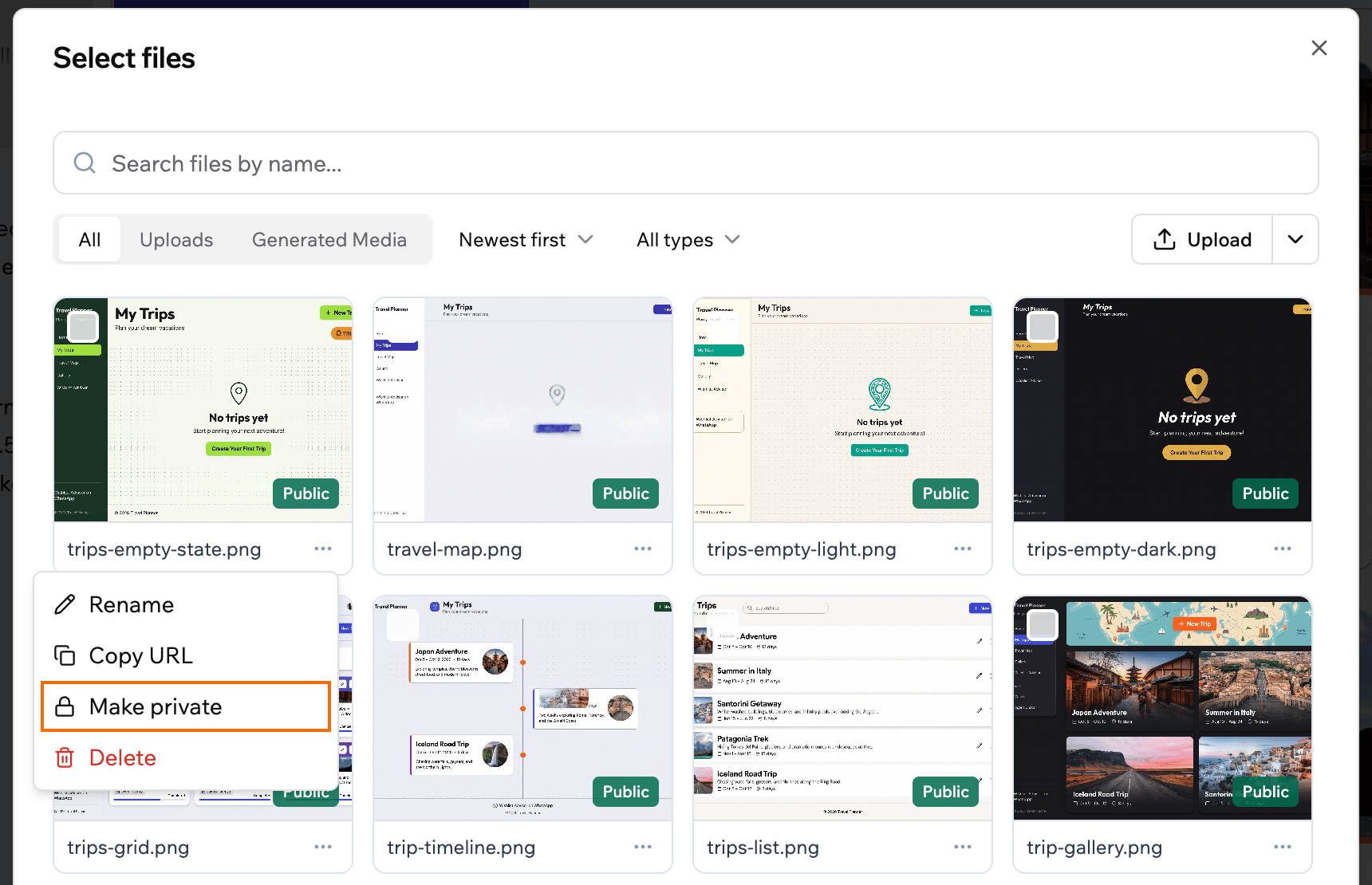
Files in your file library are public by default, so anyone with a file’s link can open it. Make a file private when it holds something you don’t want shared, such as a contract or a customer list. A private file has no public link, and your app loads it through a temporary link instead. Each file in the library shows a Public or Private badge.Private files still work as attachments in the AI chat, as images on the canvas, and as context files for in-app agents. If you replace an image in edit mode with a private file, the AI updates your app’s code to load it.
Before you make a file private:
You can’t make a private file public again. To get a public link back, upload the file again.
Anything in your app that uses the file’s public link stops loading until you update the app. To check where your app uses the file, click Ask in the chat in the confirmation window.
Copies of the file that were already loaded, for example in someone’s browser, can stay viewable for a while. If the file is sensitive, assume anyone who already had the link may have seen it.
You can add files to your app from your file library, from your computer, or from Google Drive. All files you add this way are stored in your app’s file library so you can reuse them across your app and in the AI chat.For example, you can keep product photos or demo videos in your file library and then attach them in the AI chat when you ask the AI to design a new section.
You can also ask the AI to generate and add images or videos to your app.
Use your file library whenever you want to reuse existing media instead of uploading a new file.
Adding files in the AI chat
To add a file from the library in the AI chat:
Go to your app editor.
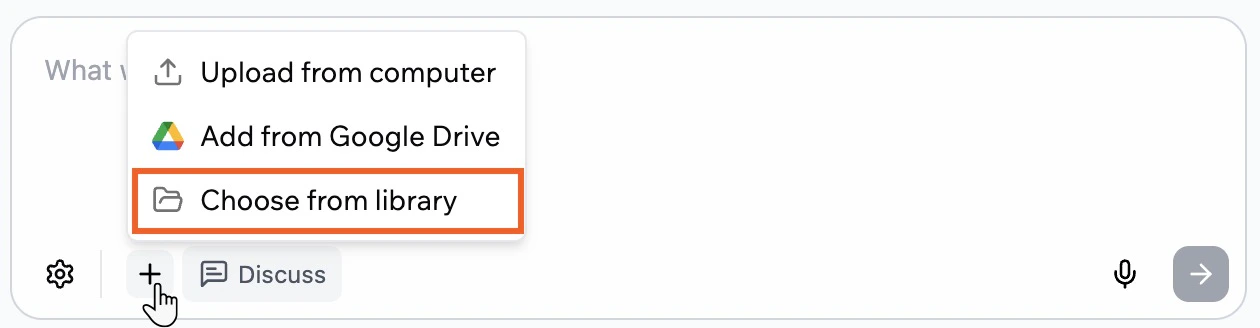
Click the Add icon in the AI chat.
Click Choose from library.
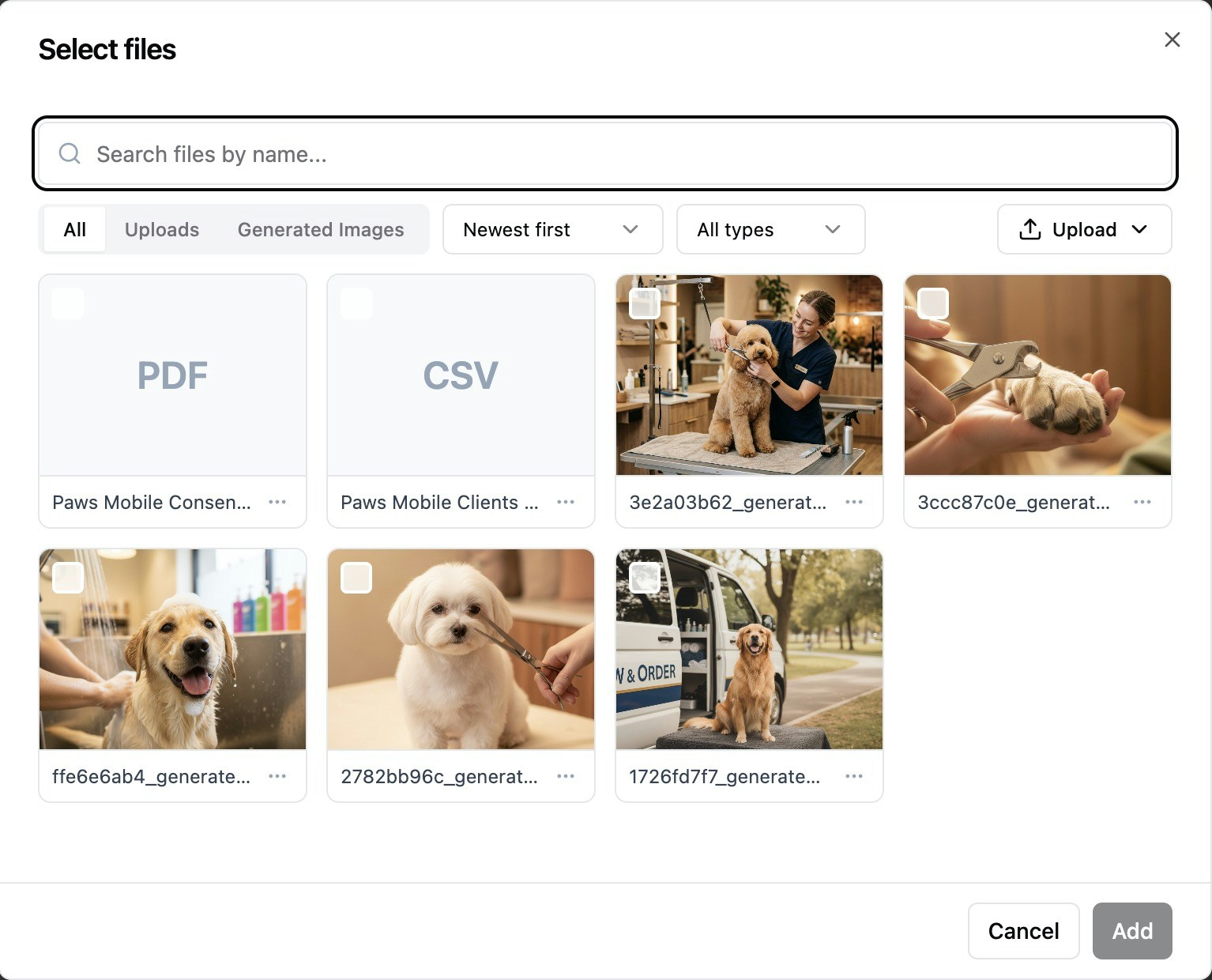
In the Select files dialog, search or browse to find the file you want.
Select the file and click Add.
Type your message to explain what you want the AI to do with the file, then send it.
Replacing images in your app
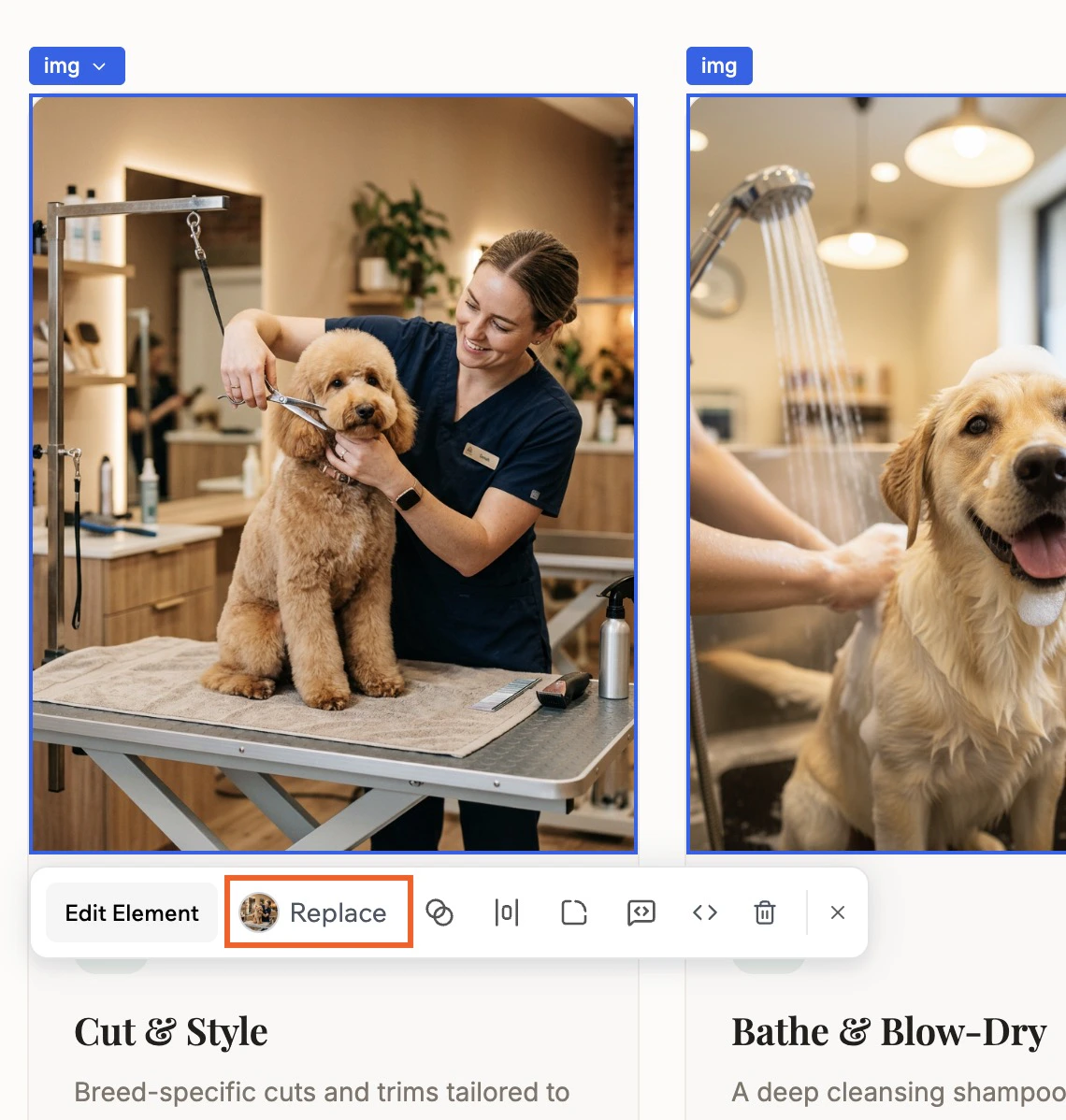
You can replace standalone images in your app using Edit mode. This does not work for images that are part of components, such as a gallery. For that, use the AI chat or edit the data directly from Data in the dashboard.To replace an image using your file library:
Go to your app editor.
Click Edit in the chat.
Click the file you want to change.
Click Replace.
Search or browse your file library to find the new file.
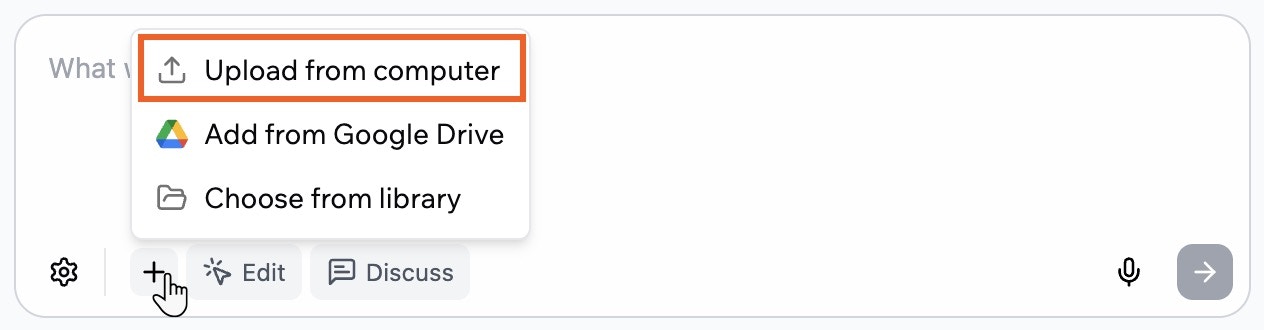
Upload files that are saved locally on your device when you want to share images, videos, documents, or data files directly with the AI chat.To upload a file from your computer:
Go to your app editor.
Click the Add icon in the AI chat.
Click Upload from computer.
Select the file you want to use and confirm.
Type your message to explain what you want the AI to do with the file, then send it.
Uploading from your computer
You can also drag files from your computer and drop them anywhere on the AI chat panel. Drop files here appears while you drag.
Connect Google Drive if you want the AI chat to work directly with Docs, Sheets, and Slides stored in your Drive without downloading them first.
Connecting Google Drive
When you connect Google Drive, only the files you select are accessed. Base44 stores a copy of each selected file in your app’s file library so the AI chat can use the content as context.
To add a file from Google Drive:
Go to your app editor.
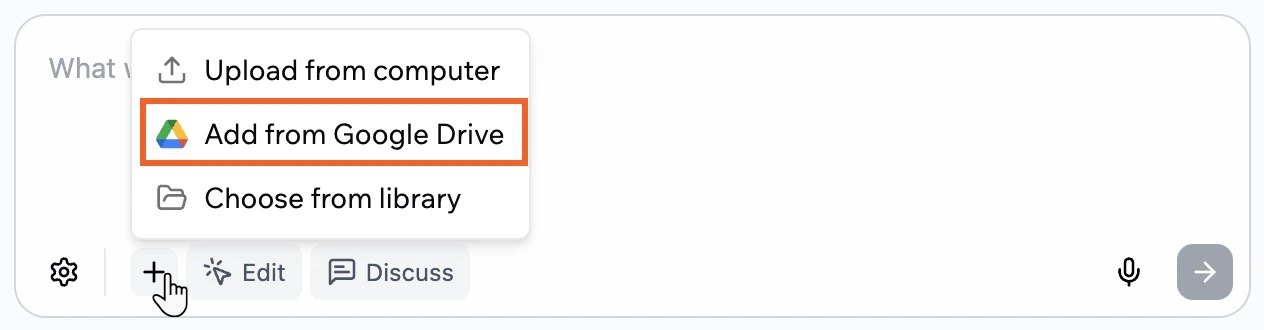
Click the Add icon in the AI chat.
Click Upload from Google Drive.
Review the information in the Connect to Google Drive window and click Connect Google Drive.
Complete the Google sign-in flow and approve access if this is your first time connecting.
Choose the Docs, Sheets, or Slides files you want to use from your Google Drive and confirm.
Type your message to explain what you want the AI to do with the file content, then send it.
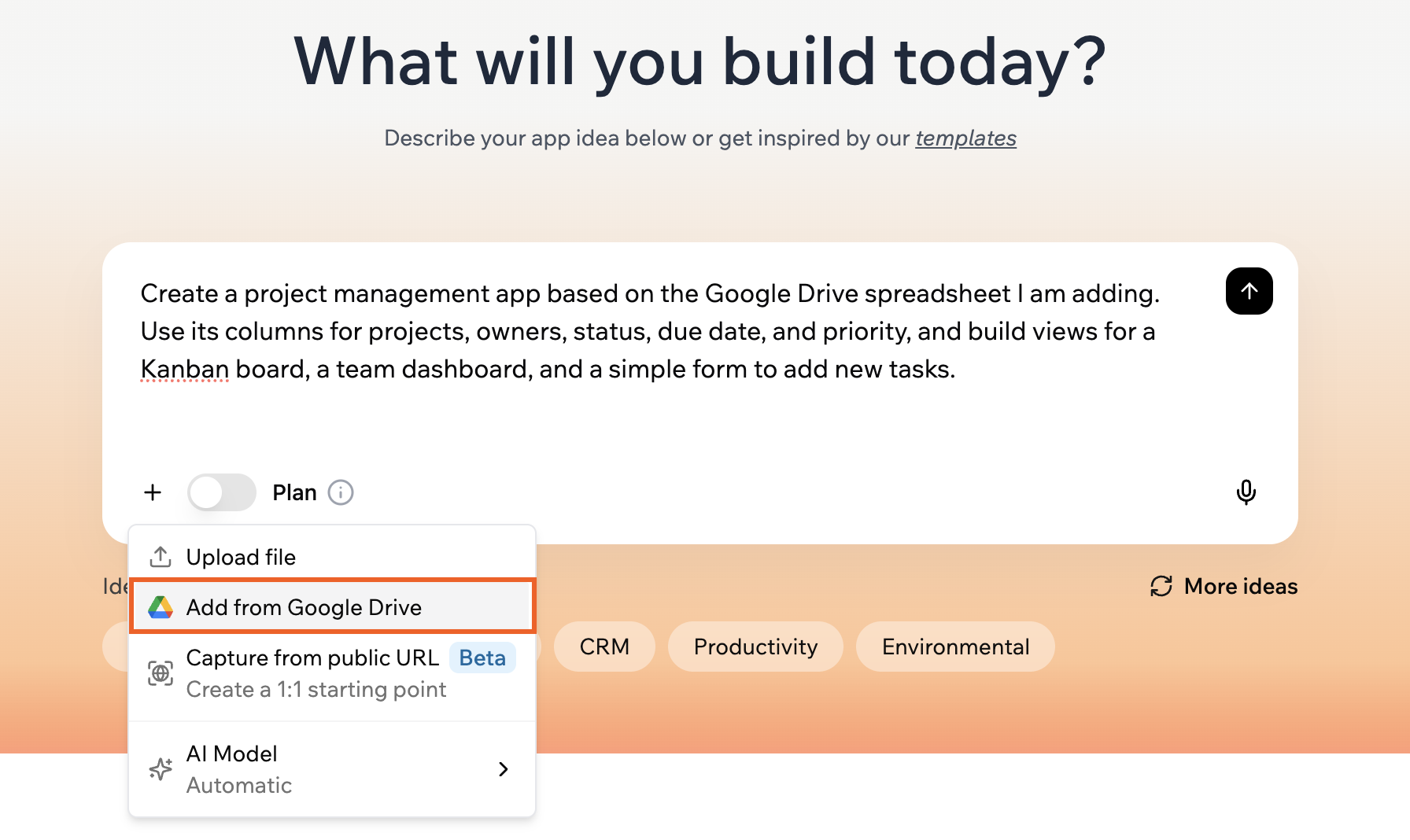
Tip: You can also add files from Google Drive in your very first prompt:
These limits apply to files you upload into your app’s file library while building your app, whether you add them from the AI chat or directly from the editor.
File upload limits while building
Images: PNG, JPG, JPEG, GIF, WEBP, SVG
Max size: 40MB (SVG: 5MB)
Max dimensions: 1024x1024 pixels (larger images are resized automatically)
Example: Upload a screenshot of a website you like and say: “Use this header style for my homepage.”
Example: Upload a product demo, walkthrough, or reference video and ask the AI to use it as context while building your app.
Documents and text files: PDF, TXT, HTML, DOCX, MD
Max size:
PDF: 10MB
TXT and HTML: 5MB
DOCX and MD: 5MB
Example: Upload a PRD or brand guide so the AI follows your product and style rules, or share a markdown file with requirements for a new app.
Presentations: PPTX
Max size: 50MB
Example: Attach a pitch deck and ask the AI to build a website that follows it. Base44 reads the text, tables, charts, and speaker notes on each slide and uses the deck as a reference for what to build.
You can attach a deck in the AI chat, in the prompt box on the home page, and in plan mode. You can’t attach one in the Base44 mobile app or in apps imported from GitHub.
Data files: CSV, XLS, XLSX, JSON
Max size:
CSV and JSON: 10MB
XLS and XLSX: 15MB
Example: Upload a CSV, Excel, or JSON file with your existing business data and ask the AI to analyze it, suggest entities and fields, propose a data model for your app, or prepare the data for import. To learn how to import the data into your tables, see Managing your app data.
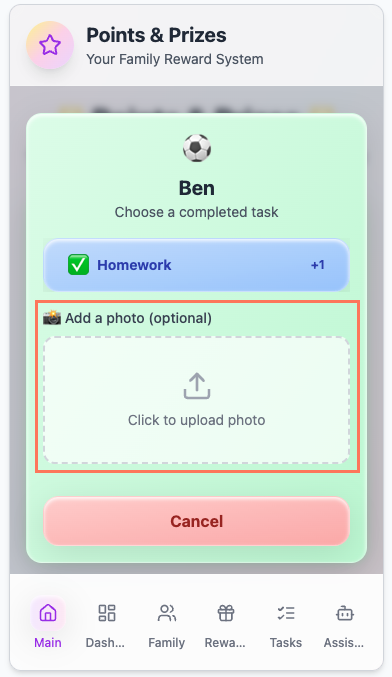
Let your app users upload media directly in your live app. You and your app users can share, download, or interact with content to create a more engaging experience.Just tell the AI chat what you want your app users to be able to do, and the AI sets it up for you. By default, the AI saves uploads as private files, which only your app can open. If you want anyone with a file’s link to be able to open it, ask the AI chat to save uploads as public files instead.
Files that people upload through your live app, such as profile photos or attached documents, aren’t saved to your file library, so you can’t delete them there. Instead, your app keeps a link to each one in a record in your app’s data, and you remove the file from your app by deleting that record. If someone asks you to delete their personal data, see deleting your app’s user data.To remove an uploaded file from your app:
Click Dashboard in your app editor.
Click Data.
Select the table that holds the file.
Click the Delete icon on the row of the record that links to the file.
The stored file itself isn’t deleted, so if it was uploaded as a public file, anyone who has its link can still open it. If you need the stored file deleted too, for example for a privacy request, copy its link from the record before you delete the record, then contact Customer Care with your app’s name and the link.
Personalize your app by adding a logo. Your logo is visible to people when they add your app to their home screen and also appears as the browser favicon.
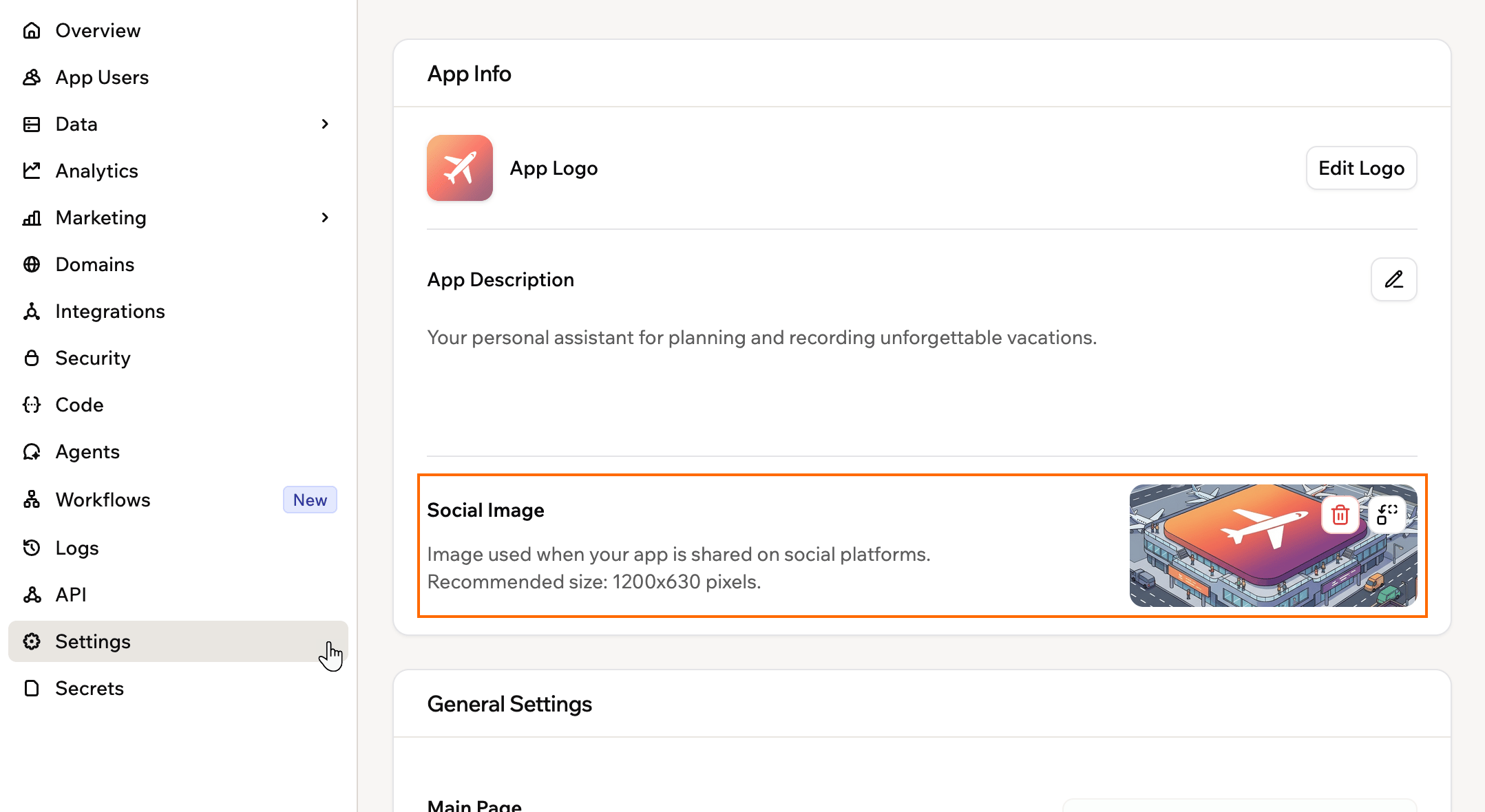
Add a social image to control how your app looks when someone shares its link on social platforms like Slack, WhatsApp, or iMessage. The image appears in the preview card alongside your app name and description.Your social image is the default for every page. To show a different image when someone shares a specific page, set a social image for that page on the SEO & GEO page.
Delete a file from your file library when you no longer need it, such as an old image or a document you uploaded by mistake. You can delete any file in your library yourself, including images and videos the AI generated, and the stored file is deleted with it.
What to know about deleting files:
Deleting a file is permanent and can’t be undone.
The file’s link stops working everywhere, including anywhere your app still uses it. To check where your app uses a file, ask the AI chat first.
If your file isn’t uploading to the chat, it’s most likely because the file is too large or the wrong format. You might see an “Invalid MIME type” error, which means the file type isn’t supported or doesn’t match what Base44 expects.Check your file against the file upload limits and upload it again in a supported format. If the wrong file already went into the chat, revert that message first. If the upload still doesn’t work, refresh the app editor and try again.
Why am I seeing an error that my file does not match the provided media type?
This error can happen if you upload a file that was renamed without converting it properly. For example, changing the file name from .webp to .png or from one video format to another does not convert the file.To fix this:
Try reverting your last message if you just uploaded the file.
Check that your file is one of the supported formats listed in the Media guide and has not simply been renamed from another file type.
Make sure your file does not exceed the size limits set in the Media guide.
Try uploading your file again using a supported format.
You can disconnect Google Drive at any time from your account settings.To disconnect Google Drive:
Click your workspace name at the bottom left and click Account preferences.
Click Builder.
Under Connect your accounts, next to Google Drive, click Disconnect.
Can I change my logo at any time?
Yes, you can replace your logo image at any time from your dashboard inside the app editor. The new logo appears once your changes are published.
Do I need a social image?
No, a social image is optional. If you do not set one, social platforms show a generic preview when your app link is shared. Adding a social image gives you control over how your app appears and can make it more recognizable.
Is there a storage limit for my app?
There’s no overall limit on the files your app stores, only on the size of each file. See the limits above for each file type.Your app’s database, where its records are stored, has a size limit that depends on your plan. Learn more about database limits.
Was this page helpful?
Assistant
Responses are generated using AI and may contain mistakes.