

Migrating a project to Base44
What gets migrated
What Base44 imports depends on the platform. Click your platform below to see what’s included.Salesforce CRM
Salesforce CRM
- 24 standard CRM objects (e.g., Account, Contact, Lead, Opportunity)
- All custom objects
- All scalar and reference fields (with proper types preserved)
- Cross-object relationships
HubSpot CRM
HubSpot CRM
- Contacts, Companies, Deals, Line items
- Owners
- Contact, Company, and Deal schemas
Shopify store
Shopify store
- Products; Orders; Customers; Collections; Pages
- Articles (blog posts); Discounts
- Frontend theme code
- Storefront URL preserved
WordPress site
WordPress site
- Posts, Pages, Categories, Tags
- Media library metadata, Comments
- Users (self-hosted only)
- Site frontend structure
- WooCommerce add-on: Products, Orders, Customers with standard fields
Lovable / Bolt.new
Lovable / Bolt.new
- All user-created tables in the public schema (schema + data)
- Column schema
- Primary keys and foreign keys
- Row level security flag
- Frontend source from GitHub repo
Base44 imports 100 items from each entity first so you can preview your app before committing. Once you’re happy with the result, you’re prompted to migrate all your data.
Migrating an app
Select your platform below to get started.Salesforce
Import your data and pipelines
HubSpot
Import contacts, companies, and deals
Shopify
Import your store data
WordPress
Import an existing website
Lovable
Migrate entities, data, and frontend code
Bolt.new
Migrate entities, data, and frontend code
Salesforce
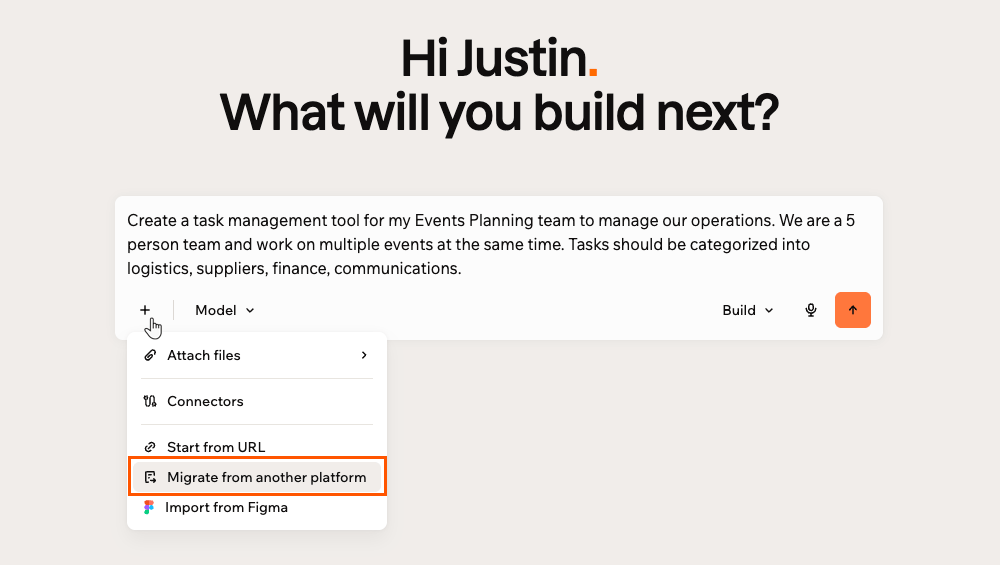
Base44 connects to your Salesforce account via a secure OAuth connection. Once connected, you can review and select exactly which data to import. To migrate from Salesforce:- From the Base44 home page, click + on the prompt box.
- Click Migrate from another platform.
- In the Import existing project panel, select Salesforce.
- Select your environment: Production or Sandbox.
- Click Connect and complete the authorization.
- Go back to Base44, and in the Choose entities to migrate panel, select the entities you want to bring over and click Import & Continue.
- On the home page, review the pre-filled prompt and click Send to start building your app.
HubSpot
Base44 uses your Private App token to read your HubSpot CRM data. You need to create one in HubSpot with the required read scopes before connecting. To migrate from HubSpot:- From the Base44 home page, click + on the prompt box.
- Click Migrate from another platform.
- In the Import existing project panel, select HubSpot.
- Enter your Private App access token. To find this:
- In HubSpot, go to Settings > Integrations > Private Apps > Create a private app.
- Select these read scopes:
crm.objects.contacts.read,crm.objects.companies.read,crm.objects.deals.read,crm.objects.line_items.read,crm.objects.owners.read,crm.schemas.contacts.read,crm.schemas.companies.read,crm.schemas.deals.read. - Copy the access token and paste it into Base44.
- Click Connect.
- In the Choose entities to migrate panel, select the entities you want to bring over and click Import & Continue.
- On the home page, review the pre-filled prompt and click Send to start building your app.
Shopify
Base44 uses your Shopify app credentials to securely read your store data. Once connected, you can review and select exactly which data to import. To migrate from Shopify:- From the Base44 home page, click + on the prompt box.
- Click Migrate from another platform.
- In the Import existing project panel, select Shopify.
- Enter your Store URL (format:
https://mystore.myshopify.com).Make sure to includehttp://orhttps://in the URL. - Enter your Client ID and Client Secret. To find this:
- In Shopify, click your store name at the top right and select View Dev Dashboard.
- Select your app from the list.
- Go to Settings.
- Find your Client ID and Client Secret under Credentials.
- Click Connect.
- Go back to Base44, and in the Choose entities to migrate panel, select the entities you want to bring over and click Import & Continue.
- On the home page, review the pre-filled prompt and click Send to start building your app.
WordPress
Base44 reads your site content to rebuild it in Base44. Once connected, you can review and select exactly which data to import. To migrate from WordPress:- From the Base44 home page, click + on the prompt box.
- Click Migrate from another platform.
- In the Import existing project panel, select WordPress.
- Enter your Site URL.
- If you are on a self-hosted WordPress site, also enter your Username and Application Password.
- Find your Application Password in WordPress under Users > Profile > Application Passwords.
- WordPress.com sites don’t require these fields.
- Click Connect.
- Go back to Base44, and in the Choose entities to migrate panel, select the entities you want to bring over and click Import & Continue.
- On the home page, review the pre-filled prompt and click Send to start building your app.
Lovable
Lovable stores your app’s data in Supabase. Base44 uses your Supabase credentials to read your database schema and data and bring it into Base44. To migrate from Lovable:- From the Base44 home page, click + on the prompt box.
- Click Migrate from another platform.
- In the Import existing project panel, select Lovable.
- (Optional) Click Connect next to GitHub to import your source code.
- Enter your Supabase URL (format:
https://xxx.supabase.co). - Enter your Service Role Key.
Show me how to find my Supabase URL
Show me how to find my Supabase URL
- Go to supabase.com and sign in with the account linked to your project.
- Not sure which account? In Lovable, go to Settings > Connectors > Supabase to see your linked account.
- Not got a Supabase account? If Supabase isn’t connected yet, go to Settings > Connectors > Supabase and click Connect Supabase, then complete the authorization. Use the same email to create an account in Supabase as Lovable.
- Open your project.
- Click Copy next to the URL at the top of the project homepage and select Project URL.
Show me how to find my Service Role Key
Show me how to find my Service Role Key
- In your Supabase project, go to Settings, then API Keys.
- Click the Legacy anon, service_role API keys tab.
- Click Reveal next to
service_roleand copy the key.
- Click Connect.
- In the Choose entities to migrate panel, select the entities you want to bring over and click Import & Continue.
- On the home page, review the pre-filled prompt and click Send to start building your app.
Bolt.new
Bolt.new stores your app’s data in Supabase. Base44 uses your Supabase credentials to read your database schema and data and bring it into Base44. To migrate from Bolt.new:- From the Base44 home page, click + on the prompt box.
- Click Migrate from another platform.
- In the Import existing project panel, select Bolt.new.
- (Optional) Click Connect next to GitHub to import your source code.
- Enter your Supabase URL (format:
https://xxx.supabase.co). - Enter your Service Role Key.
Show me how to find my Supabase URL
Show me how to find my Supabase URL
- Go to supabase.com and sign in with the account linked to your project.
- Not sure which account? In Bolt.new, go to Settings > Connectors > Supabase to see your linked account.
- Not got a Supabase account? If Supabase isn’t connected yet, go to Settings > Connectors > Supabase and click Connect Supabase, then complete the authorization. Use the same email to create an account in Supabase as Bolt.new.
- Open your project.
- Click Copy next to the URL at the top of the project homepage and select Project URL.
Show me how to find my Service Role Key
Show me how to find my Service Role Key
- In your Supabase project, go to Settings, then API Keys.
- Click the Legacy anon, service_role API keys tab.
- Click Reveal next to
service_roleand copy the key.
- Click Connect.
- In the Choose entities to migrate panel, select the entities you want to bring over and click Import & Continue.
- On the home page, review the pre-filled prompt and click Send to start building your app.
FAQs
Click a question below to learn more about migrating to Base44.How is this different from Start from URL?
How is this different from Start from URL?
Start from URL captures the look and feel of any public webpage, with no credentials needed.Migrate from another platform connects to your actual account and brings over your real data, schema, and frontend code. It requires credentials and is designed for when you want to carry your existing work into Base44, not just replicate a design.
Can I choose which data to import?
Can I choose which data to import?
Yes. After connecting, Base44 shows you what’s available and lets you select what to bring over before the migration runs.
What if my migration takes a long time?
What if my migration takes a long time?
Large datasets can take a while depending on the size of your data. You can leave the page and your migration keeps running in the background.
All third party trademarks depicted in this product are the property of their respective owners. No affiliation or endorsement is implied.