

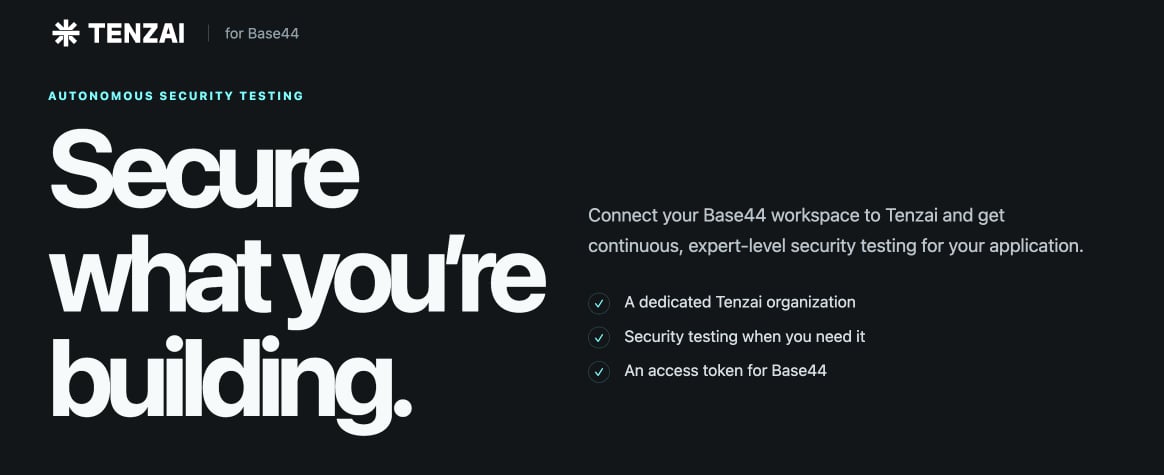
Tenzai for Base44
How it works
You start a pentest from Base44, and Tenzai runs it on your own Tenzai account. Base44 gives Tenzai a temporary test login for your app, so it can test the pages people see after they sign in as well as your public pages. Your own login details are never shared. When the test finishes, you get an email and the full report appears in your Tenzai dashboard. Pentests are billed to your Tenzai account and don’t use Base44 credits.When to run a test:A test only covers the version of your app that’s published when it runs, so it isn’t a one-time check. Run a test:
- Before you launch your app.
- After big changes, such as adding sign-in, payments, or new user roles.
- When a customer or audit asks for one.
Step 1: Connect Tenzai
Connect Tenzai once for your workspace. After it’s connected, workspace owners and admins can run pentests on any app in the workspace. To connect Tenzai:- Click Connectors in your workspace sidebar.
- Click Add connector.
- Search for Tenzai and click it.
- Do one of the following:
Connect your Tenzai account
Connect your Tenzai account
If you already have a Tenzai account, use the access key from your Tenzai account.
- Paste your Tenzai access key into the Access Key field.
- Click Connect.
Register for a Tenzai account
Register for a Tenzai account
If you don’t have a Tenzai account yet, register from the Connect Tenzai window. Tenzai sets up a dedicated Tenzai organization for your workspace and gives you an access key. Your invitation link works once and expires automatically.
- Click Click here to register. The Tenzai for Base44 page opens.
- Under Accept your invitation, click Continue securely.
- Under Tell us about your organization, enter your First name, Last name, and Work email. You can also add a Company or team.
- Select the I’m authorized to connect this workspace checkbox.
- Click Create my Tenzai access.
- Under Your Tenzai access token, click Copy token. Tenzai shows the token only once, so copy it now.
- Return to the Connect Tenzai window and paste the token into the Access Key field.
- Click Connect.
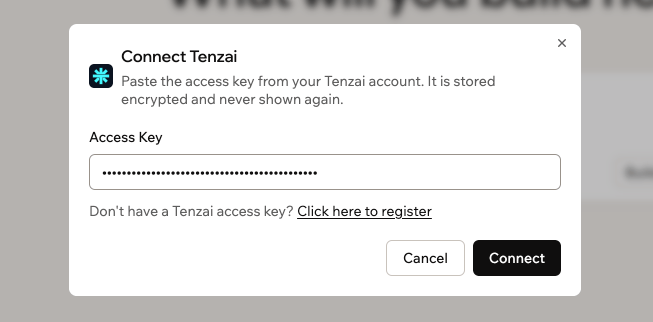
Connecting your workspace to Tenzai
About connecting Tenzai:
- If your workspace sidebar doesn’t show Connectors, open your workspace settings and go to the connectors page under build tools. Tenzai is listed with the connectors for app builders, with an Add button.
- Your access key is stored encrypted and isn’t shown again after you save it.
Step 2: Run a pentest
A pentest runs against the version of your app that’s currently published. To run a pentest:- Click Dashboard in your app editor.
- Click Security.
- On the Tenzai penetration test card, click Run penetration test.
- Review the details in the Run pentest dialog.
- Select the I understand this test may create or change test data checkbox.
- Click Run pentest.
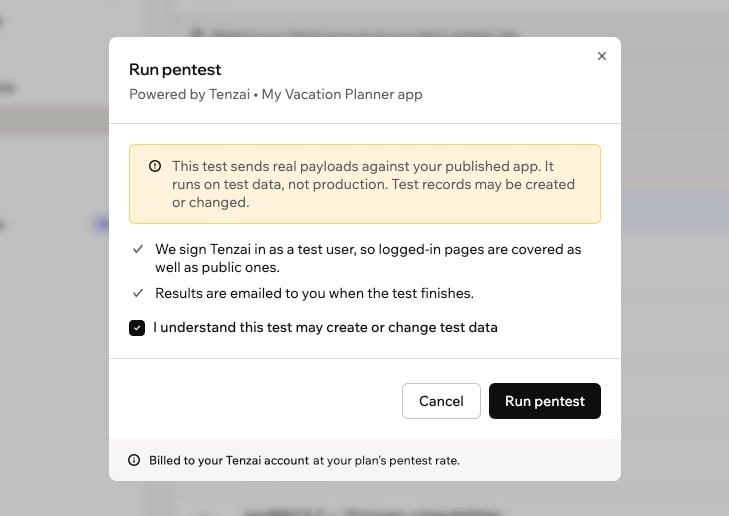
Confirming a test in the Run pentest window
Step 3: Review results
While a test runs, the Tenzai card shows when it started, and Run penetration test changes to Running…. A test can take several hours, and you get an email when it’s done.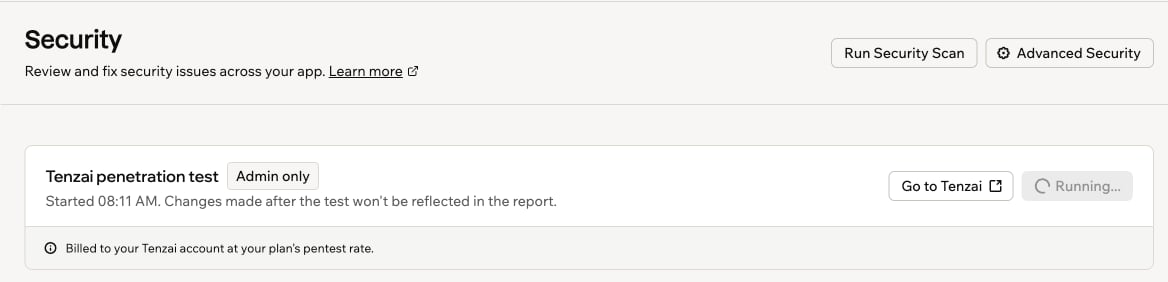
A Tenzai test in progress
Opening your report
When a test finishes, Tenzai emails you the full report as a PDF attachment. You can also open it from your Tenzai account at any time. To open your report:- Click Dashboard in your app editor.
- Click Security.
- On the Tenzai penetration test card, click Go to Tenzai.
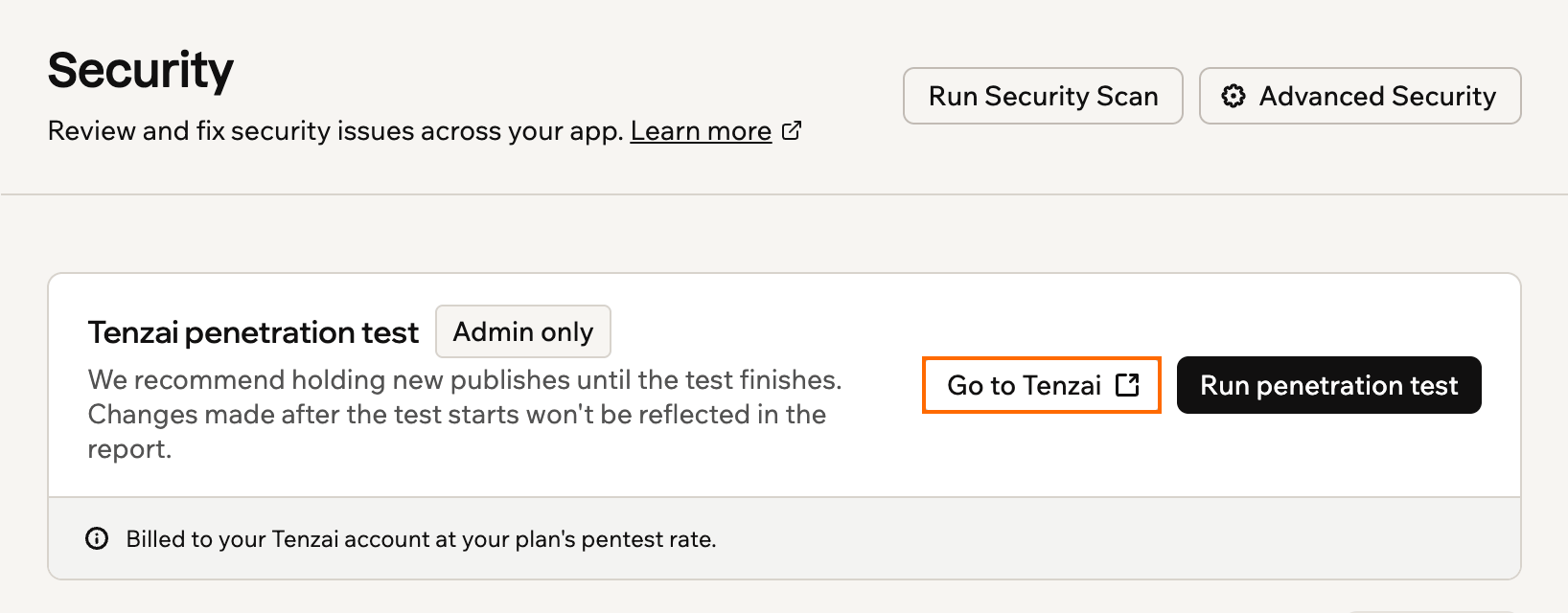
Opening your Tenzai account from the Security page
Reading the summary
The report opens with a summary of what Tenzai found: an overall risk level, how many parts of your app it tested, and every finding sorted by severity, from Critical to Low.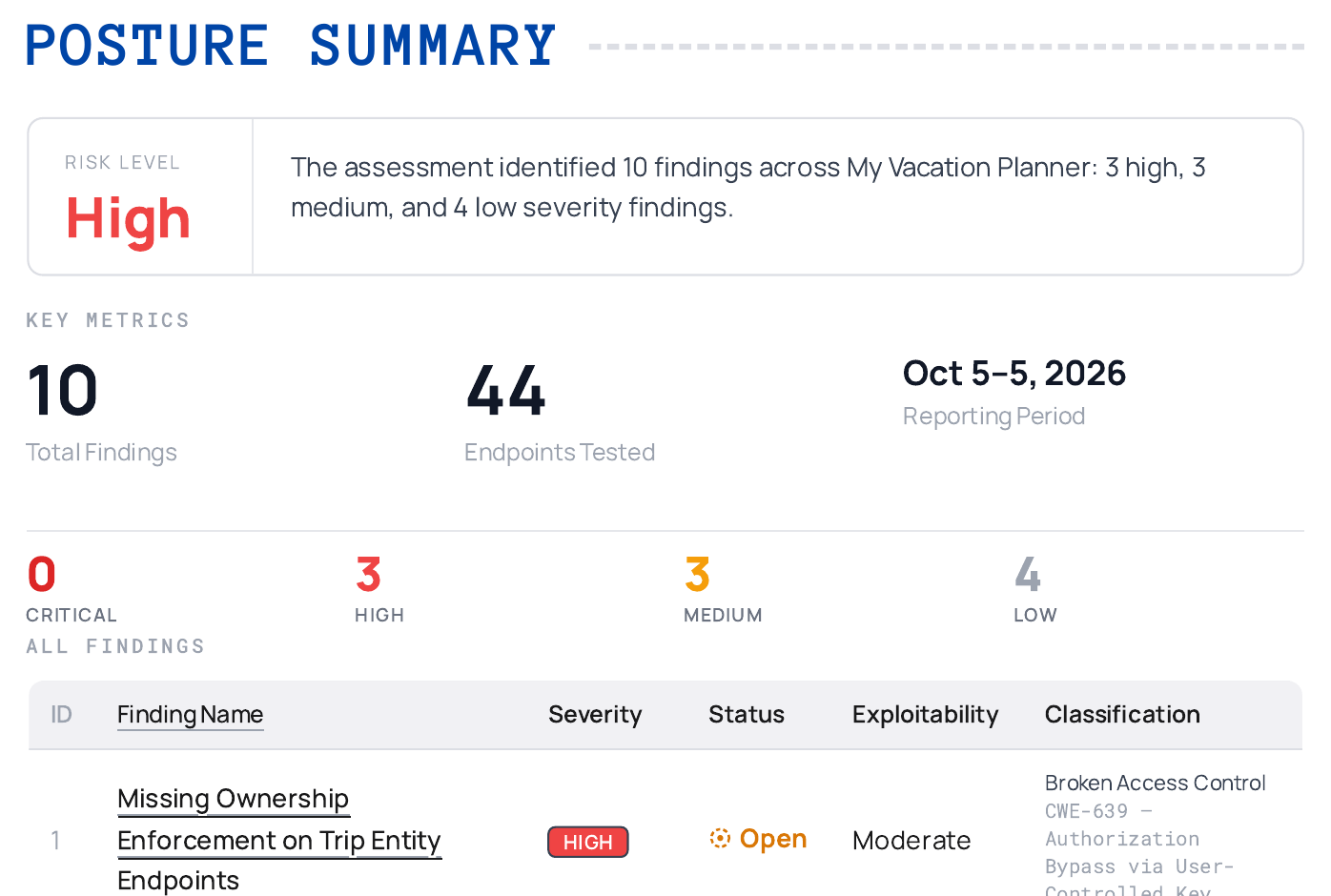
The summary at the start of a Tenzai report
Reading a finding
Each finding gets its own section. It shows the severity, which parts of your app are affected, and whether the issue is still open, followed by:- Impact: What an attacker could do with it.
- Attack path and evidence: How Tenzai did it, step by step, with the requests it sent as proof.
- Remediation: How to fix it.
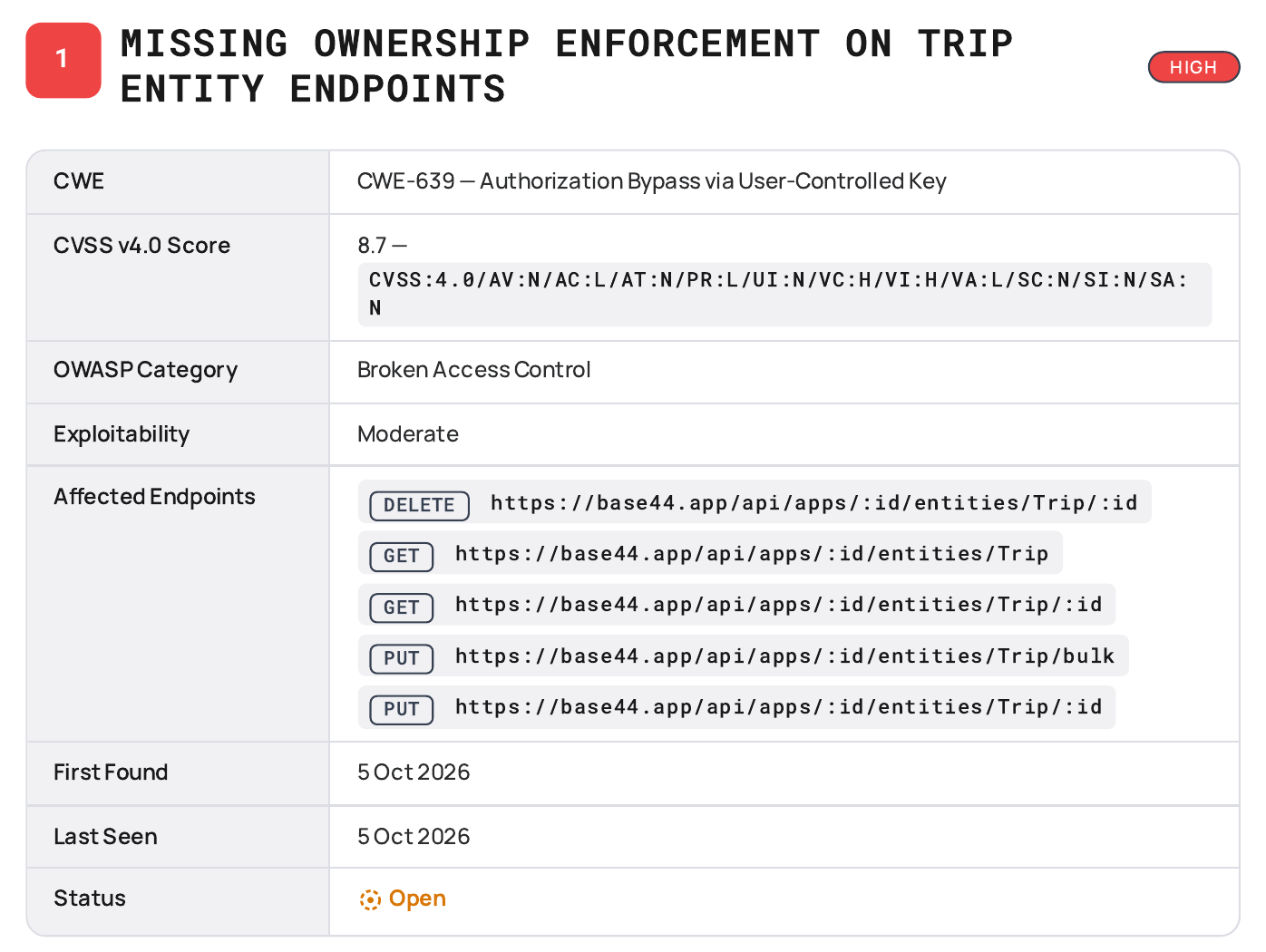
An example finding in a Tenzai report
Fixing the findings
Work through the findings from most to least severe, and test again once you’ve fixed them. To fix what Tenzai finds:- In your app editor, switch the AI chat to Discuss, paste the finding’s Impact and Remediation, and ask the AI how to fix it in your app.
- Switch to Build and ask the AI to make the fix.
- Run a security scan to check your app.
- Publish your app, then run another pentest to confirm the issues are fixed.
Managing the connection
Workspace owners and admins can update or remove the Tenzai connection at any time. If your workspace sidebar doesn’t show Connectors, open the connectors page from your workspace settings instead.Updating your access key
Update your access key if you create a new one in Tenzai, or if Tenzai stops accepting the one you saved. To update your Tenzai access key:- Click Connectors in your workspace sidebar.
- Find Tenzai, then click View.
- Under Connections, click Edit next to the connection.
- Enter your new access key.
- Click Save Changes.
Deleting the connection
Deleting the connector stops pentests for every app in the workspace. To delete the Tenzai connector:- Click Connectors in your workspace sidebar.
- Find Tenzai, then click View.
- Under Connections, click Delete Connector next to the connection.
- Review the confirmation message, then click Delete Connector to confirm.
FAQs
Click a question below to learn more about running pentests with Tenzai.Why can't I run a pentest?
Why can't I run a pentest?
The Run penetration test button is available only when all of these are true:
- You’re a workspace owner or admin. Other members don’t see the Tenzai card.
- Your app is published.
- Your app has a security scan on its current version.
- No other pentest is already running for the app.
What if Tenzai doesn't accept my access key?
What if Tenzai doesn't accept my access key?
If Tenzai doesn’t accept your access key, or the key isn’t allowed to start scans, check the key and its permissions in your Tenzai account. Then update your access key in Base44.
How is Tenzai different from Wiz?
How is Tenzai different from Wiz?
Wiz adds checks to your security scan by reviewing your app’s dependencies and code. Tenzai attacks your published app while it runs, to show what an attacker could actually do. You can use both.