

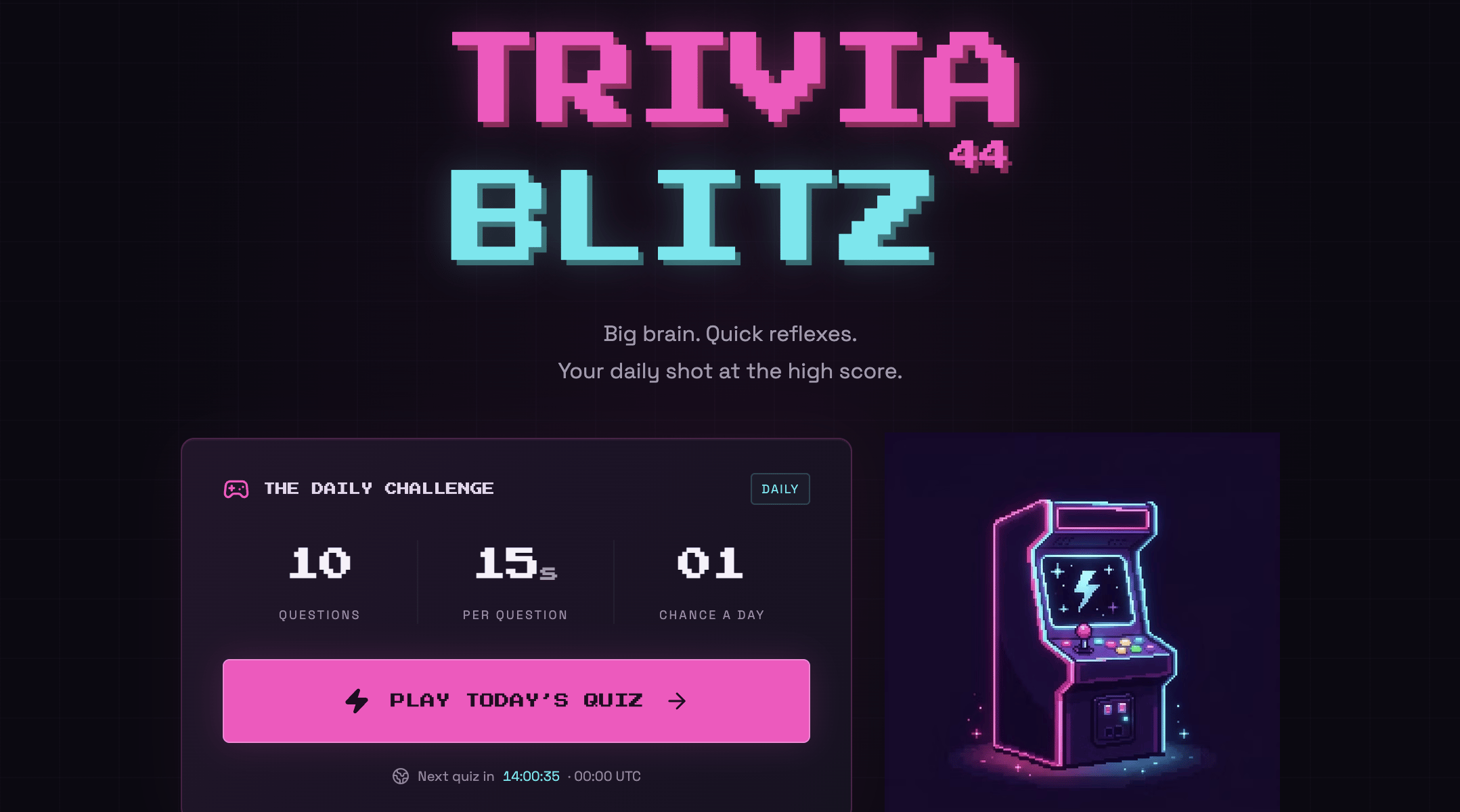
A game built with Base44
Start from a game template
Browse game templates and customize one in the AI chat.
Step 1 | Building your game
Describe your game in one prompt, and Base44 builds it: the app, the pages, the questions or levels, and the data your game saves. It works best for 2D browser games that run on rules, timing and scoring, like these:Quiz
Timed questions with a score at the end, like a daily trivia game.
Puzzle
A daily word or grid to solve, with a set number of guesses.
Game show
A board of categories and point values that a host runs on a shared screen.
Bingo
Cards with random squares that players mark off as items are called.
- How a round works: How many questions, turns or levels, and any time limit.
- Scoring: How many points each action earns, and what earns nothing.
- When the game ends: What ends a round, such as the last question or the timer running out, and what players see afterward.
- What resets and when: A new puzzle every day, a weekly leaderboard, or unlimited replays.
- Who can play: Whether players sign in, and how often each player can play.
- Who sees what: What other players can see, such as display names and scores only.
- Go to the Base44 home page.
- Describe your game in the prompt box, including your rules.
- Click the send icon.
- Wait while Base44 builds your game. You can follow its progress in the AI chat, and describe any changes there later.
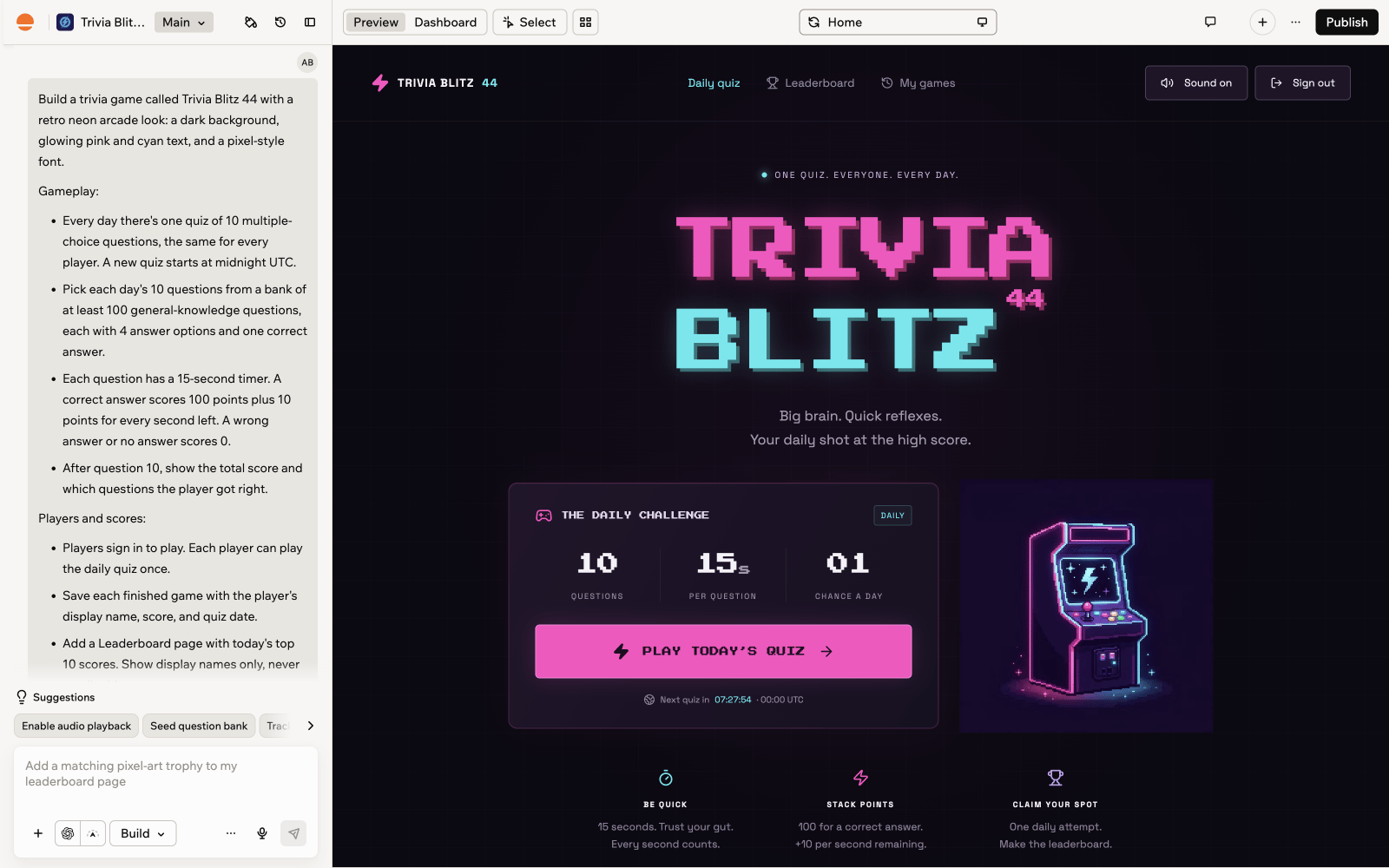
A game in the app editor preview
The trivia game in this step saves its scores through backend functions, which need the Builder plan or above.
Step 2 | Protecting your game data
Saved scores give players a reason to come back, and a leaderboard only works if players can trust it. Your game’s data permissions decide who can see and change what your game saves, such as scores, progress and player details. When your prompt says who can see and change scores, the AI sets the permissions for you. In this trivia game, each player sees only their own games, and only the app’s backend functions can save or change a score. The leaderboard shows display names and scores only, as the prompt asked. Learn how to change data permissions and test them in preview.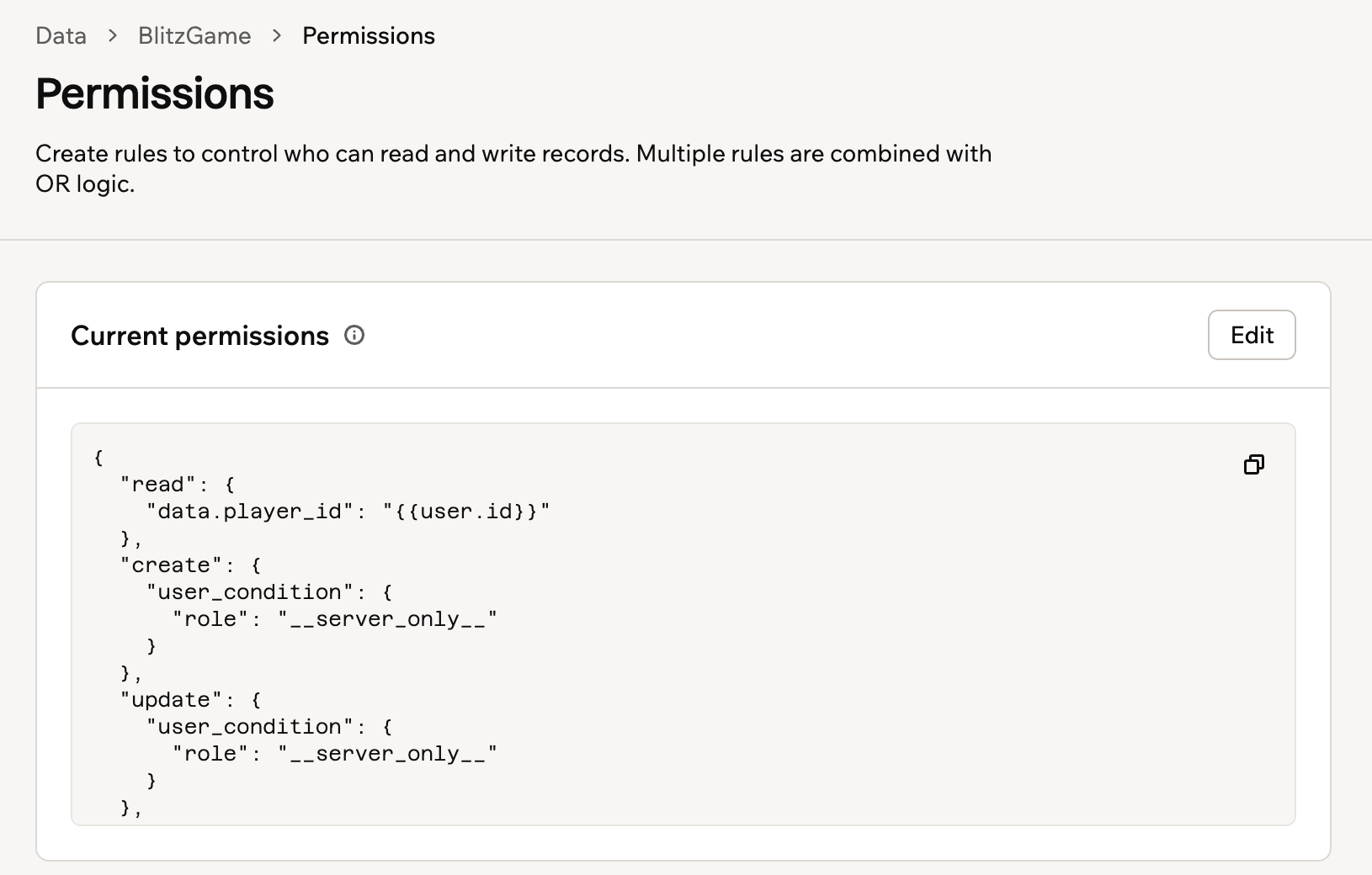
Data permissions for players
- Go to your app editor.
- Click Dashboard.
- Click Data and then select the table that stores your scores.
- Click Permissions.
- Compare these permissions with the rules in your prompt. If they don’t match, describe the change in the AI chat.
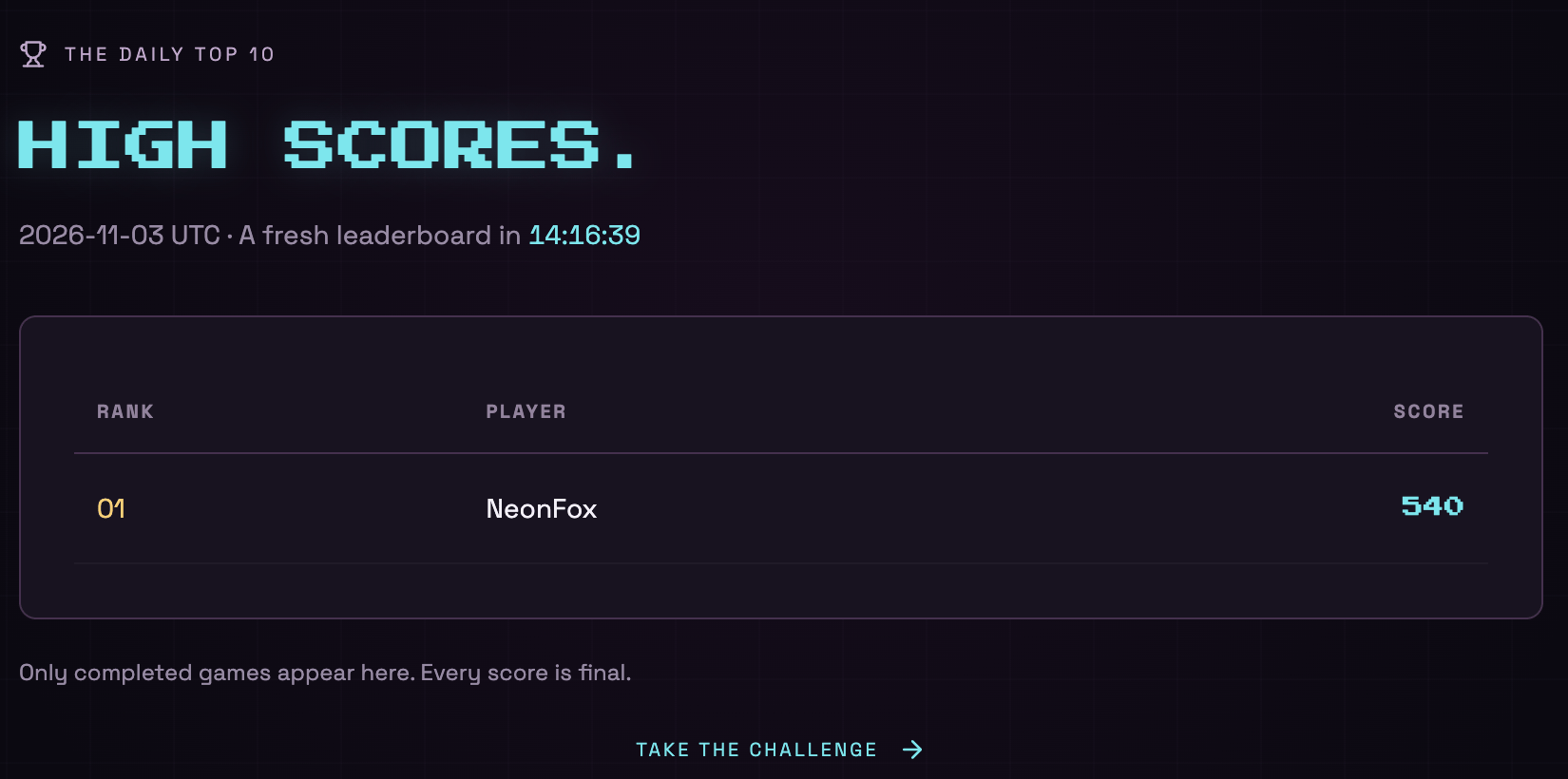
A leaderboard with display names and scores
Step 3 | Designing your game
Give your game its look, sound and feel in the AI chat. To add an image, describe it and where it goes in one message, and the AI generates it and adds it to your page. For example, this prompt added an arcade cabinet to the trivia game’s home page: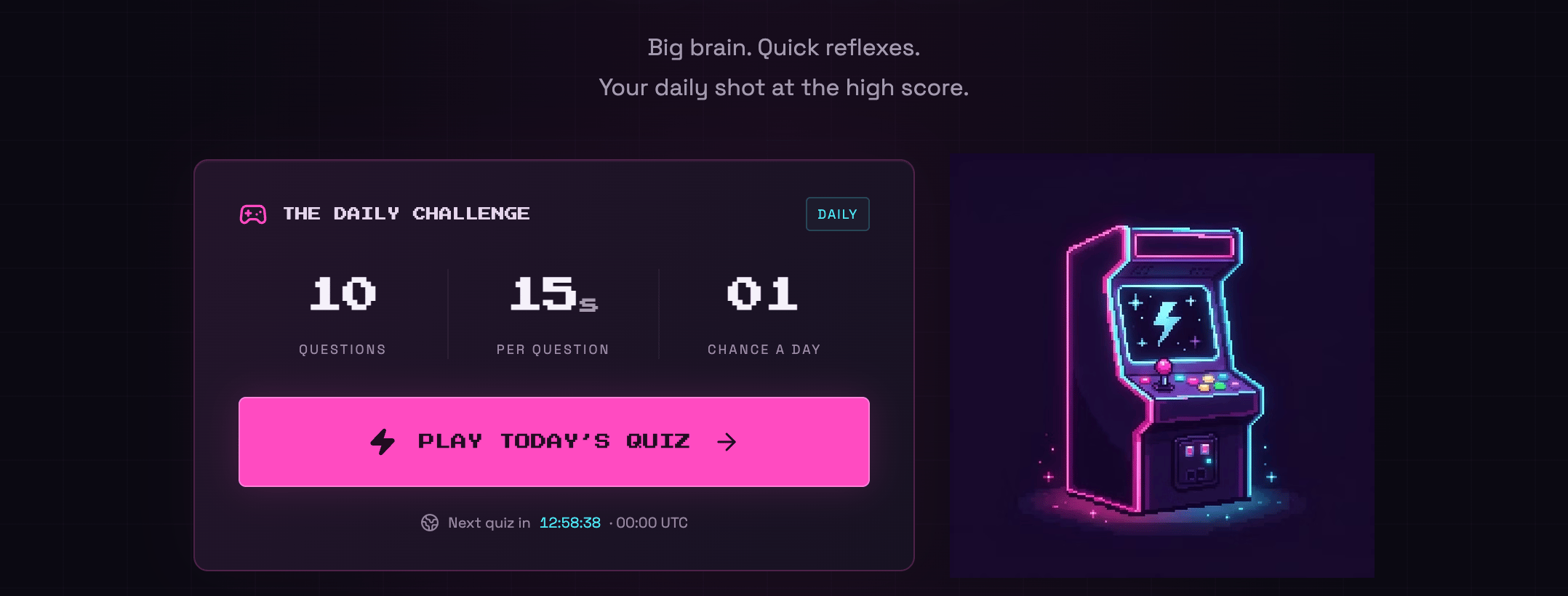
A generated image on a game's home page
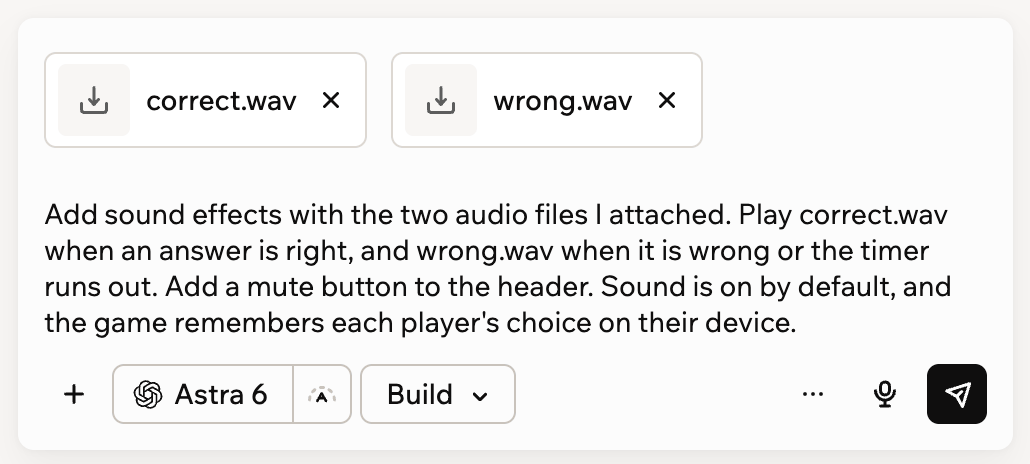
Attached sound files
- Go to your app editor.
- Click the Add icon in the AI chat.
- Click Upload from computer.
- Select your audio files.
- Describe when each sound plays and then send your message.
Sound files you upload in the AI chat stay private. When the AI adds them to your game, it saves public copies. Learn more about how chat attachments work.
Step 4 | Testing your game
Test your game before you share it, so you can check that each rule works the way you described it. Play it like a new player would, then compare what happens with your prompt. Test data keeps trial scores separate from your live data, and it’s available on the Builder plan or above. To test your game:- Turn on test data in your app settings.
- If your game keeps content like questions in its data, add it to the test data.
- Switch the preview to test data before you play trial rounds.
- Play your game and check each rule:
- Scoring: Play a round and check each score against your rules, such as a correct answer with time left and a timed-out question.
- Resets: Come back after your reset time and check that a new round is waiting, such as the next daily quiz.
- Repeat attempts: Finish a round, then try to play again, and check that the game follows your replay rule.
- Saved history: Open your past games and check that the score and date match the round you played.
- Each player’s access: Act as a second player and check that they see only what your rules allow, such as their own games.
- Leaderboard contents: Check that the leaderboard shows only what your rules allow, such as display names and scores with no email addresses.
- Sound and mute: Play with sound on, then mute it and reload the page to check that the game remembers your choice.
- Mobile layout: Switch the preview to mobile view and check that questions, answer buttons and results fit the screen. After you publish, play a round on a phone too.

A finished round with its score
Step 5 | Publishing your game
Publish your game to get a link you can share with players. Your app visibility decides who can open it, and a Public game can still ask players to sign in before they play. Learn how to set your app visibility and require sign-in on some pages of a public app. To publish your game:- Go to your app editor.
- Click Publish in the top bar.
- Under App visibility, choose who can open your game.
- Click Publish.
Building App Store and Google Play files needs the Builder plan or above. To prepare them, click the Mobile app tab. Learn more about submitting your app to app stores.
Step 6 | Promoting your game
Once your game is live, you can promote it to reach more players and get feedback.Submit to Launchpad
Share your game with the Base44 community.
Promote your game
Create social posts that bring new players.
Join the Base44 Discord
Share your game and get feedback from other builders.
FAQs
Can I build a multiplayer or 3D game?
Can I build a multiplayer or 3D game?
Yes, the AI can build live multiplayer games, where players join the same game room and see each other’s moves as they happen, and 3D games built with three.js. Describe how players join, take turns or compete, or what your 3D world looks like, in the AI chat. Live game rooms run on backend functions, which need the Builder plan or above.
How do I reset scores or the leaderboard?
How do I reset scores or the leaderboard?
To clear every score, open Data in your app’s dashboard, click the More actions icon on your scores table’s card, and click Clear table records.This moves the records to the trash, so you can restore them from Recently deleted in the same menu.To fix one score, click its row, change it and save your changes.If you turned on test data, choose Production or Test on the Data page before you clear or edit scores, so you change the right ones. If your game needs regular resets, such as a weekly leaderboard, ask the AI chat to add one. Learn more about editing and deleting data.
Can players play without signing in?
Can players play without signing in?
Yes, a Public game lets anyone play without an account. Without sign-in, your game can’t tell players apart, so it can’t keep each player’s past games or show their name on the leaderboard. To save each player’s scores, ask the AI chat to have players sign in. Learn how to set your app visibility.
How do I charge players for my game?
How do I charge players for my game?
Set up payments with Base44 Payments or Stripe, then ask the AI chat to add a checkout where players pay. Both need the Builder plan or above.If you publish your game to the App Store or Google Play, don’t sell digital content in the mobile app, such as premium tiers, unlocked levels or virtual currency. Apple and Google require their own in-app purchase systems for it, and Base44 apps don’t support them. Learn more about selling in your app.
How do I stop players copying my game?
How do I stop players copying my game?
When your game is public, the “Edit with Base44” badge at the bottom right lets anyone copy it into their own account and edit their own version. Hiding the badge removes this copy shortcut from your public game. You need the Starter plan or above to hide it. Learn how to show or hide the badge.