

Build from anywhere
Bring your team
Keep your GitHub workflow
Multiple AI models
Importing your project
Import a repository from your connected GitHub account or paste a repository URL. Base44 checks it, creates the project, clones the code, configures it, and starts the preview. Connect your GitHub account to save your work.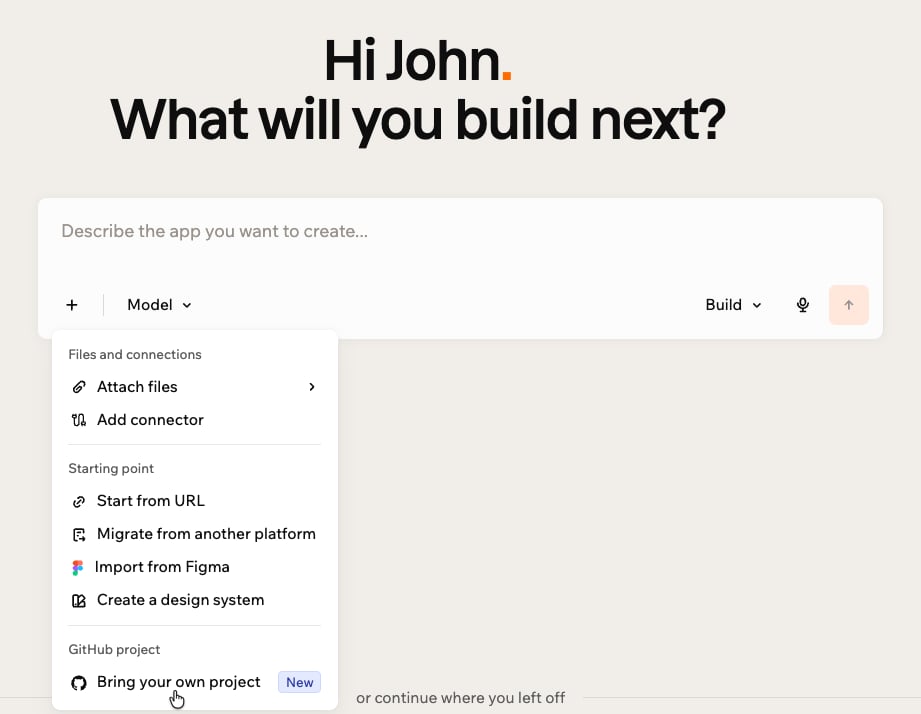
Bringing your GitHub project to Base44
- You need to be an owner, admin, or editor in the Base44 workspace where you want to import the project to.
- Your project runs as a web service on Base44, so your repository must be a web or full-stack app that can be built and run from source in Docker, such as a frontend with an API or a server-rendered site.
- For private repositories, install the Base44 GitHub App so it can access the repository.
- Your workspace can limit Editors to importing repositories from approved GitHub organizations. If a repository is not in an approved organization, ask a workspace owner or admin to add it under Settings > Governance > GitHub organizations. Workspace owners and admins can import from any GitHub organization.
From your GitHub account
Import directly from a repository in your connected GitHub account. If you don’t own the project, paste a link instead and Base44 creates a copy you own. To import from your GitHub account:- From the Base44 home page, click the + icon in the prompt box.
- Click Bring your own project.
- Connect your GitHub account if it is not connected yet.
- Choose the repository to import.
- Click the Branch drop-down to select a starting branch. Base44 uses your default branch if you don’t choose one.
- Click Import.
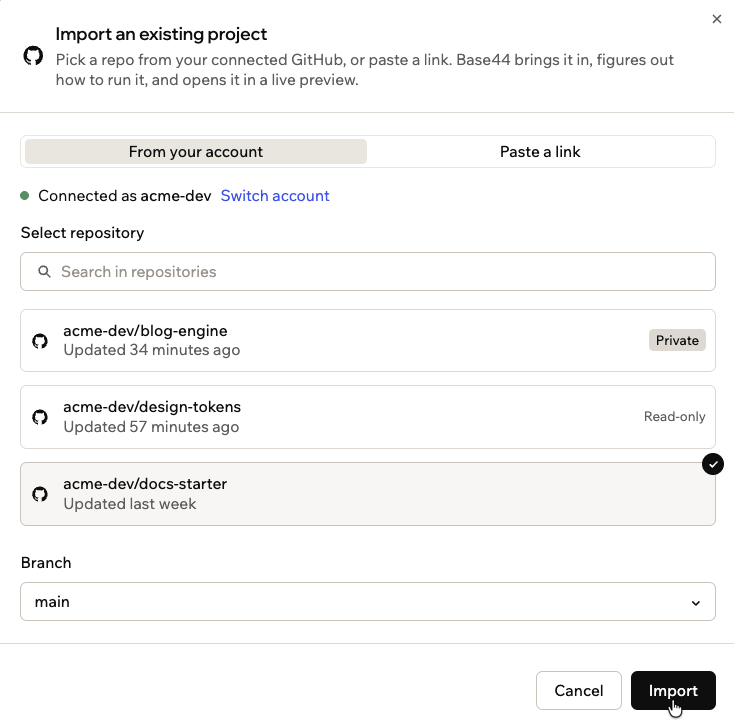
Importing a project from your GitHub account
From a repository URL
Paste a GitHub repository URL to import a repository, public or private. Base44 checks your access to it, then either imports it directly or creates a copy in your GitHub account first. When the original is private, your copy is private too. To import from a repository URL:- From the Base44 home page, click the + icon in the prompt box.
- Click Bring your own project.
- Click Paste a link.
- Paste the link to the GitHub repository.
- Choose based on your access:
- Branch: Select a starting branch if you can push to the repository.
- Your copy on GitHub: Enter a name for the copy Base44 creates if you can’t push to the repository, then choose its visibility:
- Fork (public): Linked to the original, so you can send your changes back to it.
- Private copy: Only you can see and edit it, and it is not linked to the original.
- Click Import. If you are creating a copy, click Fork and Import or Copy and Import.
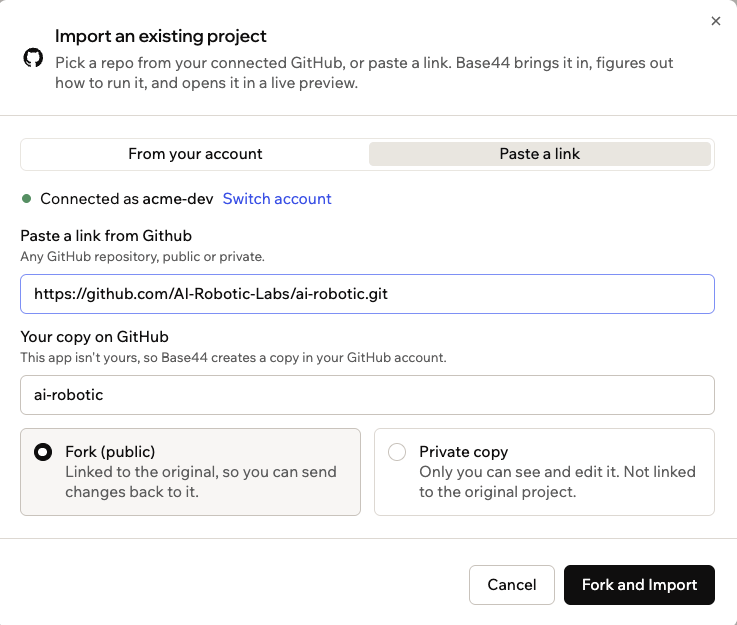
Importing a project from a repository URL
Limiting repositories to approved GitHub organizations
Your workspace can restrict which GitHub organizations its repositories come from. When GitHub organizations is on, apps in the workspace can only create or import repositories in the organizations you approve. Apps that are already connected to GitHub aren’t affected.- Click your workspace name at the bottom left of your account.
- Click Settings.
- Click Governance.
- Turn on the toggle next to GitHub organizations.
- Under Allowed organizations, select each organization you want to approve.
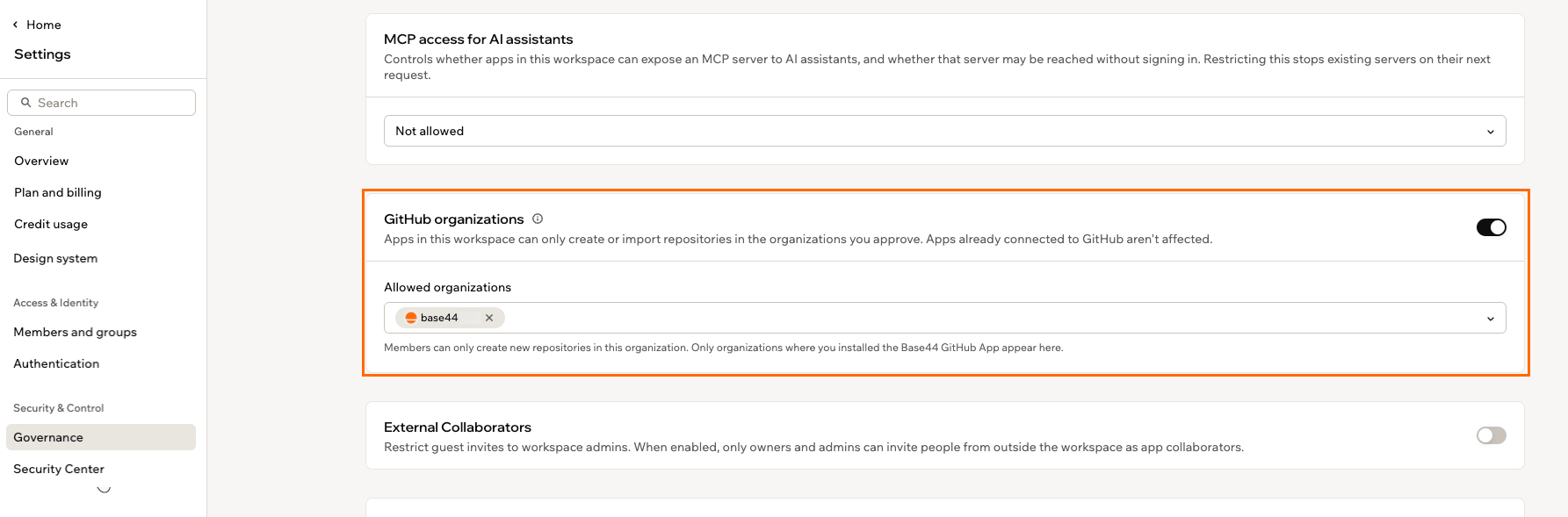
Approving GitHub organizations in your workspace Governance settings
Working on your project
When your project import is complete, continue building with the AI chat and see your changes in Preview. Switch to Dashboard to browse your files in Code and manage the values your project needs to run in Secrets.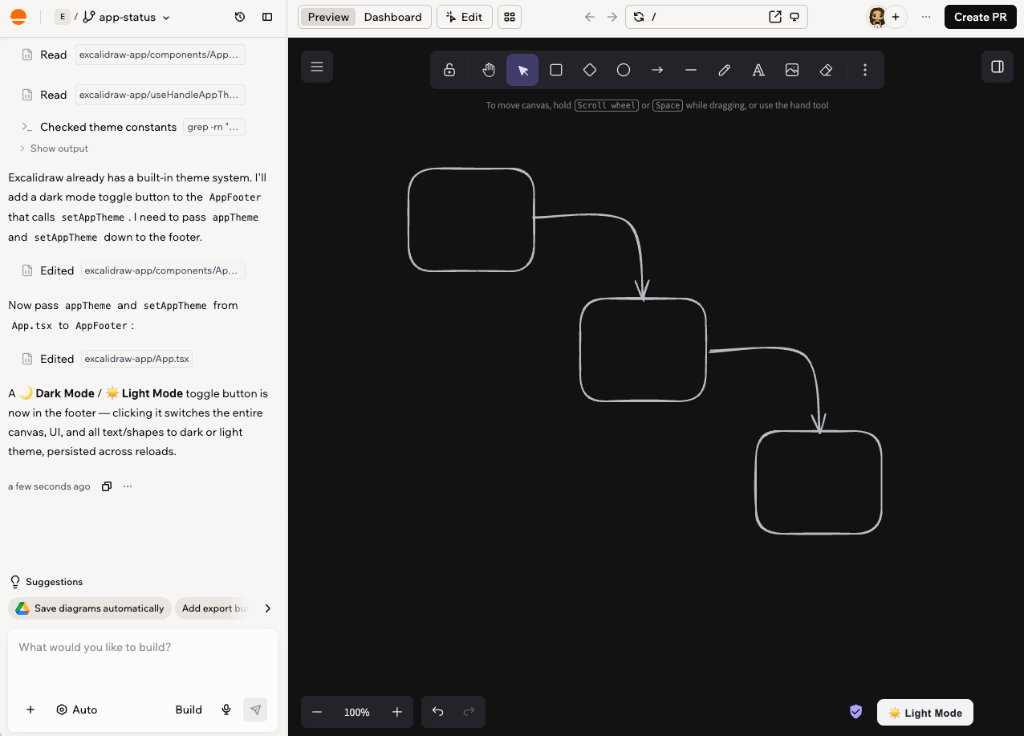
An imported project running in the app editor
Saving your work
Base44 saves your work as you go. When you import, it creates its own setup branch namedbase44/setup- followed by a short ID, and runs setup there. From then on, it commits and pushes to the branch you’re working on each time the AI chat finishes a change. Branches you create later get short descriptive names, like dark-mode-toggle. Your default branch is never touched.
If you imported a public repository without connecting GitHub, your app runs in local mode. Nothing is committed or pushed, and Create PR is disabled. Edits you make yourself in Code are committed the next time the AI chat finishes a change.
An imported project uses the git branches in your repository directly, so git stays the source of truth. Branches work the same as they do in any Base44 app, with a few differences. There is no merge or update from your default branch inside Base44, all branches share one sandbox, and deleting a branch in Base44 leaves the branch on GitHub. See working with branches.
Resolving sync conflicts
If your repository and your Base44 app both change the same file, the sync leaves a conflict. The AI chat raises a card for it, reads every conflicted file, and rewrites each one so both sides’ changes survive, then pushes the result back to your repository as a merge commit. Where the two versions genuinely disagree, such as when each side implemented the same feature differently, the AI asks you which behavior you want before it writes anything.Approving writes to your repository
When the AI needs to write files straight to your connected repository, it asks you to approve first rather than pushing on its own. Review what it plans to do, then approve or reject it in the chat.Adding secrets
When your project needs an API key or other secret to run, the AI chat asks you for it. Give it the value, and Base44 stores it encrypted and applies it every time your project starts, including after a rebuild. It is never committed to your repository, and it is shared across all branches, so you enter each one only once. You can also add and manage secrets in your app’s dashboard. To add a secret:- Go to your app’s dashboard.
- Click Secrets.
- Click Add Secret.
- Enter the Secret Name and Secret Value, then click Add Secret.
Shipping your work
Every change is committed bybase44-builder[bot]. A shared branch produces one pull request for the whole team, and separate branches each get their own. Teammates with editor access share the project and its secrets.
Opening a pull request
The pull request goes from your working branch into the branch it was created from, with a note crediting Base44 and a link back to your project. The setup pull request always goes into the branch you imported. Once the pull request is open, your changes keep saving to the same branch so reviewers always see your latest work and any checks run again on each push. To open a pull request:- Click Create PR at the top of the editor.
- Enter a Title and a Description (optional).
- Click Create PR.
Answering review comments
Handle your reviewers’ feedback from the AI chat, without leaving Base44. Ask the AI chat for the review comments on your pull request, and it lists each unresolved thread with the file and line it points at. Tell it what to change, and it drafts a change and a reply for each one. Nothing is posted to GitHub until you approve that specific draft. Resolving the thread is a separate step you ask for. You can also ask it to comment on the pull request itself. Everything it posts appears asbase44-builder[bot]. Merging happens on GitHub, exactly as it does today.
FAQs
Click a question below to learn more about importing and working on a GitHub project.Does Base44 change my default branch?
Does Base44 change my default branch?
What happens if I close Base44 and come back later?
What happens if I close Base44 and come back later?
Can I import a repository I only have read access to?
Can I import a repository I only have read access to?
Why does Base44 say my repository is not in an approved GitHub organization?
Why does Base44 say my repository is not in an approved GitHub organization?
My repository is a monorepo. Can I import it?
My repository is a monorepo. Can I import it?
Can I import a mobile or desktop project?
Can I import a mobile or desktop project?
Can I import a Base44 app I exported to GitHub?
Can I import a Base44 app I exported to GitHub?
Can I use Base44 entities, login, or the SDK in an imported project?
Can I use Base44 entities, login, or the SDK in an imported project?
Can I add a database, authentication, or CI/CD to my project?
Can I add a database, authentication, or CI/CD to my project?
Can I click an element in the preview to edit it?
Can I click an element in the preview to edit it?
How is this different from connecting my Base44 app to GitHub?
How is this different from connecting my Base44 app to GitHub?