

How version history works
Data version history runs automatically on eligible plans, so there is nothing to switch on. As your data changes, Base44 saves earlier versions so they are available to review, download, and restore. Data version history applies to Base44-managed entity data.Viewing versions
Each entity keeps its own version history, with the newest version at the top. Open it from the entity in your app’s data dashboard. To view an entity’s versions:- Click Dashboard in your app editor.
- Click Data, then select the entity you want.
- Click the More Actions icon and select Data version history.
- Use the date filter to narrow the list to the period you want.
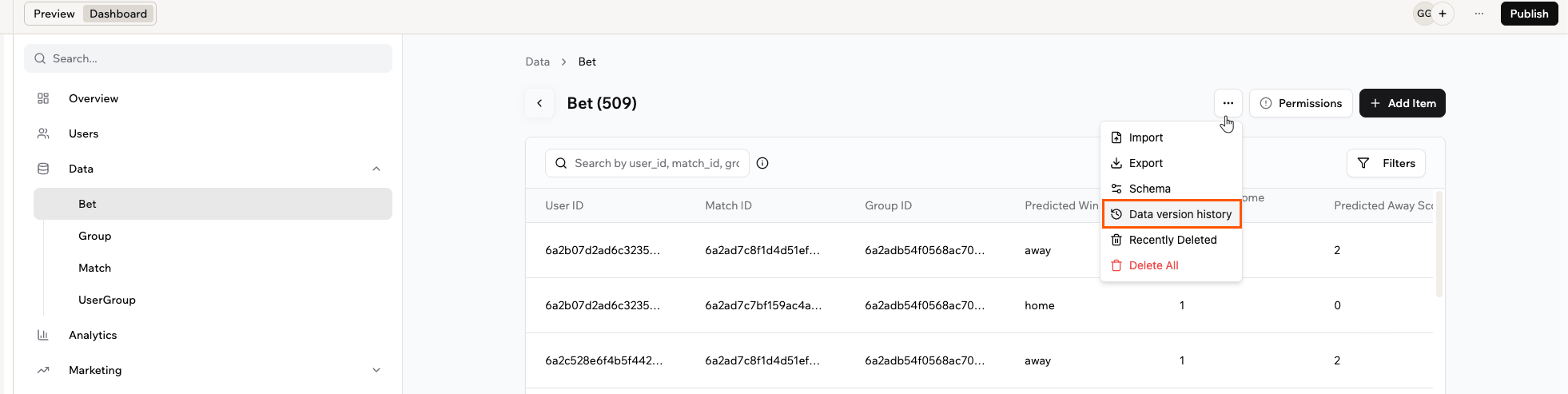
Opening data version history for an entity from the Data tab
Restoring a version
Restoring replaces the entity’s current data with the data from an earlier version.Running a restore
Restore from the version history of the entity whose data you want to roll back. To restore a version:- Click Dashboard in your app editor.
- Click Data, then select the entity you want.
- Click the More Actions icon and select Data version history.
- Find the version you want, using the date filter if needed, then click the Restore icon .
- Review the confirmation, then click Restore data.
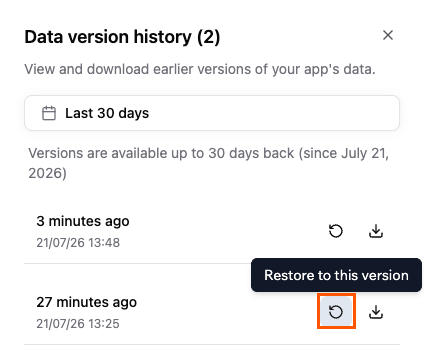
Restoring an earlier version of an entity's data
Base44 saves your current data as a backup version before a restore. To undo a restore, open the version history again and restore that backup.
What a restore changes
A restore rewrites the records in the table you selected so they match the version you picked. Nothing else in your app changes.- Record IDs stay the same. Records that were changed or deleted keep the ID they had before, so links from other tables still point to the right record.
- Field values are restored exactly as they were saved at that point, including fields that link to records in other tables.
- Records added after that version are moved to trash rather than deleted for good, so you can restore them from there within 30 days.
- Only the table you selected is restored. Every other table keeps its current data, so to roll related tables back together, restore each one to a version from the same point in time. Otherwise a link can end up pointing at a record that no longer exists.
- Restores run on production data only. If you are viewing test data, switch to production first.
If the table’s structure changed after the version you picked, Base44 warns you in the confirmation window. Fields that no longer exist in your table are not restored.
Downloading a version
Download an earlier version as a CSV file to keep a copy of that data outside Base44 or to review it separately. To download a version:- Click Dashboard in your app editor.
- Click Data, then select the entity you want.
- Click the More Actions icon and select Data version history.
- Find the version you want, using the date filter if needed, then click the Download icon to save it as a CSV file.
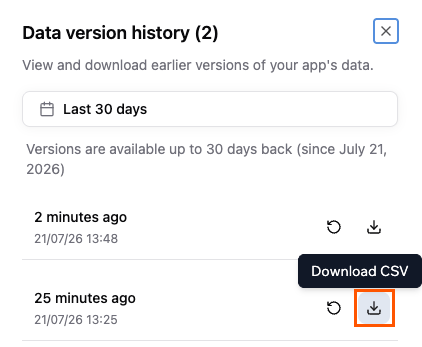
Downloading an earlier version as a CSV file